
Use this guide when you sell one product in more than one size — for example a piece, a carton, and a larger pack. You set the small unit first (Piece), then add bigger units with how many pieces are inside and the price for that pack.
Unit prices needs a Plus or Premium plan. The product must be simple — choose No, it doesn’t have variations. Fill the name, photos, and category first if you have not — see How to upload your products on Posa.
1. Open Inventory
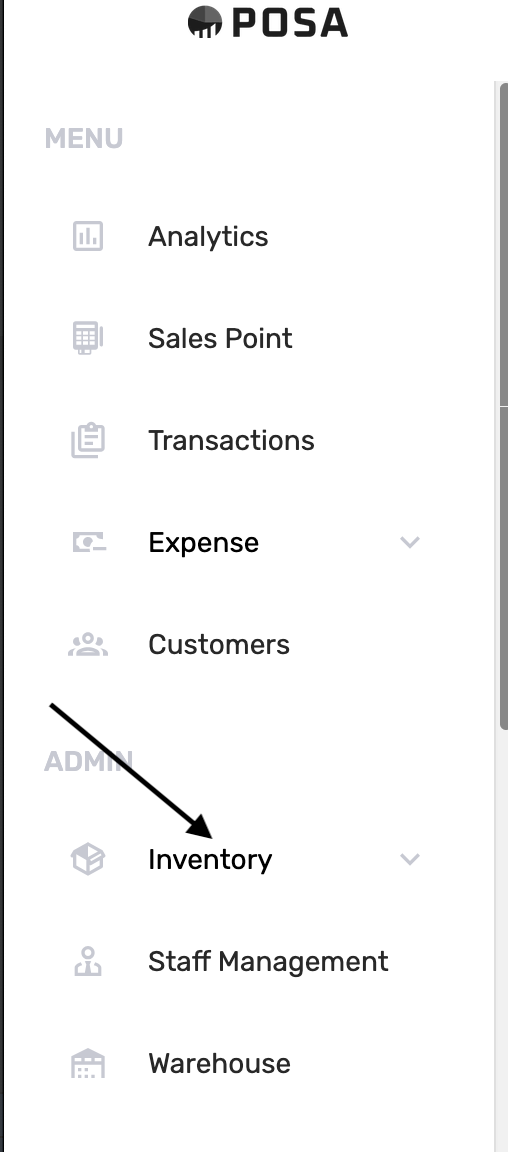
On the left sidebar, find ADMIN and click Inventory. This opens the inventory menu.
2. Go to Products
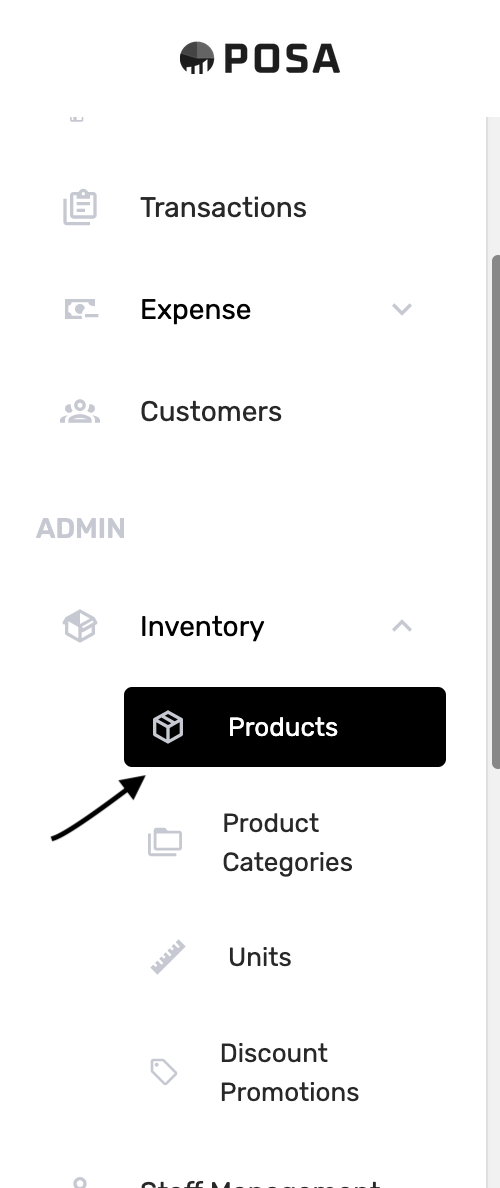
Click Products. The menu item turns black when it is selected.
3. Click Add product
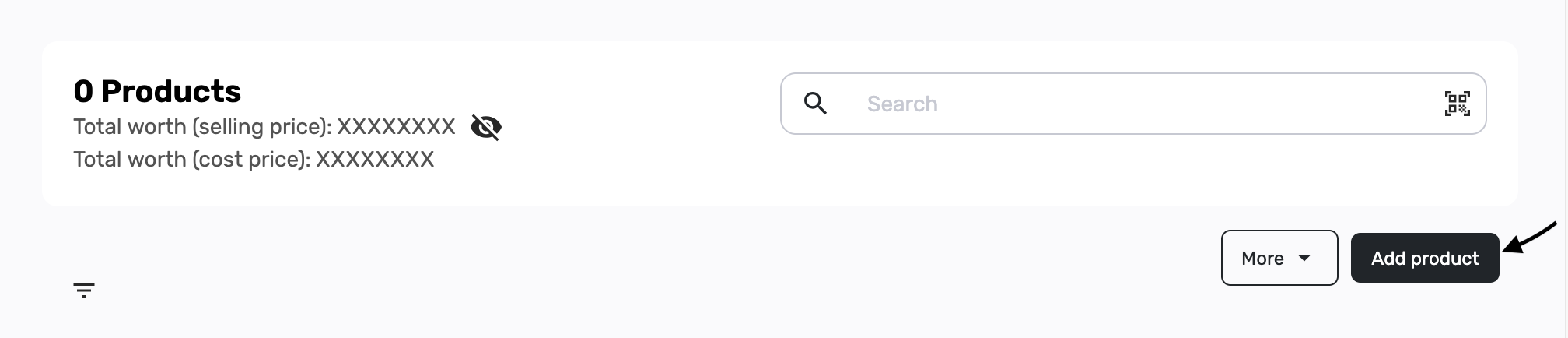
On the right, click Add product. A page titled Add Product opens.
4. The Add Product page

Enter the product name and the other details you need. This guide starts from Minimum Unit and Other unit prices — the fields that set wholesale prices.
5. Skip variations

Choose No, it doesn’t. Other unit prices only shows for a simple product. If you pick Yes it has, you will not see this wholesale setup on the add-product page.
6. Set the piece selling price

Enter the price for one piece — the small unit. Posa copies this into Selling price per Piece when you open Other unit prices.
7. Choose a minimum unit

Minimum Unit is the smallest way you sell the item. Pick Piece. You must choose this before Other unit prices will open.

Open the dropdown and pick Piece if it is not already selected. Carton and other pack sizes are added in the next step, not in this list.
8. Open Other unit prices
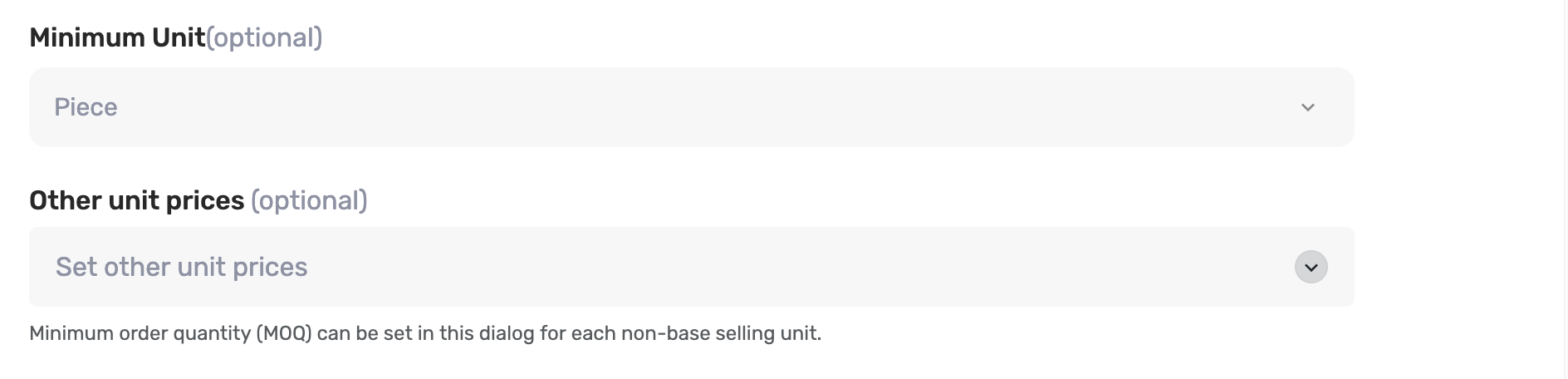
Under Minimum Unit you should see Other unit prices (optional). The grey row says Set other unit prices. Under it, Posa notes that a minimum order quantity (MOQ) can be set in this dialog.
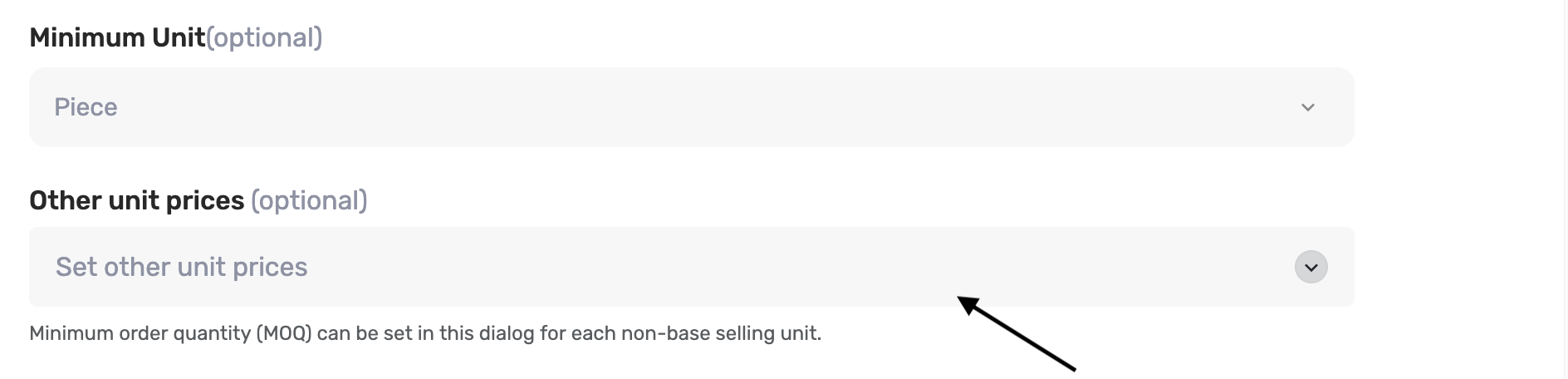
Click the row. If nothing happens, check that Minimum Unit is Piece and that you are on Plus or Premium — Posa asks you to upgrade on a lower plan.
9. The Unit Conversion window
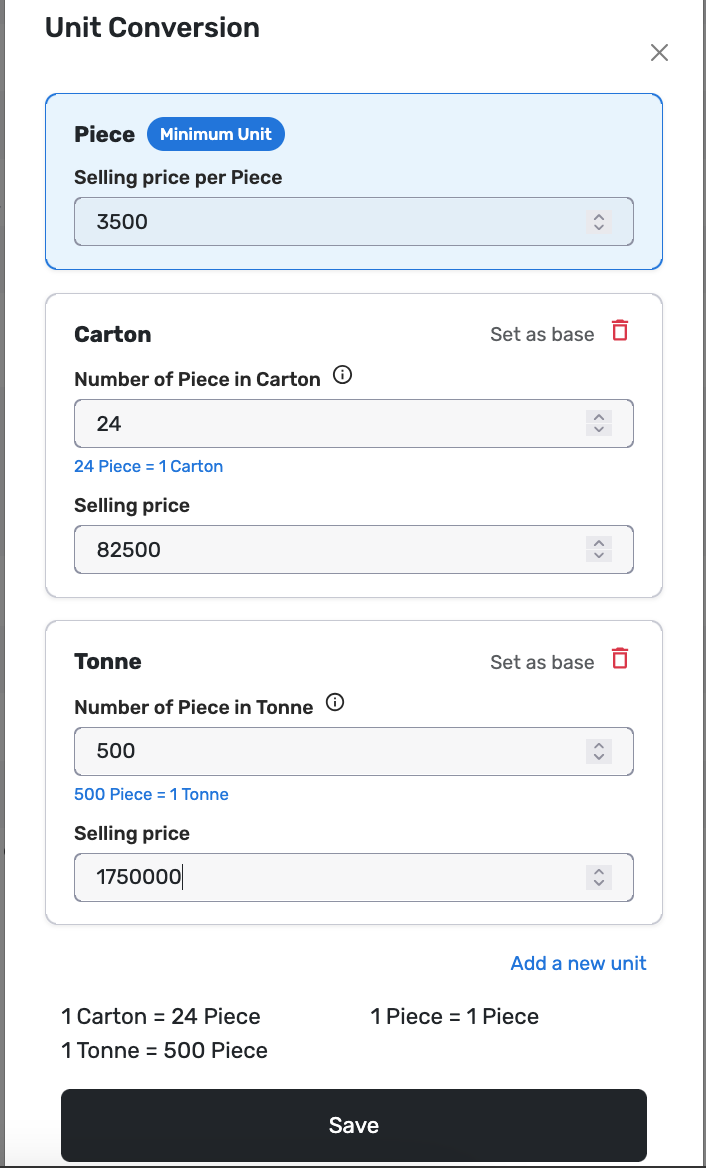
A window titled Unit Conversion opens. The blue card is Piece, with a Minimum Unit badge and Selling price per Piece — here 3500.
Each other card is a pack you sell. Type how many pieces are in that pack, then the selling price for the whole pack. In this example: Carton is 24 Piece = 1 Carton at 82500, and Tonne is 500 Piece = 1 Tonne at 1750000. Leave Set as base and the red trash icon — you do not need them for this guide.
10. Add a new unit if you need one
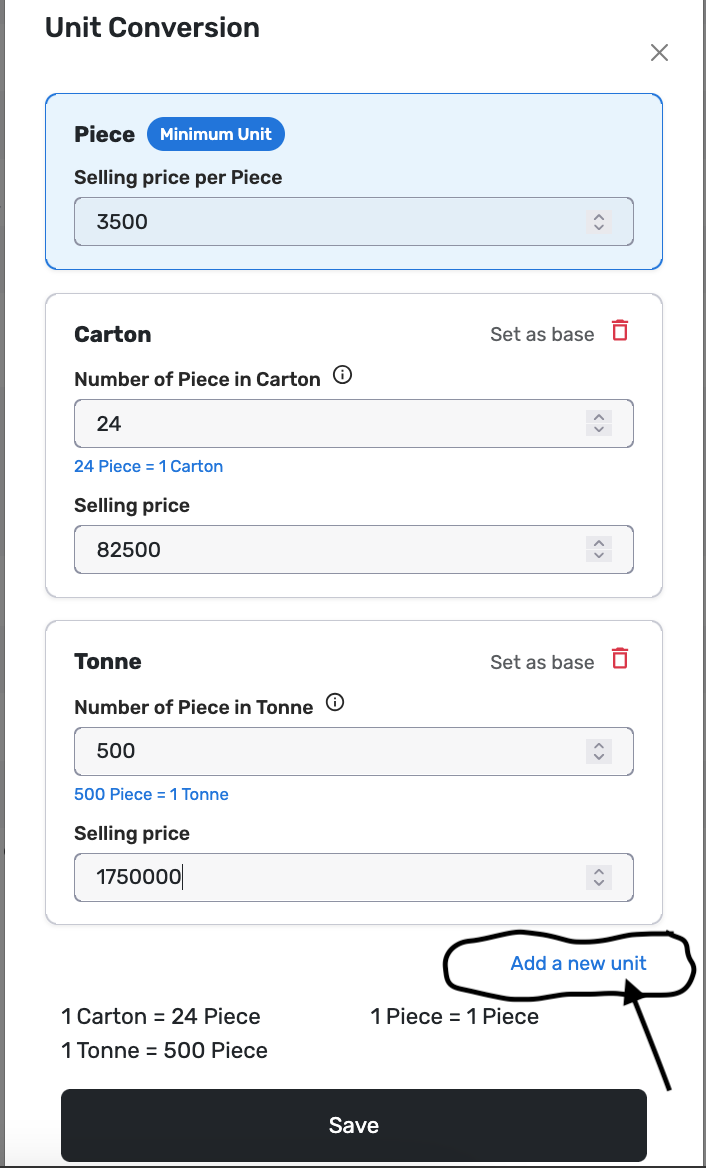
If Carton or another pack is already in the list, skip this step and fill its numbers. If the pack you sell is missing, click Add a new unit.
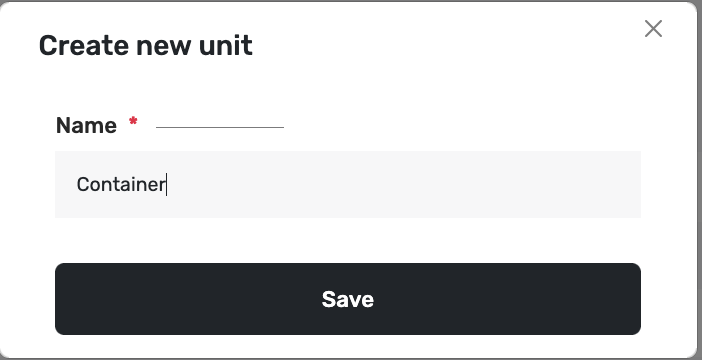
A window titled Create new unit opens. Type a Name — for example Container — then click Save. The new unit appears in Unit Conversion so you can set its conversion and price.
11. Fill every pack you sell
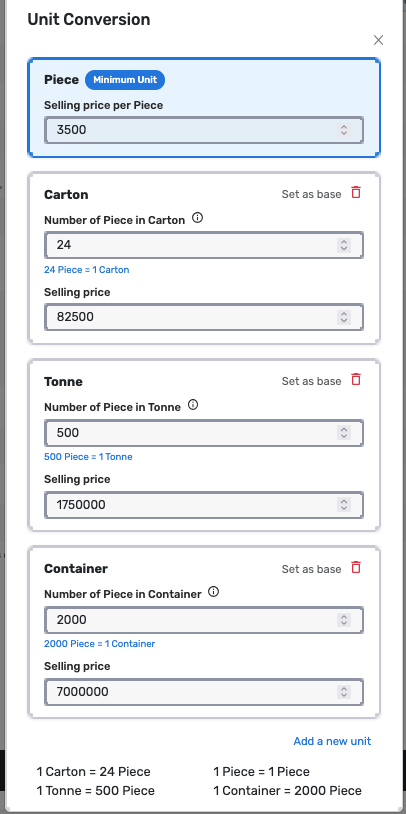
Complete each card. In this example Container is 2000 Piece = 1 Container at 7000000. Every pack needs a conversion number and a selling price, or Save will say Incomplete information detected.
12. Check the conversion summary
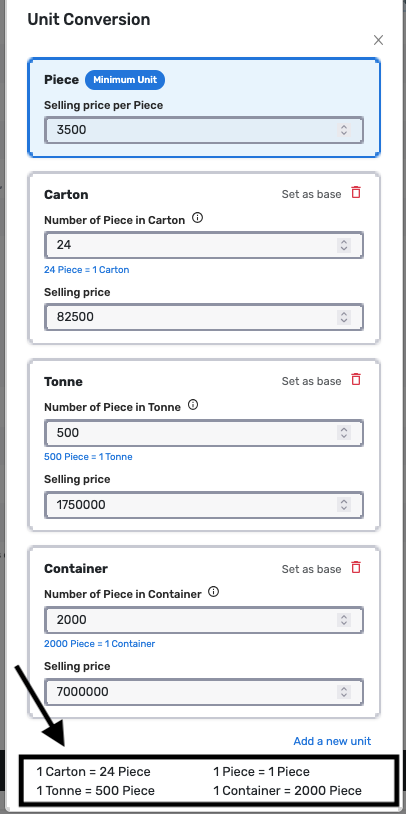
At the bottom of the window, Posa lists the same conversions: 1 Carton = 24 Piece, 1 Tonne = 500 Piece, 1 Container = 2000 Piece. If you see that, the packs match how you stock the product.
13. Set a minimum order quantity (optional)

MOQ is optional. Use it if a customer must buy at least a certain number of a selling unit — for example at least 10 of a wholesale unit. You can skip this and still save the pack prices.
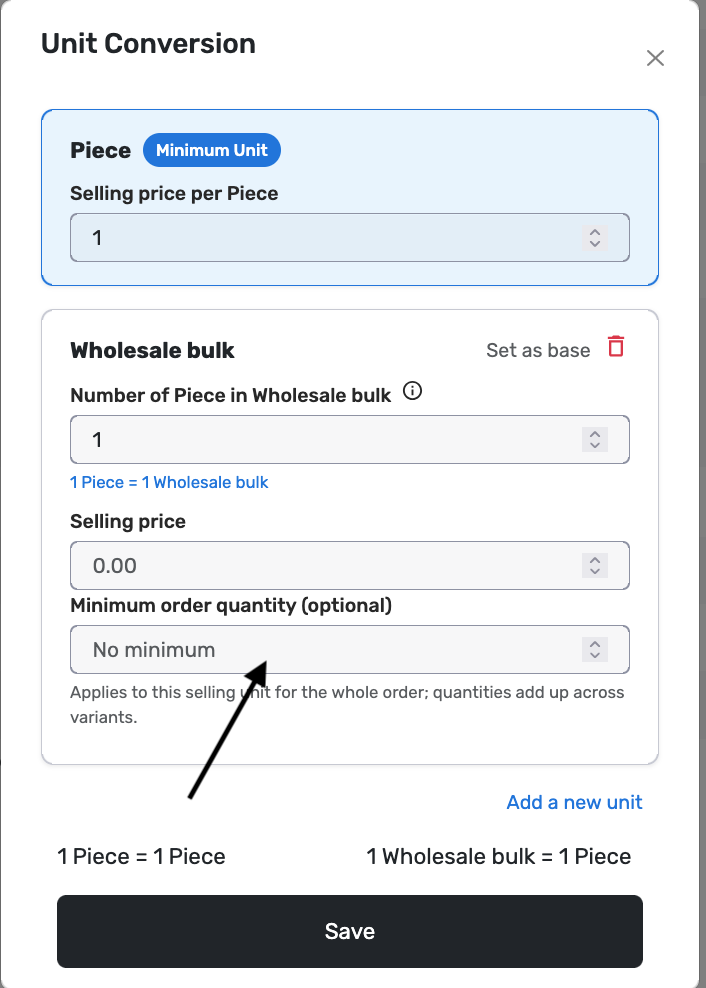
The Minimum order quantity box shows on a selling unit that is not your minimum unit, when that unit is 1 Piece — for example a unit named Wholesale bulk with 1 Piece = 1 Wholesale bulk. If you set 24 Piece in a Carton, this box does not show on Carton.
The placeholder says No minimum. The hint under the field: Applies to this selling unit for the whole order; quantities add up across variants.
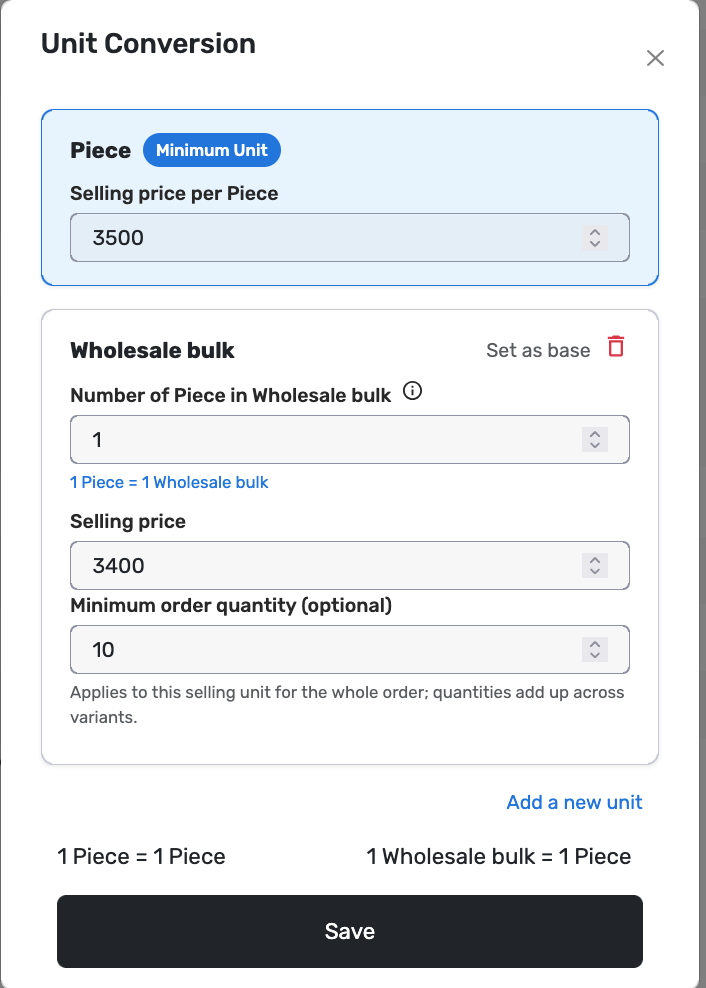
Type the smallest quantity allowed — here 10. In this example Wholesale bulk is 3400 per unit, cheaper than the 3500 piece price, and the customer must buy at least 10. Leave the box empty if any quantity is allowed.
14. Click Save

Click Save. Posa stores the conversions and prices and closes the window.
15. Confirm Other unit prices is set
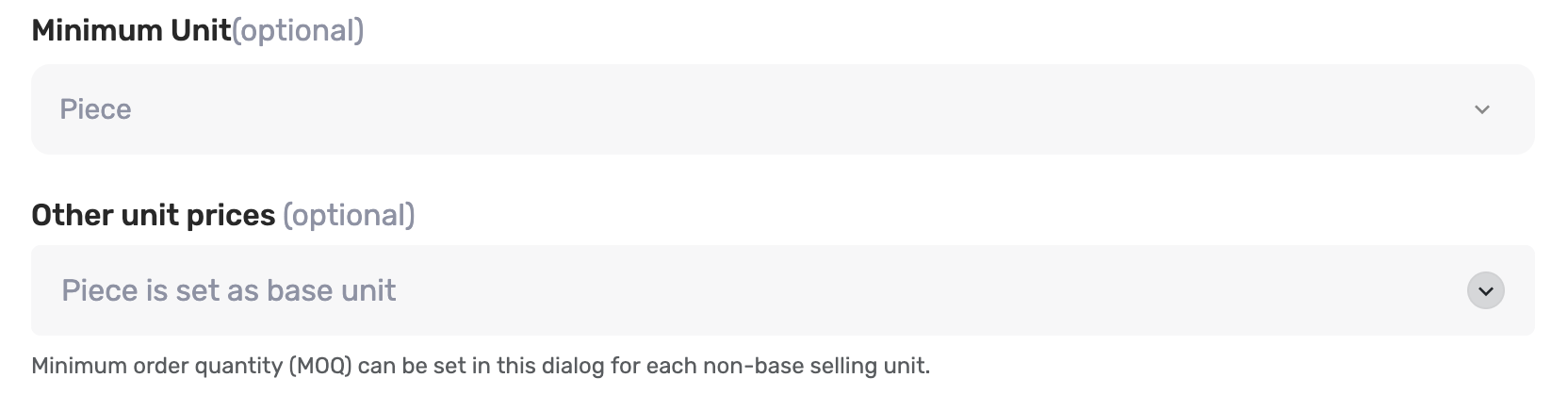
Back on Add Product, Other unit prices now says Piece is set as base unit. If you see that, the wholesale prices are attached to this product.
16. Create the product

Scroll to the bottom and click Create Product. Posa saves the item with its piece price and pack prices.
17. Sell by piece or by pack
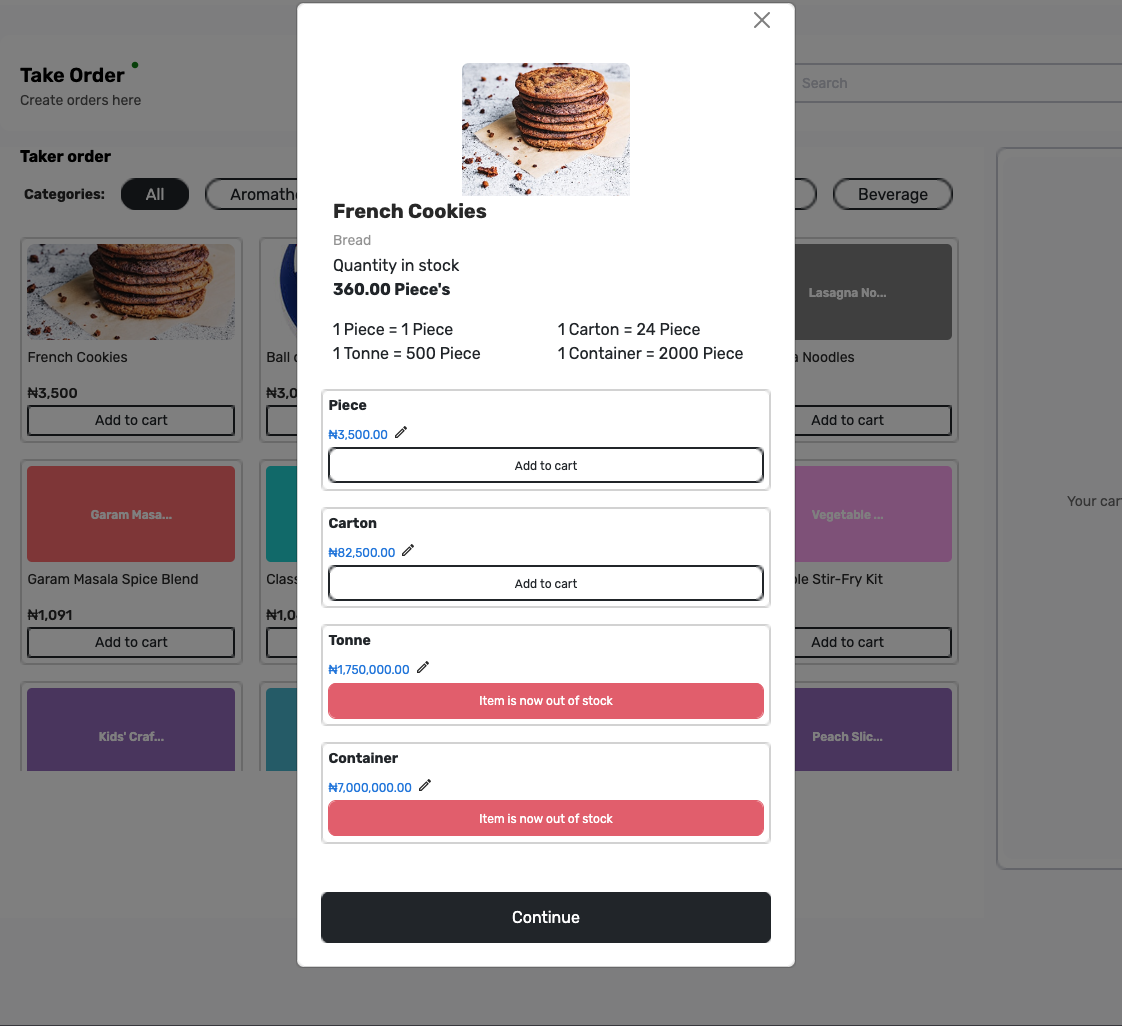
On Sales Point, click the product. You should see a card for each unit — Piece, Carton, Tonne, Container — with its price and Add to cart. Stock is counted in pieces, so a pack that needs more pieces than you have shows Item is now out of stock.
Add the unit the customer is buying. To record the rest of the sale, see How to record a sale on Posa. When new stock arrives, see How to restock a product on Posa.
18. What happens if the cart is below MOQ
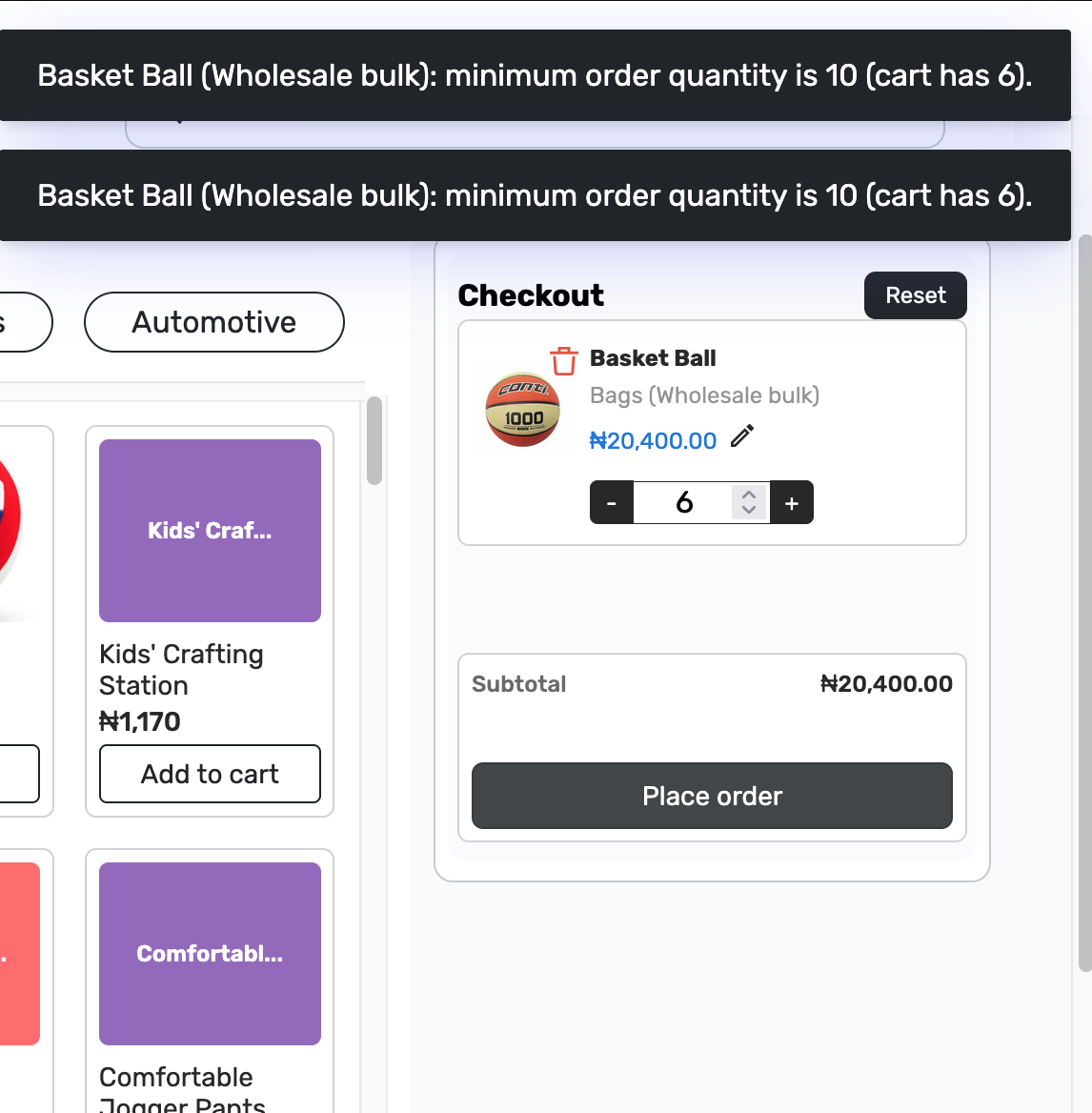
If you set a minimum order quantity and the cart has fewer than that, Posa blocks the sale. In this example the message is Basket Ball (Wholesale bulk): minimum order quantity is 10 (cart has 6). Add more of that unit, or take it out of the cart, then try Place order again.
Published by Posa Technologies · getposa.com
← More guides