
Use this guide when new goods arrive and you need to add them to a product that is already in Posa. You open the product, click Restock Product, type how many you received, and Submit. Stock goes up by that amount.
You need a product first. If you have not added one yet, see How to upload your products on Posa. Do not use Transfer Stock or Warehouse for this guide.
1. Open Inventory
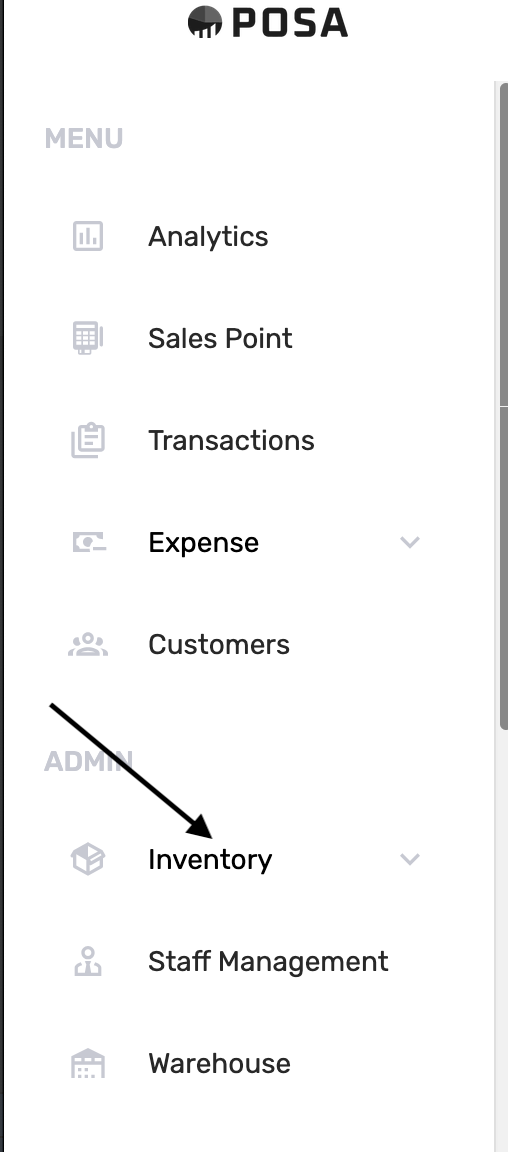
On the left sidebar, find ADMIN and click Inventory. This opens the inventory menu.
2. Go to Products
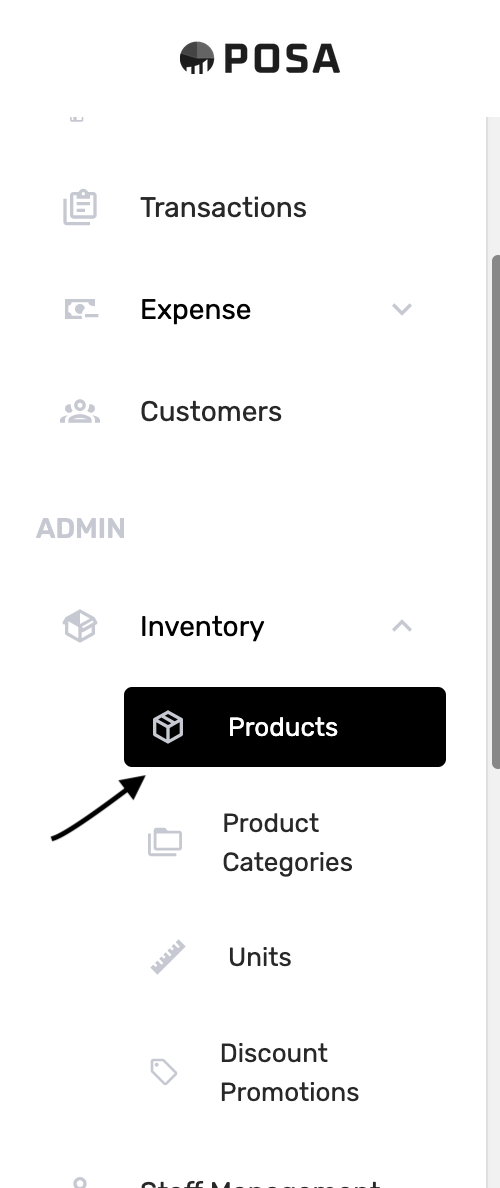
Click Products. The menu item turns black when it is selected.
3. Open the product
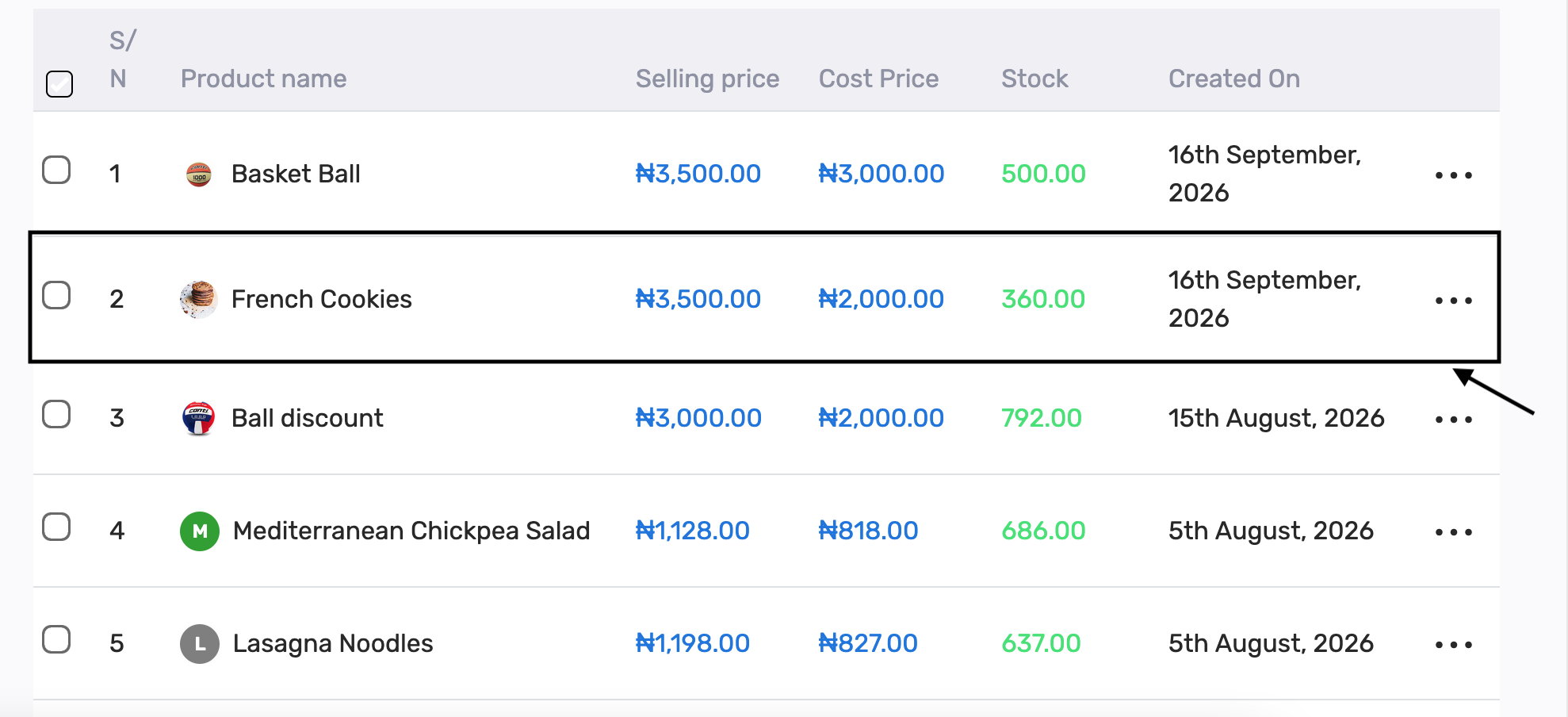
On the Products list, click the product name — here French Cookies. The Stock column shows how many you have now. In this example it is 360.
4. Check the current stock
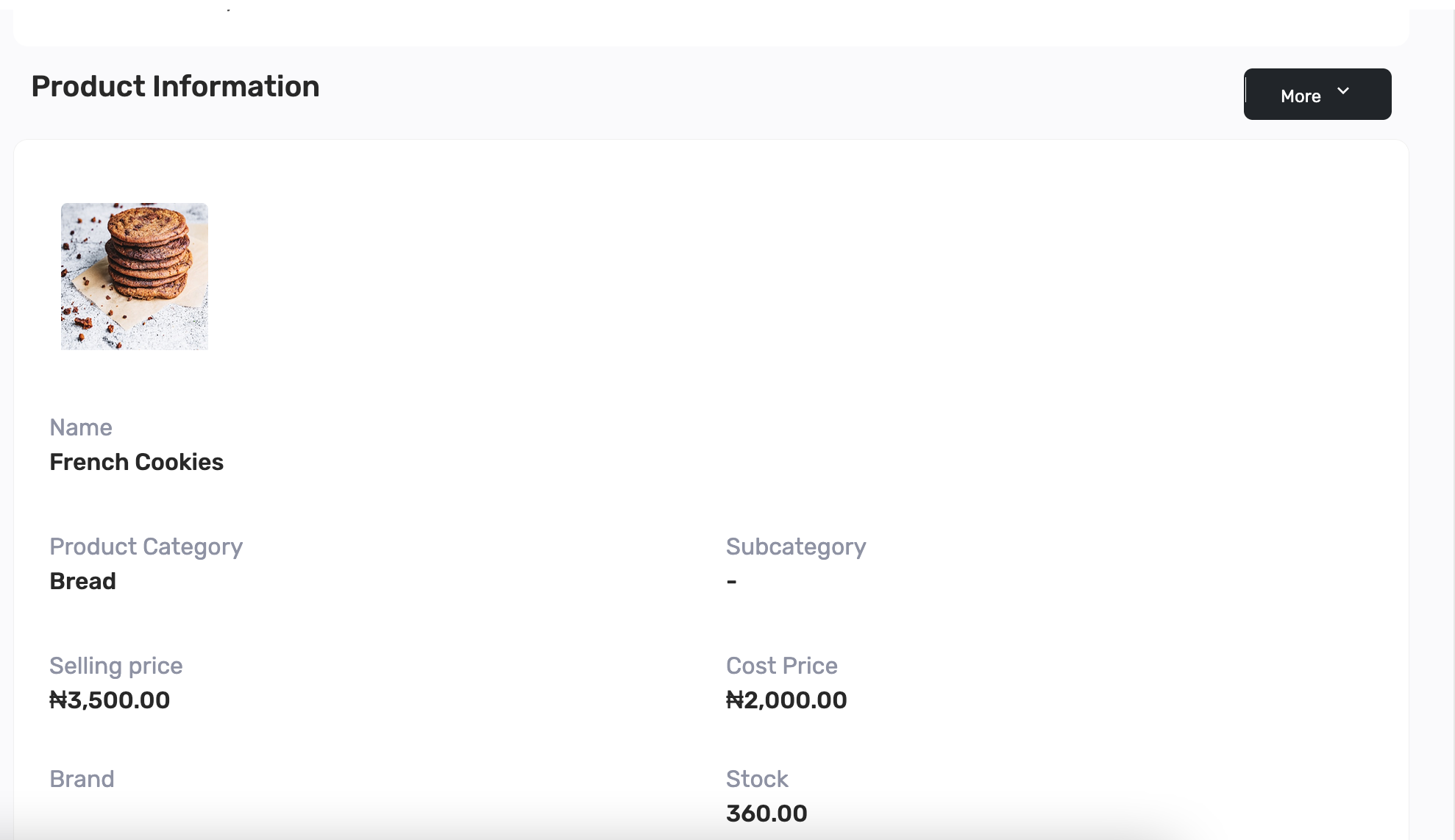
You should see View Product Information. Stock is on the right — 360.00 in this example. More is at the top right. If you see that, you are in the right place.
5. Click Restock Product
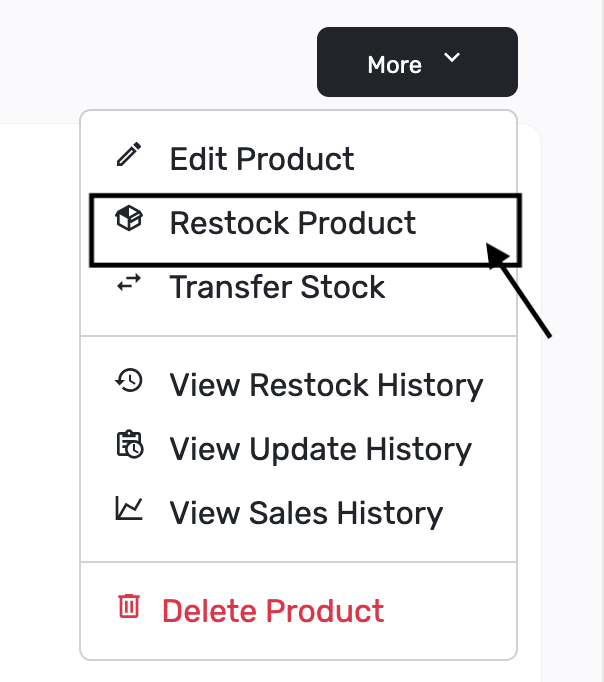
Click More, then click Restock Product. Leave Transfer Stock, the history items, and Delete Product for another time.
6. The Product restock window
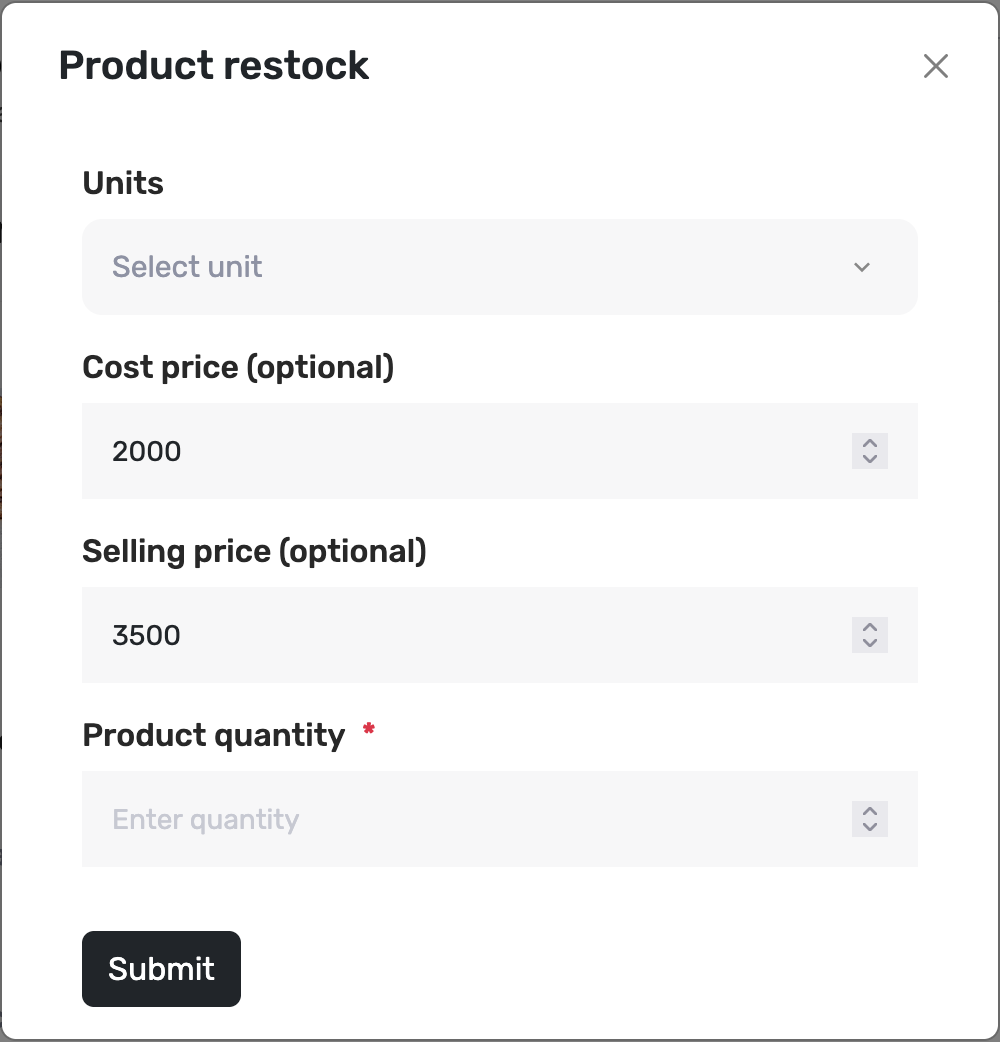
A window titled Product restock opens. Cost price and Selling price are optional — Posa fills them from the product (here 2000 and 3500). Product quantity has a red star: that is the only required field. Type how many you received.
7. Choose a unit if the list appears
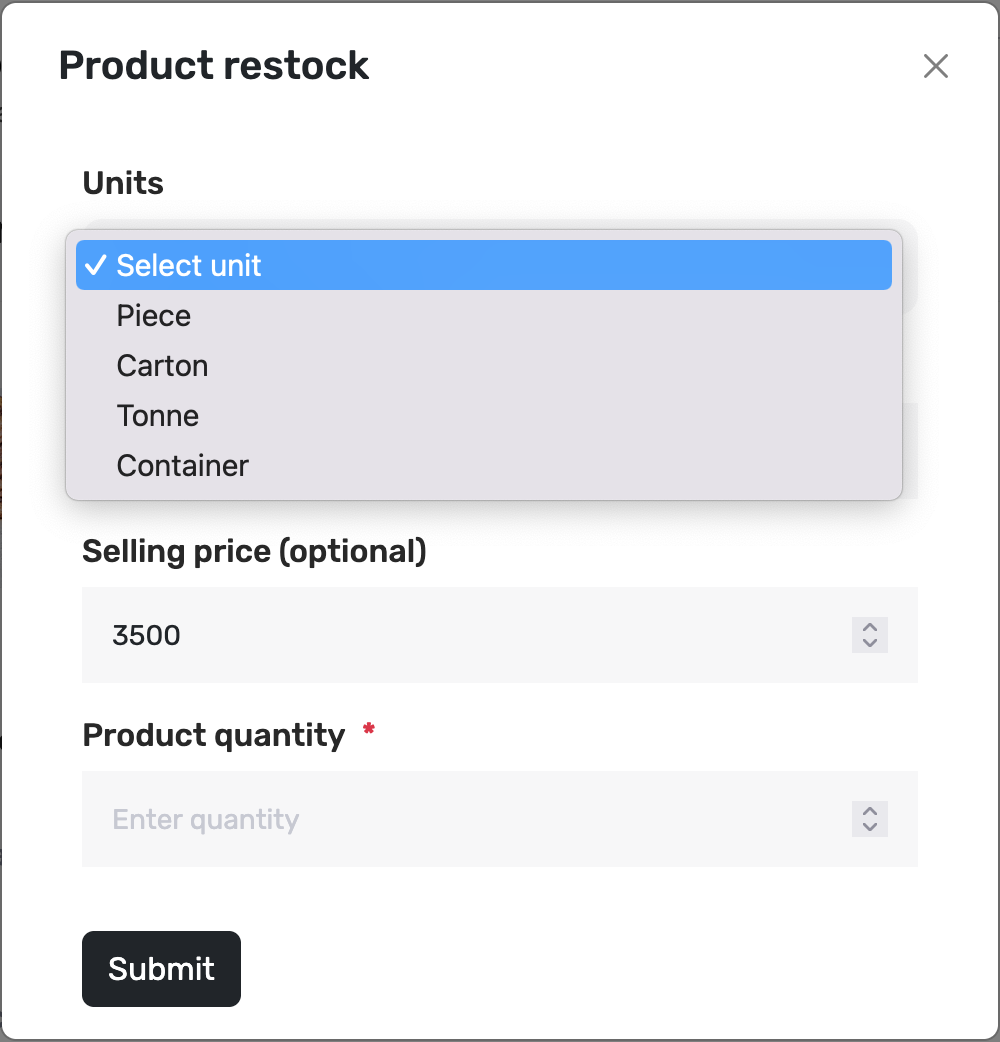
If this product has pack sizes, you will see Units. Open it and pick the unit that matches how the goods arrived. Piece means you counted single items. Carton means you counted whole cartons. If Units is missing, skip this step — the product has no extra pack sizes.
If you sell by carton as well as by piece, see How to set up wholesale prices on Posa.
8. Enter the quantity
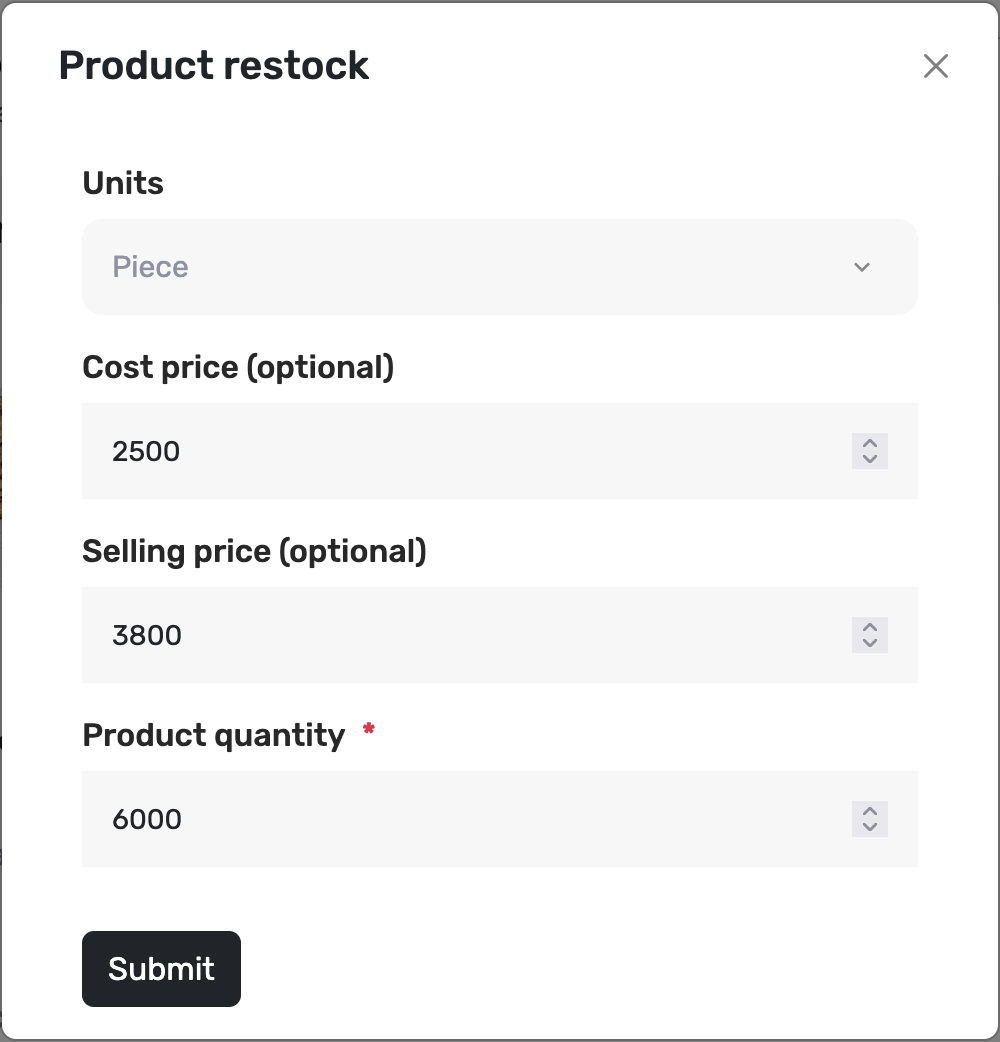
In Product quantity, type how many of that unit you received — here 6000 Piece. You can leave the prices as they are, or change them if this delivery cost more or you want a new selling price. In this example cost is 2500 and selling price is 3800.
9. Click Submit

Click Submit. Posa adds the quantity to stock.
10. Confirm it was restocked
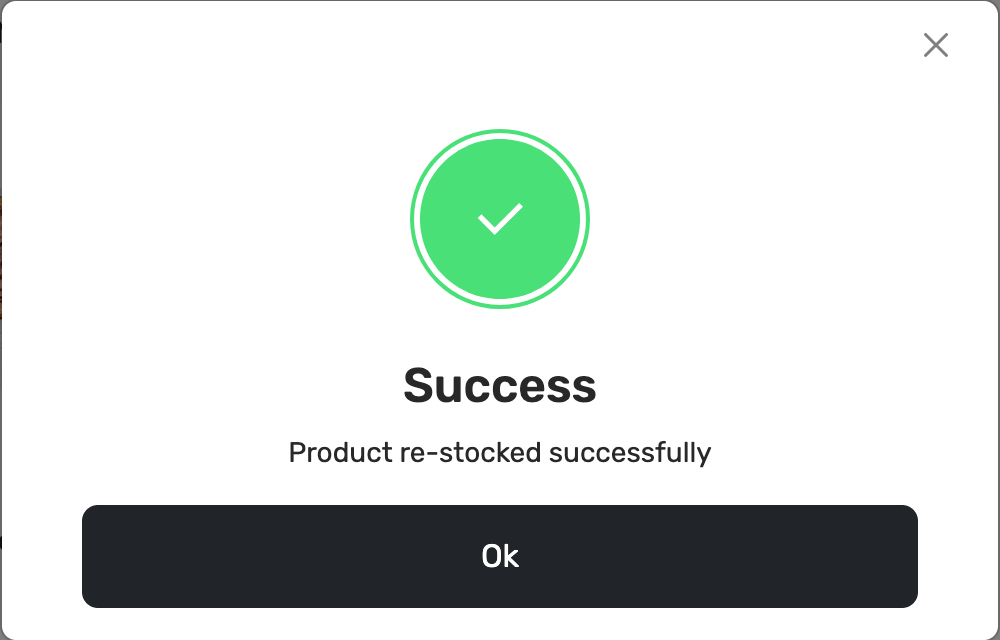
A window appears: Success — Product re-stocked successfully. Click Ok.
11. See the new stock
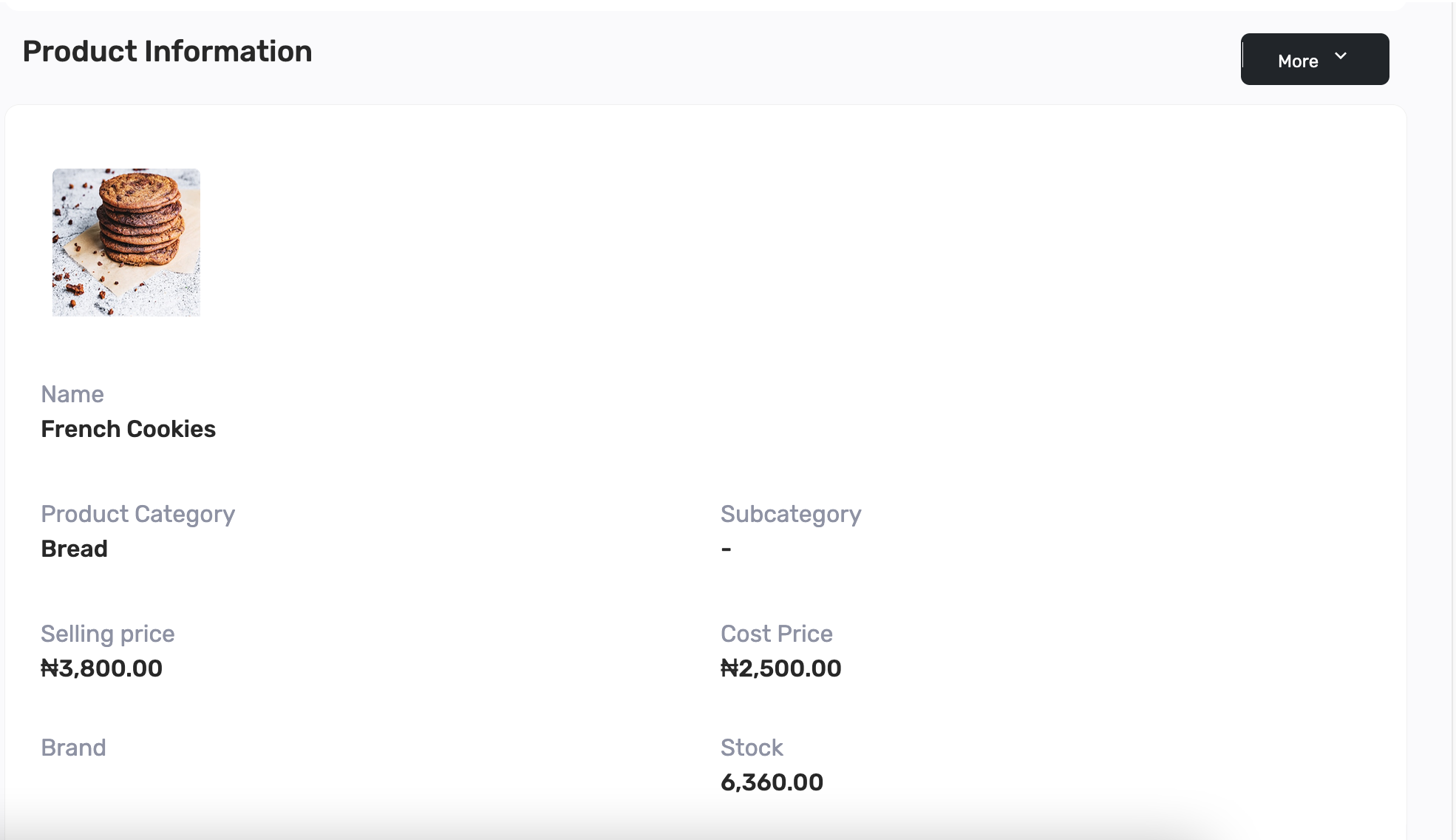
Back on the product, Stock is higher. Here it moved from 360 to 6,360 (360 + 6,000). If you changed the prices, Selling price and Cost Price update too — 3800 and 2500 in this example.
12. View restock history (optional)
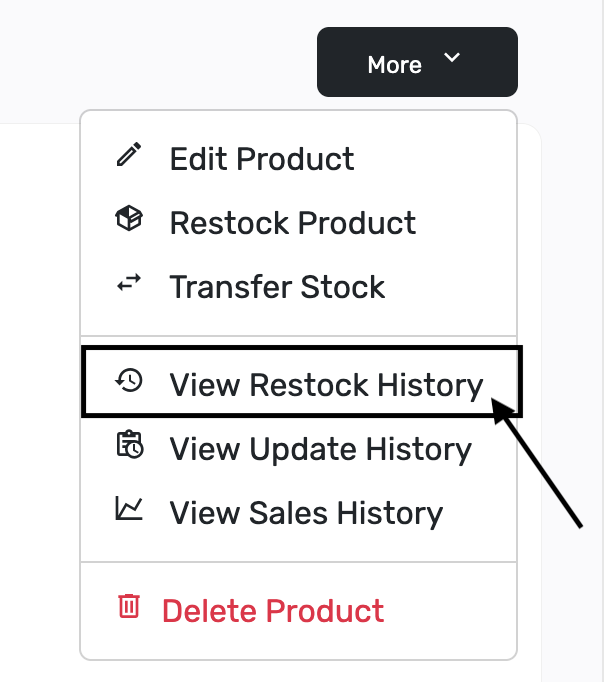
To see a list of restocks later, click More again, then View Restock History. Skip this if you only needed to add stock.
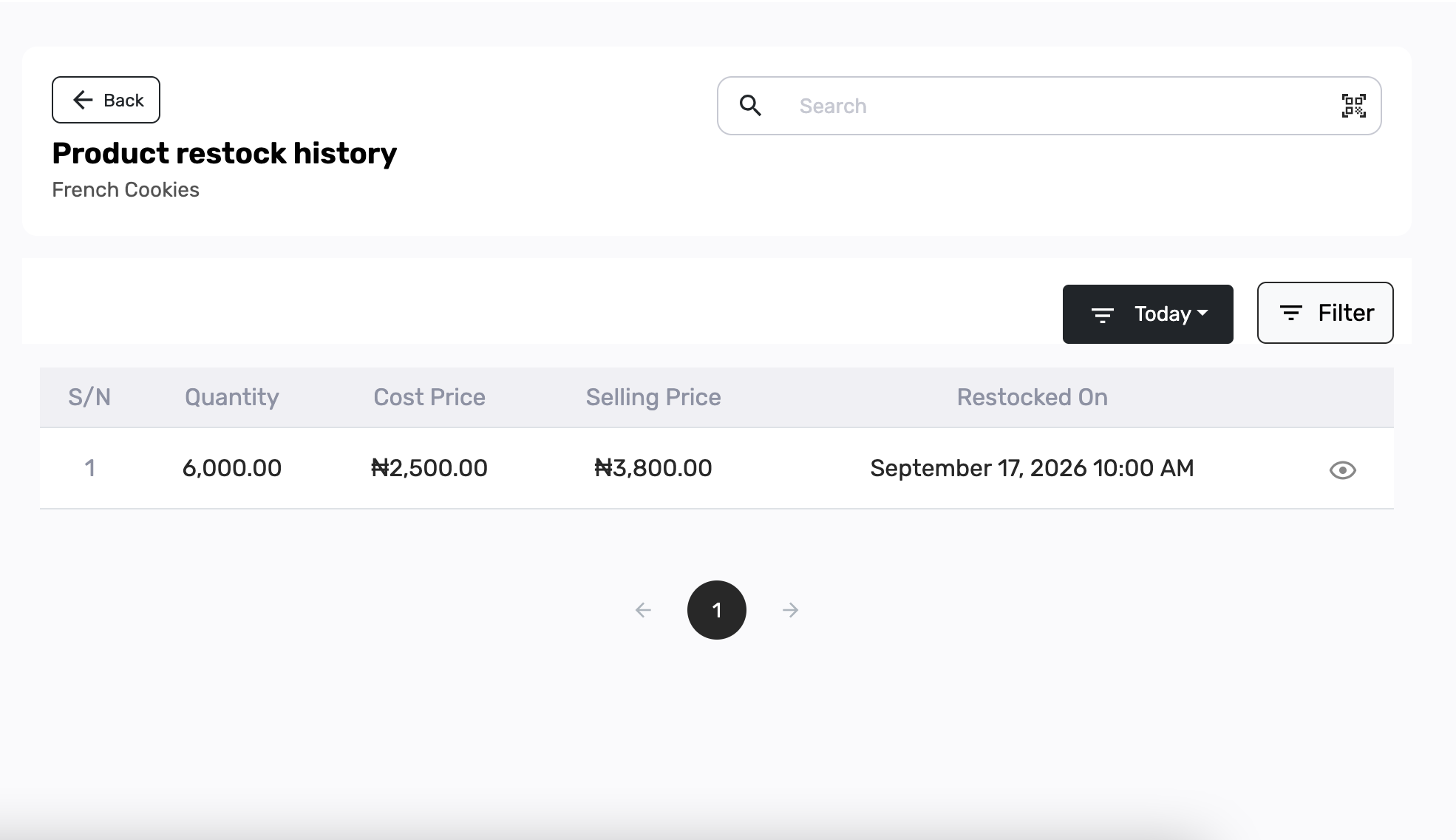
The page is titled Product restock history, with the product name under it. The row lists Quantity, Cost Price, Selling Price, and Restocked On. In this example: 6,000.00, ₦2,500.00, ₦3,800.00, September 17, 2026. Leave Filter and Today for another time.
To record stock that arrived from a supplier — with a vendor name and invoice — see How to record a purchase from your vendors on Posa.
Published by Posa Technologies · getposa.com
← More guides