

Use this guide when you sell one product in different quantities, such as a single piece, a wholesale bundle, and a carton. You’ll set the smallest unit first, then add each larger unit with its quantity and selling price.
The Other unit prices feature requires a Plus or Premium plan. You also need an existing product; if you haven’t added one yet, see How to upload your products on the Posa mobile app.
1. Open Products
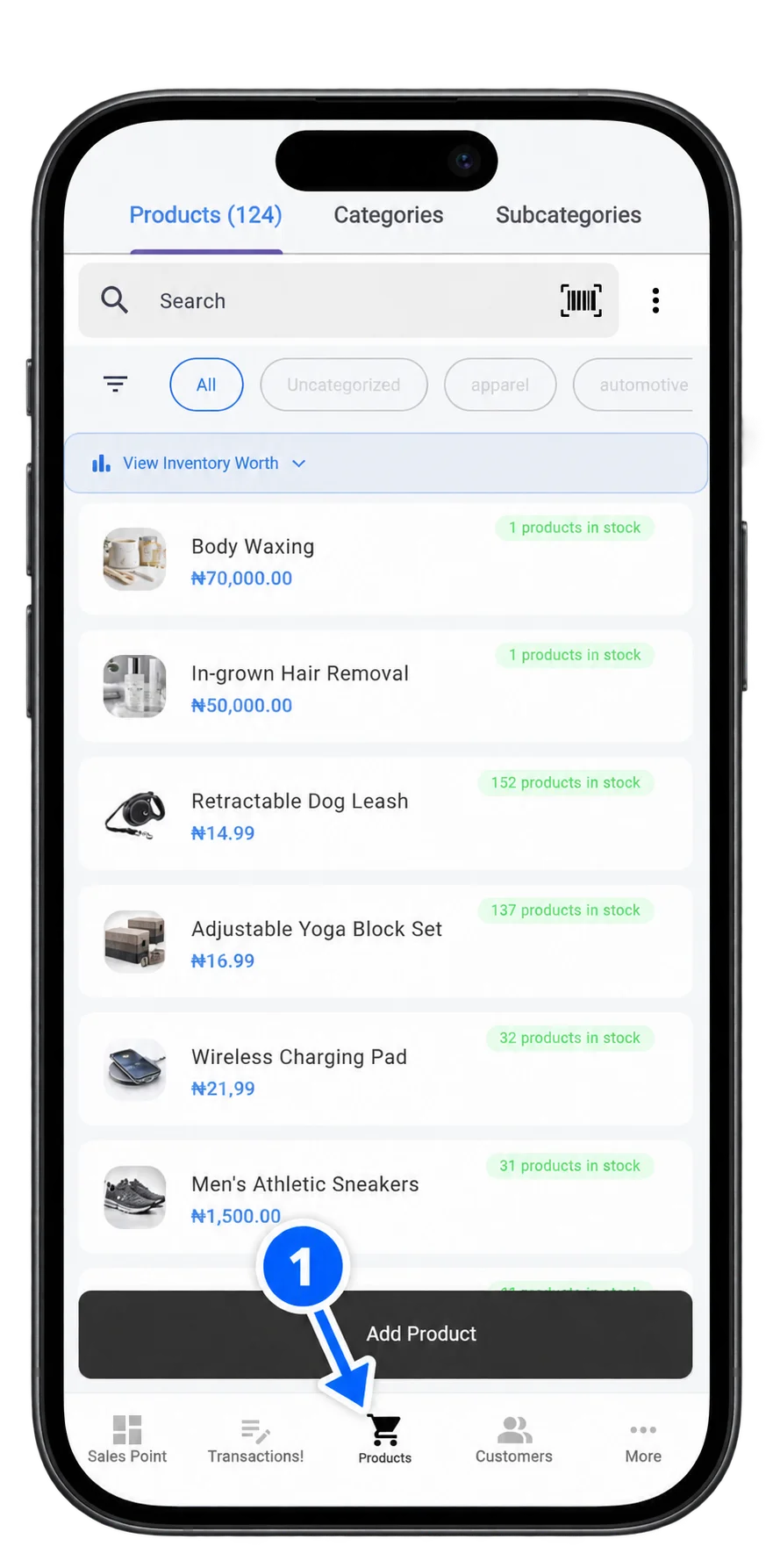
From the bottom navigation bar, tap Products. Find the product that needs wholesale pricing and tap it to open its details.
2. Edit the product
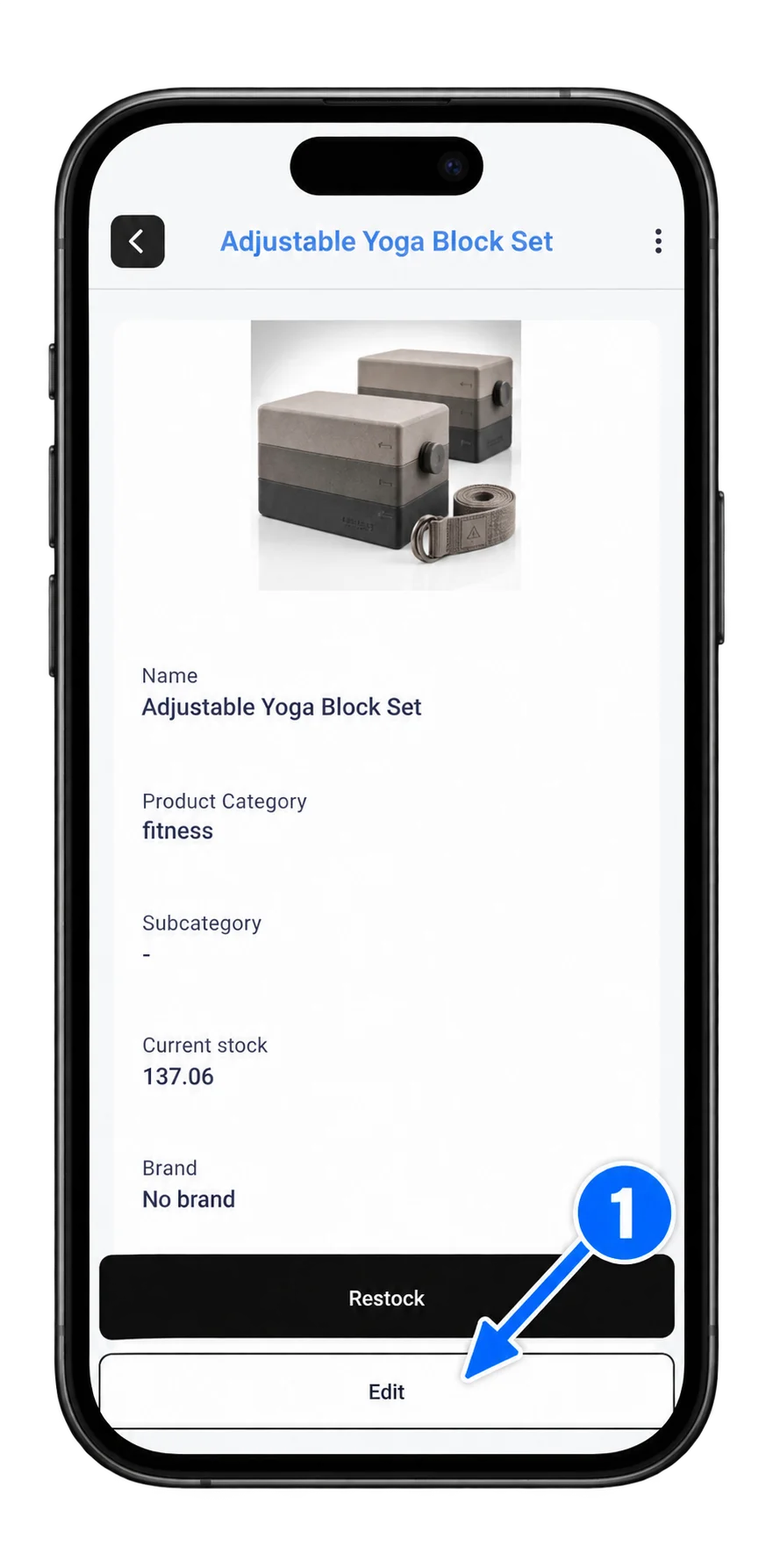
On the Product Details screen, tap Edit.
3. Open More Details
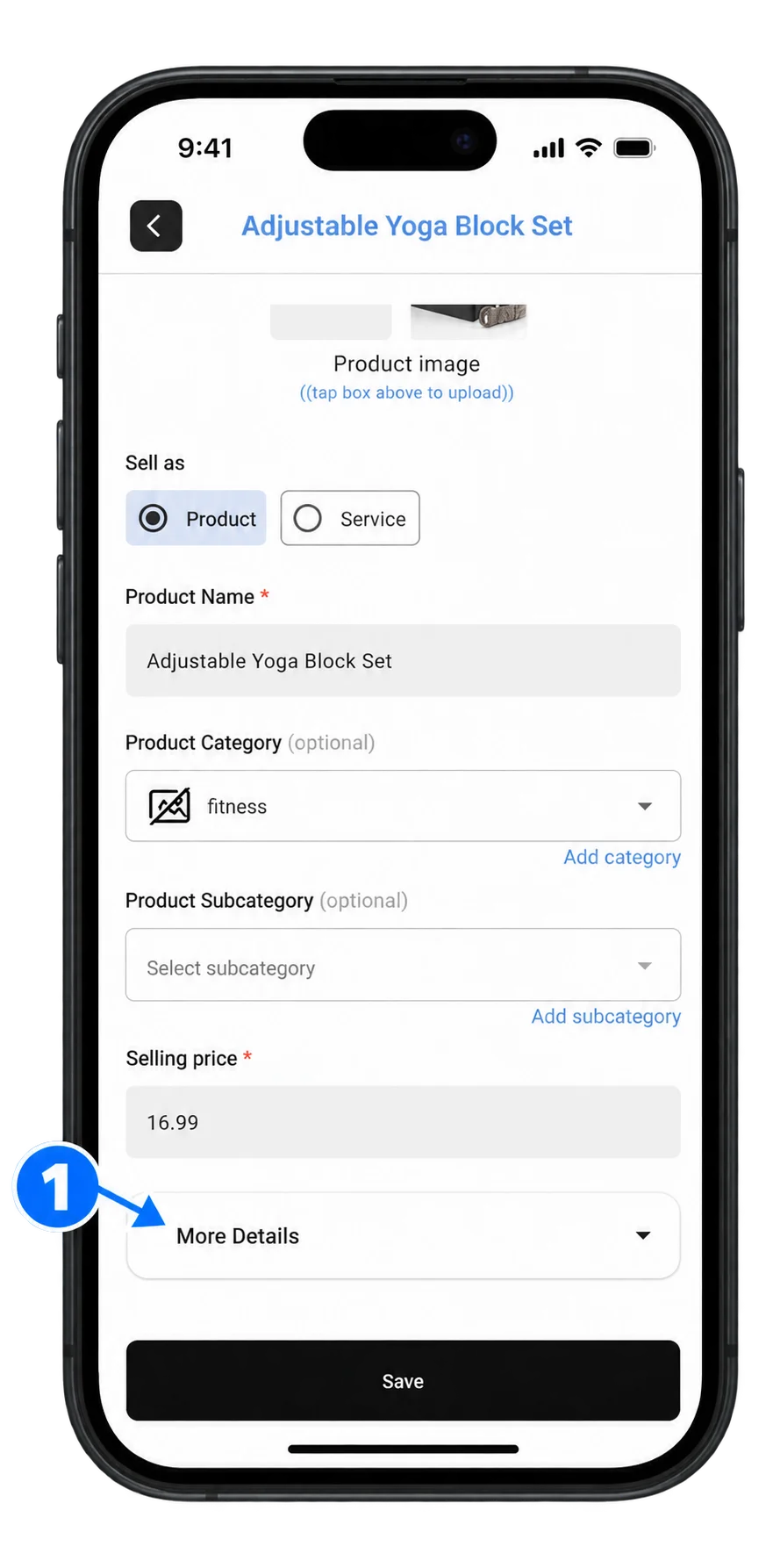
On the Edit Product screen, tap More Details to reveal the unit and pricing options.
4. Choose the minimum unit
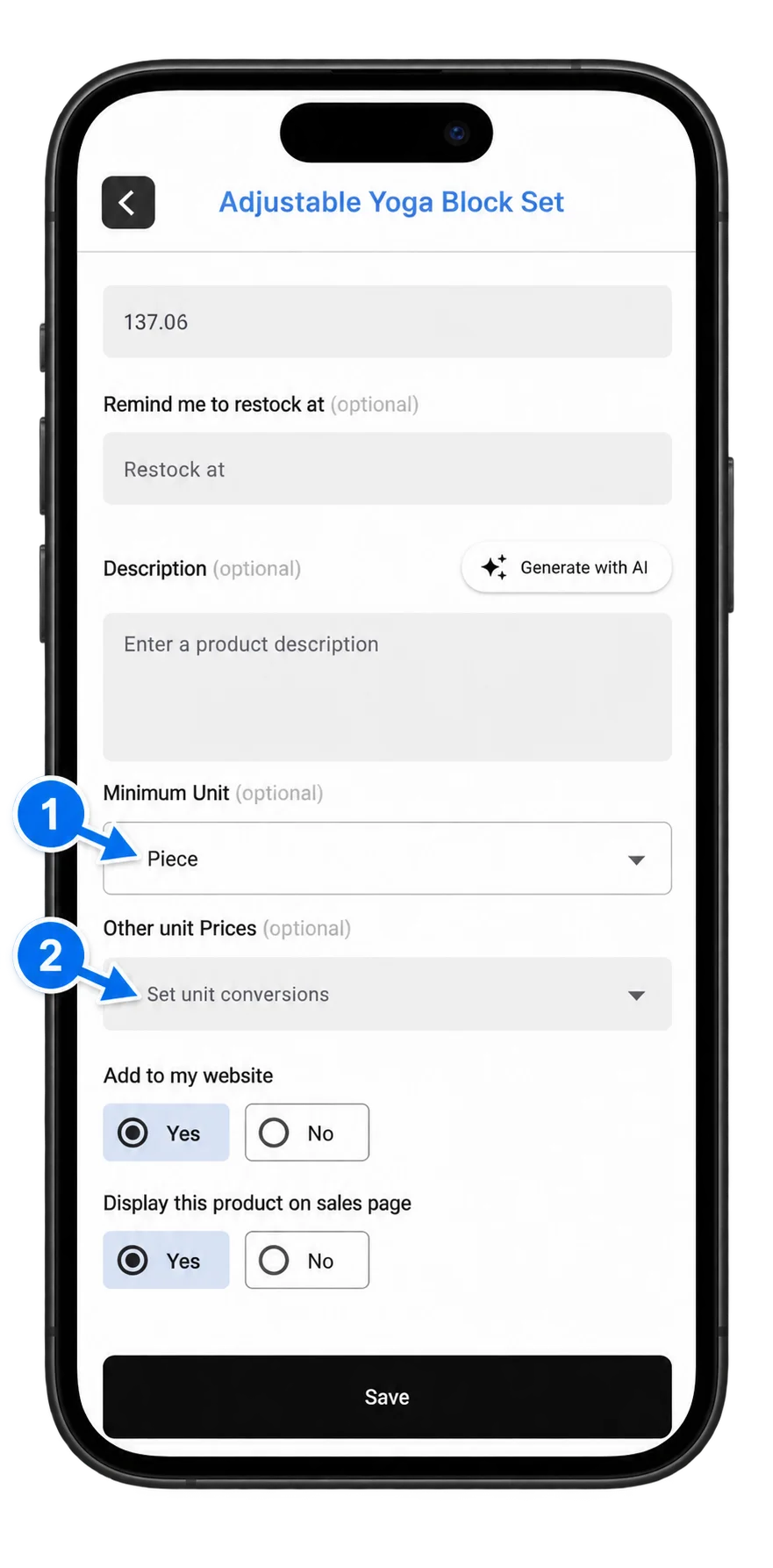
Under Minimum Unit, select the smallest quantity you sell. In this example, it is Piece. Then tap Set unit conversions under Other unit Prices.
5. Configure the piece and wholesale prices
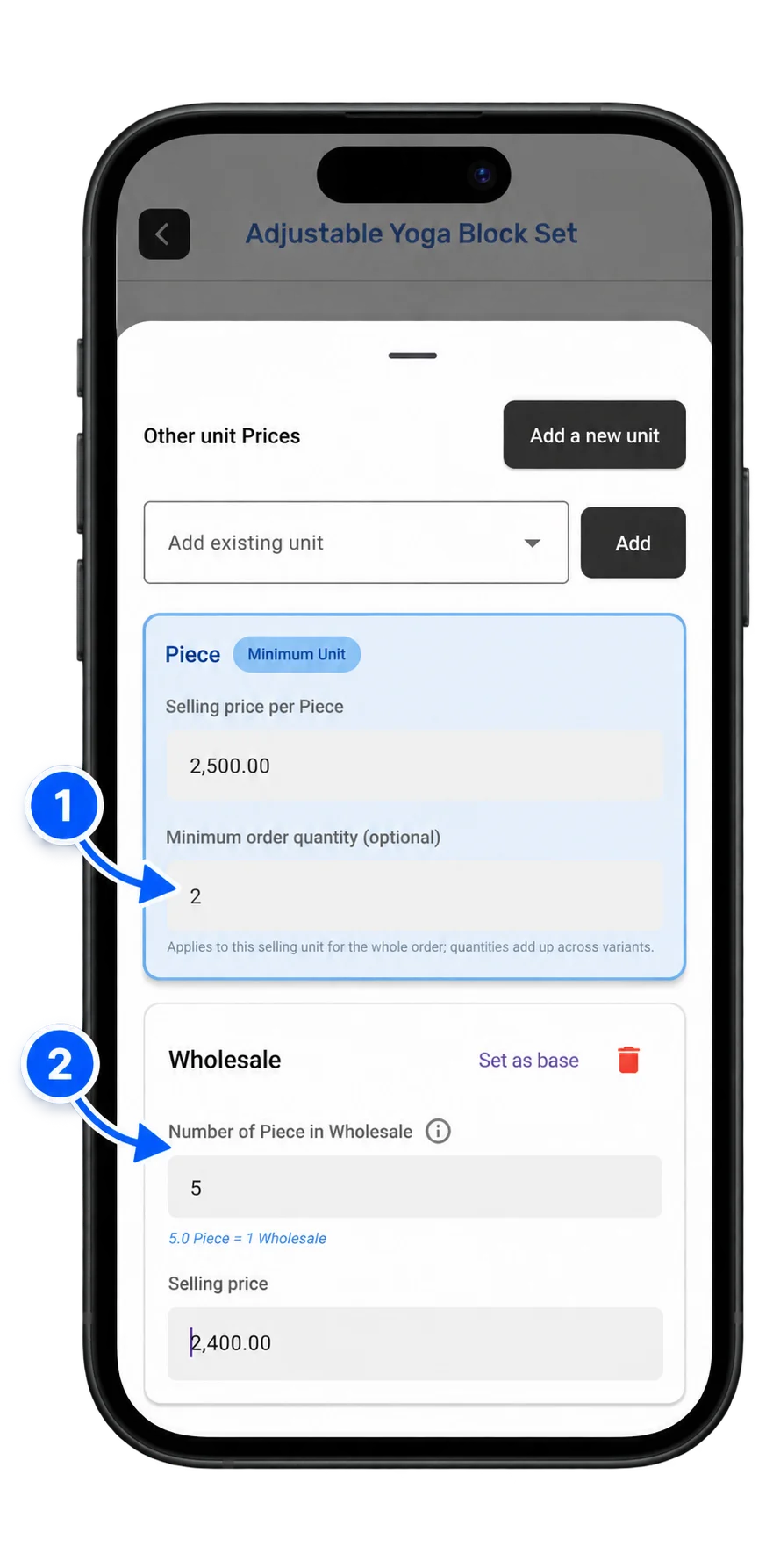
The blue card shows your minimum unit and its selling price. You can set a Minimum order quantity if customers must buy at least a certain number of that unit; leave it blank if there is no minimum.
In the Wholesale card, enter how many pieces make one wholesale unit and its selling price. Here, 5 Piece equals 1 Wholesale and the Wholesale selling price is ₦2,400. If Wholesale is not listed, tap Add a new unit to create it first.
6. Add any other selling units
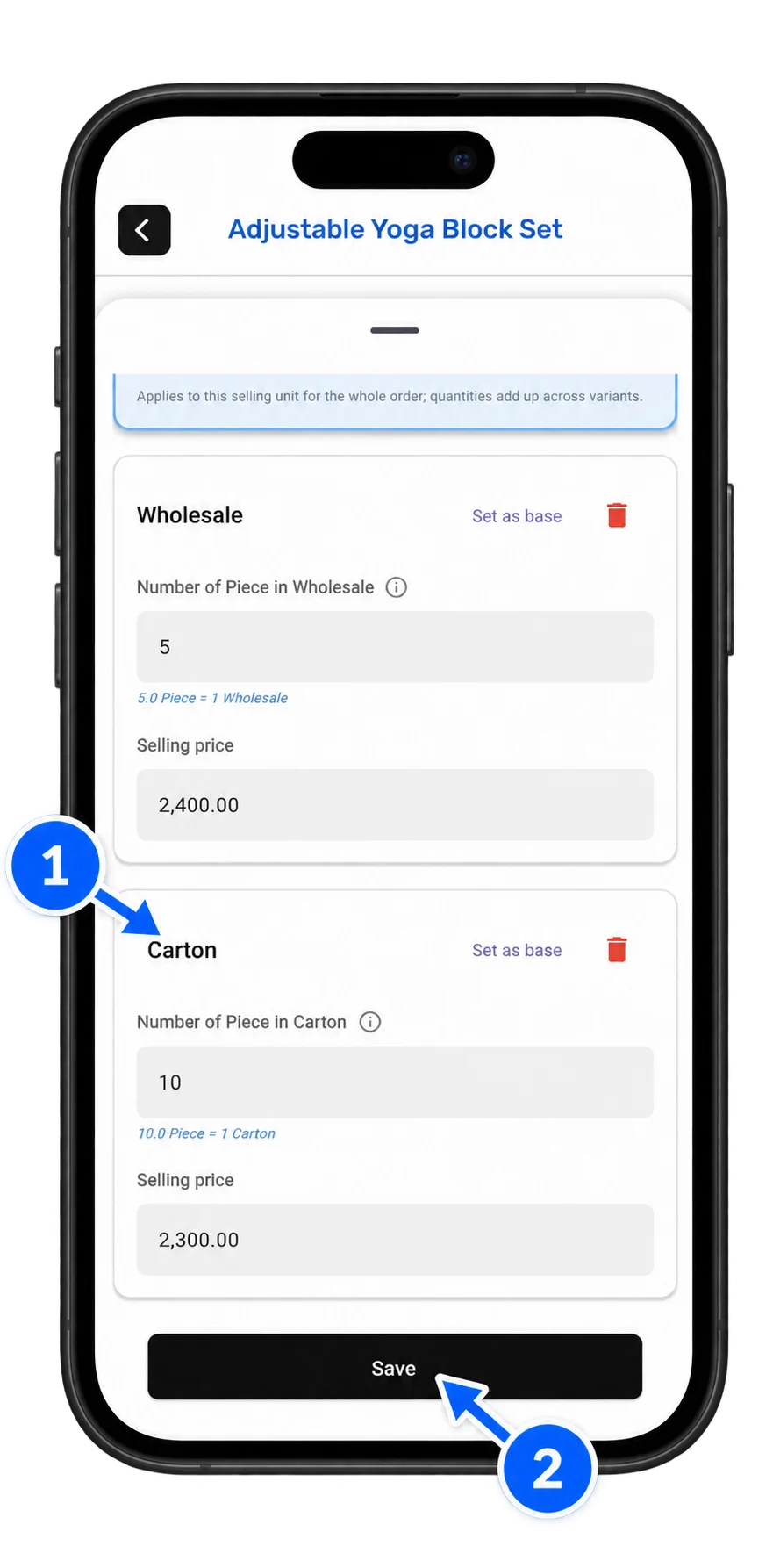
Repeat the setup for every other unit you sell. In this example, 10 Piece equals 1 Carton and the Carton selling price is ₦2,300. Check each quantity and price, then tap Save.
7. Save the product changes
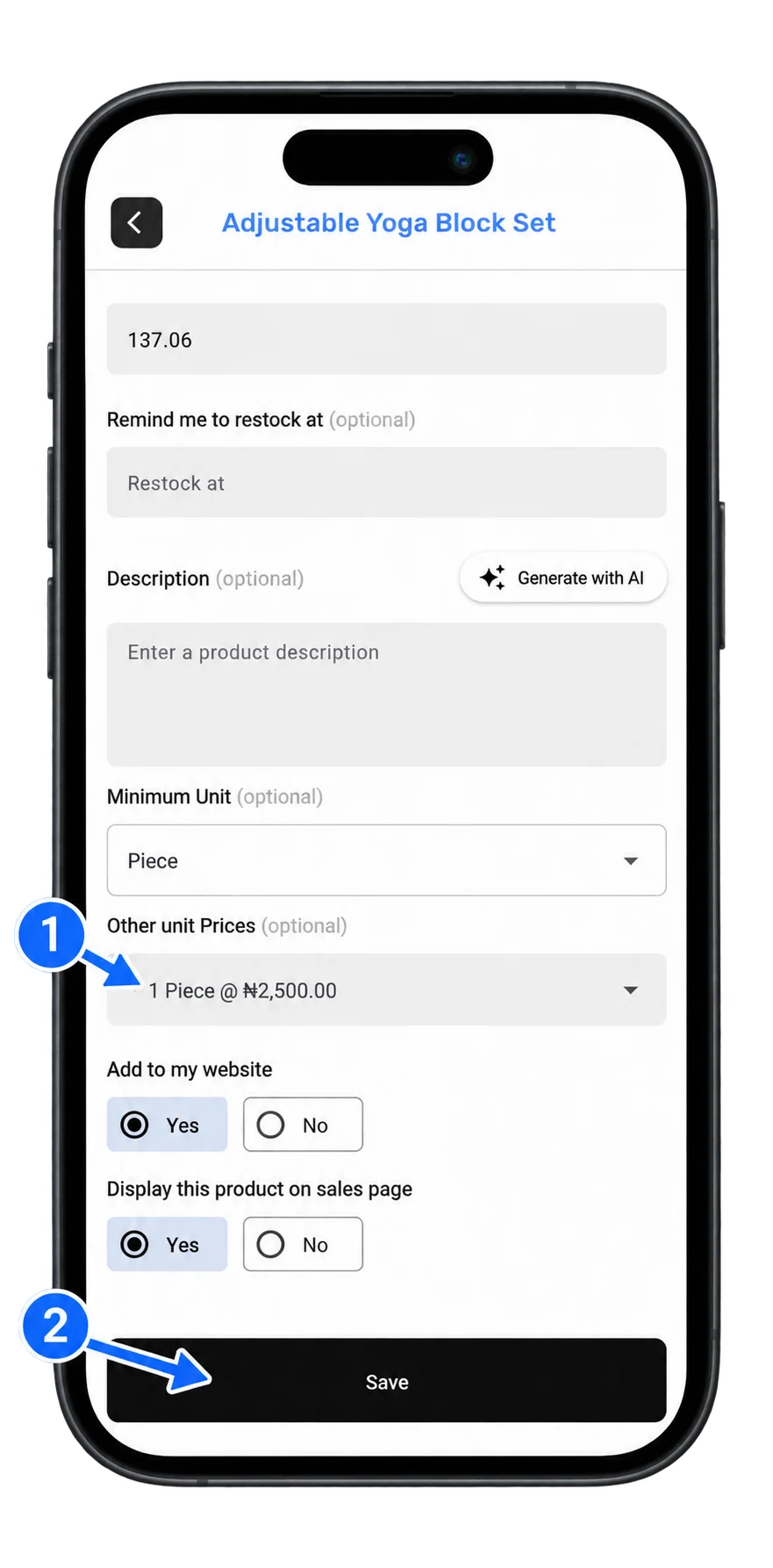
Back on the Edit Product screen, the Other unit Prices row now shows the saved base-unit price. Tap Save to apply the wholesale pricing to the product.
8. Choose a unit when making a sale
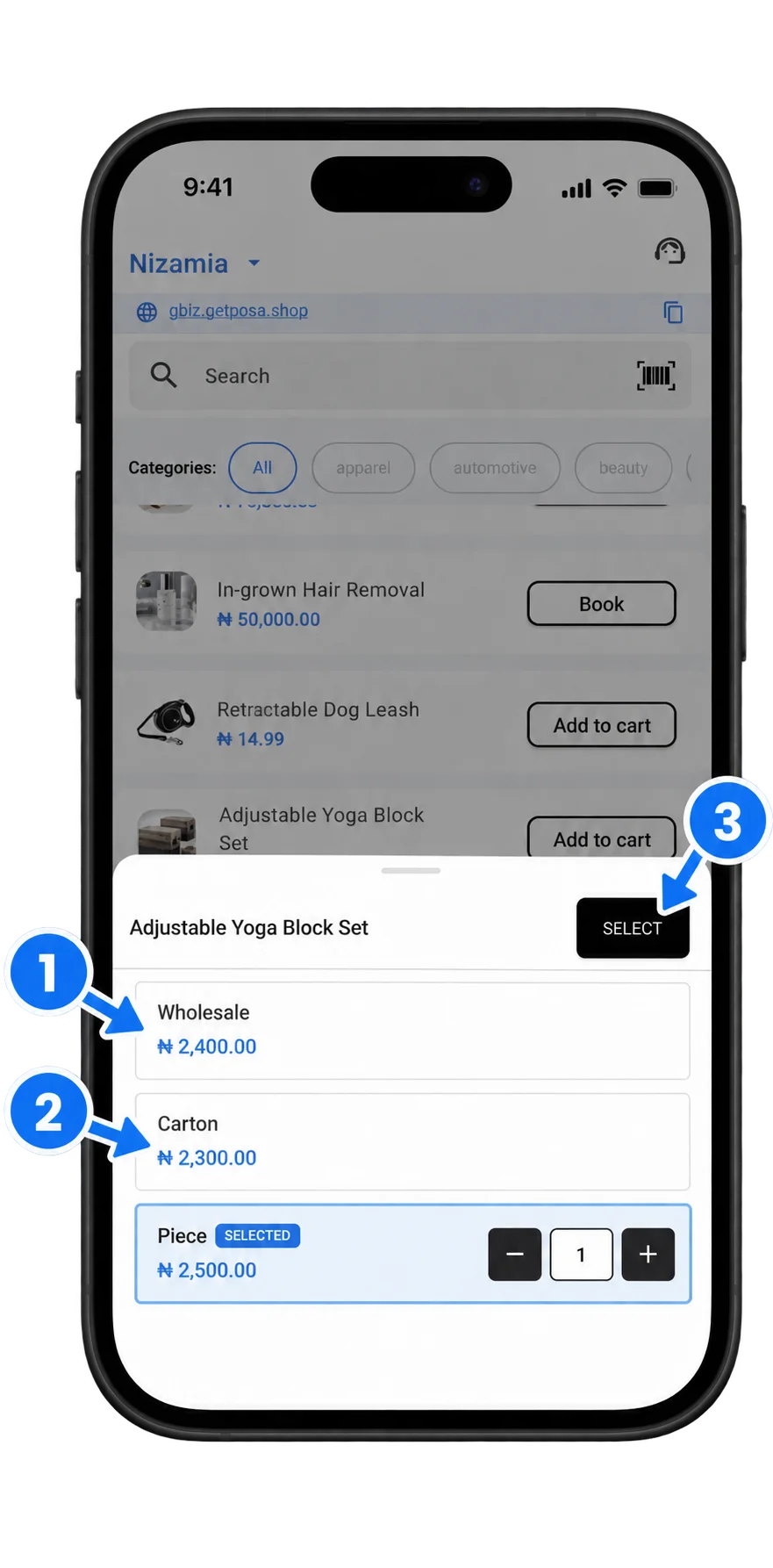
At Sales Point, add the product to the cart. Choose Piece, Wholesale, or Carton based on what the customer is buying, then tap Select. Posa uses the price saved for that unit. To finish the transaction, see How to record a sale on the Posa mobile app.
Published by Posa Technologies · getposa.com
← More guides