
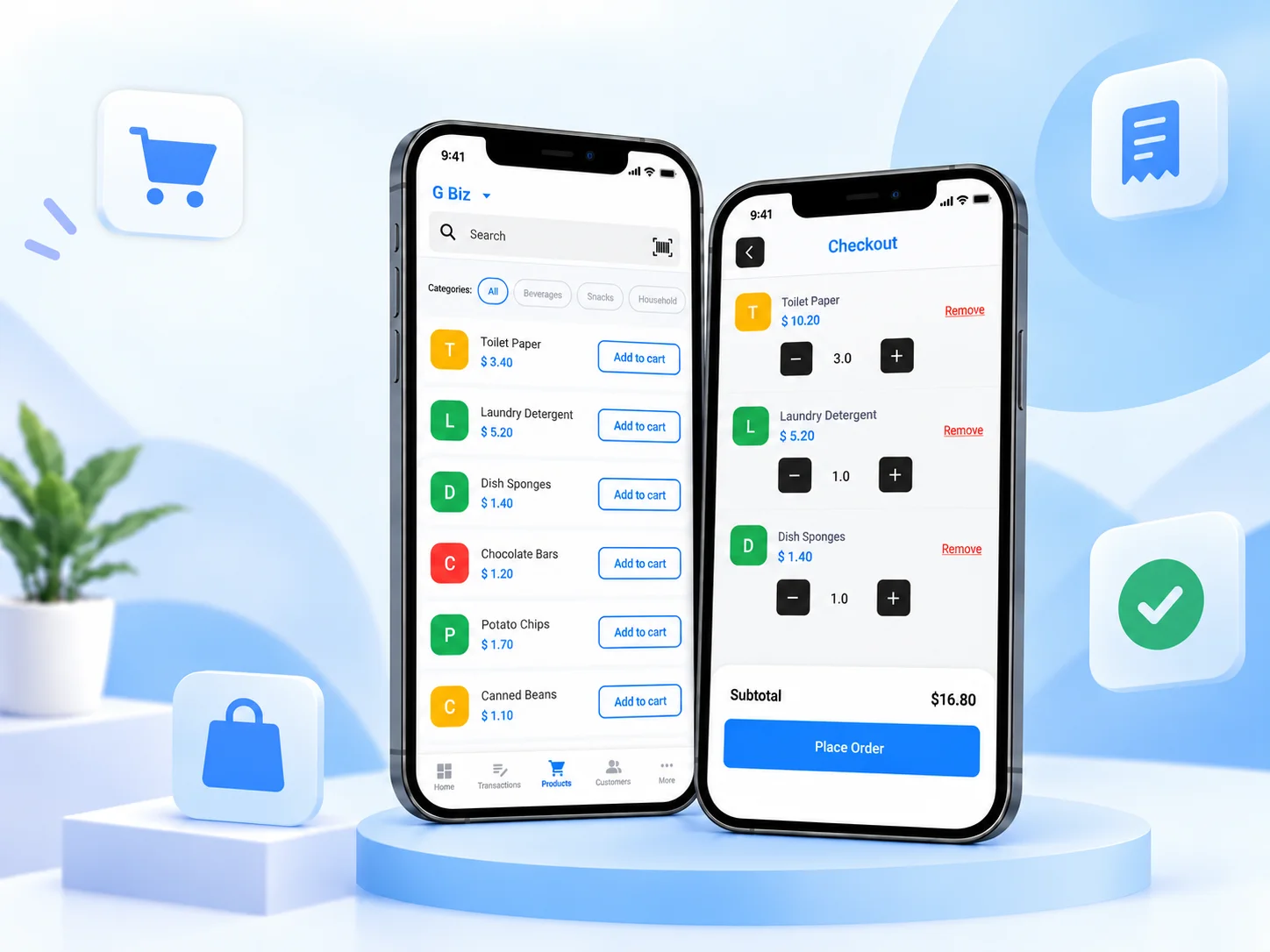
You need at least one product in Posa before you can record a sale. If you have not added one yet, see How to upload your products on the Posa mobile app.
1. Add an item to the cart
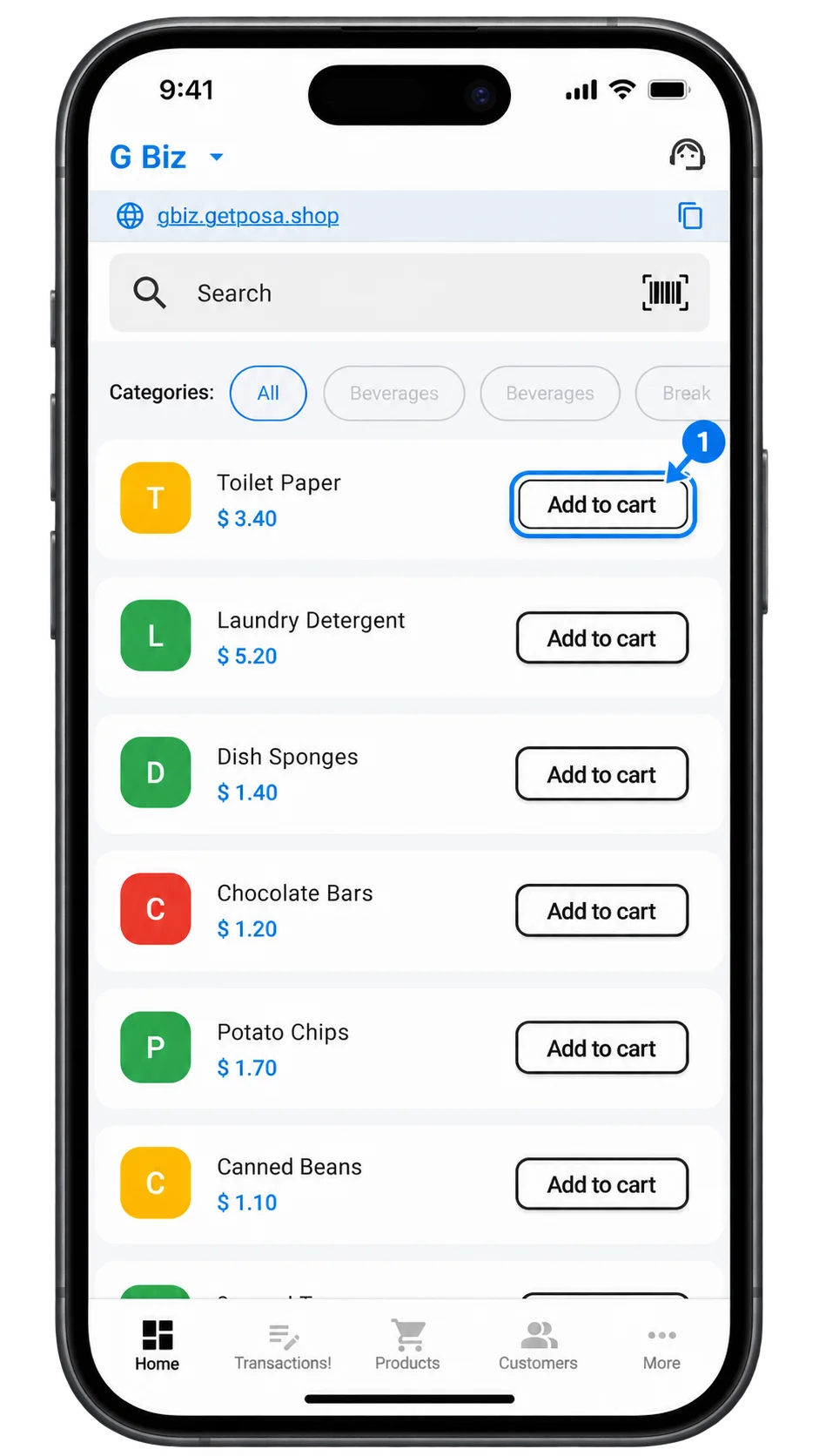
On the Home screen, tap Add to cart next to the item you want to record. The selected item is added to your cart so you can continue with the transaction.
2. Adjust the cart quantity
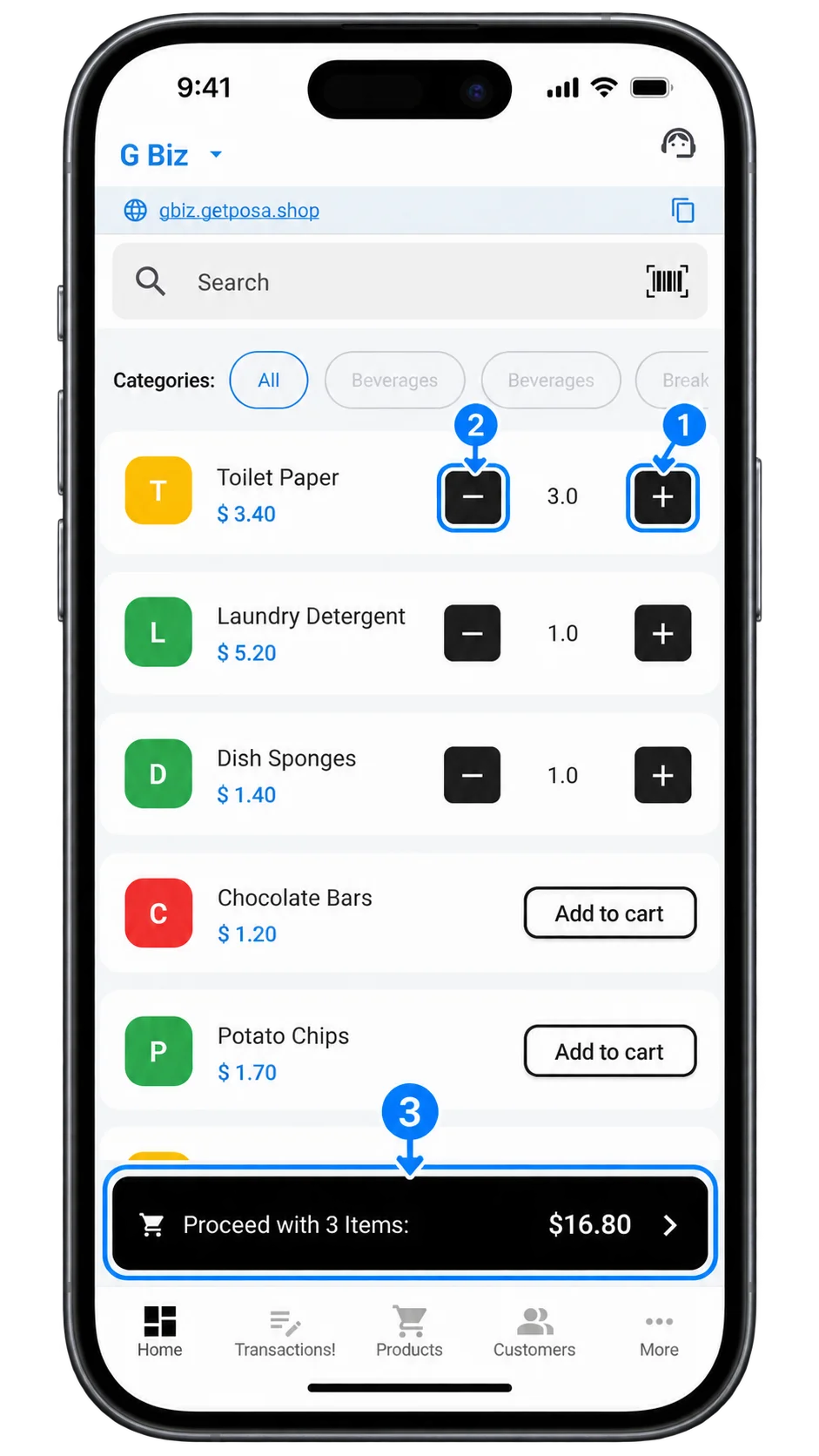
Tap the + button to increase the item quantity, or tap the − button to reduce it. When you are done, tap the Proceed banner at the bottom of the screen to continue to checkout.
3. Review the checkout
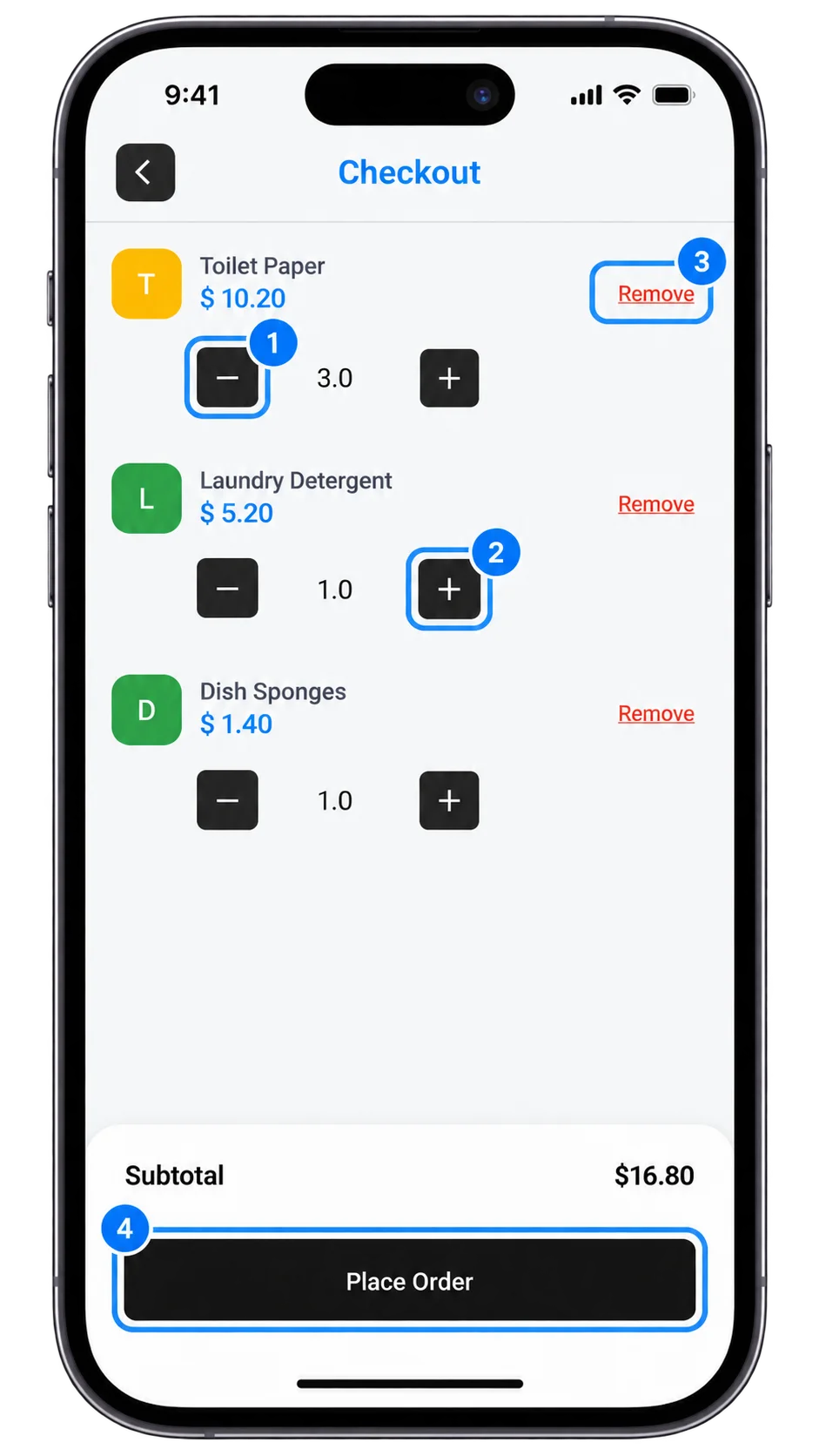
On the Checkout screen, use the + or − buttons to adjust item quantities, or tap Remove to delete an item from the order. Once everything looks correct, tap Place Order to continue to the payment screen.
4. Set the payment details
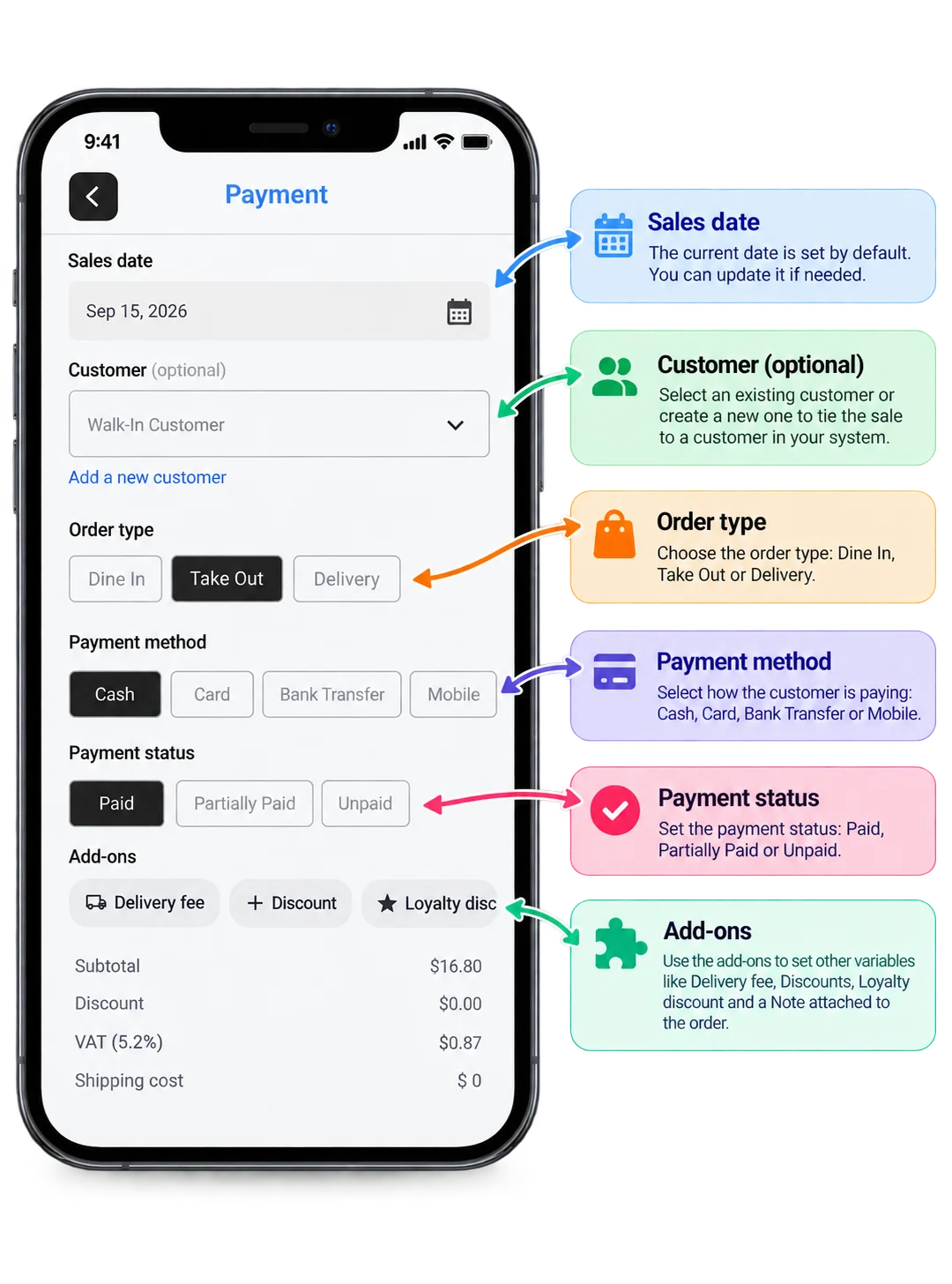
On the Payment screen, the current date is automatically selected as the Sales date, but you can change it if needed. You can select an existing customer or create a new one, then choose the Order type, Payment method, and Payment status. Use Add-ons to include a delivery fee, discount, loyalty discount, or order note.
5. Complete the order
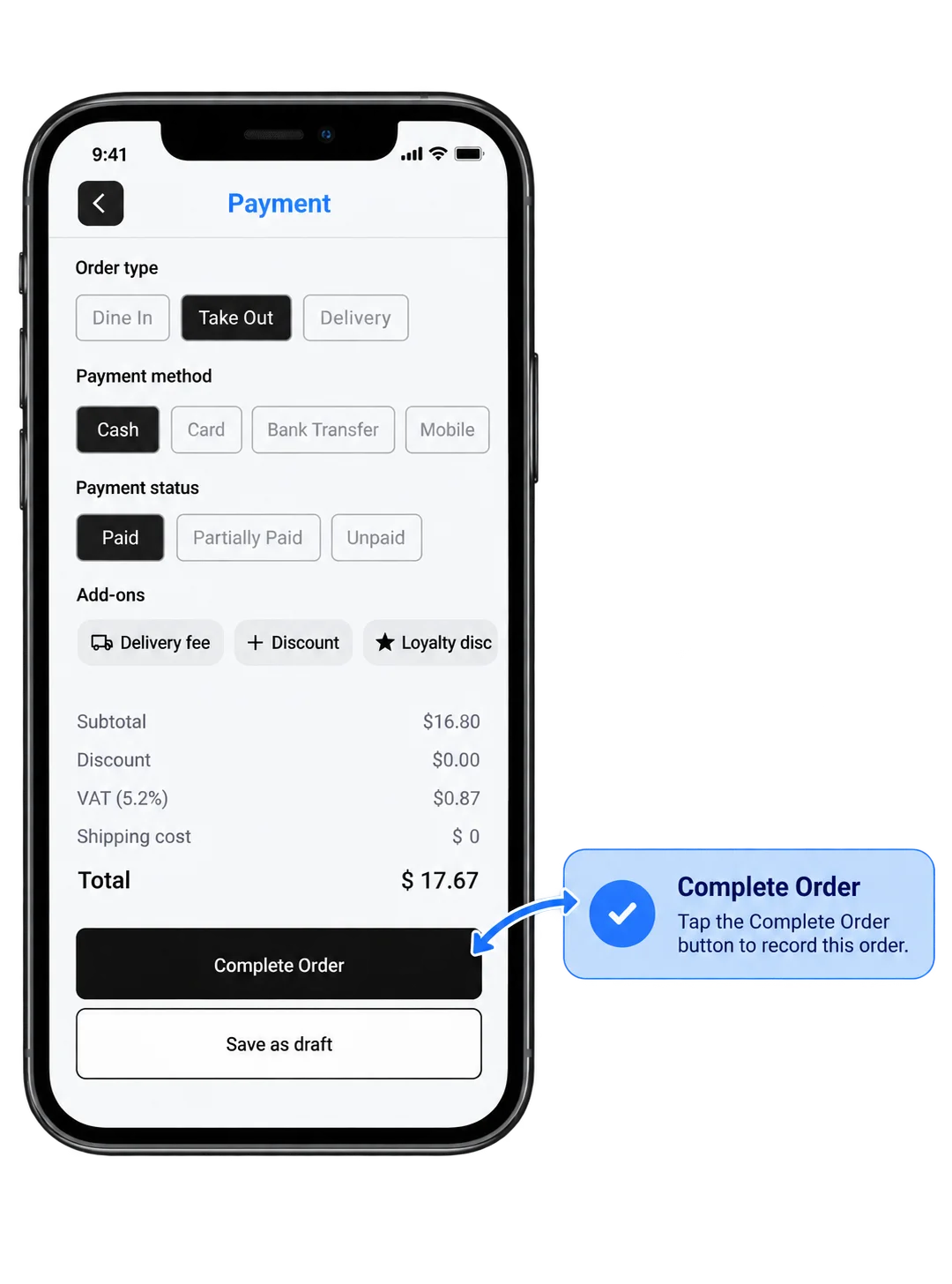
Review the order details and total amount, then tap Complete Order to finalise and record the sale in Posa.
6. Start the next order or share the receipt
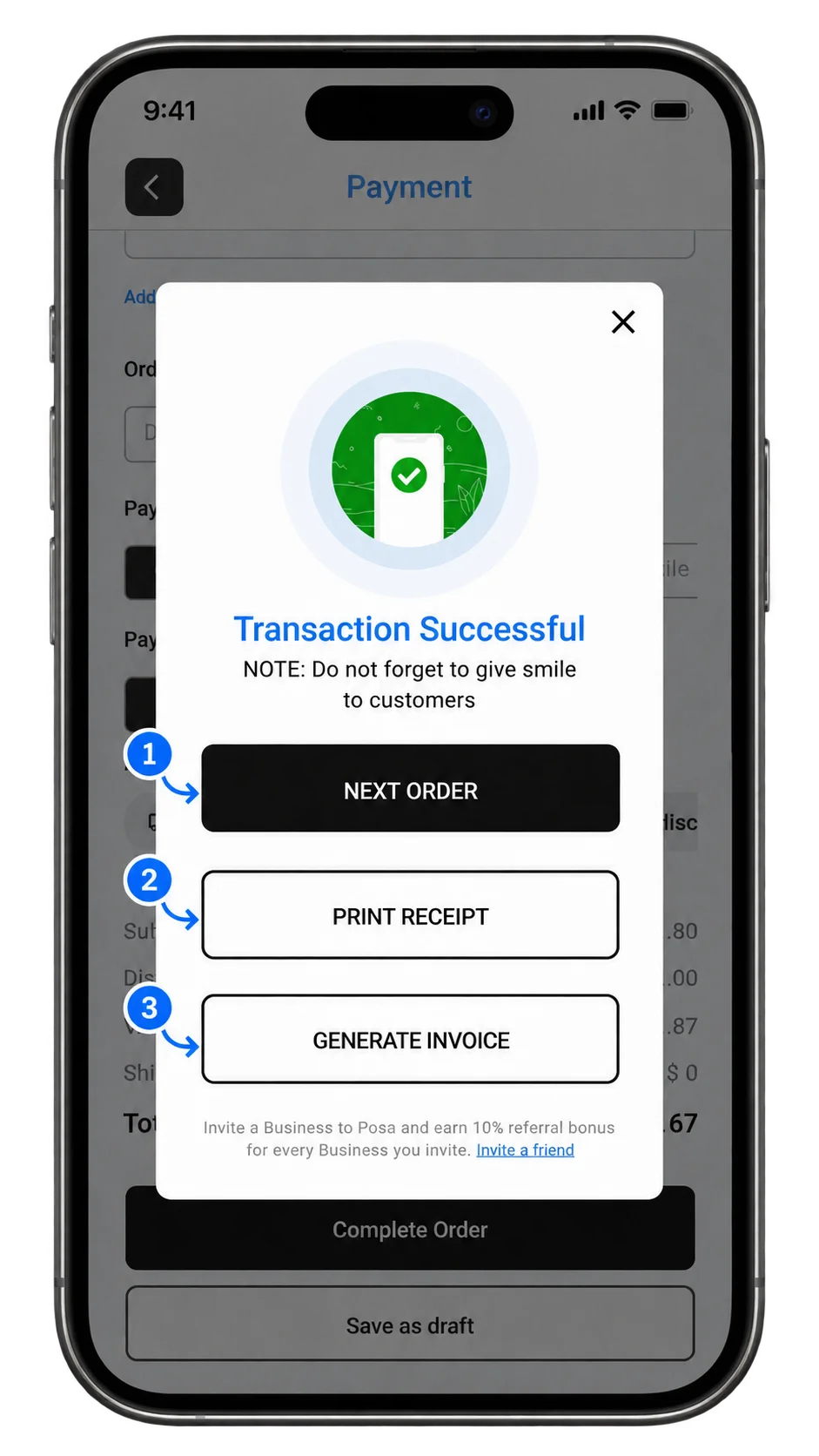
Once the transaction is successful, tap Next Order to start recording another sale. You can also tap Print Receipt to print a receipt or Generate Invoice to create an invoice for the completed order.
Published by Posa Technologies · getposa.com
← More guides