
Use this guide to add one product from the Posa mobile app.
1. Open Products
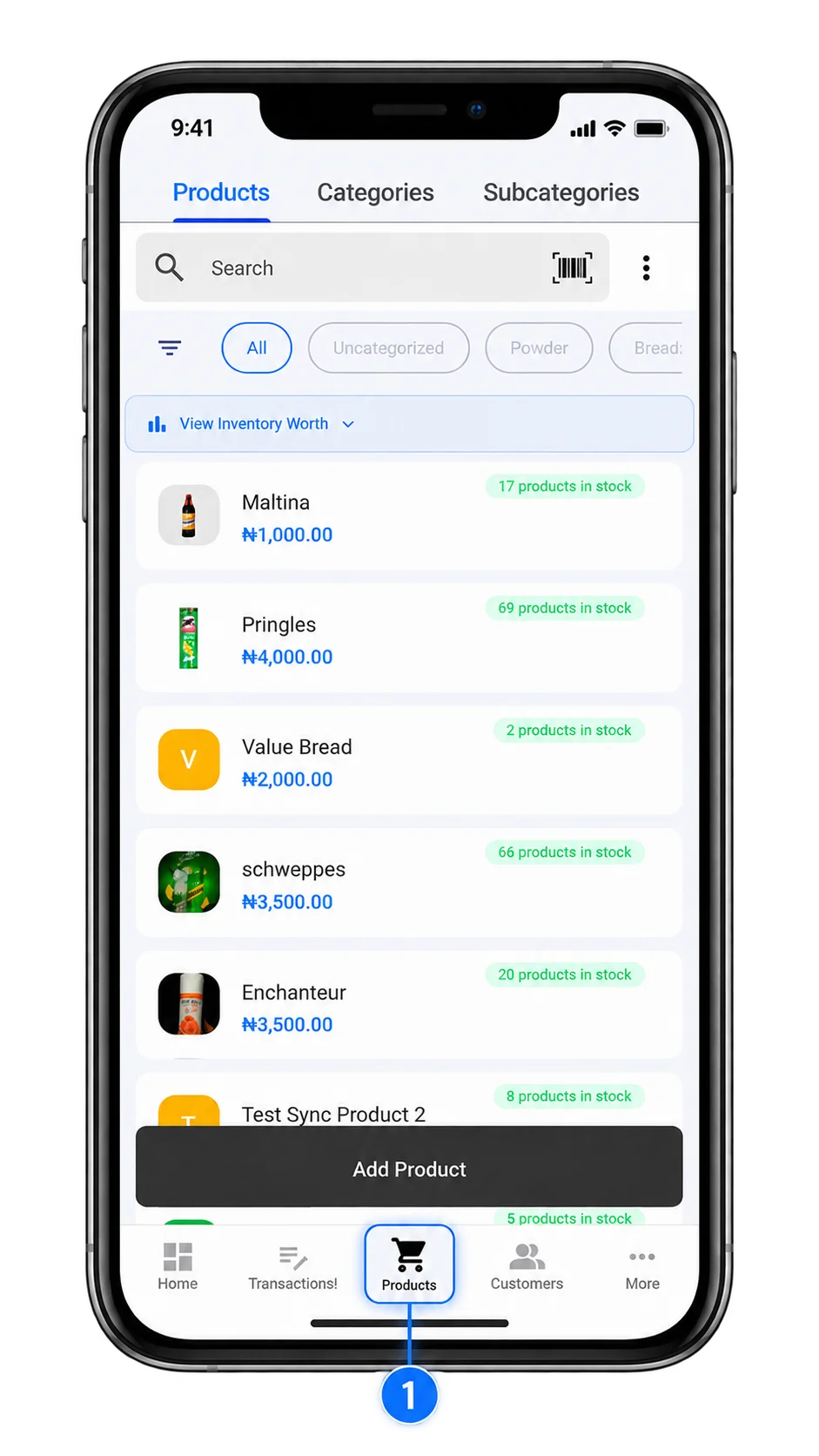
From the bottom navigation bar on the Home screen, tap Products. This takes you to the Products screen, where you can view existing products, if any. Tap Add Product to start a new one.
2. Enter the product details
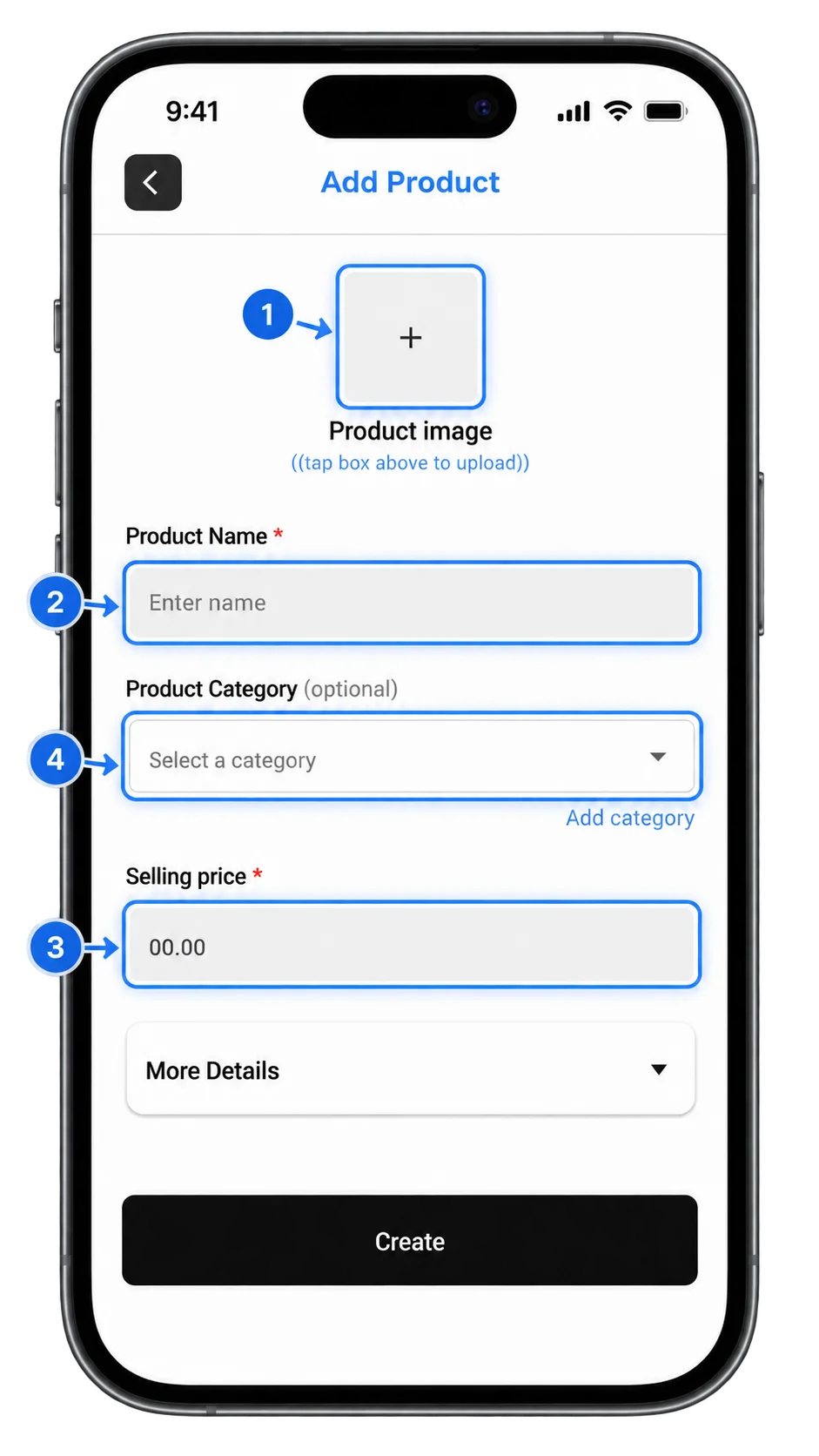
On the Add Product screen, enter the product name and selling price. You can also create or select a category to keep your products organised.
3. Add more details when you need them
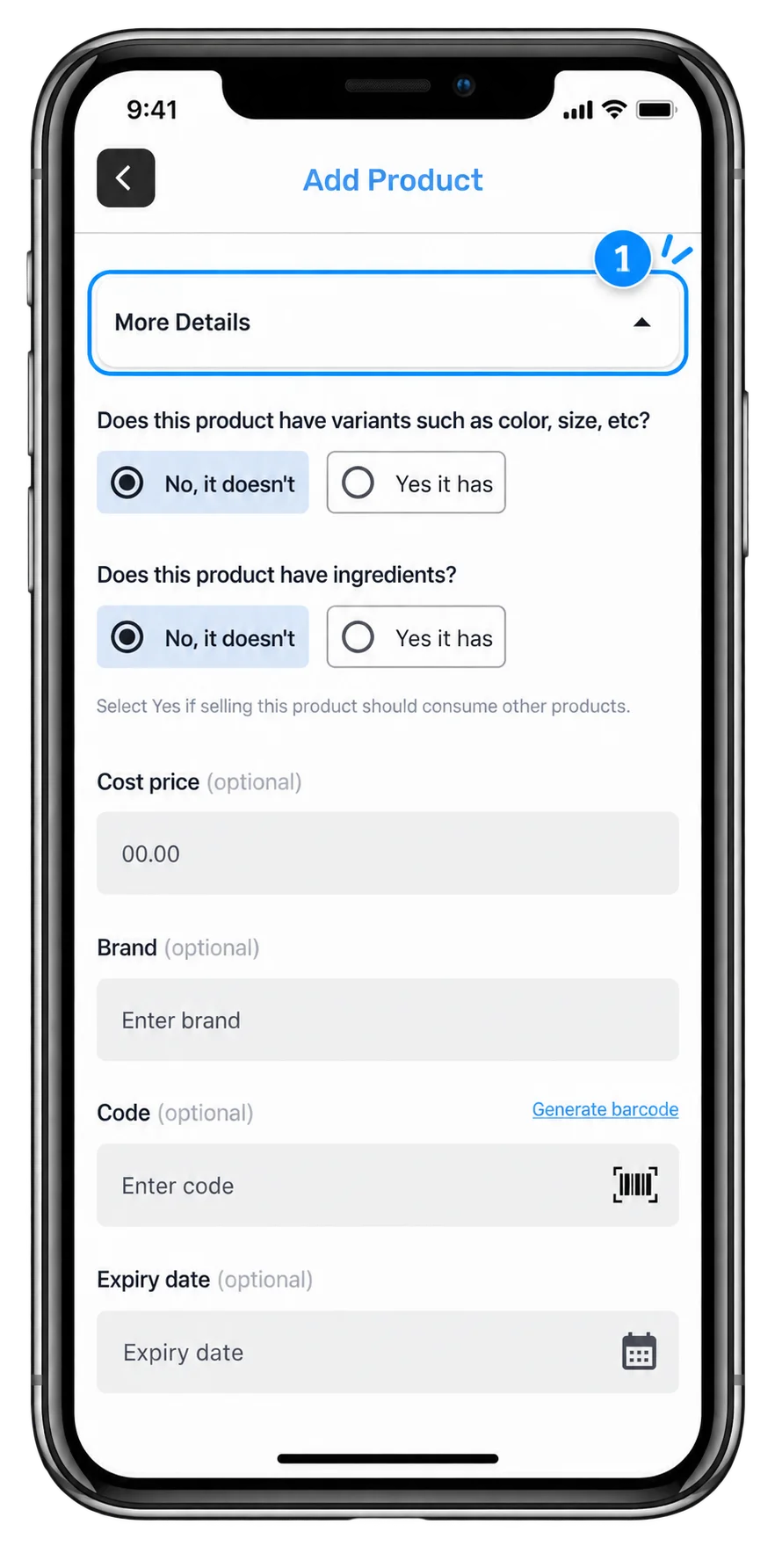
Tap More Details to add advanced product information. Use the available options to configure variants, ingredients, cost price, brand, barcode or code, and expiry date as needed.
4. Create the product
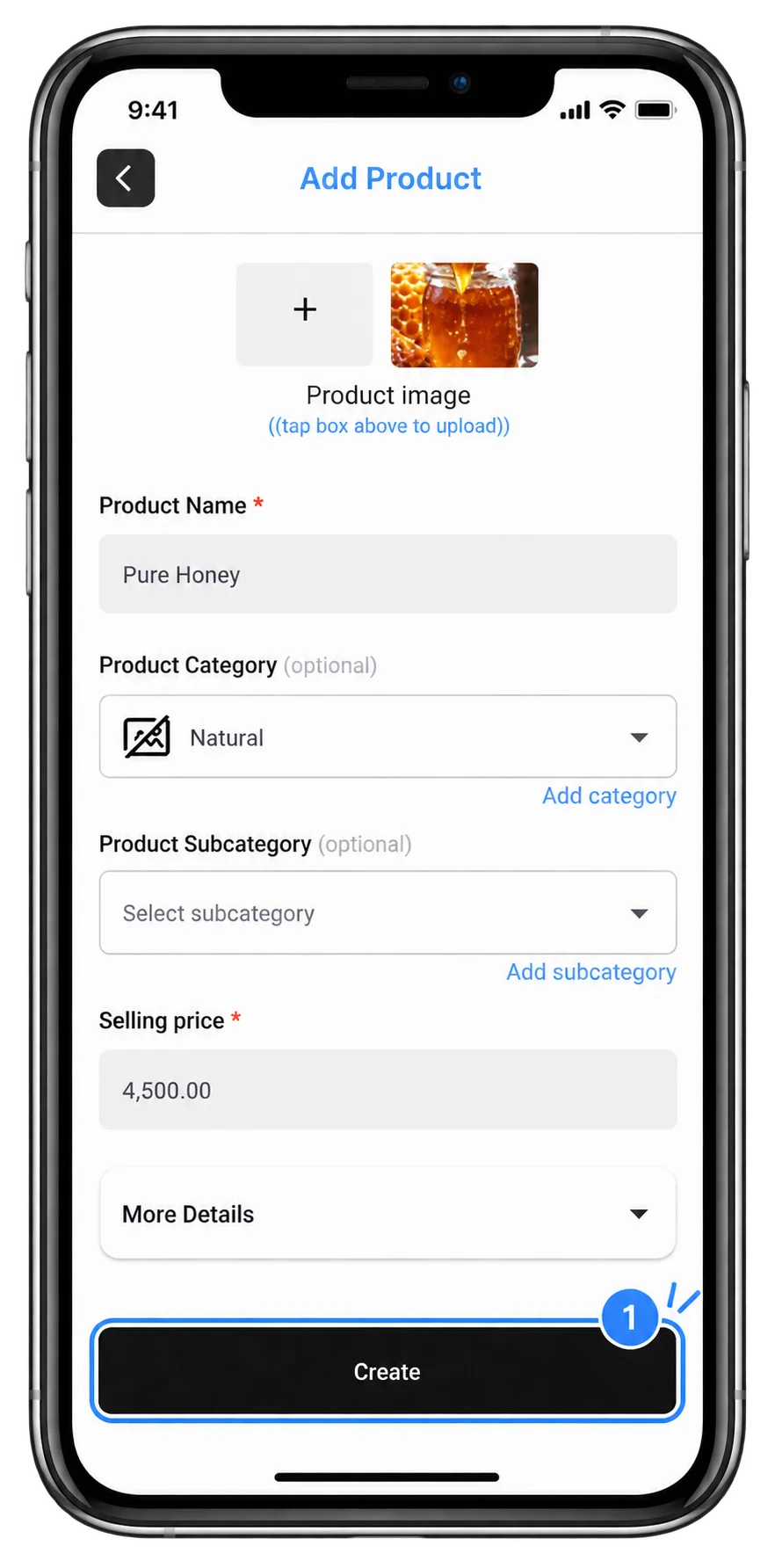
Once you have entered the required product information, tap Create. The product is added to your inventory and appears in your product list.
Published by Posa Technologies · getposa.com
← More guides