
Use this guide when goods arrive from a supplier and you want a purchase record — who you bought from, the invoice, where the goods went, and how many of each product. You do this under Warehouse, on the Purchases tab. You need a Premium or Posa Elite plan. If Posa asks you to upgrade, see How to upgrade to a higher subscription plan on Posa.
This is not the same as Restock Product. Restock is the short way to add quantity on a product in Inventory, with no vendor or invoice. See How to restock a product on Posa if that is all you need. You also need the product in Posa first — see How to upload your products on Posa.
Two things to know before you start. Posa saves the record purchase page as a draft as you go. If you close the tab or come back later, you resume from where you left off — you do not start again. And Location matters: only Shop floor adds the quantity to product stock on Inventory, and only Shop floor updates the product’s cost and selling price if you typed those on the purchase. Other locations save the purchase, but Inventory does not change.
1. Open Warehouse
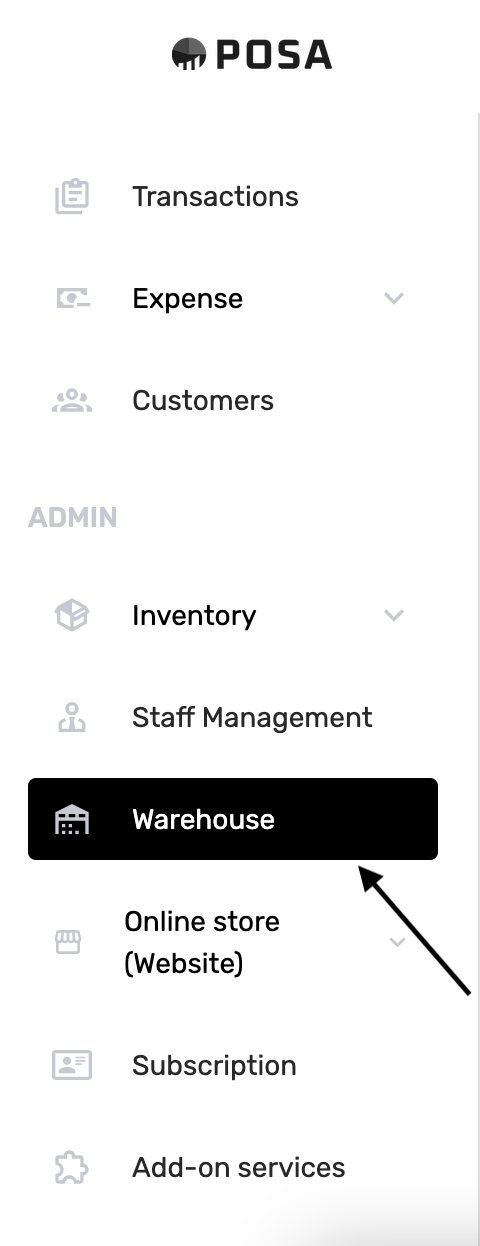
On the left sidebar, find ADMIN and click Warehouse. This is a different menu from Inventory.
2. Click Purchases
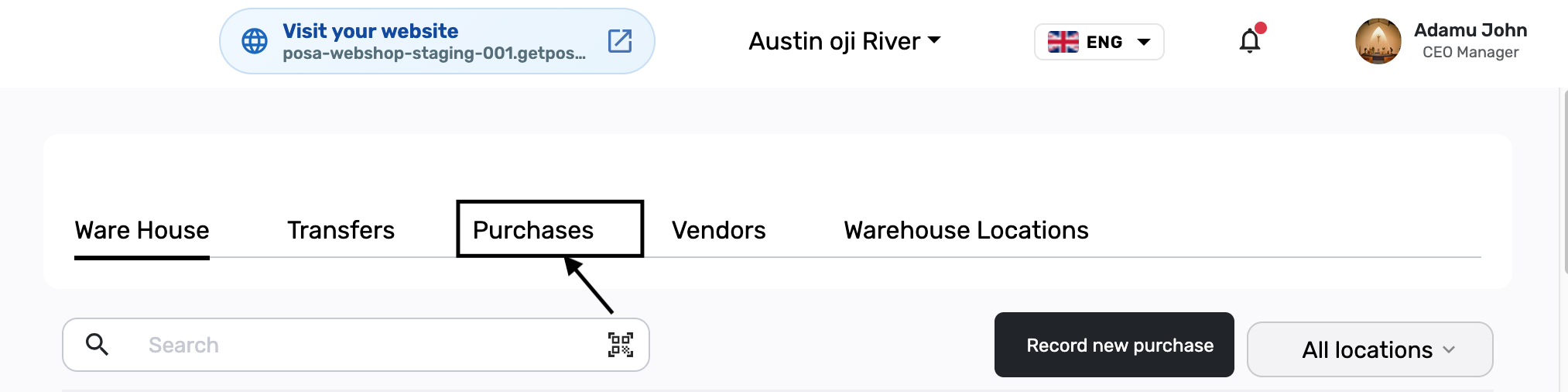
The first tab is Ware House — that is not the one you need. Click Purchases. Leave Transfers, Vendors, and Warehouse Locations for another time.
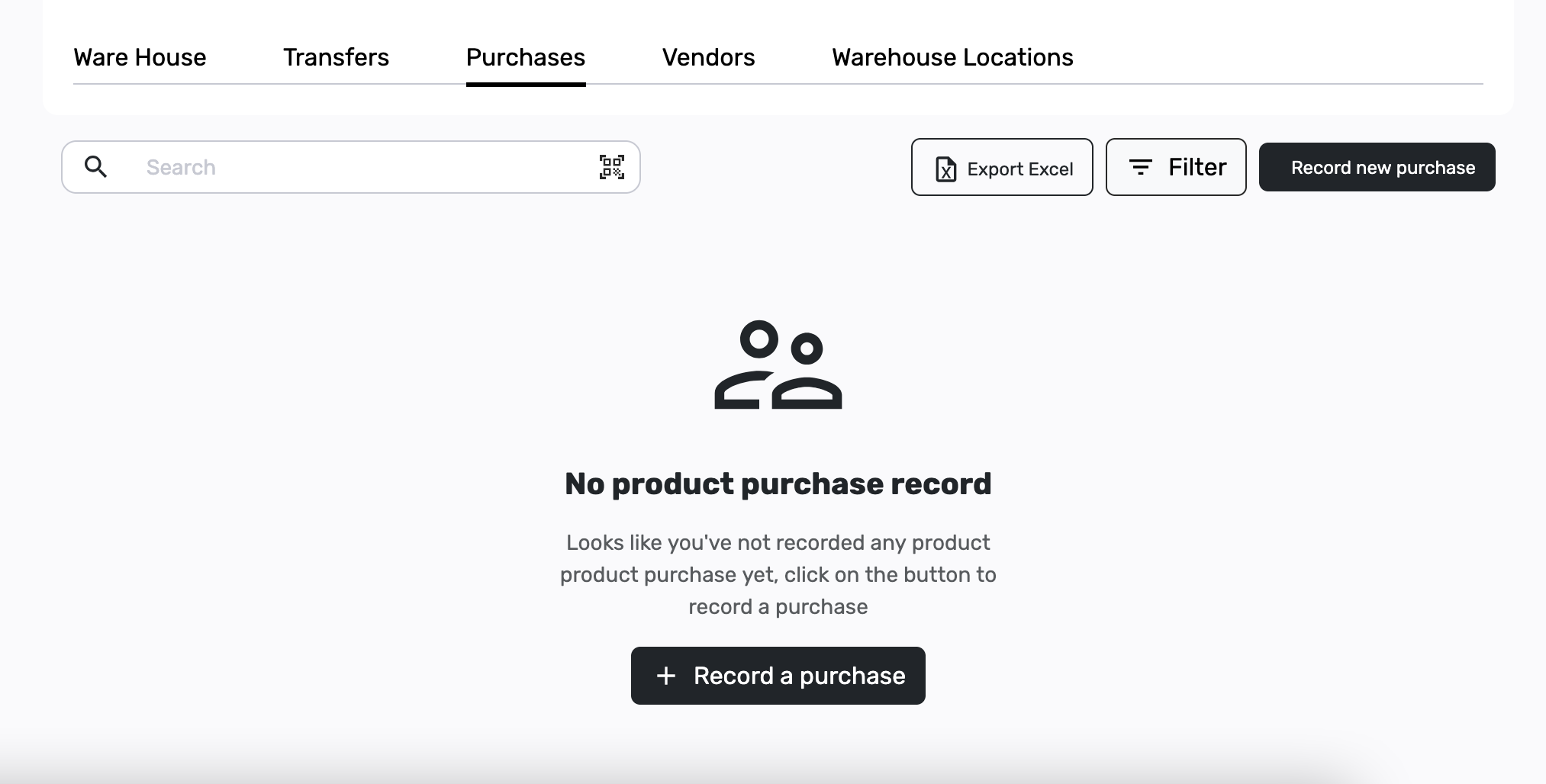
Purchases is underlined when it is selected. If you have not recorded one yet, you will see No product purchase record, with Record a purchase in the middle and Record new purchase at the top right. Either button starts the same flow.
3. Click Record new purchase
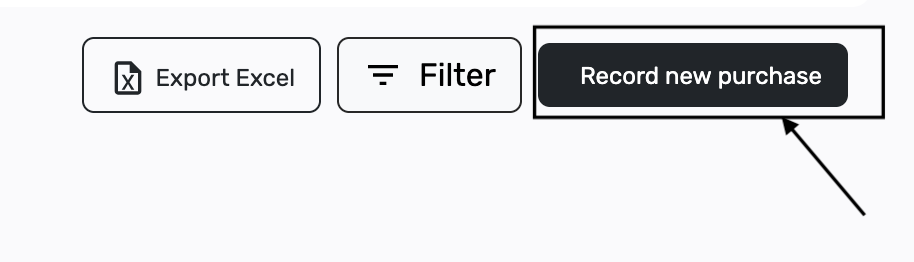
Click Record new purchase (or Record a purchase if that is the button you see). This opens Batch Purchase Setup.
4. Set how many products are in this purchase
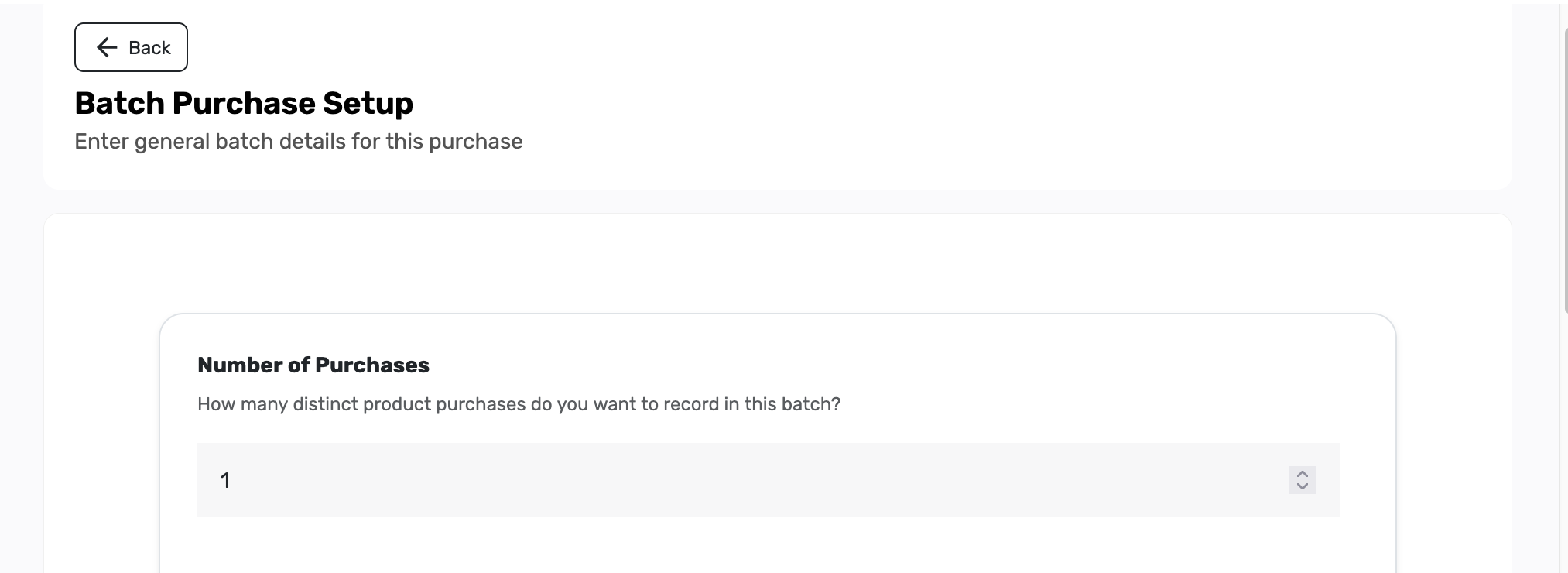
Number of Purchases is how many different products you are adding in this one delivery. 1 means one product. If the supplier brought three products, type 3 — you will fill in each one in turn. For this guide, leave it at 1.
5. Choose or add the vendor

Vendor Name is optional, but fill it when you know who supplied the goods. Open Select vendor if they are already on your list. If they are not, click Add new vendor.
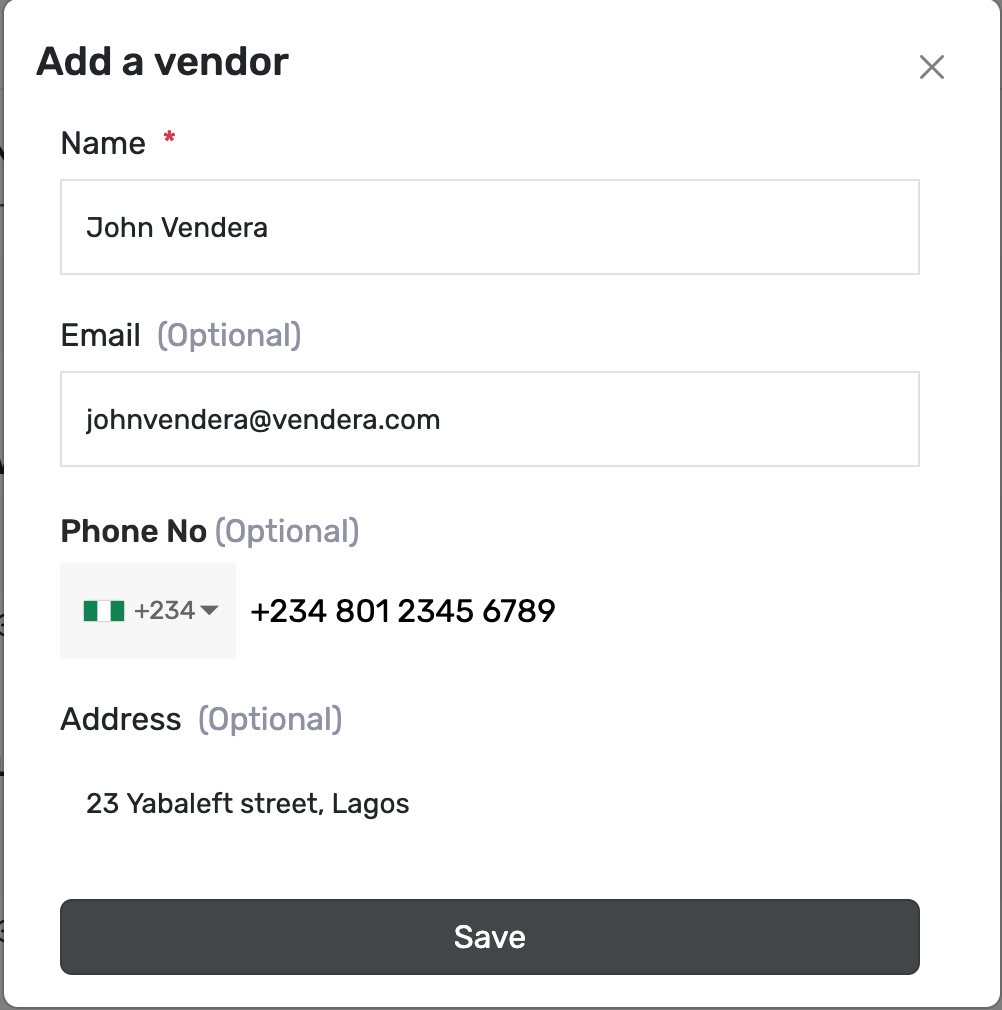
A window titled Add a vendor opens. Name has a red star — that is required. Email, Phone No, and Address are optional. In this example the name is John Vendera. Click Save.

Vendor Name should now show the name you saved — here John Vendera.
6. Choose Location — Shop floor updates Inventory
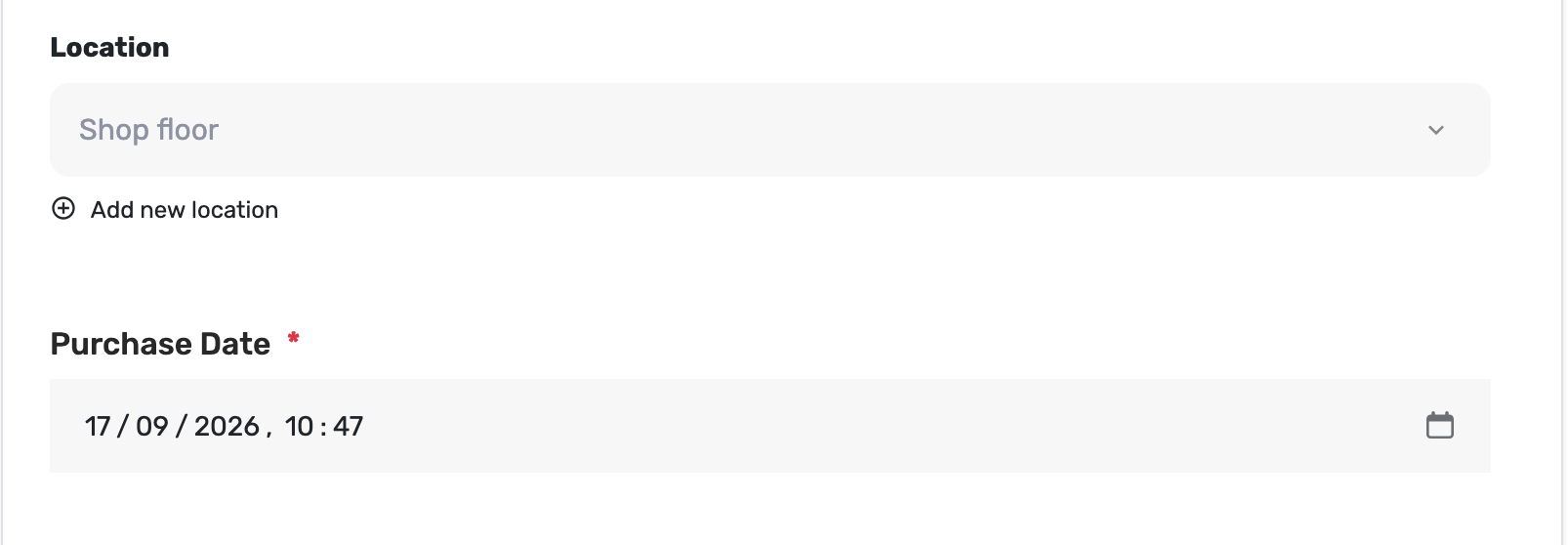
Location is where these goods are going. Purchase Date has a red star — Posa fills today’s date and time; change it if the delivery was earlier.
Shop floor is a special location Posa already has. It means the goods are going onto the shop — the stock you sell from. Pick Shop floor when that is true.
If Location is Shop floor, two things happen on Inventory after you submit. The quantity you capture on this purchase is added to that product’s Stock on the product page. And if you type a cost price or a selling price on the purchase, those numbers become the product’s Cost Price and Selling price on Inventory too.
If you pick any other location — a store room or a warehouse location you created — the purchase is still saved under Purchases. Inventory does not change. Stock stays as it was. Cost and selling price stay as they were. That update only happens when Location is Shop floor.
7. Add the invoice if you have it (optional)
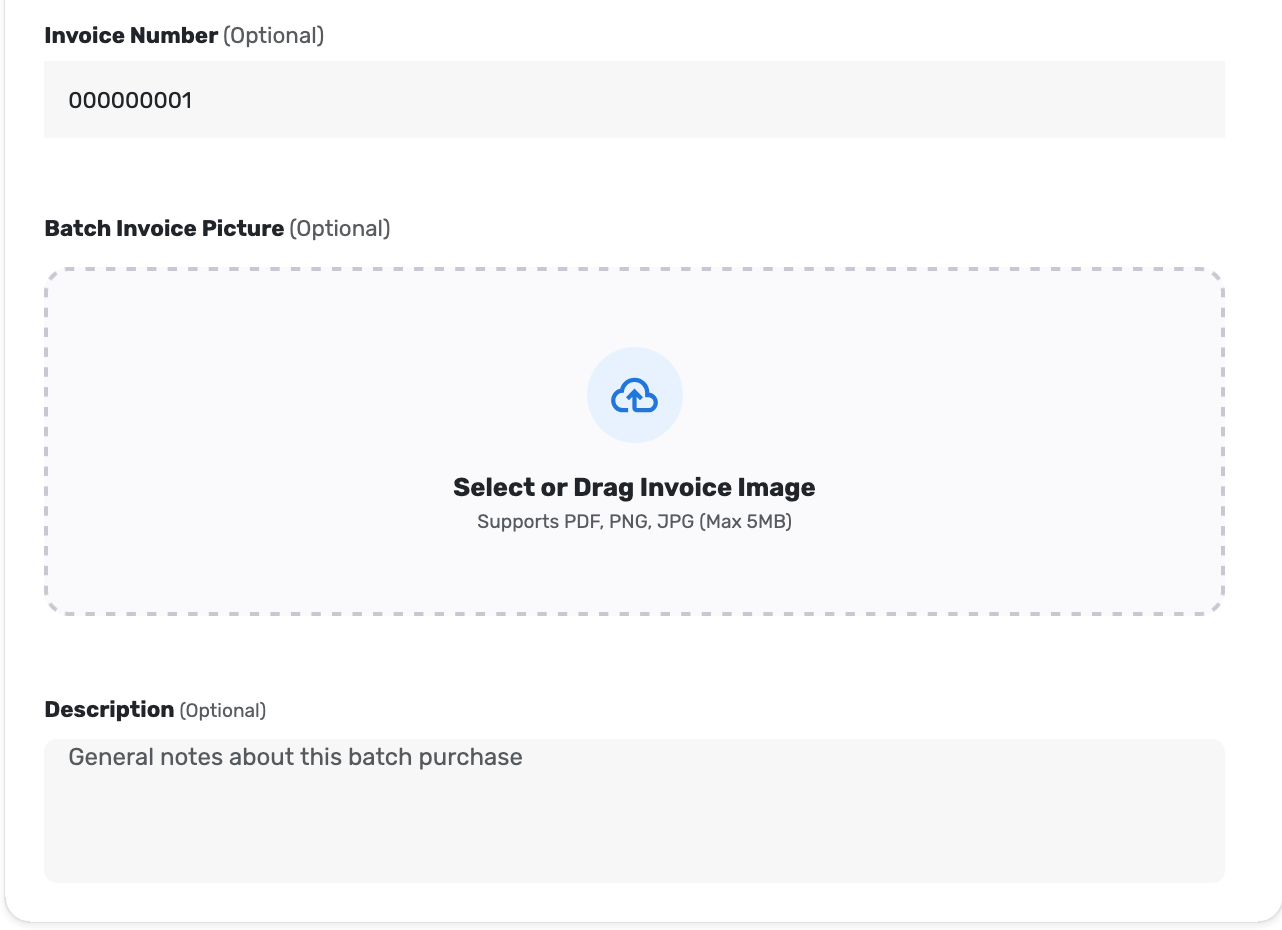
Invoice Number, Batch Invoice Picture, and Description are all optional. Type the number from the supplier’s paper if you have it — here 000000001. You can skip the picture and the notes.
8. Click Start Recording

Click Start Recording. This opens the page where you add each product.
9. Resume from a saved draft if you left earlier
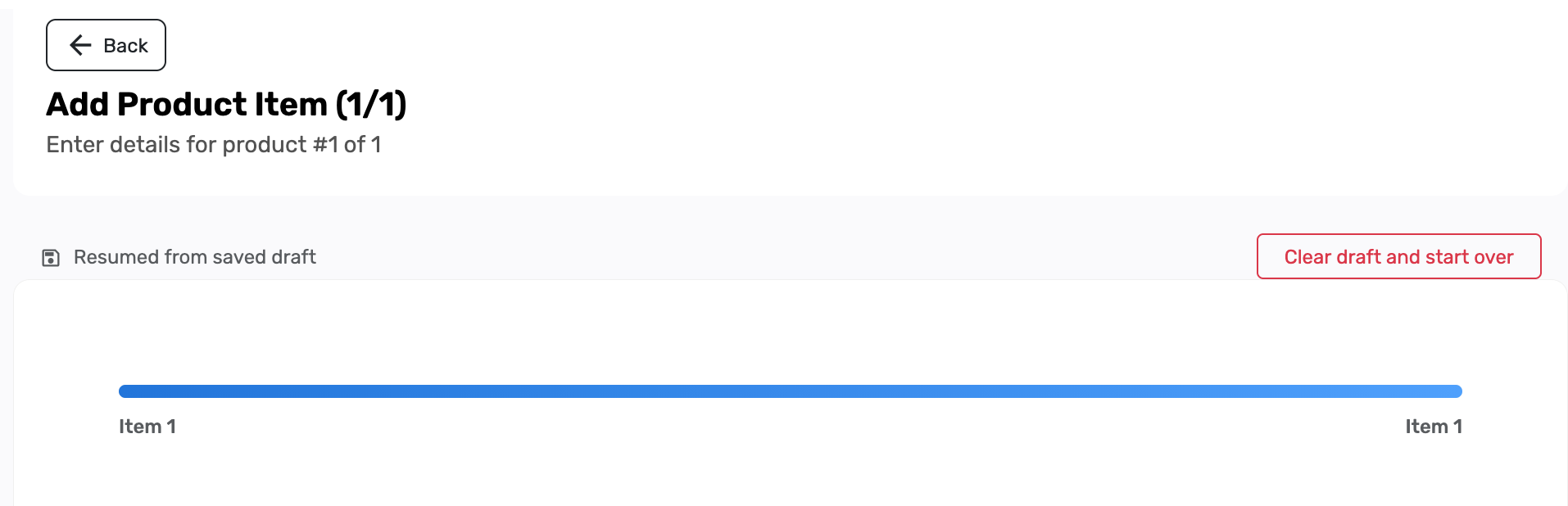
The page is titled Add Product Item. If you have been here before and did not submit, Posa kept your work. You will see Resumed from saved draft on the left. That means you are continuing from where you last left off — vendor, location, products, and quantities you already typed are still there.
Posa saves this page as you go (you may see Draft saved). You can close the tab, refresh, or come back another day. Open Record new purchase again and you pick up the same draft. You do not have to remember where you stopped.
Only click Clear draft and start over if you want to throw that work away and begin a new purchase. For this guide, leave the draft and continue.
10. Search for the product
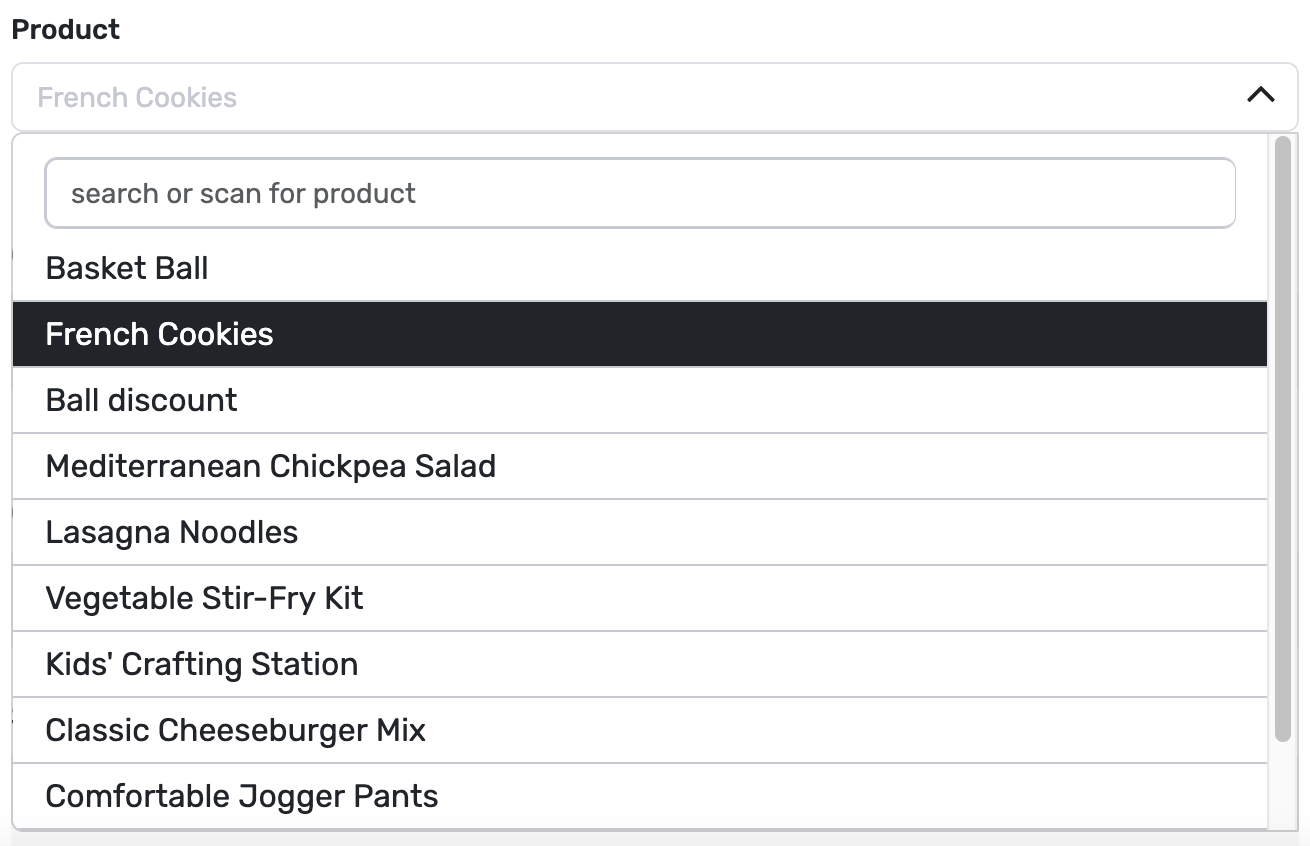
Open Product, then search or scan. Click the product that arrived — here French Cookies is highlighted. It must already be in your catalogue.

The Product field should show the name — here French Cookies. Leave Add new product unless you need to create one first.
11. Enter how many you received

Quantity has a red star. Type how many of this product arrived, in the unit shown — here 40 Piece. This is the number that will be added to Stock on Inventory if Location is Shop floor.
12. Enter cost and selling price if they changed
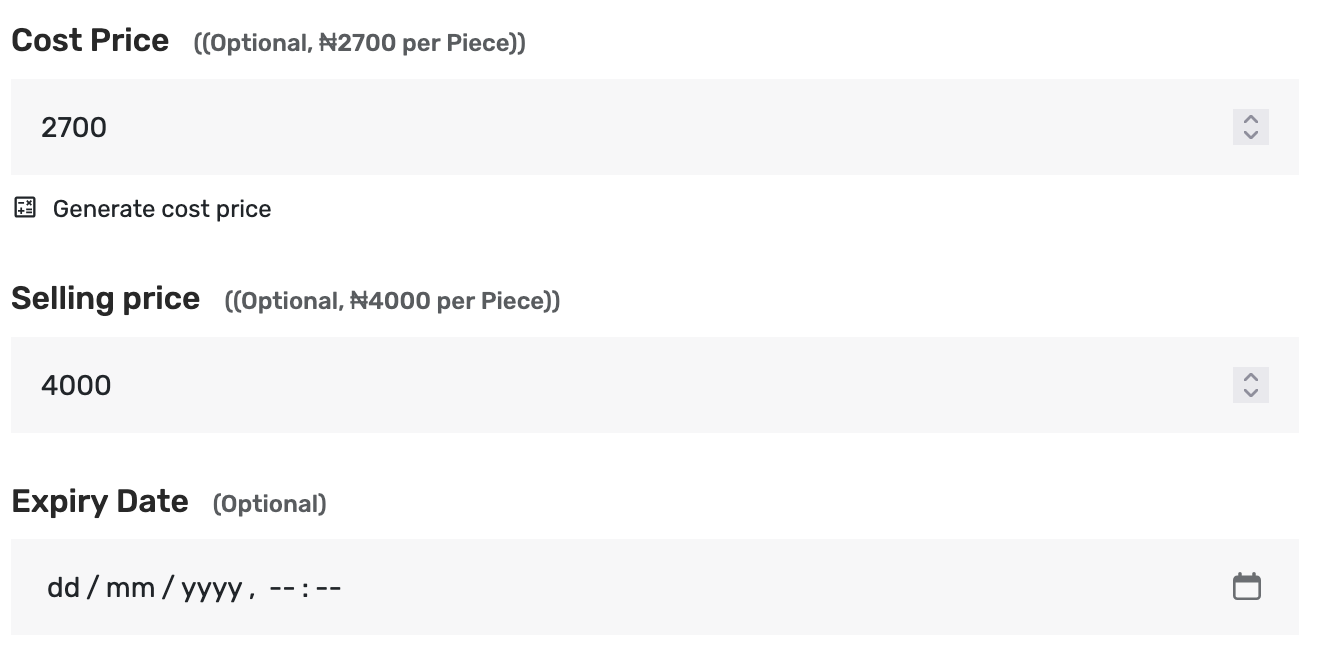
Cost Price and Selling price are optional. Posa may fill them from the product. Change them if this delivery cost a different amount or you want a new selling price. In this example cost is 2700 and selling price is 4000. Expiry Date is optional — skip it if you do not need it.
If Location is Shop floor and you leave these prices filled in, Inventory will use them as the product’s new Cost Price and Selling price. If you pick a location that is not Shop floor, these numbers stay on the purchase record only — they do not change the product page.
13. Review the summary

When the product line looks right, click Review Summary. If Number of Purchases was more than 1, finish the other items first.
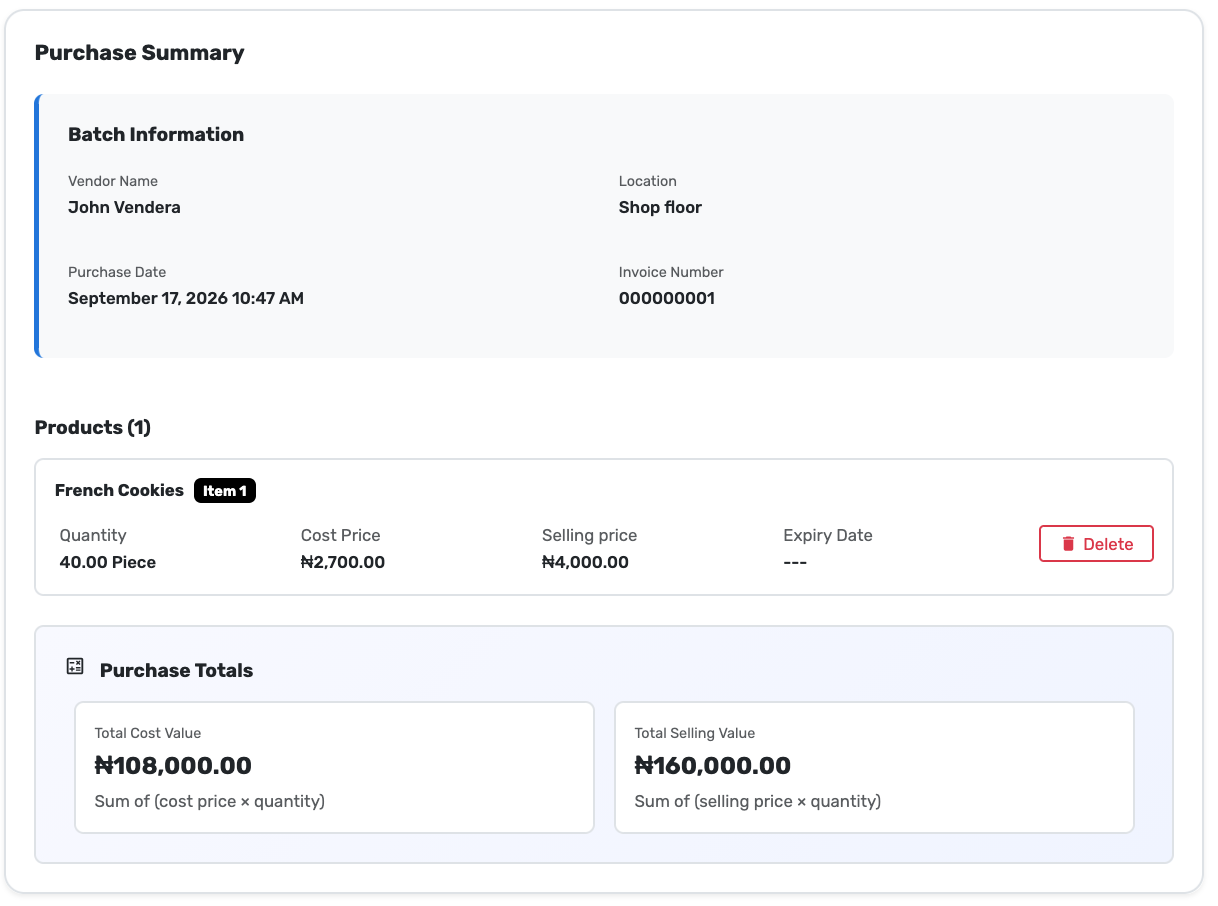
Purchase Summary shows Batch Information and the products. Check Vendor Name, Location (Shop floor in this example), Purchase Date, Invoice Number, then Quantity, Cost Price, and Selling price. Total Cost Value is cost × quantity — here ₦108,000.00. Total Selling Value is selling price × quantity — ₦160,000.00. Use Delete only if this line is wrong.
14. Submit the purchase

Click Submit. Posa records the purchase and clears the draft, so the next time you open this page it is a new purchase.
15. Confirm it was recorded
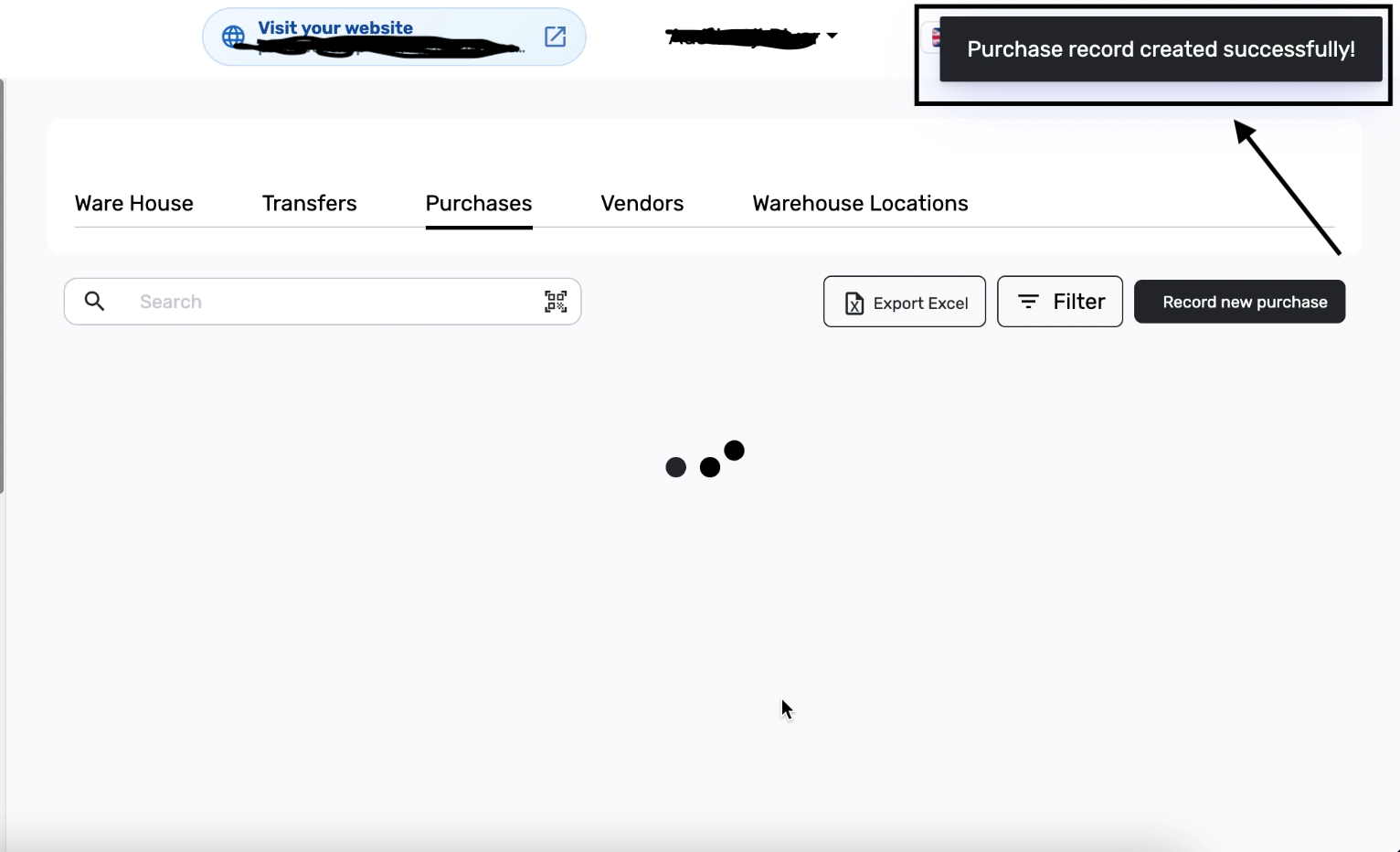
You should see Purchase record created successfully. You are back on the Purchases tab.
16. See the purchase on the list
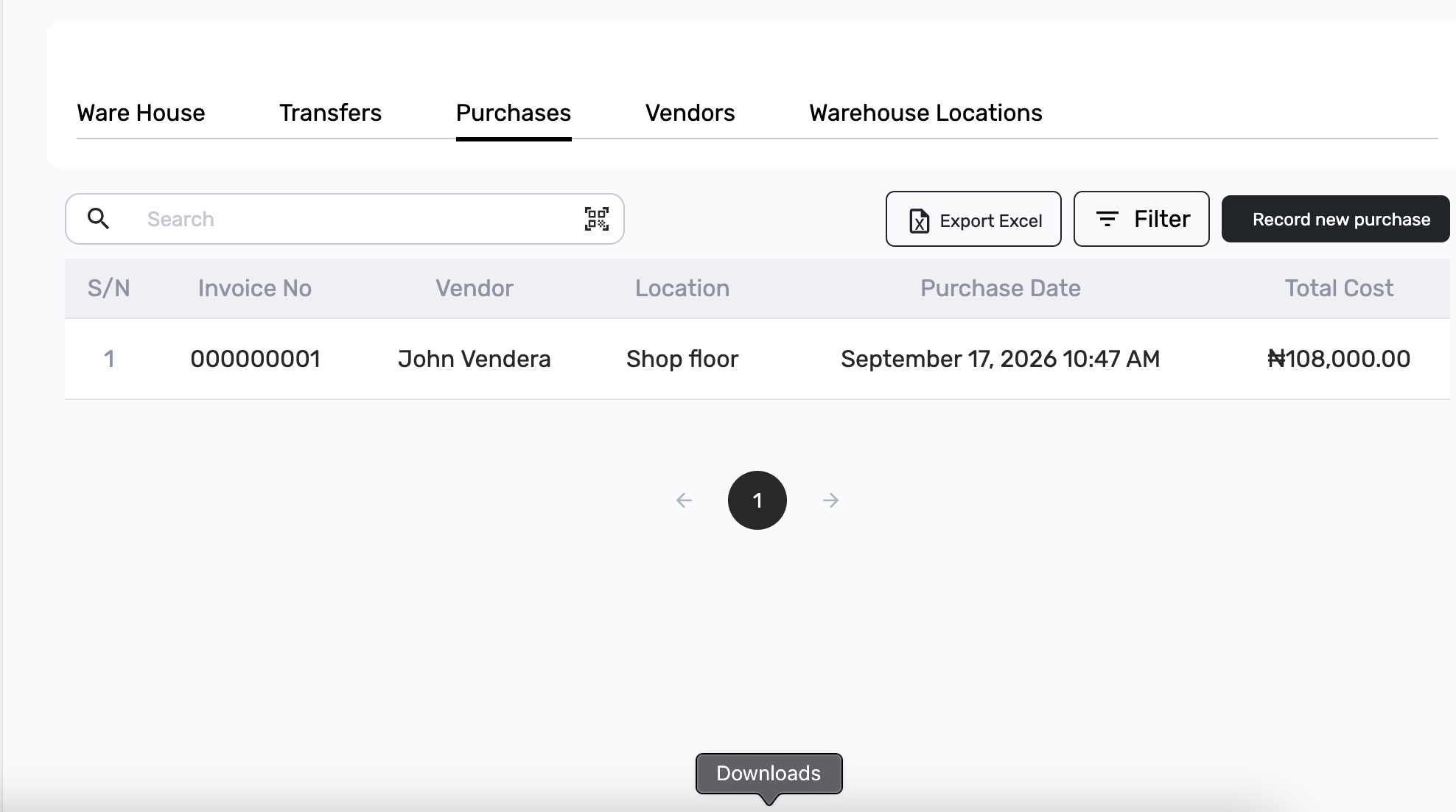
The row lists Invoice No, Vendor, Location, Purchase Date, and Total Cost. In this example: 000000001, John Vendera, Shop floor, September 17, 2026 10:47 AM, ₦108,000.00. Click the row to open the full record.
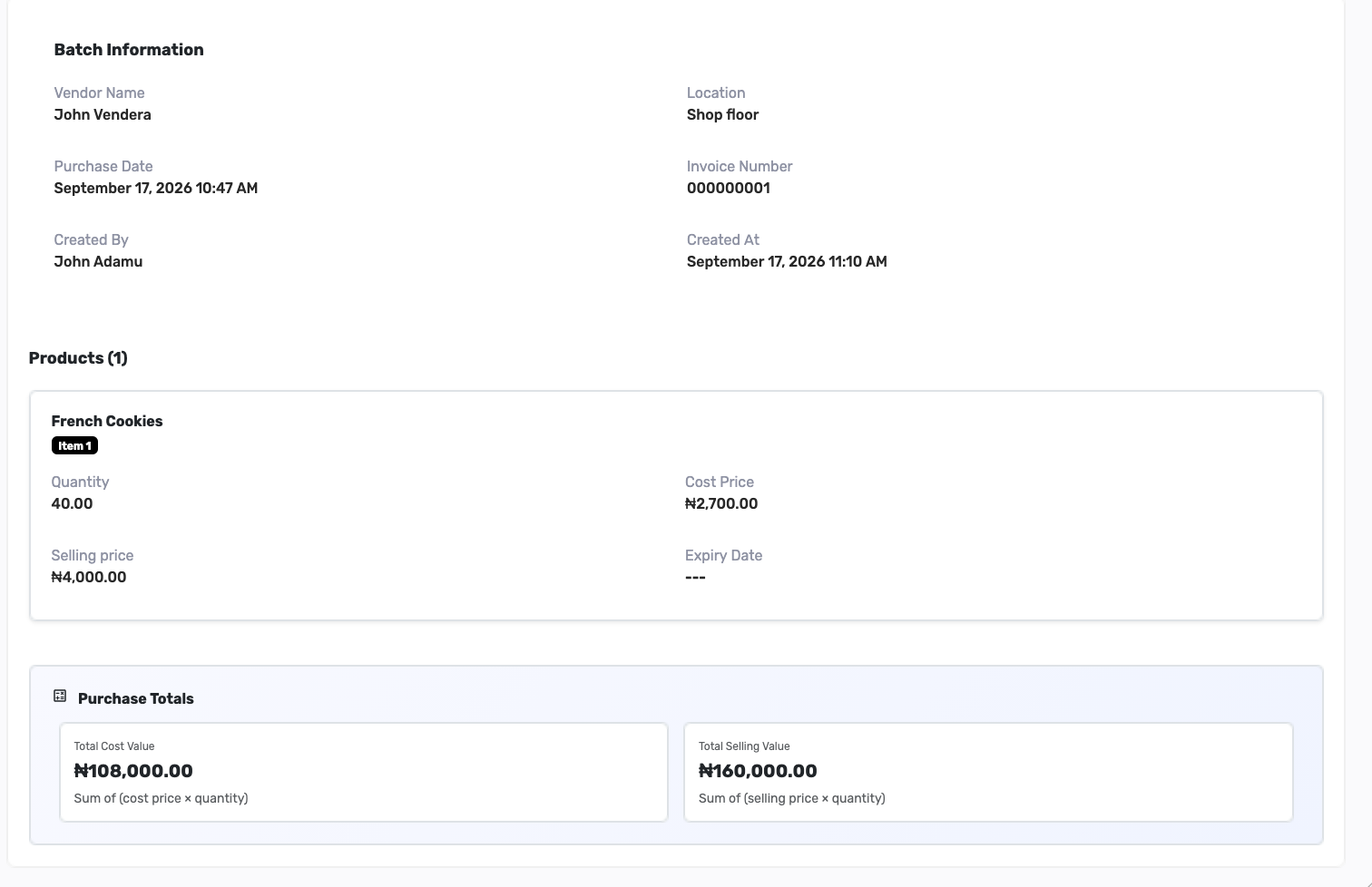
The details page repeats Batch Information and Products — vendor, Shop floor, invoice, quantity 40, cost ₦2,700.00, selling price ₦4,000.00, and the same totals. This is the purchase record. Next, check Inventory only if Location was Shop floor.
17. If you chose Shop floor, check stock and prices on Inventory
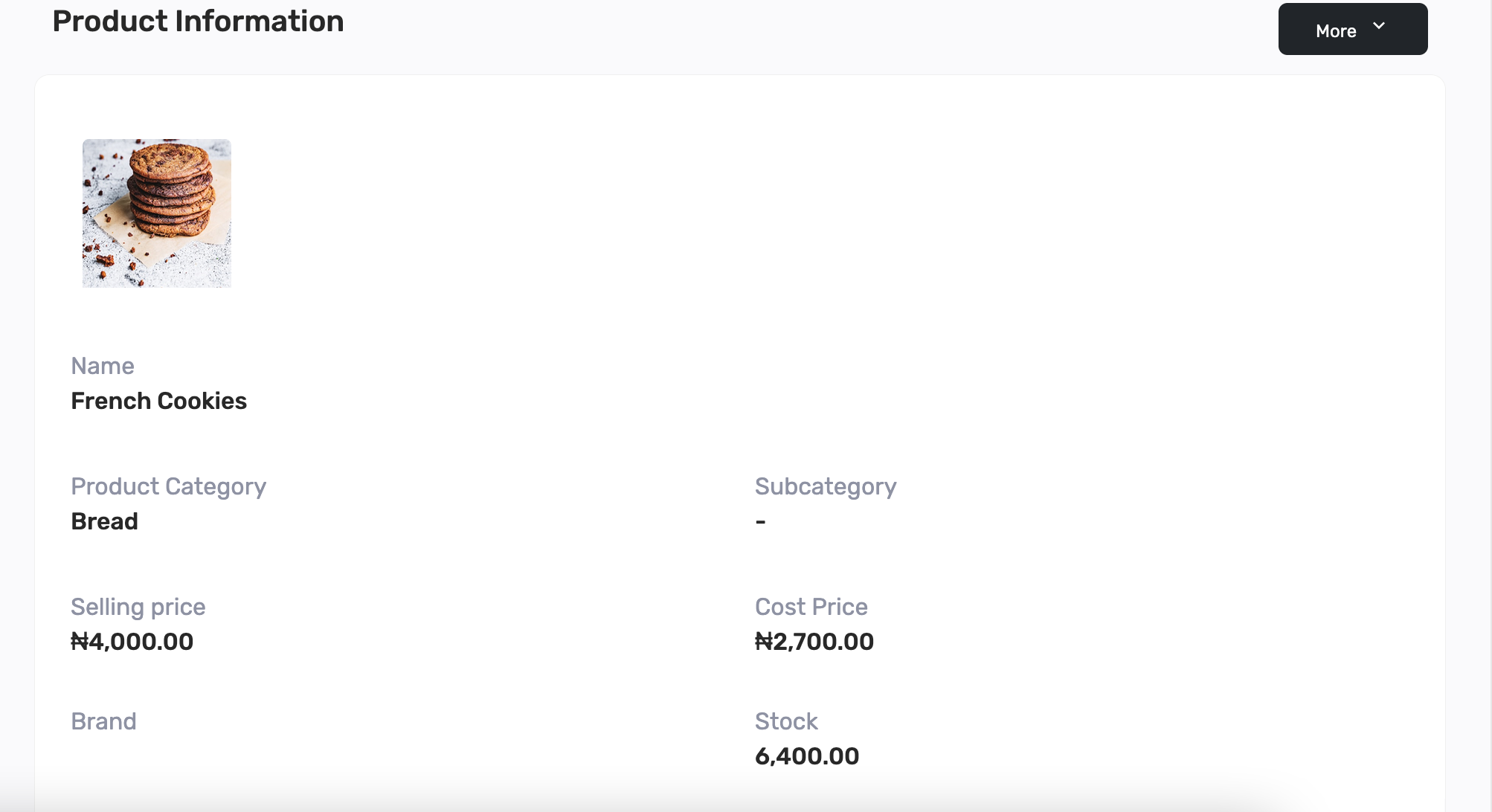
Open Inventory, then Products, then the product you purchased — here French Cookies. Because Location was Shop floor, Stock has gone up by the purchase quantity. In this example it moved from 6,360 to 6,400 (6,360 + 40). Selling price is now ₦4,000.00 and Cost Price is ₦2,700.00 — the amounts typed on the purchase.
That is the Shop floor rule in one place: quantity captured during the purchase is added to product stock, and any cost price and selling price you indicated are used to update the product on Inventory. None of that happens if Location is not Shop floor. The purchase would still appear on the Purchases list, but this product page would keep the old stock and the old prices.
18. Shop floor purchases also appear in restock history
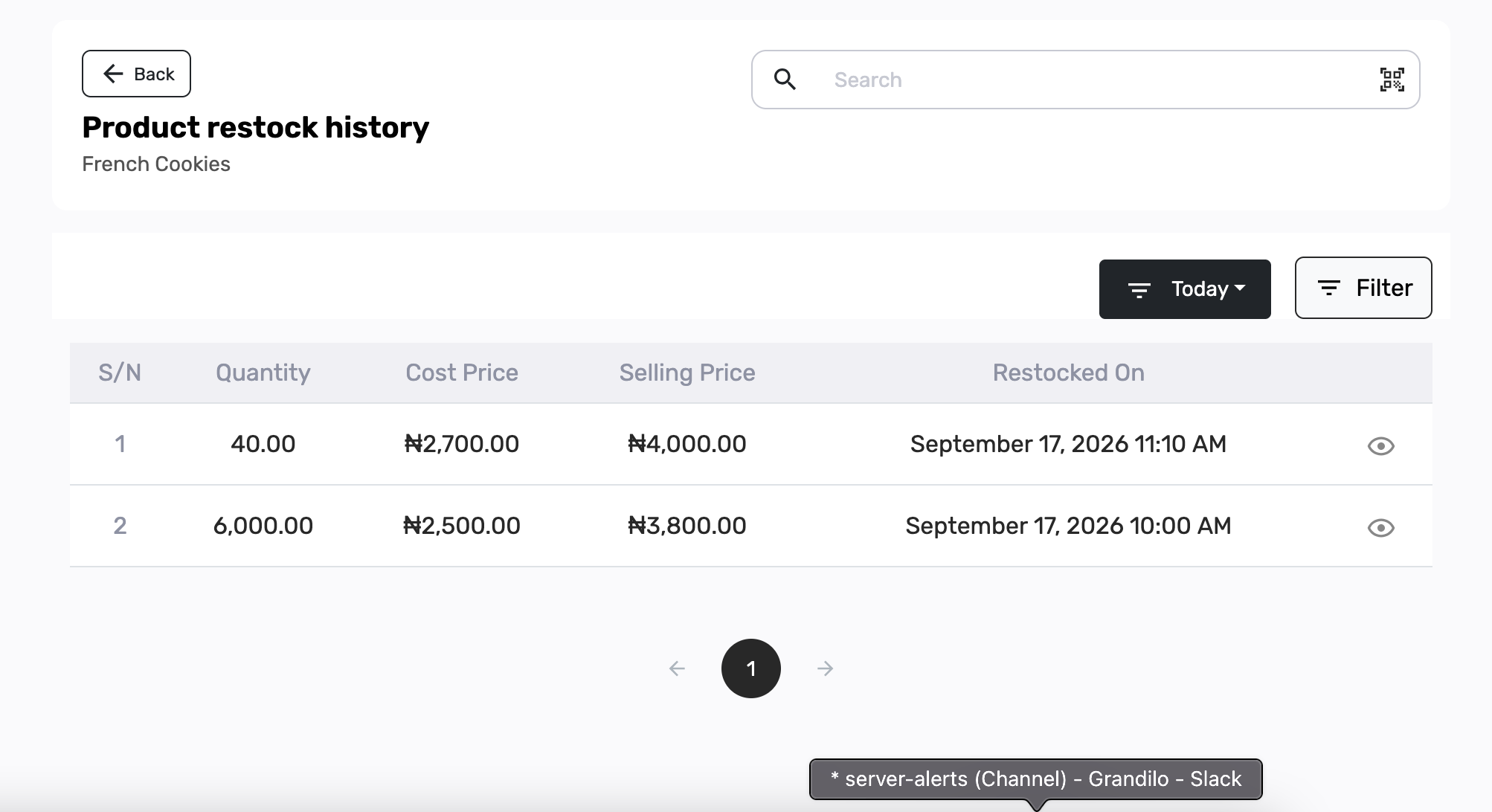
On the same product, click More, then View Restock History. Because Shop floor added stock, the purchase shows as a restock row. The newest is at the top: Quantity 40.00, Cost Price ₦2,700.00, Selling Price ₦4,000.00, Restocked On September 17, 2026 11:10 AM. The earlier restock is still there underneath — 6,000.00 at ₦2,500.00 and ₦3,800.00.
A purchase sent to any location other than Shop floor does not add a row here, and does not change Inventory. To add stock on a product without a vendor or invoice, see How to restock a product on Posa.
Ready to record purchases from your vendors on Posa?
Start your free trial at getposa.com
Get Started FreePublished by Posa Technologies · getposa.com
← More guides