

Use this guide when you already have a long product list and want to add them all at once. To add one product at a time, see How to upload your products on Posa.
You need a paid Posa plan to import many products at once. On a free plan, add products one by one instead.
1. Open Inventory
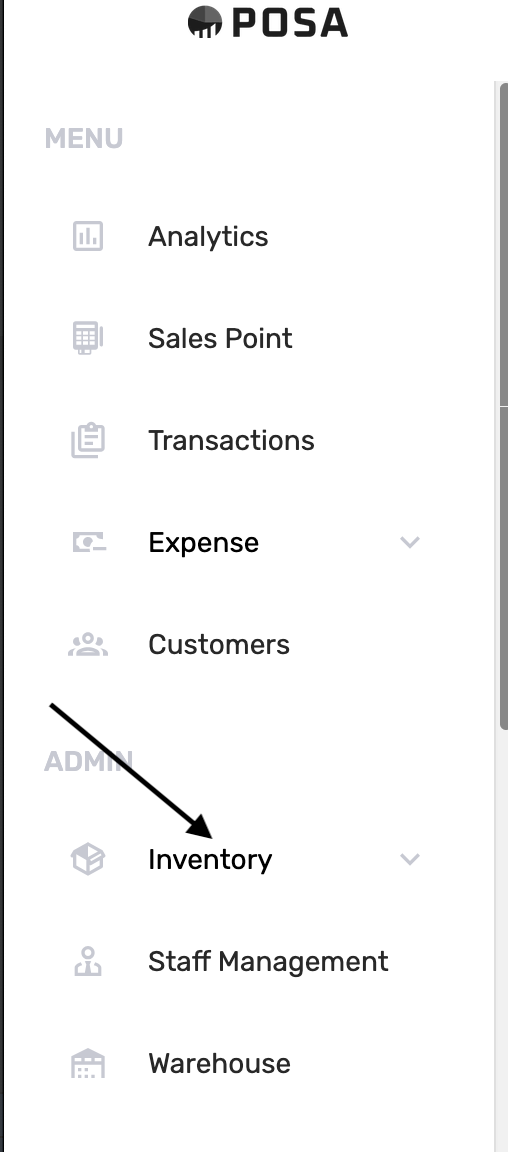
On the left sidebar, find ADMIN and click Inventory. This opens the inventory menu.
2. Go to Products
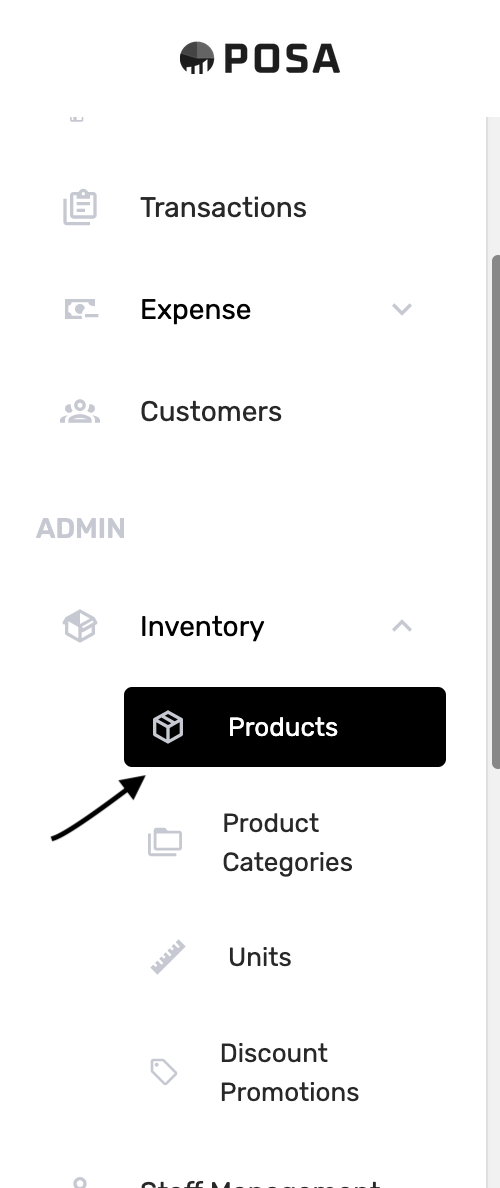
Under Inventory, click Products. The menu item turns black when you are on the Products page.
3. Click More
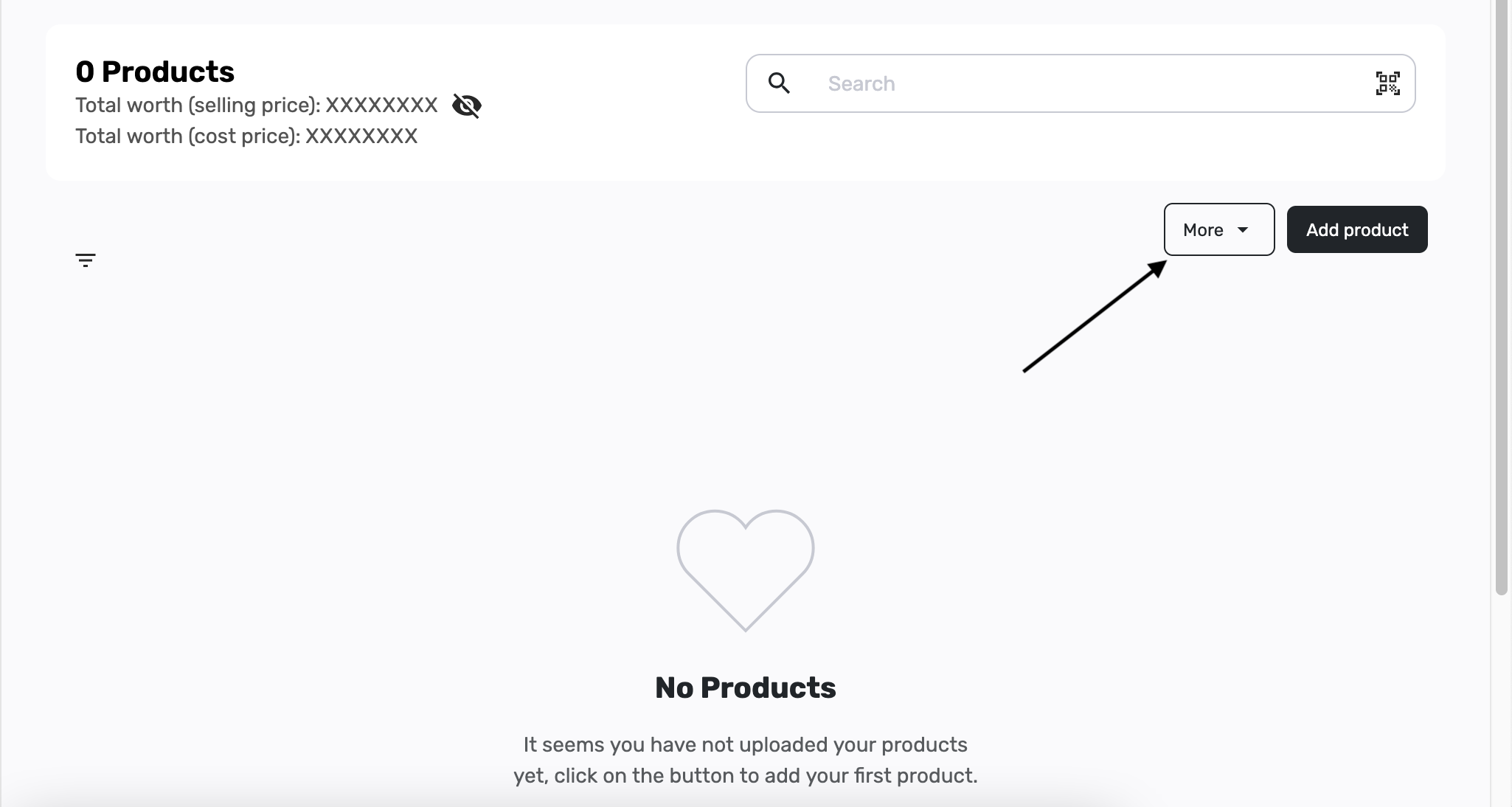
On the Products page, look to the right of the list. Click More — it sits next to Add product. A short menu opens.
4. Download the sample template
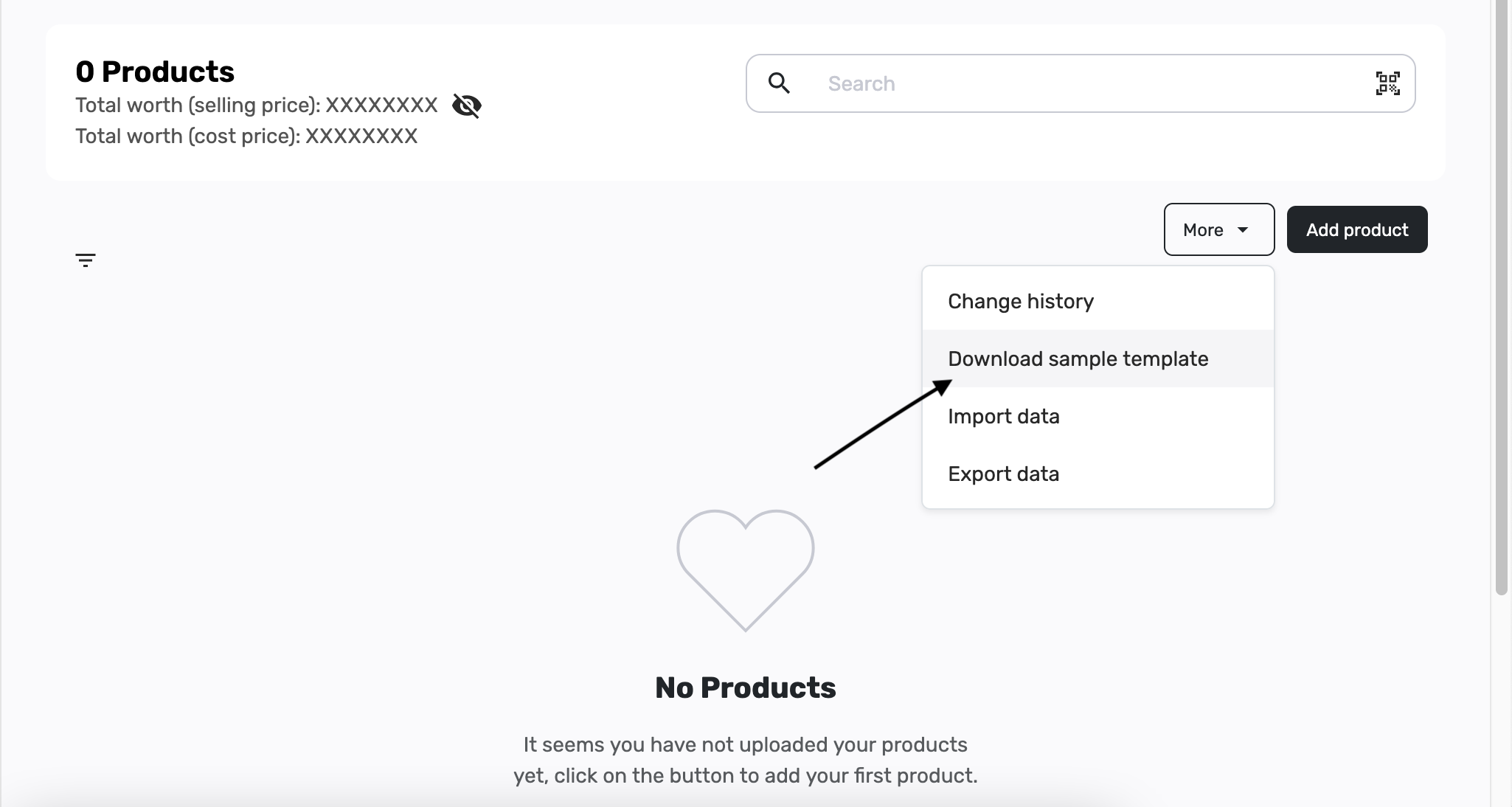
In the More menu, click Download sample template. This gives you an Excel file with the correct column names. Keep those names as they are.
5. Find the downloaded file
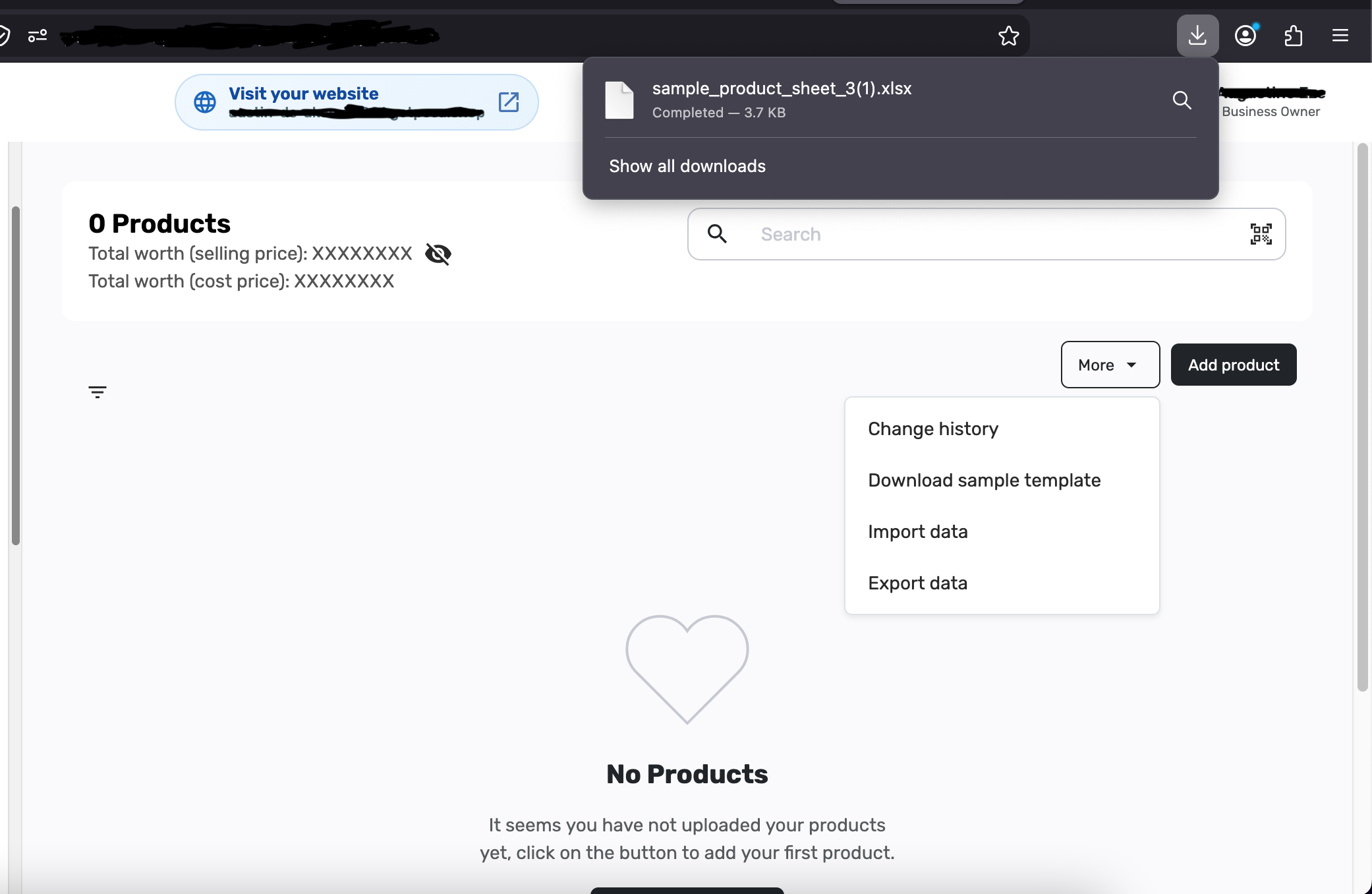
Your browser saves a file such as sample_product_sheet. Open it from your downloads. If you see that file, you are on the right track.
6. Fill in your products

Open the downloaded file in a spreadsheet app such as Microsoft Excel or Google Sheets. Leave the first row (the headers) in place. Add one product per row under it.
- name — required. The product name you sell, for example Fitness Resistance Bands.
- selling_price — required. The price you charge the customer.
- quantity — optional. How many you have in stock. If you leave it blank, Posa uses 1.
- category_name — optional. A group name such as Home or Fitness.
- cost_price — optional. What the product costs you.
- sku — optional. Your own product code. You can leave this blank.
7. Click Import data
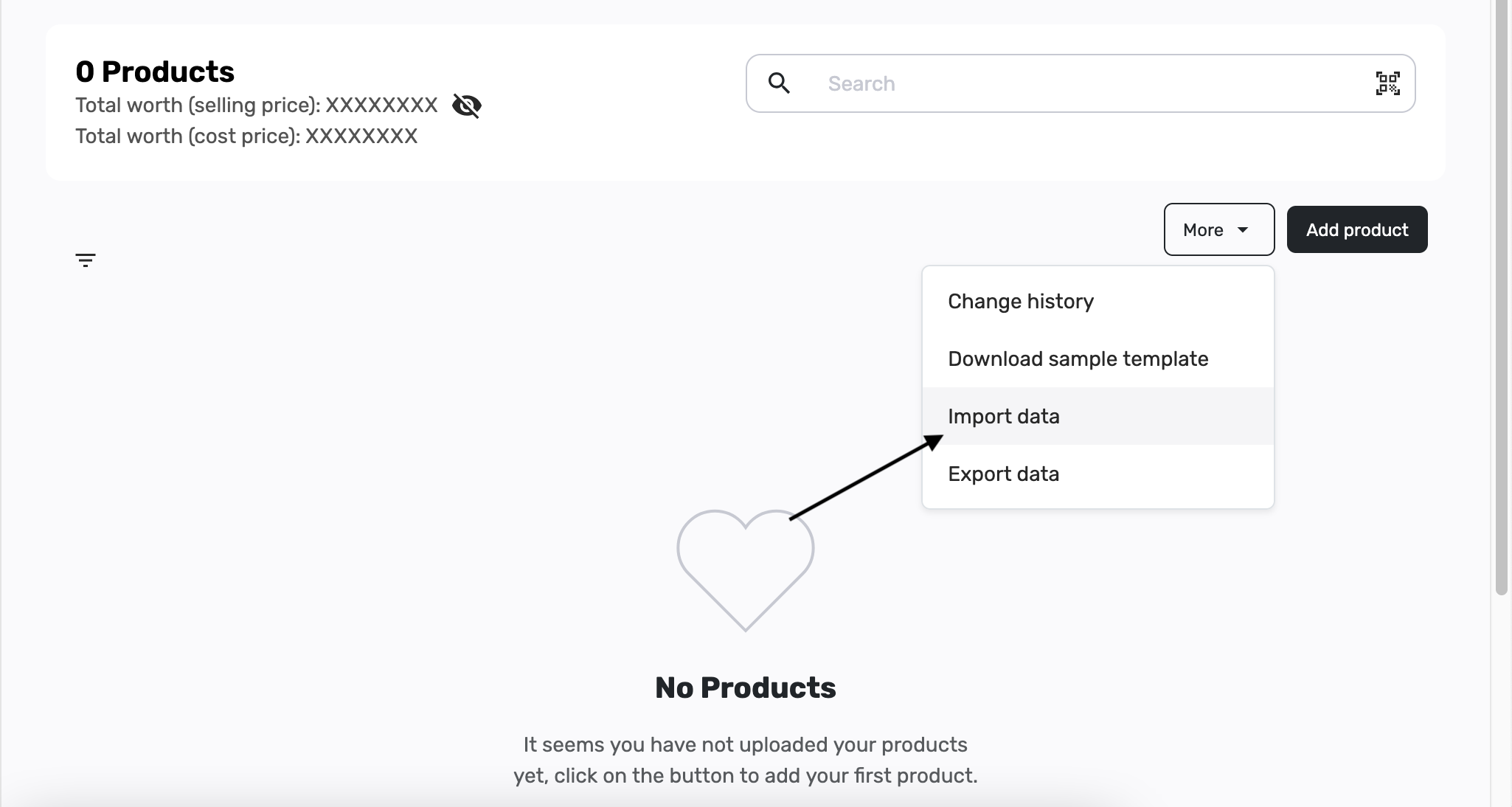
Save the Excel file, then go back to the Products page. Click More again, then click Import data. Choose the Excel file you just saved.
8. Check that Posa read the file
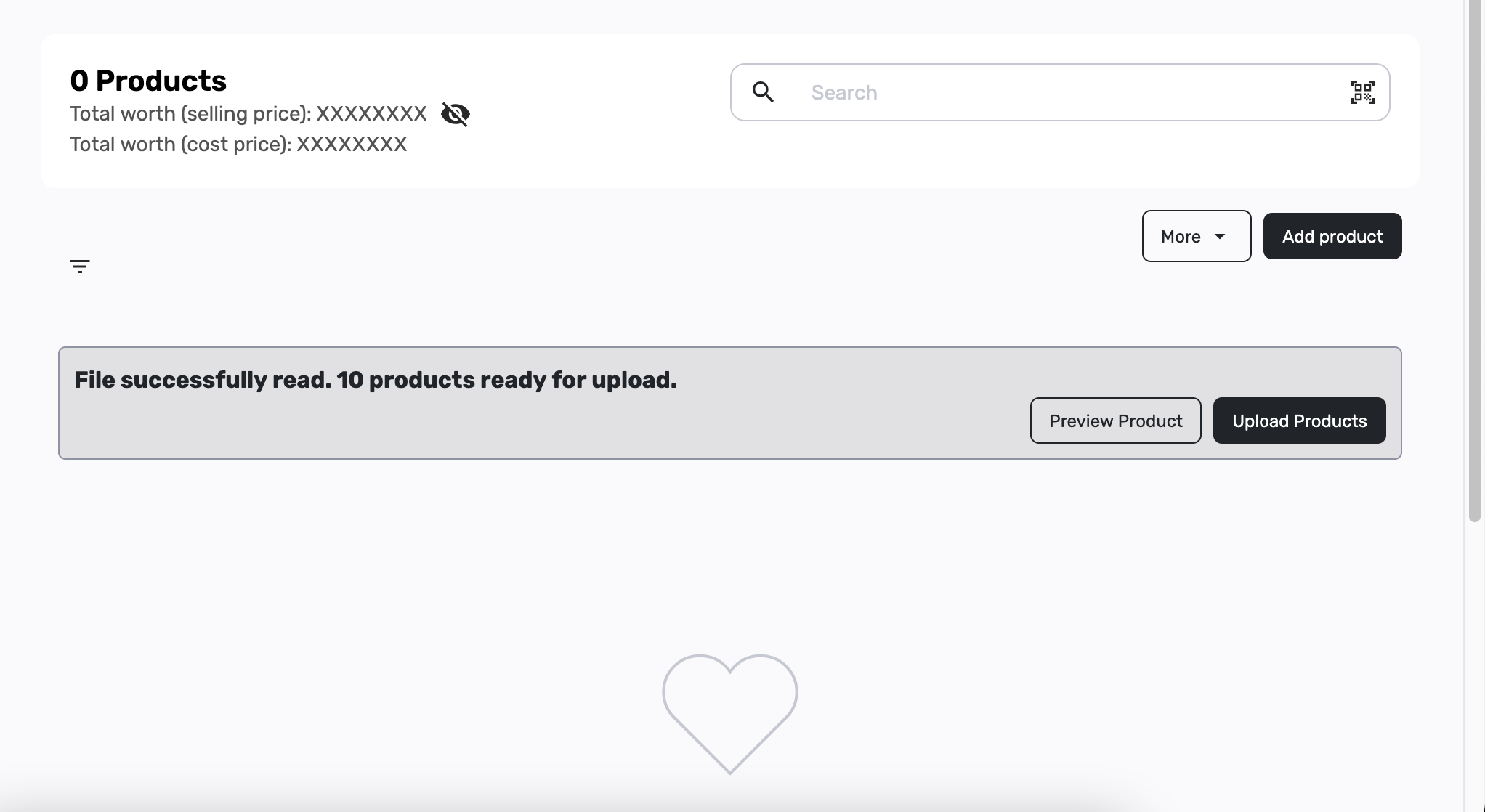
You should see a message like File successfully read, and a count of how many products are ready. Preview Product and Upload Products appear on the right. If you see that, you are in the right place.
9. Preview the list (optional)
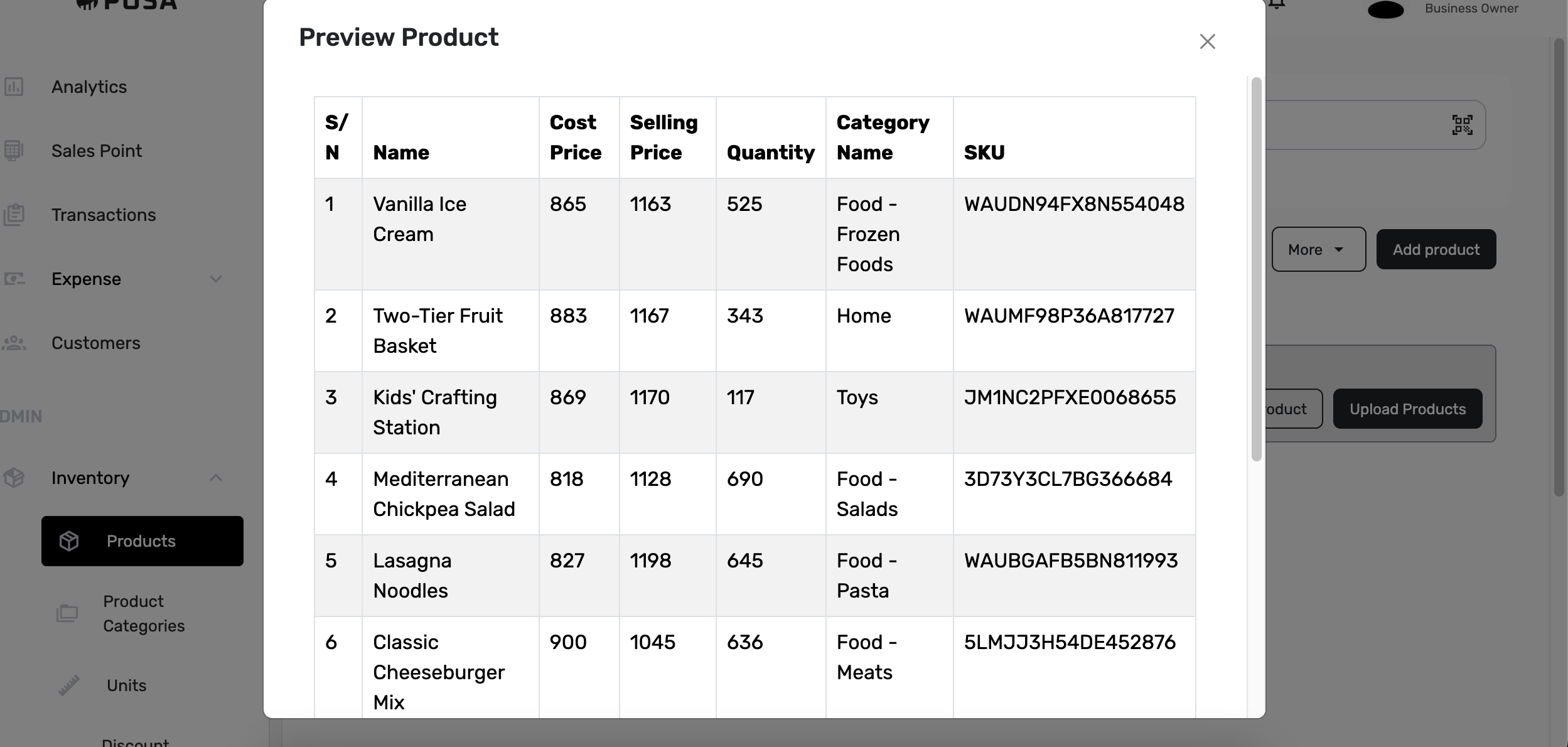
Click Preview Product if you want to check the list first. You should see a table with Name, Cost Price, Selling Price, Quantity, Category Name, and SKU. Close the window when you are done.
10. Upload the products
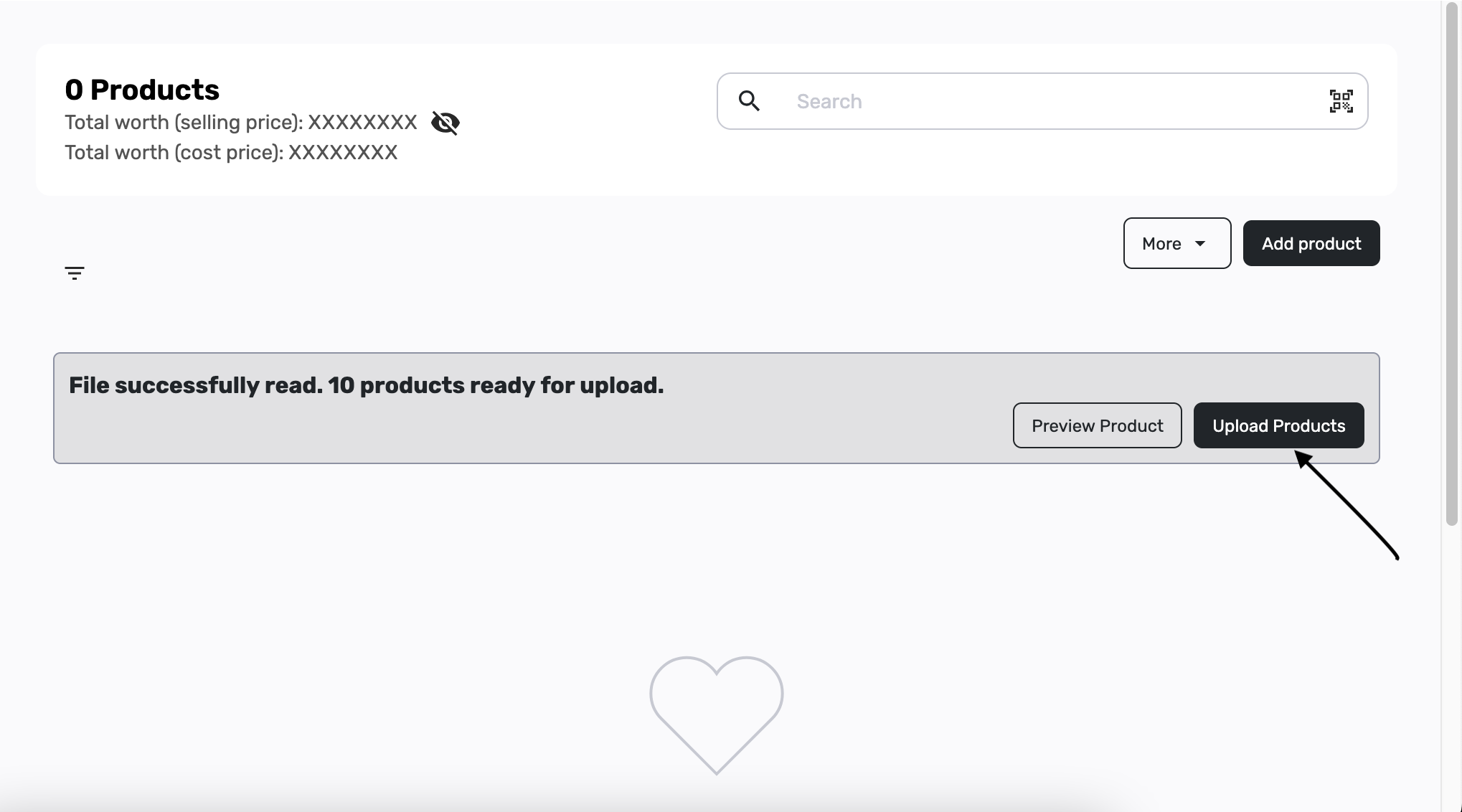
Click Upload Products. Wait until the upload finishes. Do not close the page while it is working.
11. Confirm they were added
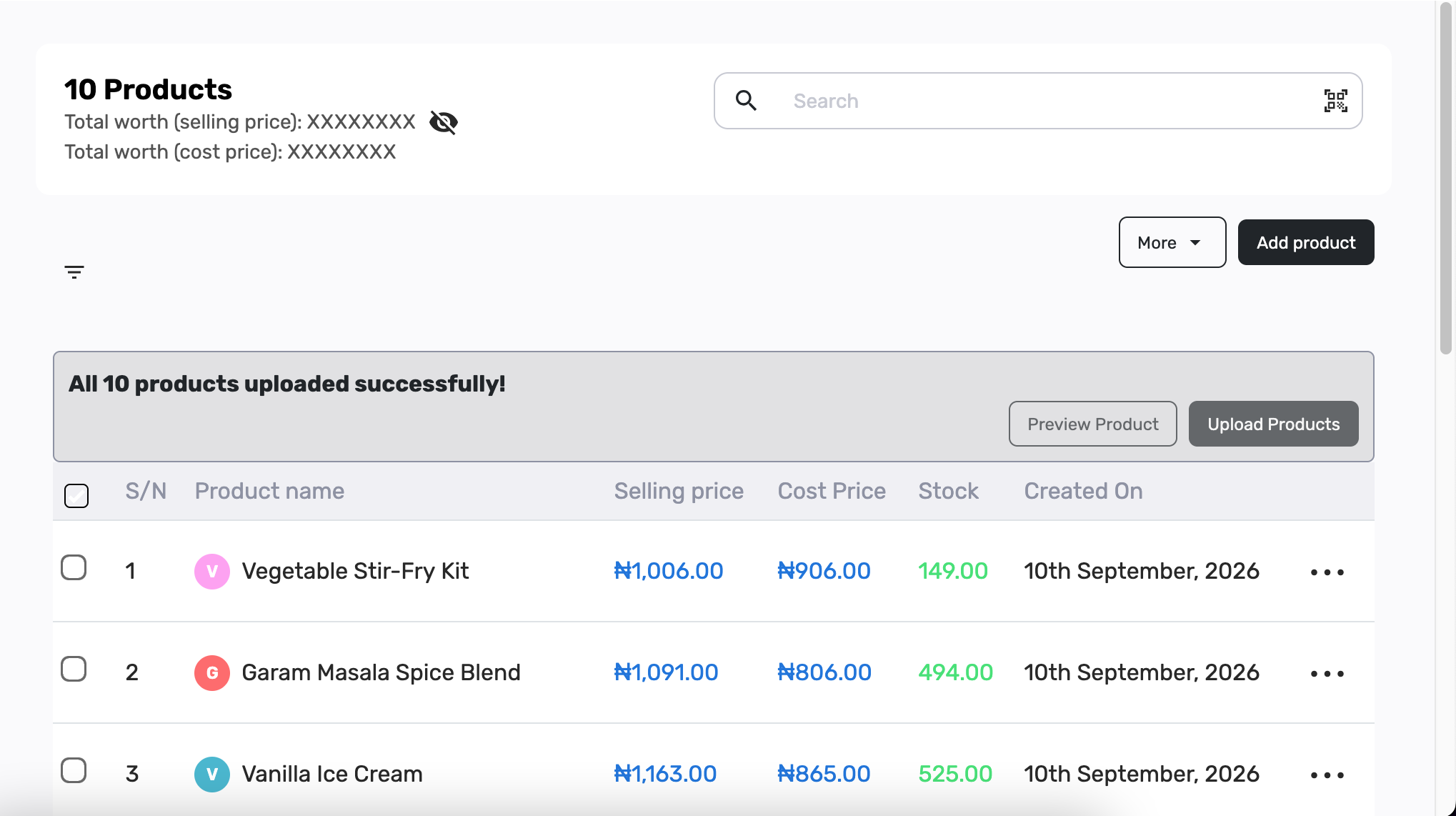
When it is done, you should see a message like All 10 products uploaded successfully, and the products appear in your list. The header count updates to match.
Published by Posa Technologies · getposa.com
← More guides