
Use this guide to read the numbers on Analytics — the first page after you log in. It shows how much you sold, what you spent, which products move, and (if you have an online shop) how people use your website.
You need at least one sale and some products first. See How to record a sale on Posa if the Sales cards are empty. Expense, Top Selling Products, Revenue by Category, and the Purchases card need a Premium or Posa Elite plan. To download the same sales as Excel instead, see How to export your transactions on Posa.
Use the tabs below to jump to the same reports as in Posa. Pick Get started first if you have not opened Analytics yet.
These match the tabs on Analytics in Posa. Dates and Filter at the top right apply to every report.
1. Read the Sales cards
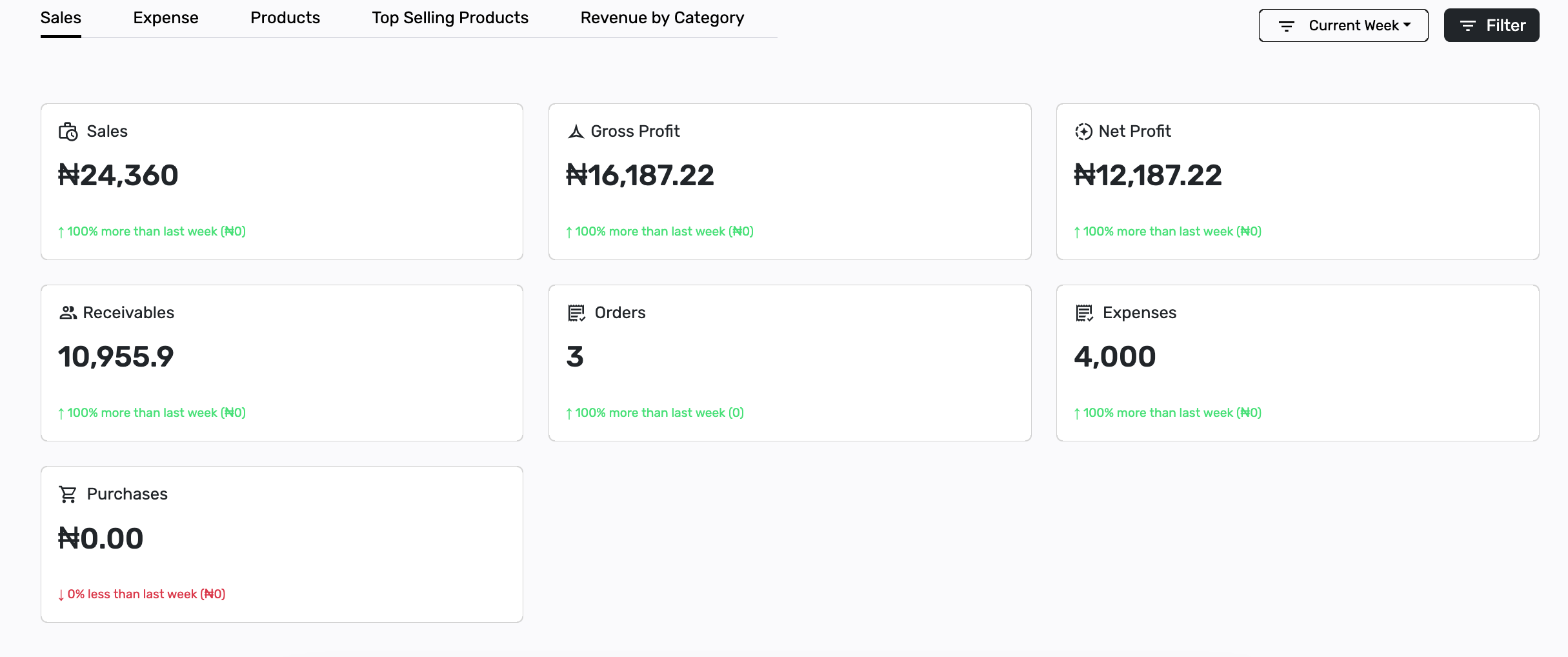
Stay on the Sales tab. The first row of cards is your snapshot for the period. The green or red line under a number compares this period with the one before it (for example this week vs last week).
Each card means:
- Sales — money received from completed sales.
- Gross Profit — what is left after the cost of the goods. Selling price minus discounts, minus cost price.
- Net Profit — what is left after goods and running costs (such as expenses). This is the overall profit.
- Receivables — money customers still owe from unpaid or partially paid sales.
- Orders — how many completed sales you made (a count, not an amount).
- Expenses — what the business spent in this period.
- Purchases — the cost of stock you recorded as purchases (cost price × quantity). This card shows on Premium or Posa Elite.
2. Sales by payment method
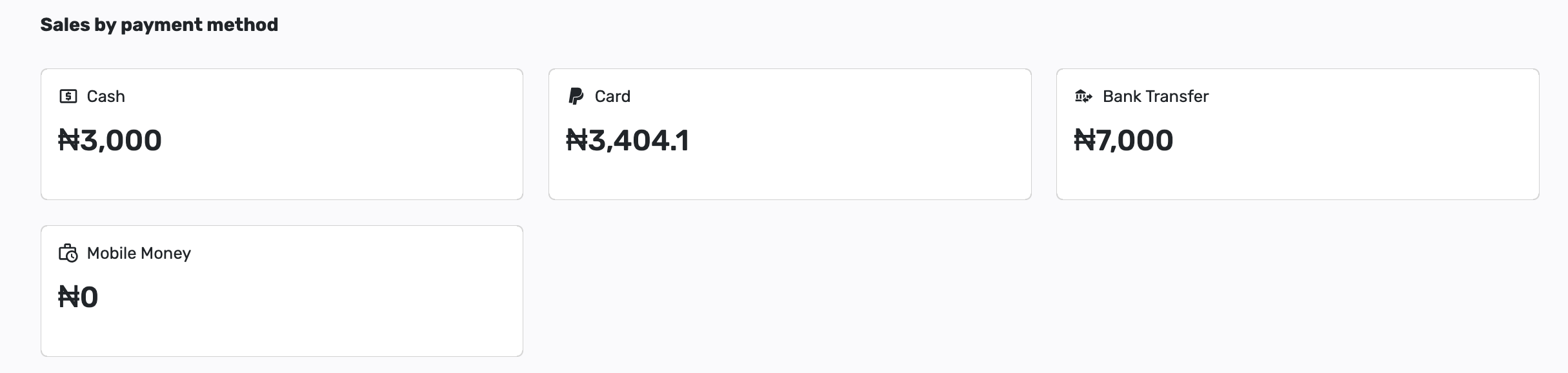
Under Sales by payment method, four cards split the same sales by how customers paid: Cash, Card, Bank Transfer, and Mobile Money. Use this to see which way money actually came in. A method with ₦0 means nobody paid that way in the period.
3. The Sales graph
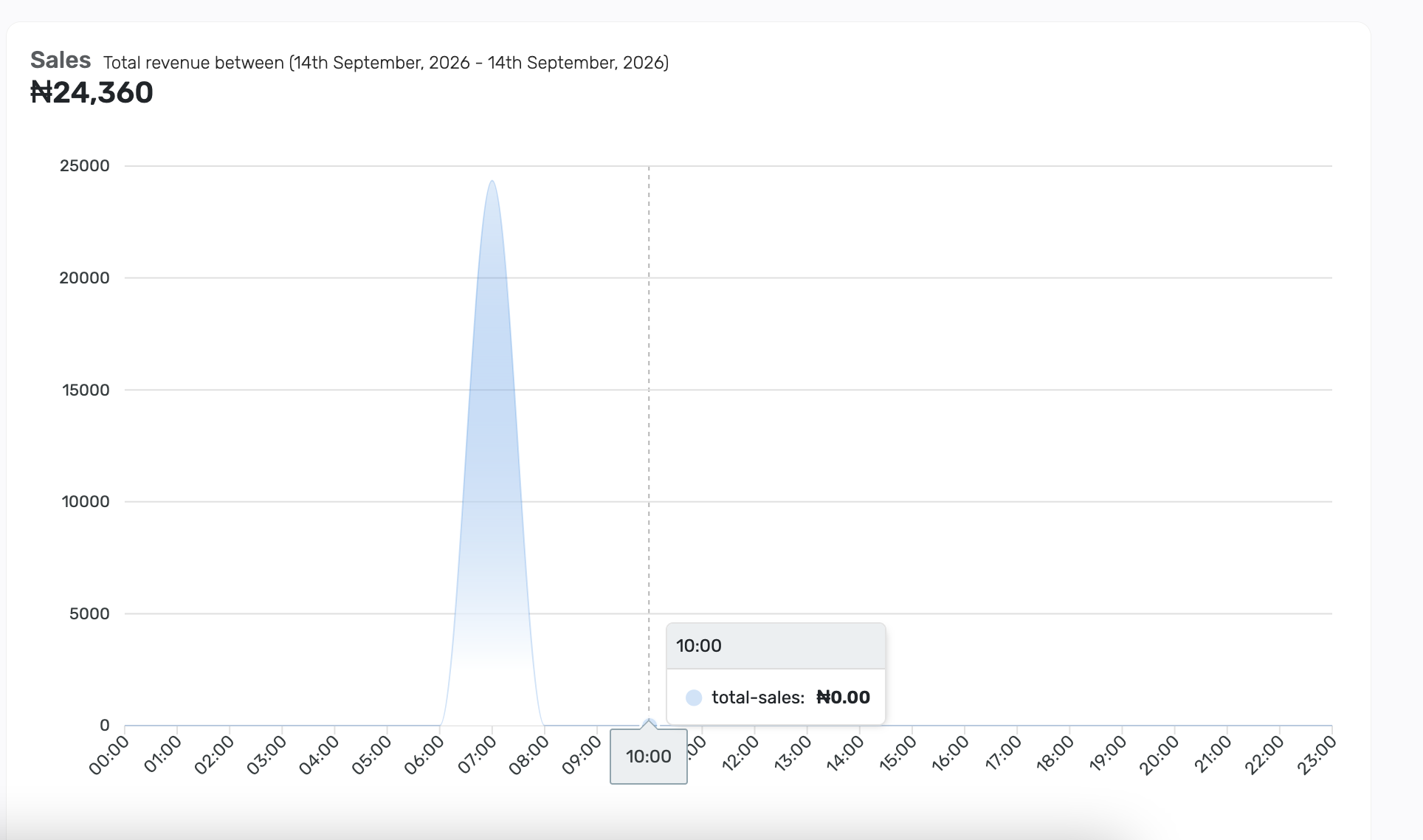
Below the cards, the Sales graph shows the same total as the Sales card, day by day (or hour by hour on a single day). The line rises when you sold more. A flat line means little or no sales on those days. Hover a point if you want the amount for that day.
Published by Posa Technologies · getposa.com
← More guides