

Use this guide when you already have a paid plan that has not expired, and you want a higher one — for example Posa Starter to Posa Premium. You do this under Subscription, on Plans and Pricing. Click Upgrade on the higher plan. Posa charges the difference for the time left on your current period, not the full yearly price again.
Upgrade is not the same as Subscribe or Renew. Subscribe is for a free trial or a plan you are not on yet. Renew is for the plan you already have (or after it has expired). If you are on Free, the button on a paid plan says Subscribe — you still use this same page. This walkthrough is the Upgrade path.
1. Open Subscription
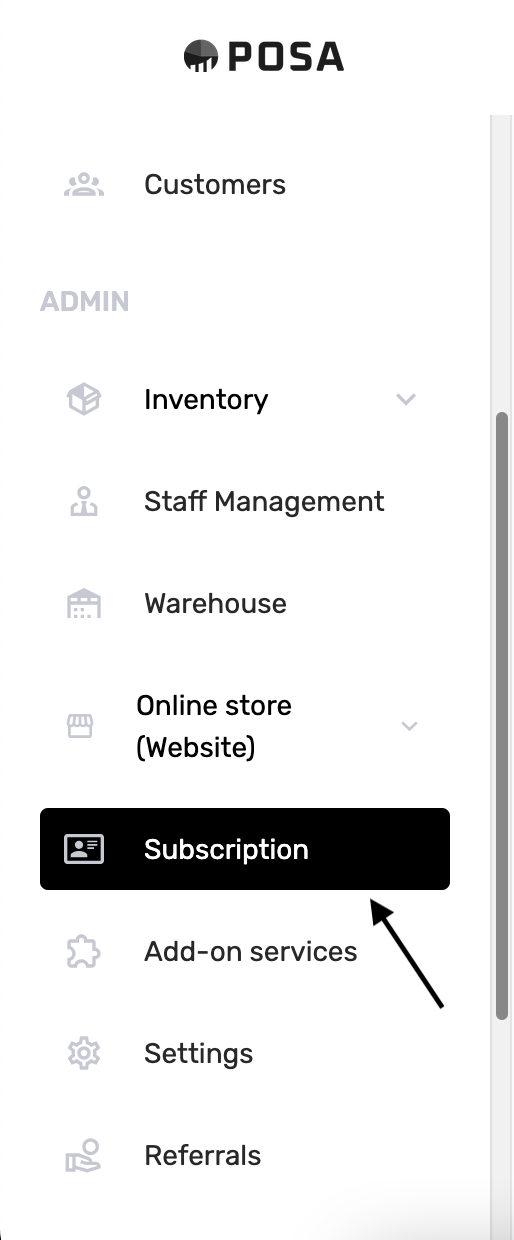
On the left sidebar, under ADMIN, click Subscription. It sits under Online store (Website), not Add-on services.
2. Plans and Pricing
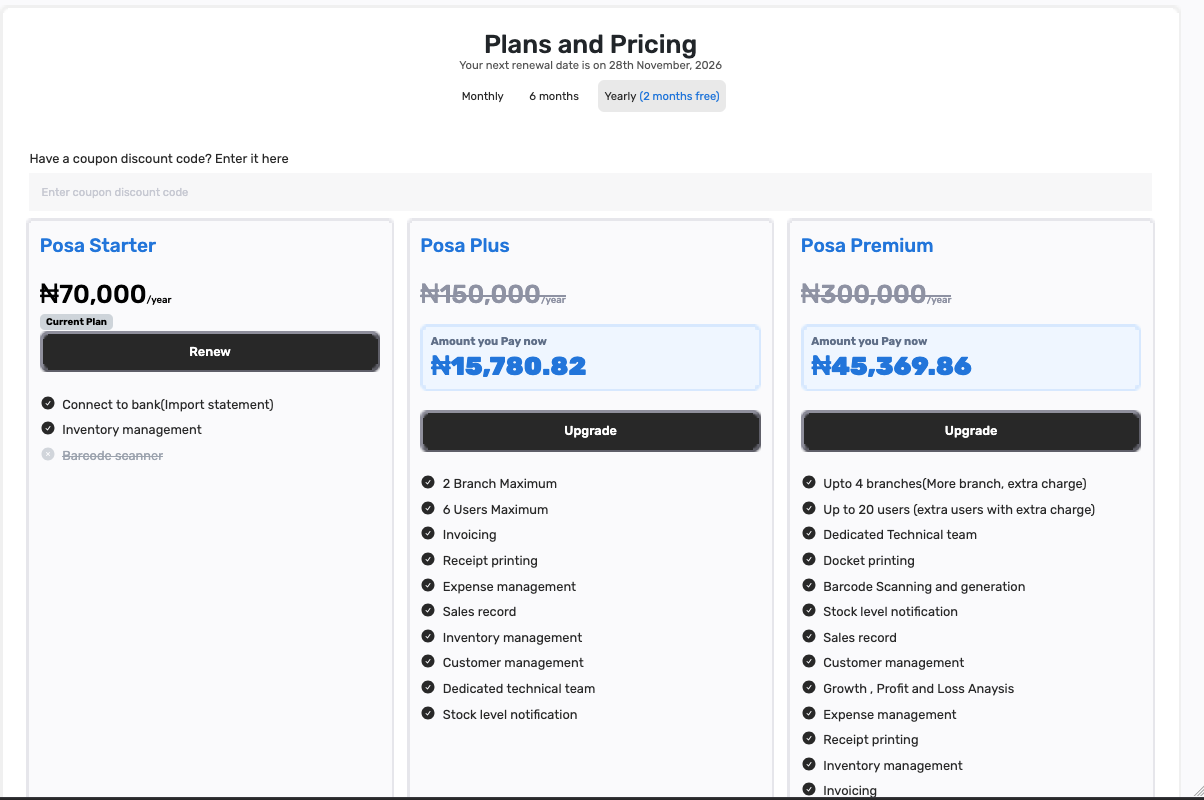
The page is titled Plans and Pricing. Under it you should see Your next renewal date is on … — here 28th November, 2026. Plan cards sit in a row. In this example Posa Starter is the current plan. Posa Plus and Posa Premium show Upgrade and Amount you Pay now. Leave Have a coupon discount code empty for this guide.
3. Stay on the same billing period

The tabs are Monthly, 6 months, and Yearly (2 months free). Posa opens on Yearly. Upgrade only shows if this tab matches the period you already pay for. This shop is on a yearly plan, so Yearly stays selected. If your plan is monthly, click Monthly first — otherwise you will see Subscribe instead of Upgrade.
4. Find your current plan
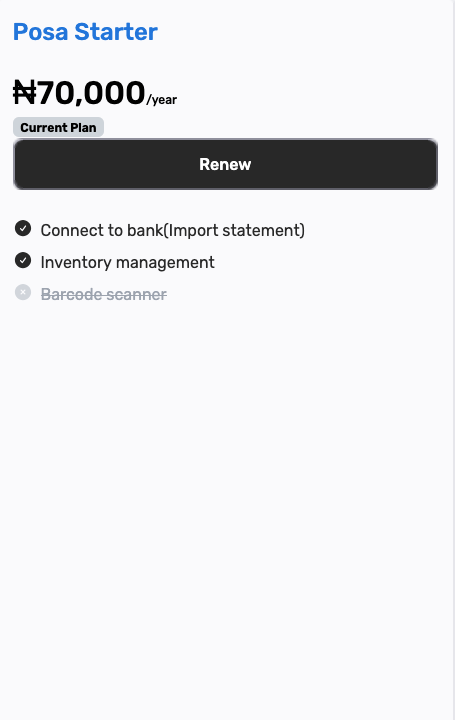
The card with the Current Plan badge is the one you are on. Here it is Posa Starter, ₦70,000 /year, with Renew. Do not click Renew — that keeps the same plan. You want a higher one.
5. Pick the higher plan
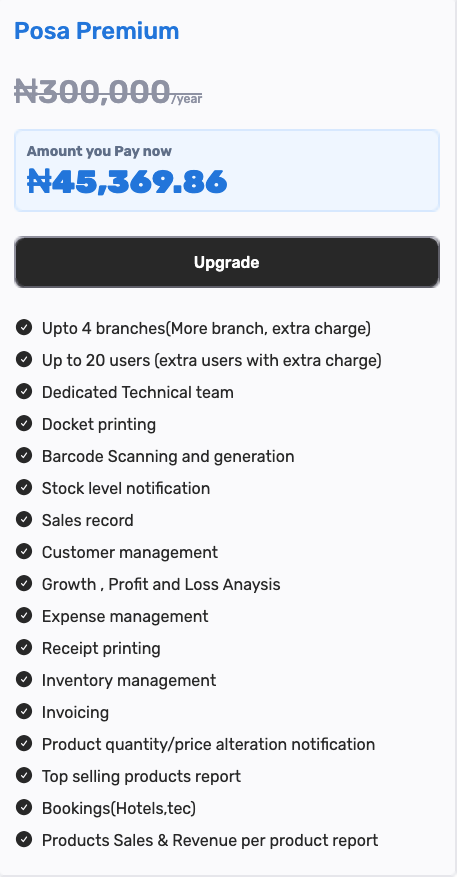
Open the card for the plan you want — here Posa Premium. The full price is struck through (₦300,000 /year). Under it, Amount you Pay now is the smaller figure Posa will charge today — ₦45,369.86 in this example. That is the leftover Starter credit applied to Premium for the days still left until renewal.
Posa Plus also shows Upgrade if you only need the next step up. This guide uses Premium.
6. Click Upgrade
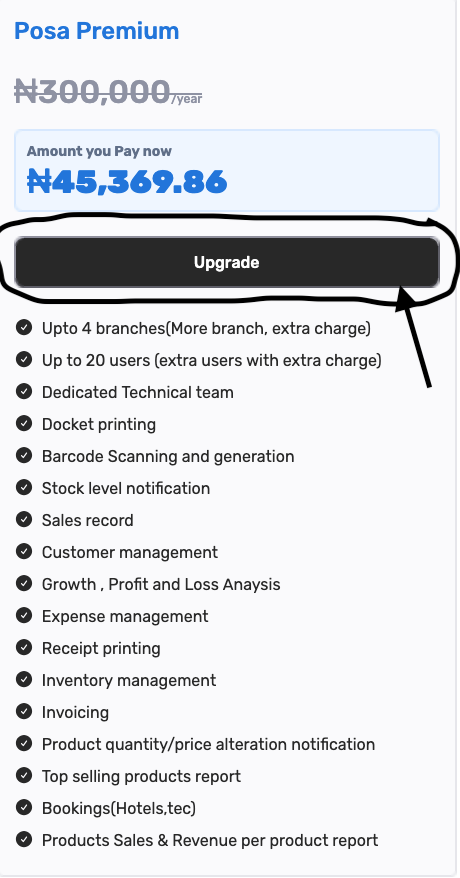
On that higher plan, click Upgrade.
7. Check the amount you pay now
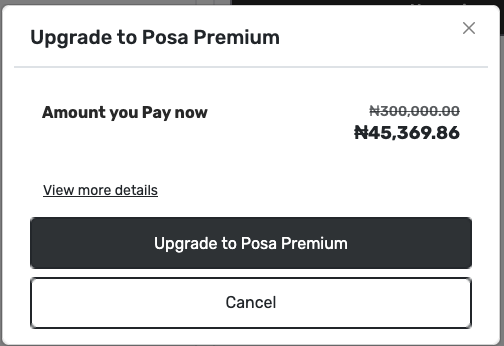
A window titled Upgrade to Posa Premium opens. Amount you Pay now shows the full plan price struck through (₦300,000.00) and the amount due today in bold — ₦45,369.86. View more details is underneath. The dark button is Upgrade to Posa Premium. Cancel closes the window without charging.
8. View more details (optional)
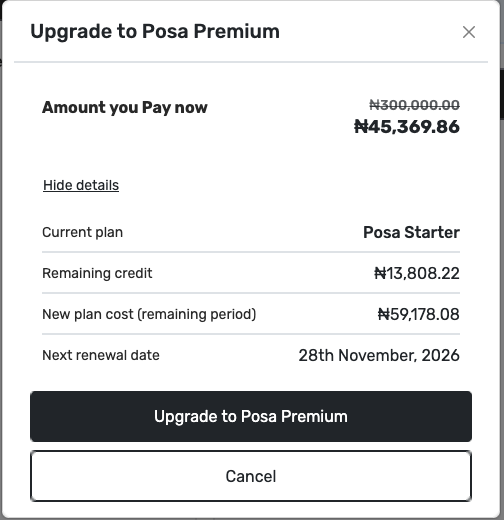
Click View more details if you want the breakdown. Current plan is Posa Starter. Remaining credit is what is left on that plan — ₦13,808.22 here. New plan cost (remaining period) is Premium for those same leftover days — ₦59,178.08. Amount you Pay now is the difference (₦59,178.08 − ₦13,808.22 = ₦45,369.86). Next renewal date stays 28th November, 2026 — upgrading does not restart the year. Click Hide details to close the list.
9. Confirm the upgrade

Click Upgrade to Posa Premium. Posa sends you to pay the Amount you Pay now. Complete payment on that screen, then you return to Posa. This guide does not cover the bank or card page.
10. Confirm it worked
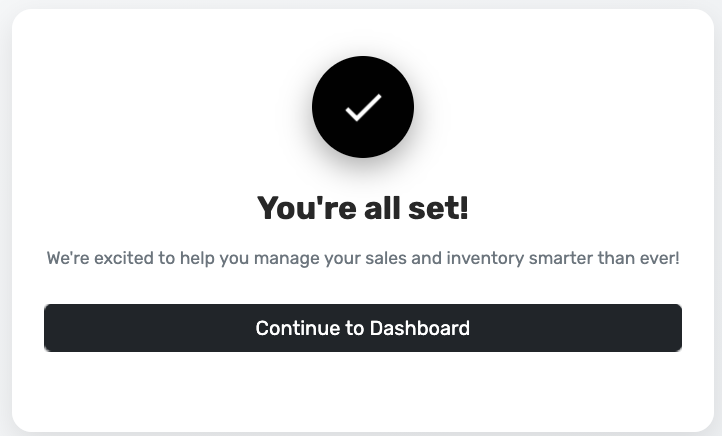
You should see You’re all set! and Continue to Dashboard. If you see that, the upgrade is paid. Click Continue to Dashboard, or go back to Subscription to check the cards.
11. See Current Plan on the new plan
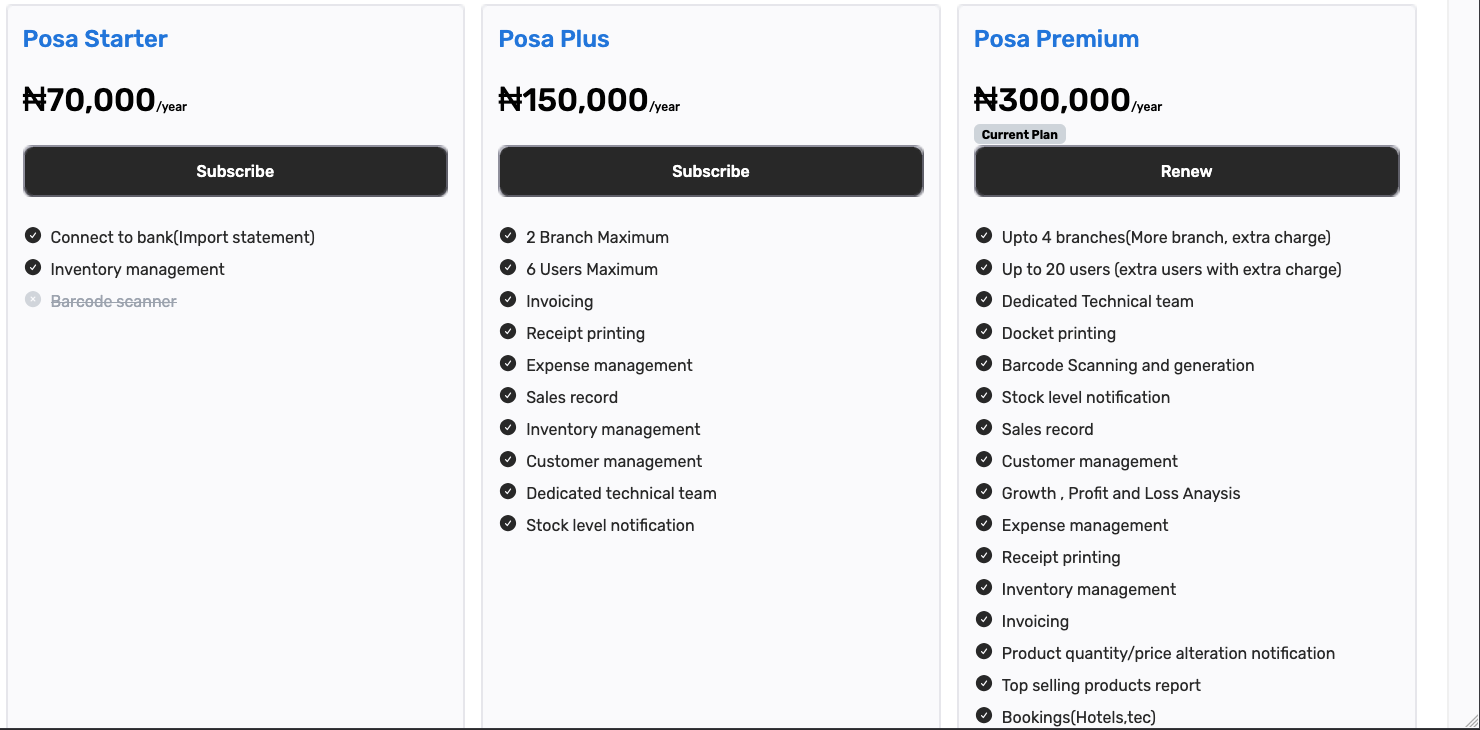
Back on Plans and Pricing, Current Plan is now on Posa Premium, with Renew. Posa Starter and Posa Plus show Subscribe — you are no longer on those plans. Premium no longer shows Upgrade. If a still-higher plan such as Posa Elite is on the page, that one can show Upgrade.
Warehouse purchases, some Analytics tabs, and extra staff slots need a higher plan. See How to record a purchase from your vendors on Posa and How to get your Profit and Loss report on Posa for features that open after Premium. A higher plan also includes more business branches — see How to add another business branch on Posa.
Published by Posa Technologies · getposa.com
← More guides