
POSA
Posa mobile app Restock screen for adding product quantity to inventory
Back to Learning centres

Mobile App

How to restock an item on the Posa mobile app

P

Posa Technologies

··2 min read

Add new stock to an existing product from your phone — review its prices, enter the quantity received, and update your inventory.

Use this guide when new stock arrives for a product that is already in Posa. If you have not added the product yet, see How to upload your products on the Posa mobile app.

1. Select a product
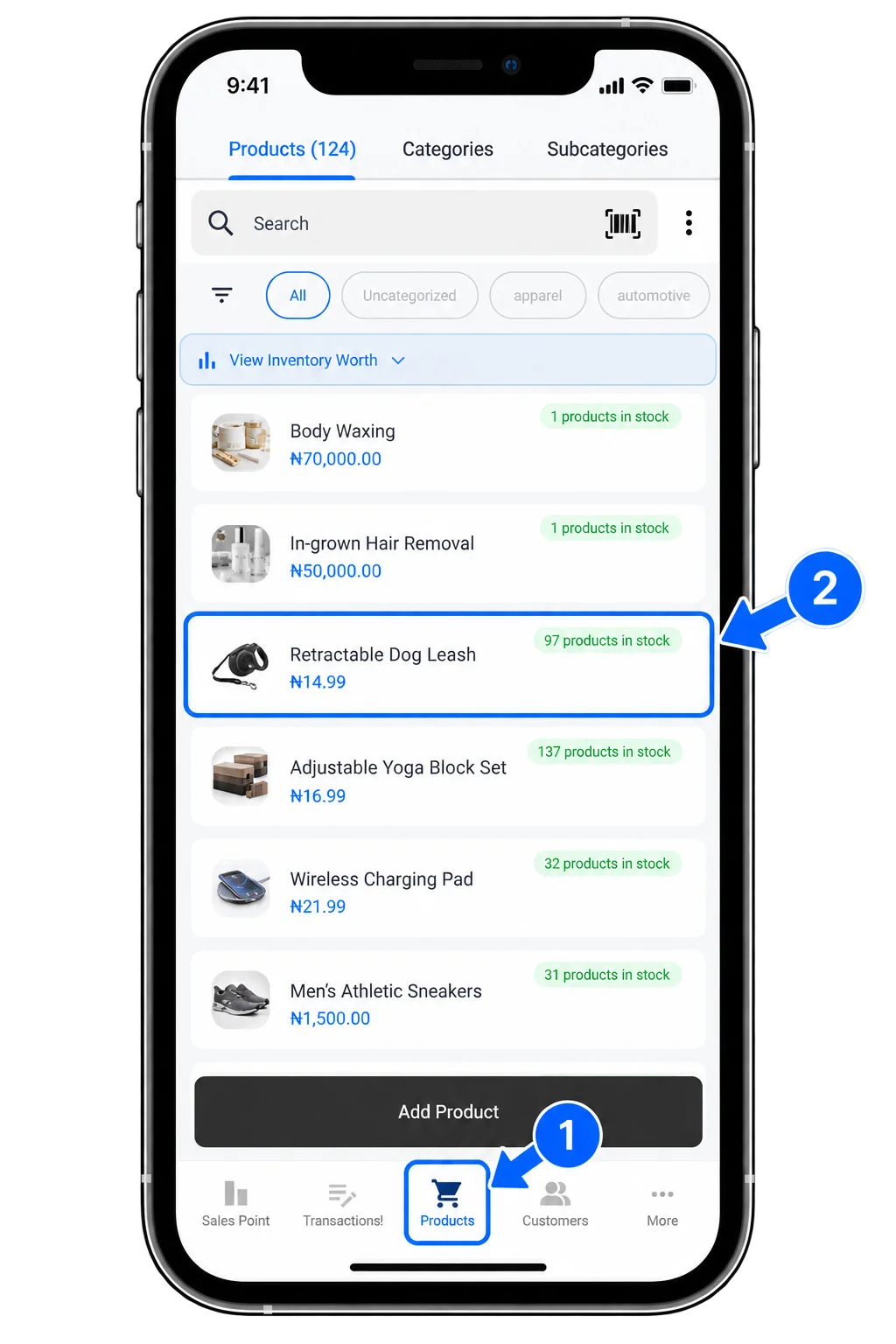
Posa mobile app Products screen showing products available to select

From the bottom navigation bar, tap Products to open the Products screen. Select the product you want to restock from the list to view its details.

2. Open Restock
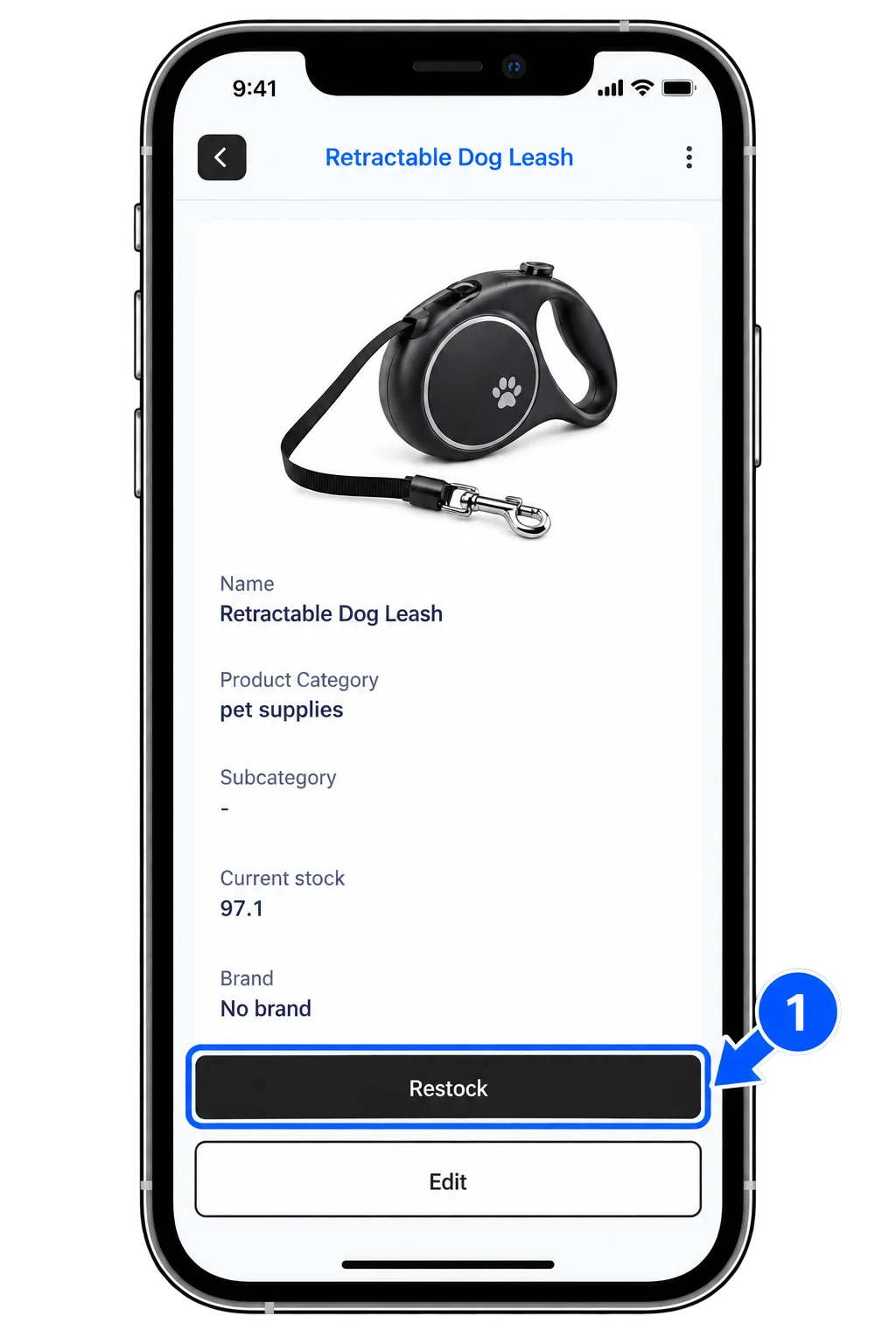
Posa mobile app Product Details screen with the Restock button

On the Product Details screen, tap Restock to open the Restock screen.

3. Enter the quantity and update stock
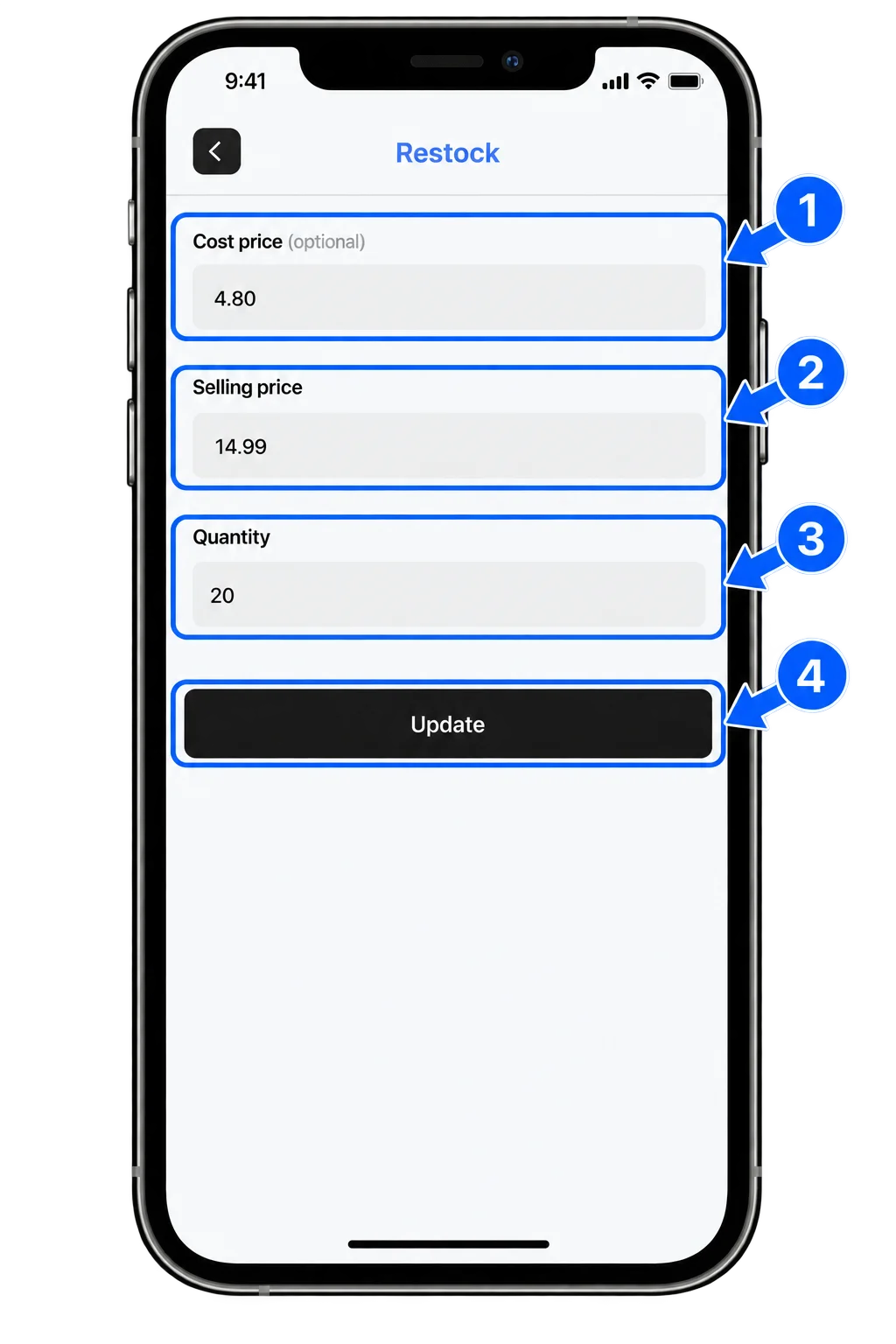
Posa mobile app Restock screen with cost price, selling price, quantity, and Update button

On the Restock screen, the Cost price and Selling price fields are filled with the product’s existing values when available. You can edit them if needed. Enter the quantity being added to stock, then tap Update to save the restock.

Ready to restock your products on Posa?

Start your free trial at getposa.com

Get Started Free

Published by Posa Technologies · getposa.com

← More guides

Complete your order

Order summary

Subtotal₦0