
Use this guide when every staff slot on your plan is used up, and you want one more login without upgrading. Extra User is an add-on. It gives you one extra staff slot on top of your plan. You must already be on a paid plan — Free cannot buy add-ons.
Each paid plan includes a maximum number of staff (the Business Owner counts as one). These limits are as of 17 September 2026, when this article was written.
- Posa Starter — 2 staff
- Posa Plus — 6 staff
- Posa Premium — 20 staff
- Posa Elite — unlimited staff
Buying Extra User does not create the staff member by itself. After you pay, you still open Add new staff and fill in their details — see How to add your staff on Posa.
1. Open Add new staff when the plan is full

Go to Staff Management, then Add new staff. If there is no free slot, a red bar appears: You have exhausted the number of staff than can be added on this plan. Adding new staff will cost you ₦20,000. Do you want to proceed? (The amount depends on your country.)
2. Click Pay

On the right of the red bar, click Pay. That opens Add-on services with Extra User ready to buy. (On Free you would see Upgrade Plan instead — see How to upgrade to a higher subscription plan on Posa.)
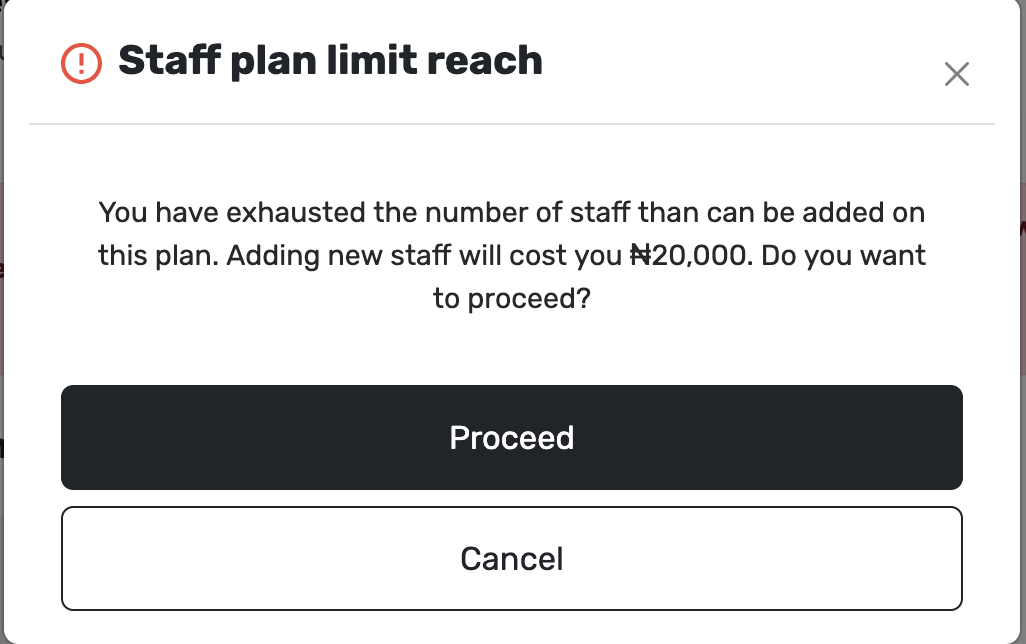
You may also see a window titled Staff plan limit reach, with the same message, Proceed, and Cancel. Proceed also takes you to buy Extra User. Cancel closes the window.
3. The Add-on services page
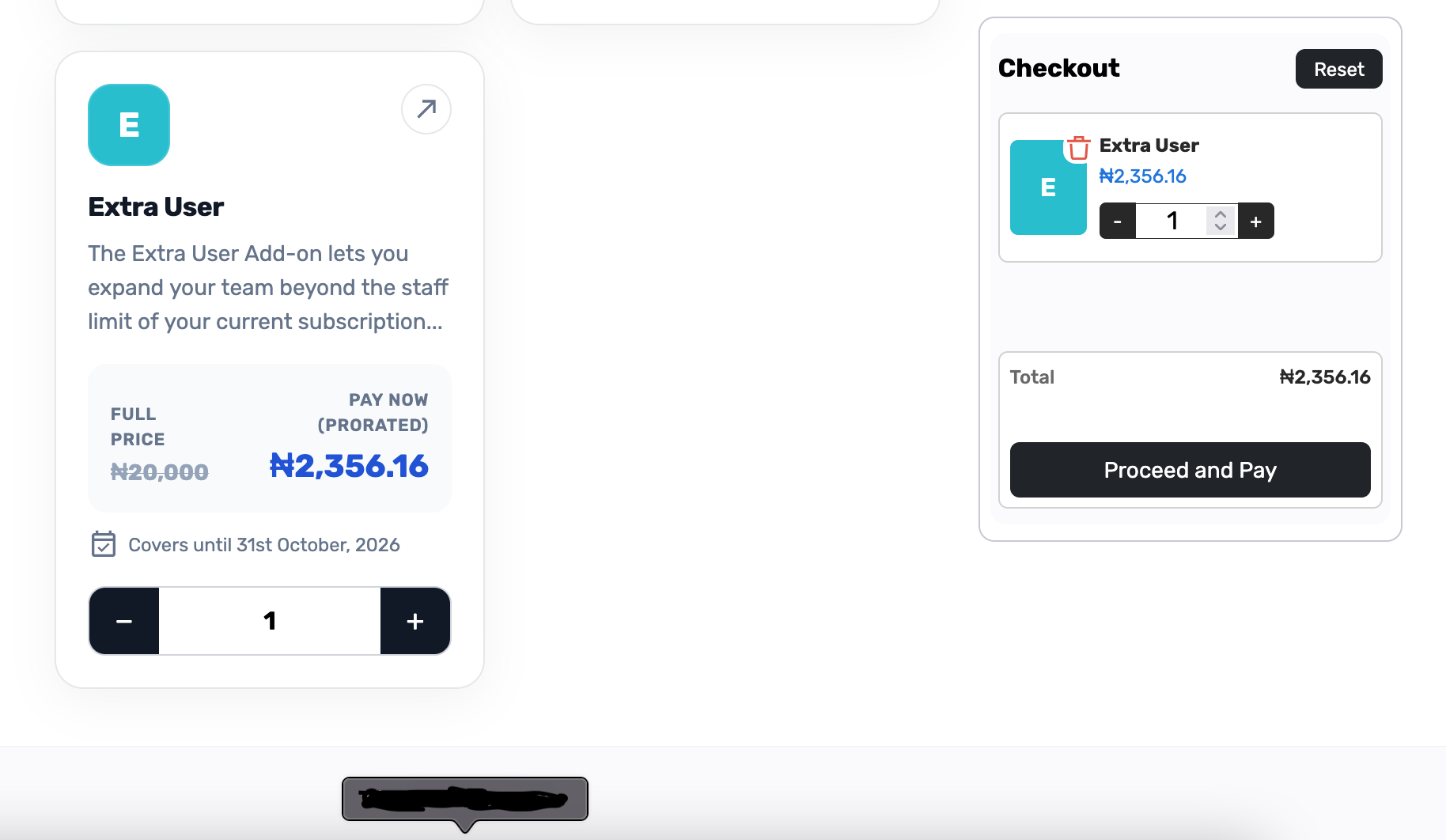
You should see Add-on services and Build the plan that fits your business. After Pay, Extra User is often already in the cart on the right. You only pay the prorated amount for the time left on your current billing period — not the full yearly price.
4. Find Extra User
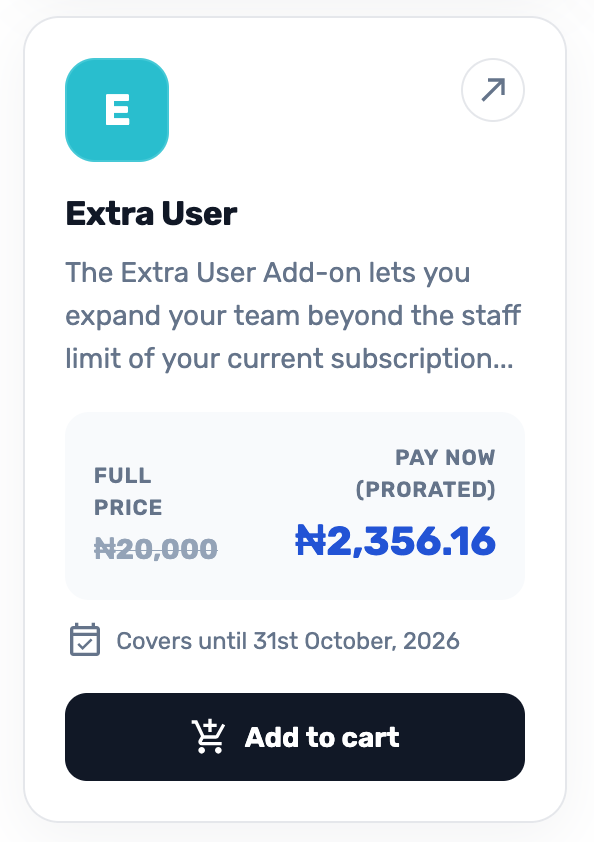
Find Extra User — The Extra User Add-on lets you expand your team beyond the staff limit of your current subscription. Full price is struck through (₦20,000 in this example). Pay now (prorated) is the amount due today — ₦2,356.16 here. Covers until shows when this add-on ends — 31st October, 2026 in this example. If you still see Add to cart, click it.
5. Leave the quantity at 1
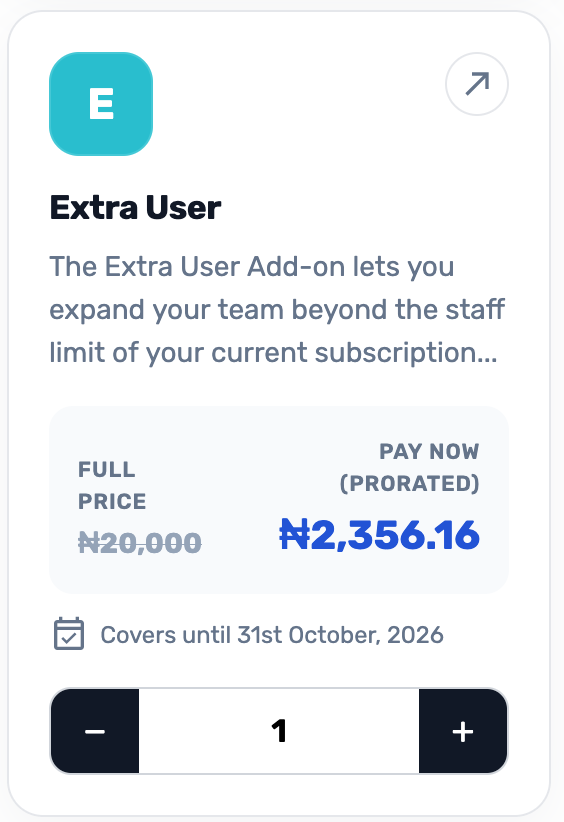
The Add to cart button becomes a quantity control. Leave it at 1 unless you need more than one extra slot. One Extra User = one extra staff login.
6. Check the Checkout panel
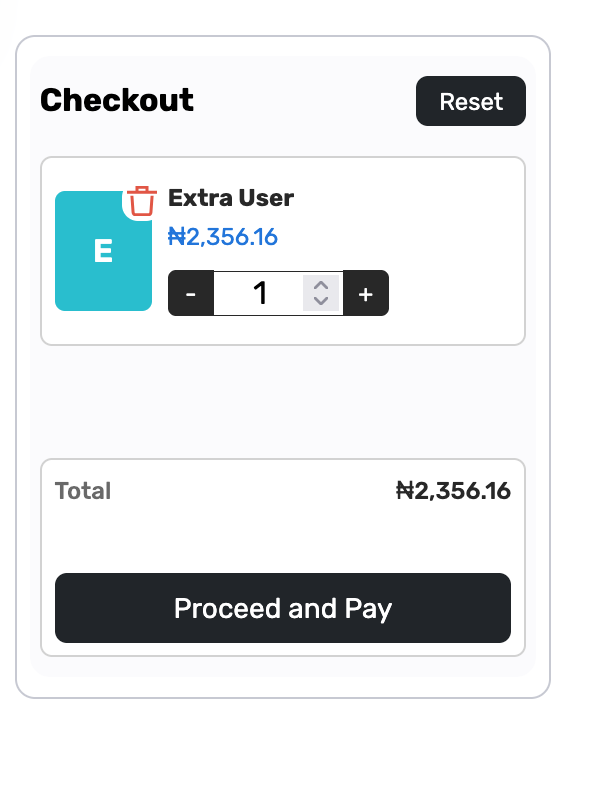
On the right, Checkout shows Extra User, quantity 1, and Total — ₦2,356.16 in this example. Do not click Reset — that empties the cart.
7. Click Proceed and Pay
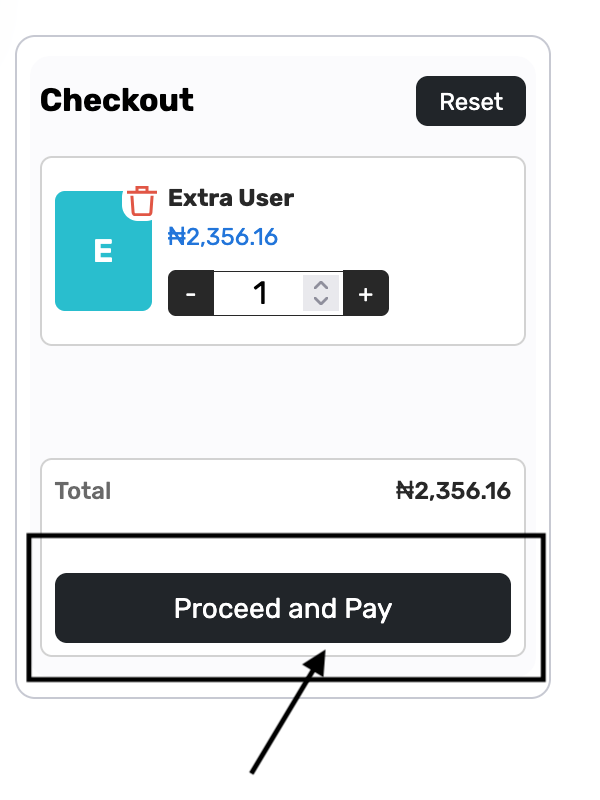
Click Proceed and Pay. Posa sends you to pay. Complete payment on that screen, then you return to Posa. This guide does not cover the bank or card page.
8. Confirm the purchase
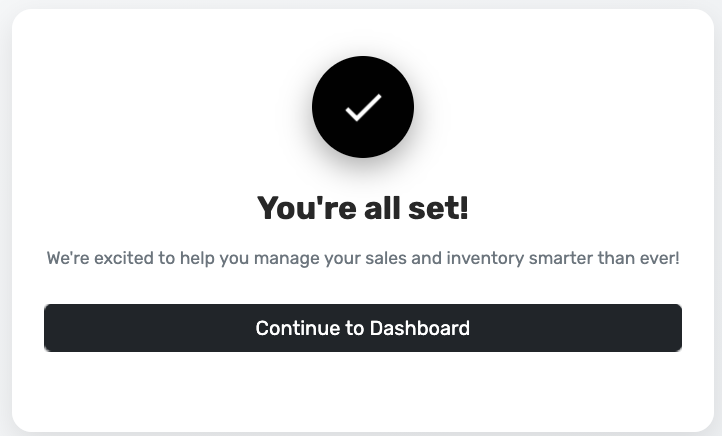
You should see You’re all set! and Continue to Dashboard. If you see that, Extra User is paid. You now have one more staff slot.
Next, add the person: Staff Management → Add new staff, then fill in their details. Full steps are in How to add your staff on Posa.
Published by Posa Technologies · getposa.com
← More guides