POSA
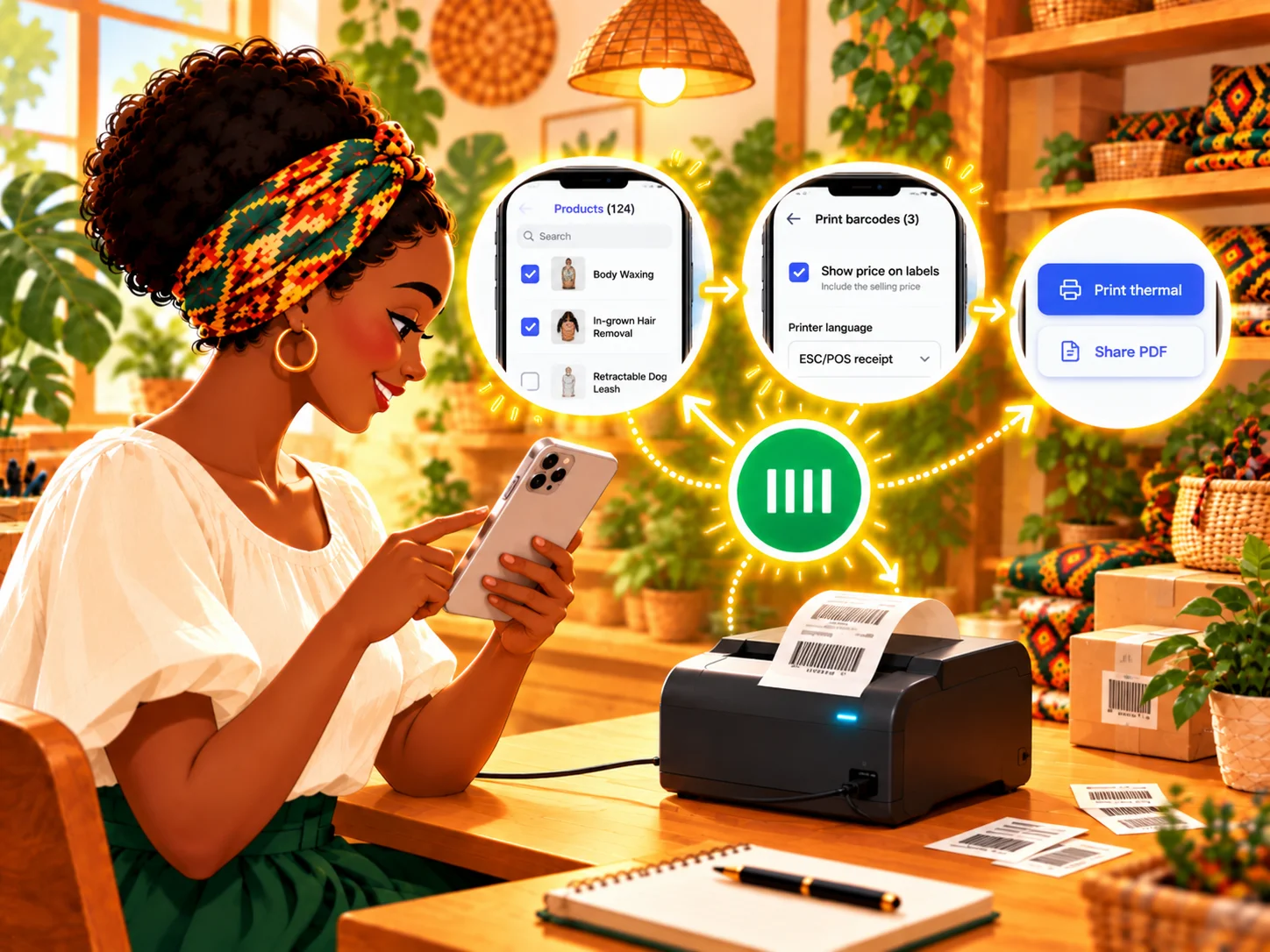
Merchant using the Posa mobile app to select products and print barcode labels with a thermal printer
Back to Learning centres

Mobile App

How to print barcodes on the Posa mobile app

P

Posa Technologies

··2 min read

Select products from your phone, customise their barcode labels, then print them with a thermal printer or share them as a PDF.

Use this guide to print barcode labels for one or more products from the Posa mobile app. Make sure the products have barcode values first. To print directly, connect your printer using How to set up a Posa USB thermal printer on the mobile app; you can also share the labels as a PDF.

1. Open Products
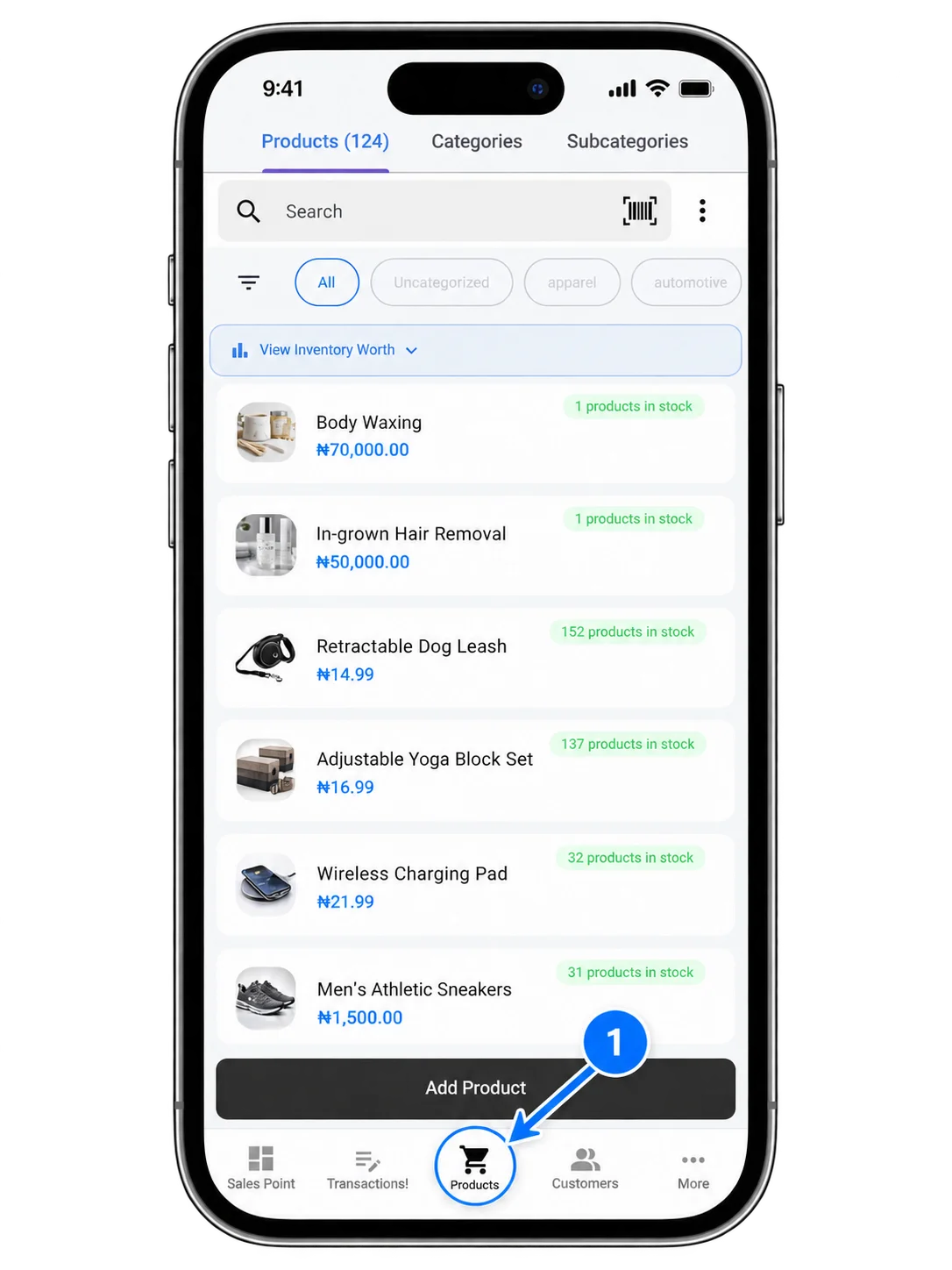
Posa mobile app Products screen with Products highlighted in the bottom navigation bar

From the bottom navigation bar, tap Products to open the Products screen.

2. Select the products
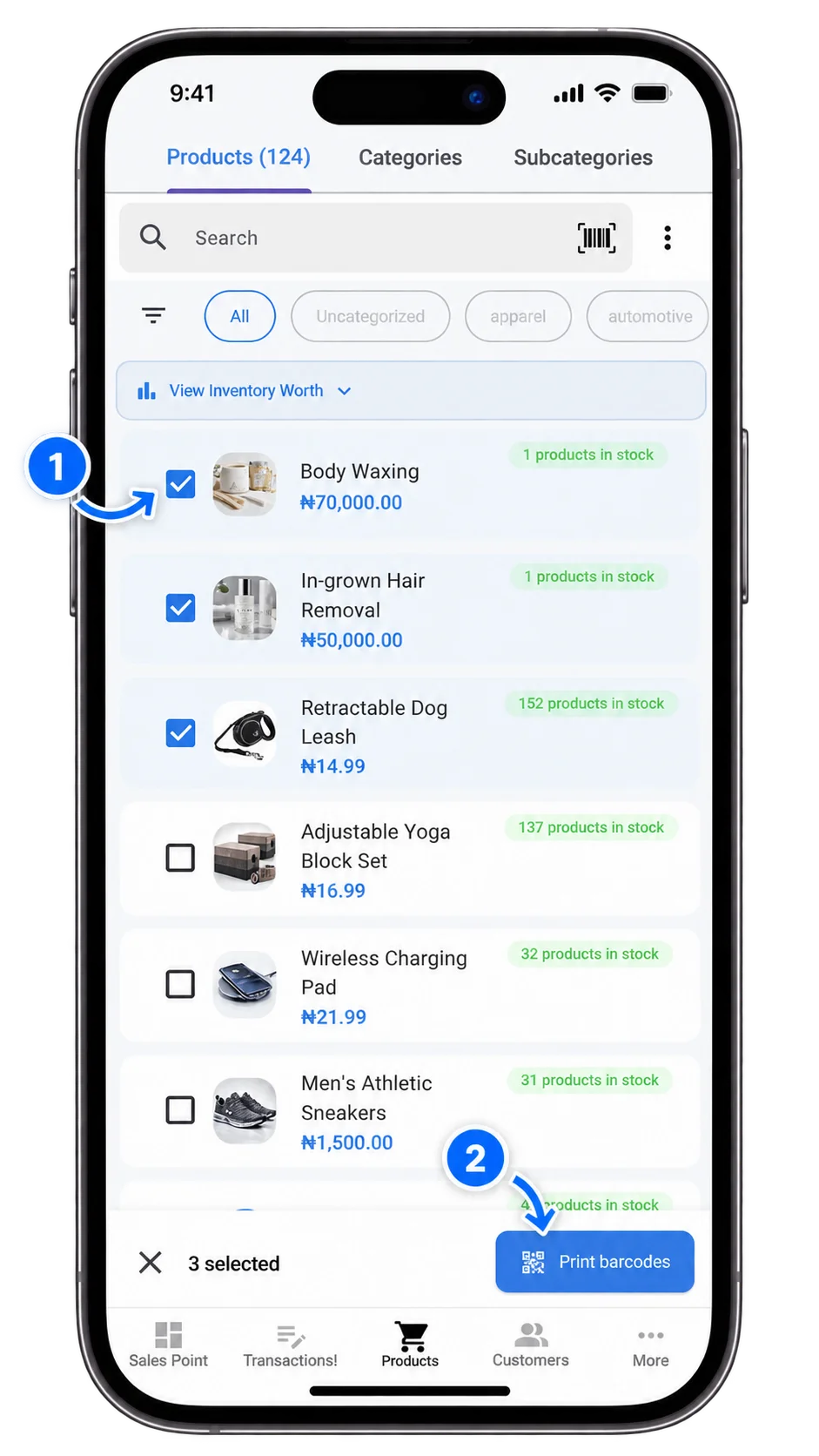
Posa mobile app Products screen with multiple products selected and the Print barcodes button highlighted

On the Products screen, long-press a product to start selecting items. Select every product whose barcode you want to print, then tap Print barcodes.

3. Print or share the barcodes
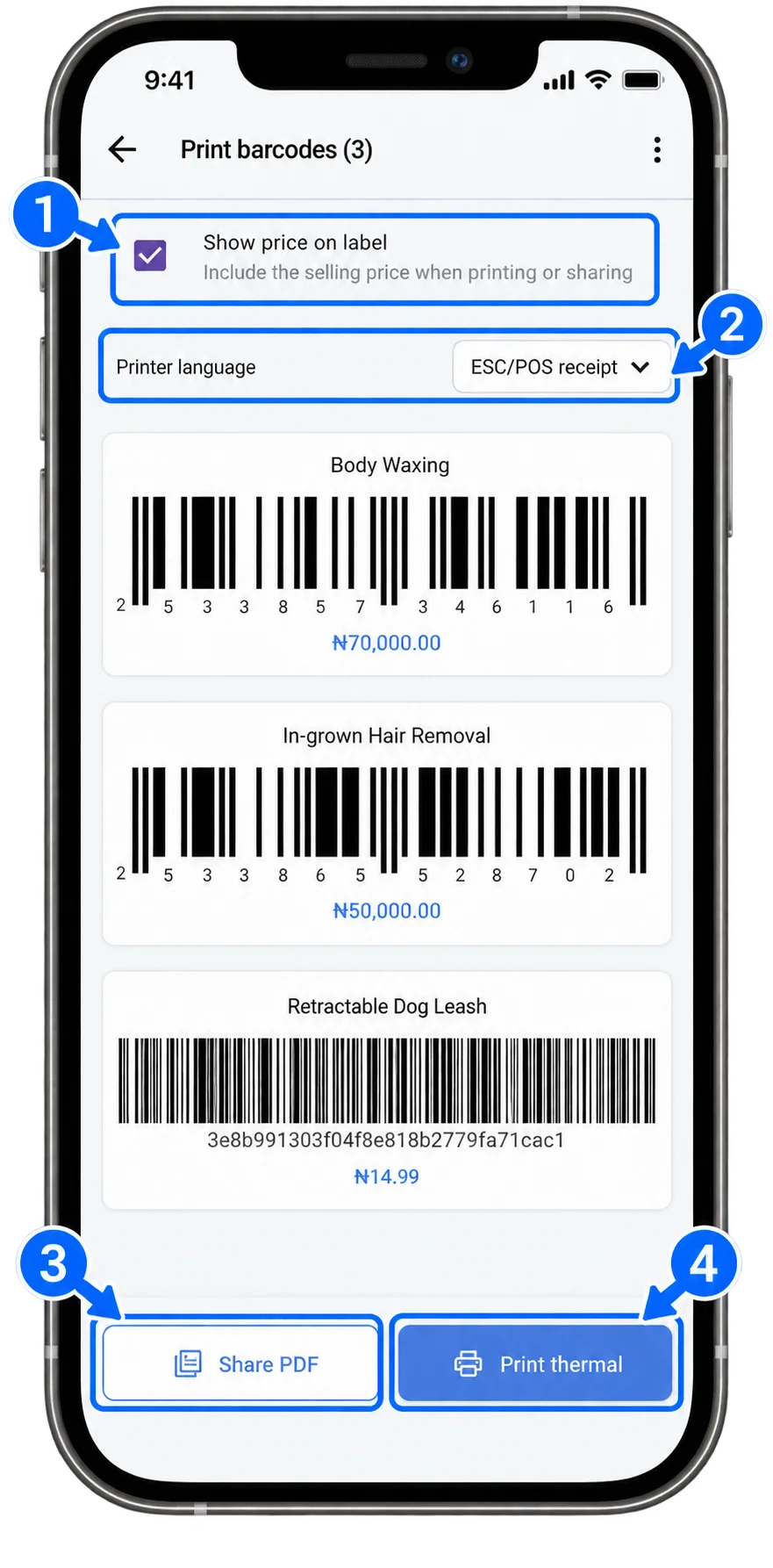
Posa mobile app Print barcodes screen with price, printer language, Share PDF, and Print thermal options

On the Print barcodes screen, use Show price on label to include or remove each product’s selling price. Change the Printer language if needed. Tap Print thermal to send the barcodes to your thermal printer, or tap Share PDF to share them as a PDF file.

Ready to print barcode labels from Posa?

Start your free trial at getposa.com

Get Started Free

Published by Posa Technologies · getposa.com

← More guides

Complete your order

Order summary

Subtotal₦0