POSA
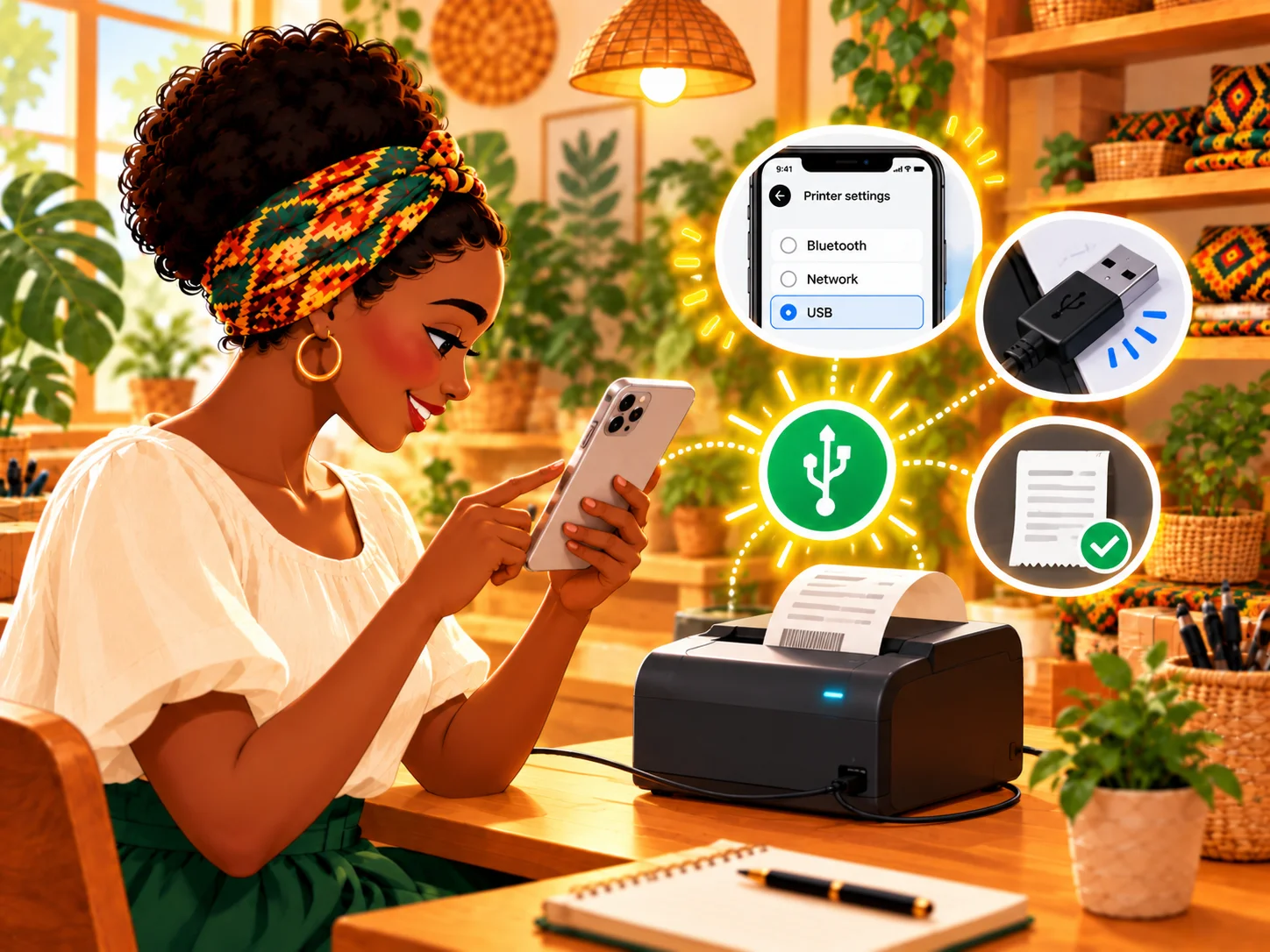
Posa thermal receipt printer beside the mobile app USB printer settings screen
Back to Learning centres

Mobile App

How to set up a Posa USB thermal printer on the mobile app

P

Posa Technologies

··2 min read

Connect your Posa USB thermal printer to the mobile app over Bluetooth, then select it as your default printer for receipts.

Use this guide to connect a compatible thermal receipt printer to the Posa mobile app over Bluetooth. Turn on the printer and enable Bluetooth on your phone before you begin.

1. Open Printer settings
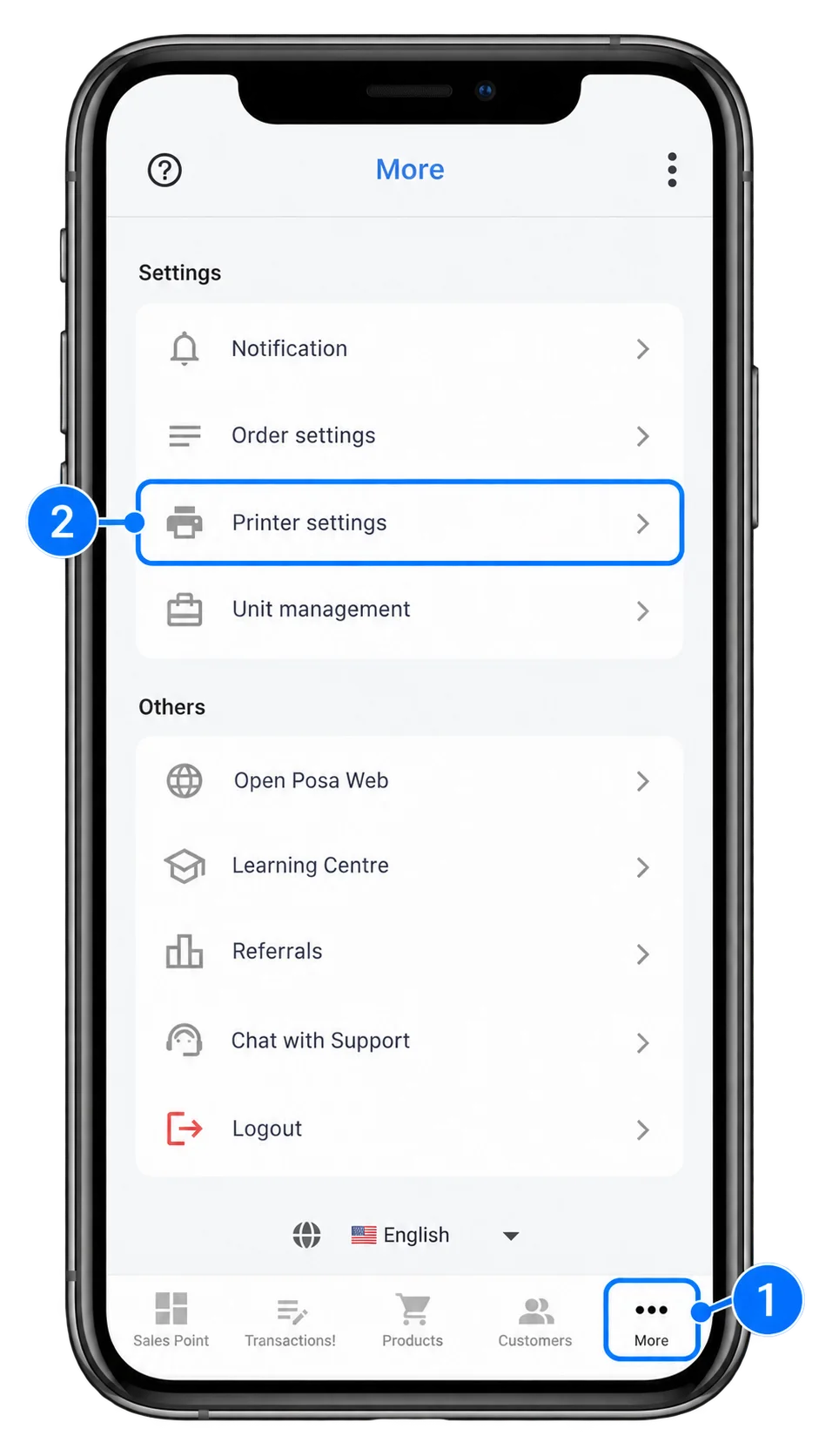
Posa mobile app More screen with Printer settings highlighted under Settings

From the bottom navigation bar, tap More to open the More screen. Select Printer settings under Settings.

2. Select the Bluetooth printer interface
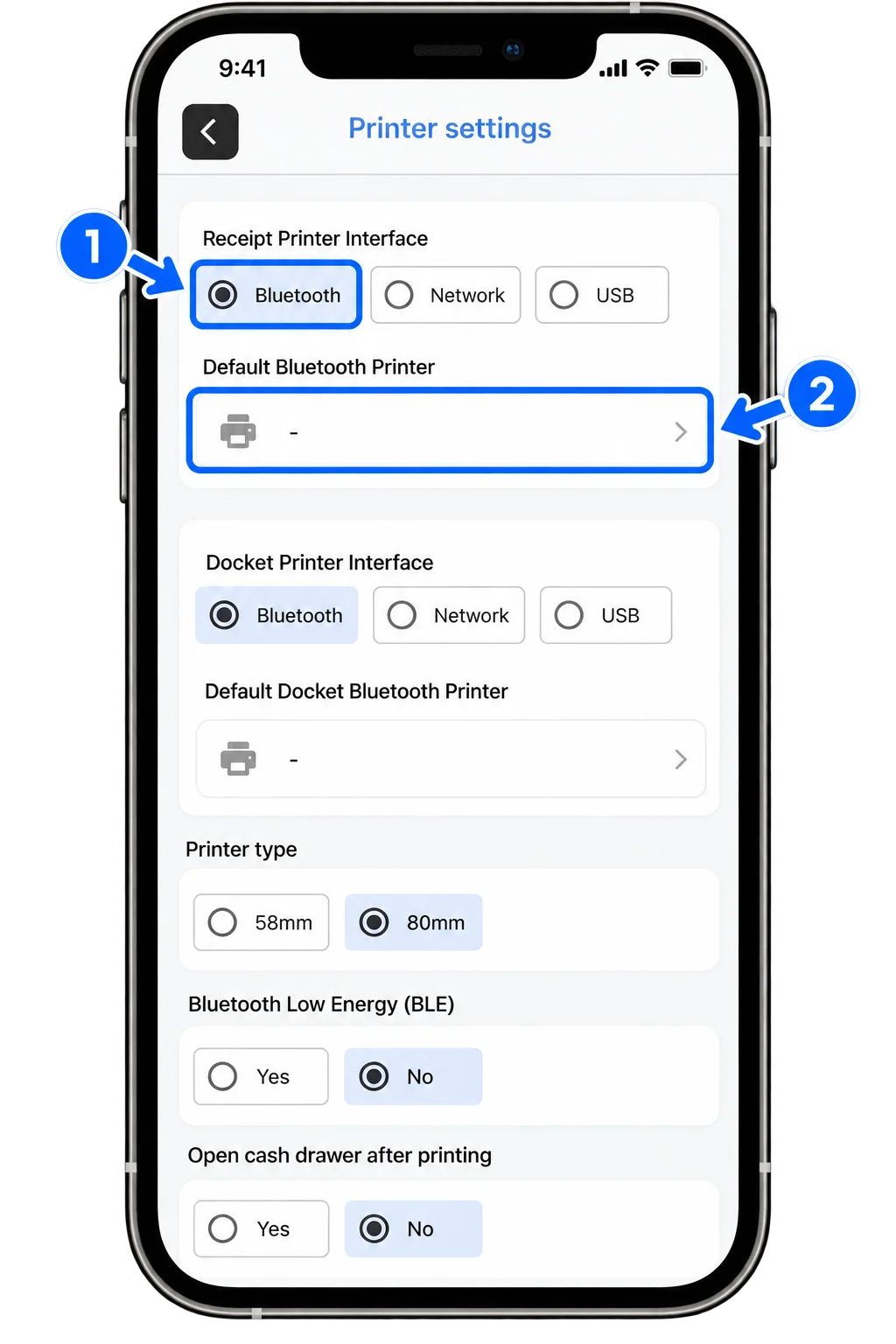
Posa mobile app Printer settings screen with Bluetooth selected and the Default Bluetooth Printer row highlighted

On the Printer settings screen, make sure Bluetooth is selected under Receipt Printer Interface. Tap the printer row under Default Bluetooth Printer to choose your receipt printer.

3. Allow location access
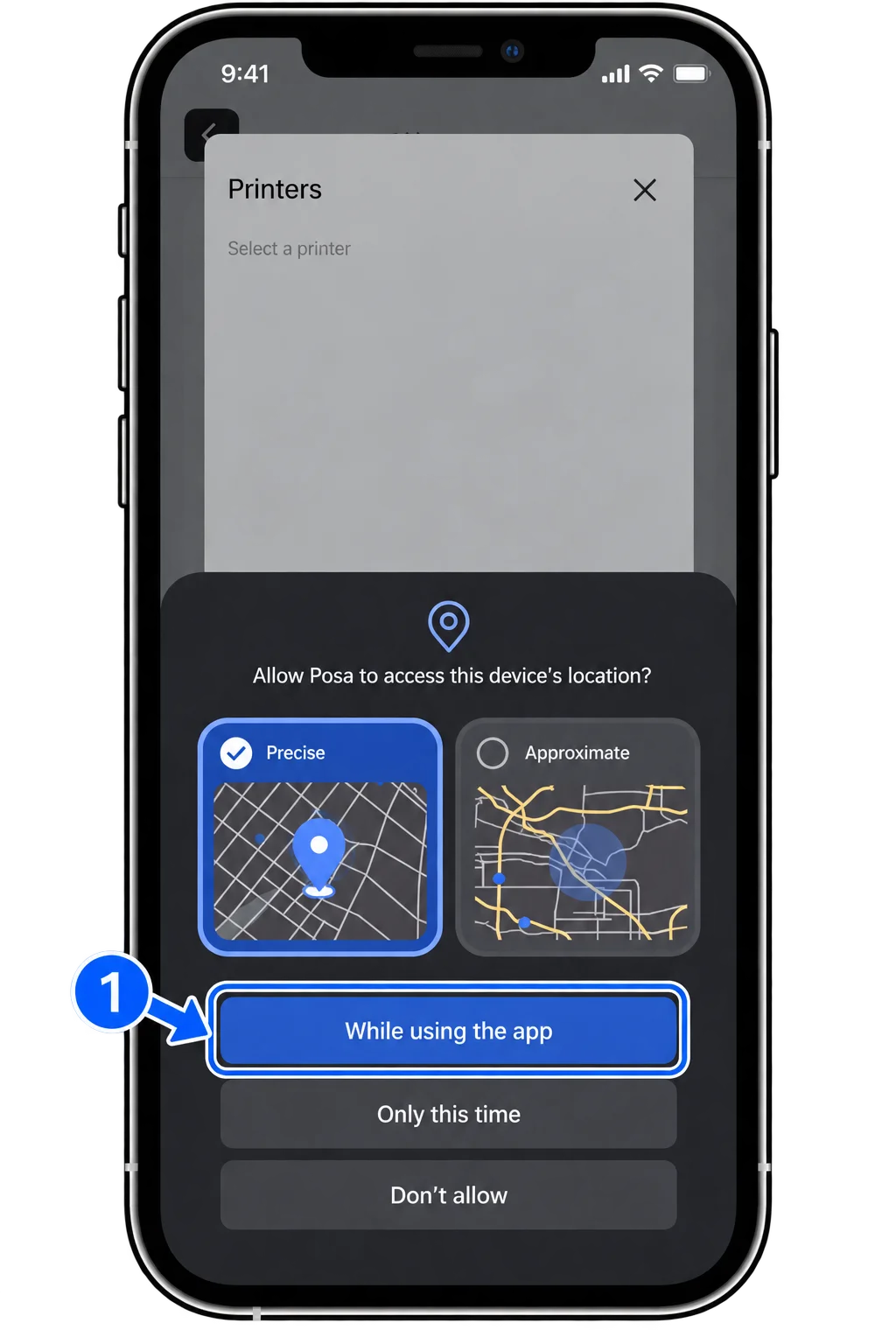
Android location permission prompt for Posa with While using the app highlighted

Posa will ask for permission to access your device’s location so it can find and connect to nearby printers. Select While using the app to continue.

4. Connect your printer
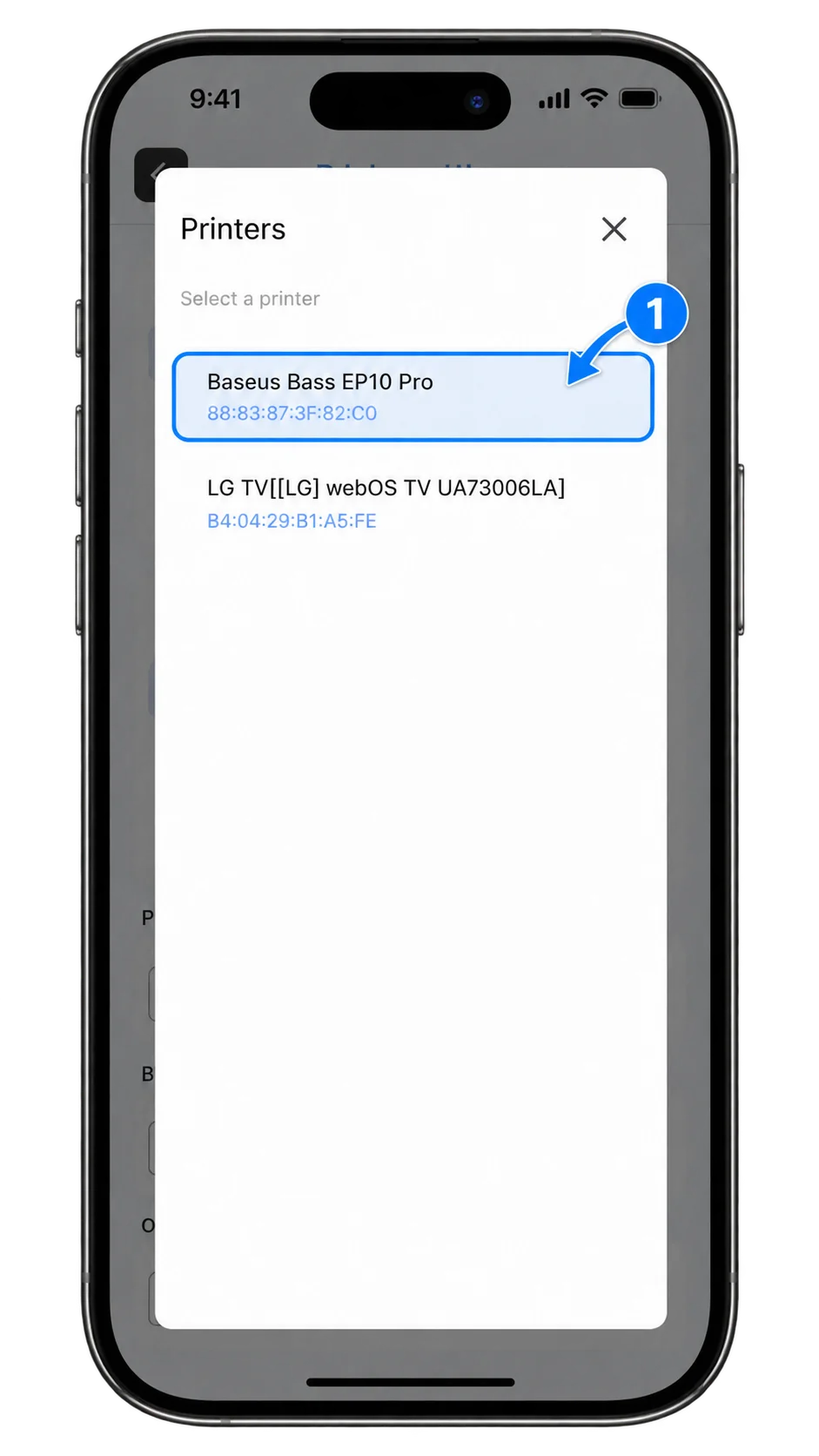
Posa mobile app list of nearby Bluetooth printers available to connect

Once access is granted, a list of available printers appears. Find your printer in the list and tap it to connect.

Ready to print receipts from Posa?

Start your free trial at getposa.com

Get Started Free

Published by Posa Technologies · getposa.com

← More guides

Complete your order

Order summary

Subtotal₦0