
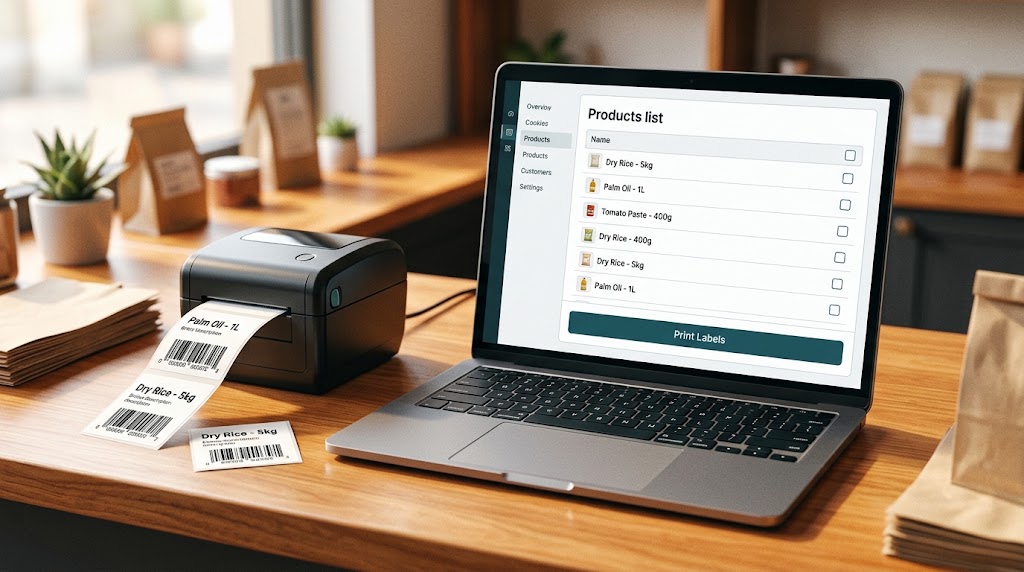
Use this guide to print barcodes from the Products page in the web app. You need a Plus or Premium plan. If Posa asks you to upgrade, see How to upgrade to a higher subscription plan on Posa. Each product (and each variant) must have a SKU — that is the code inside the barcode.
There are two ways to print. Generate Barcode PDF downloads a PDF of product names and barcodes. Print Labels opens a size picker, then your browser print dialog for stickers. Follow the shared steps first, then use the tabs for only the path you need.
1. Open Inventory
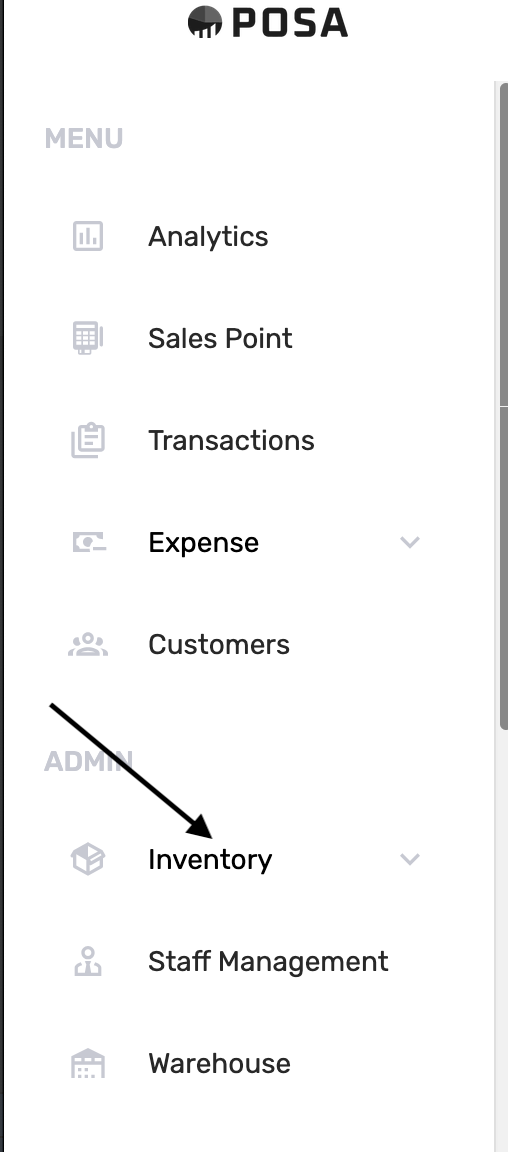
On the left sidebar, find ADMIN and click Inventory. This opens the inventory menu.
2. Go to Products
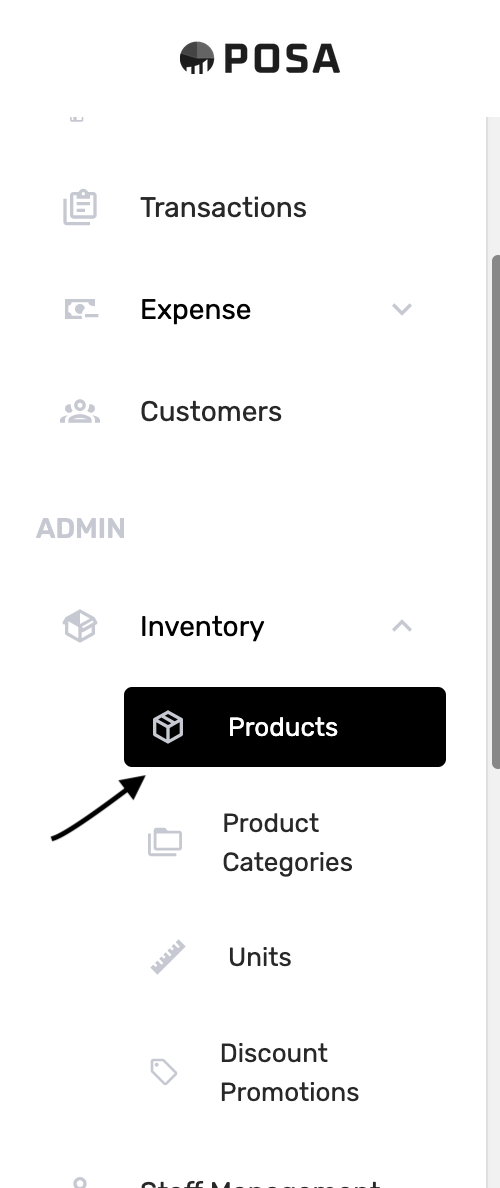
Under Inventory, click Products. The menu item turns black when you are on the Products page.
3. Make sure products have a barcode
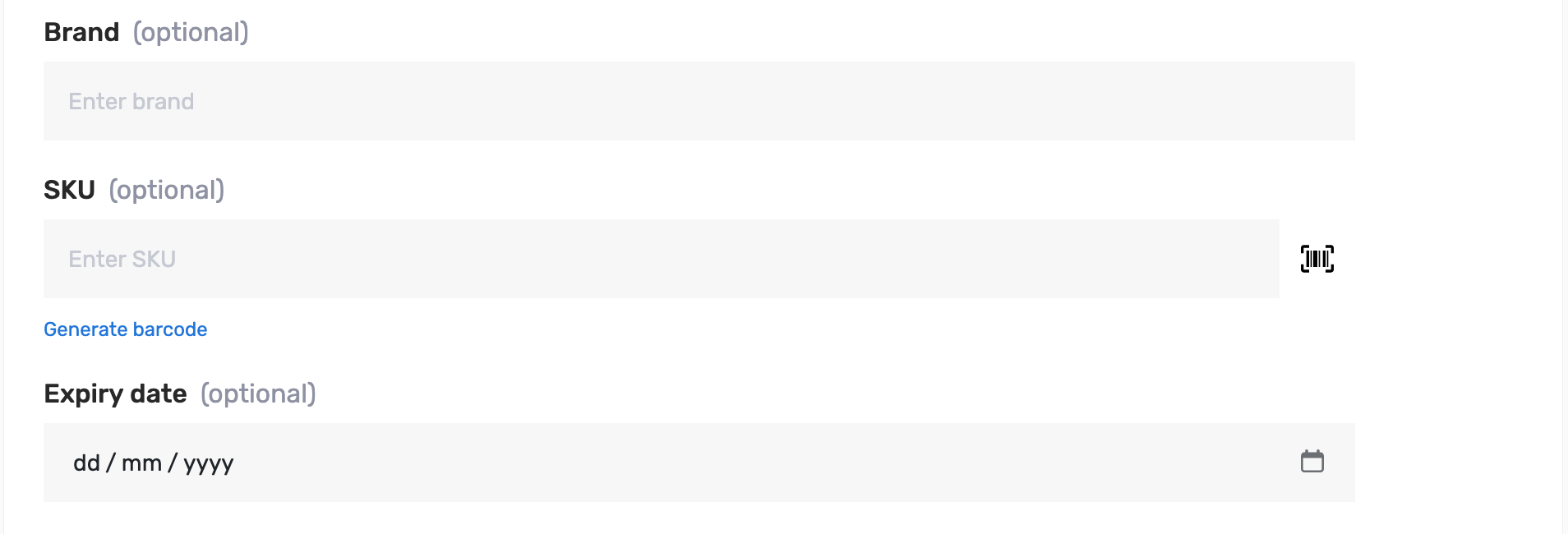
Open a product if it does not already have a SKU. On Brand, SKU, and expiry date, type your own code or click Generate barcode. Posa fills the SKU for you. Save the product, then return to the Products list. See How to upload your products on Posa if you still need to add items.
4. Select the products to print
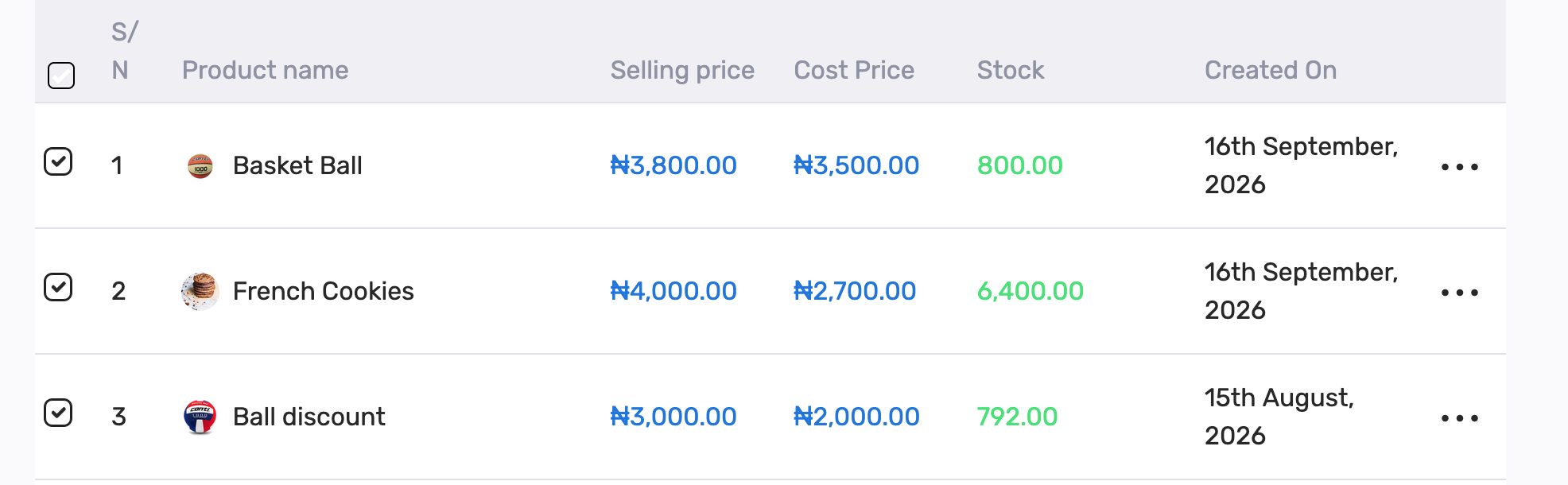
Tick the checkbox on each row you want to print — here Basket Ball, French Cookies, and Ball discount. Use the checkbox in the header to select every product on the page. If a selected product has variants with their own SKUs, those variants are included too.
5. Choose how to print
After you select at least one product, two buttons appear: Generate Barcode PDF (black) and Print Labels (outlined). Use the tabs below to follow one path. When either flow finishes, Posa clears your selection so you can pick a new set.
Pick a tab below. Use Generate Barcode PDF to download a file you can print later. Use Print Labels to send stickers to a label printer now.
1. Click Generate Barcode PDF
Click Generate Barcode PDF. Wait while Posa builds the file. If you are not on Plus or Premium, an upgrade message appears instead.
2. Open the barcode PDF
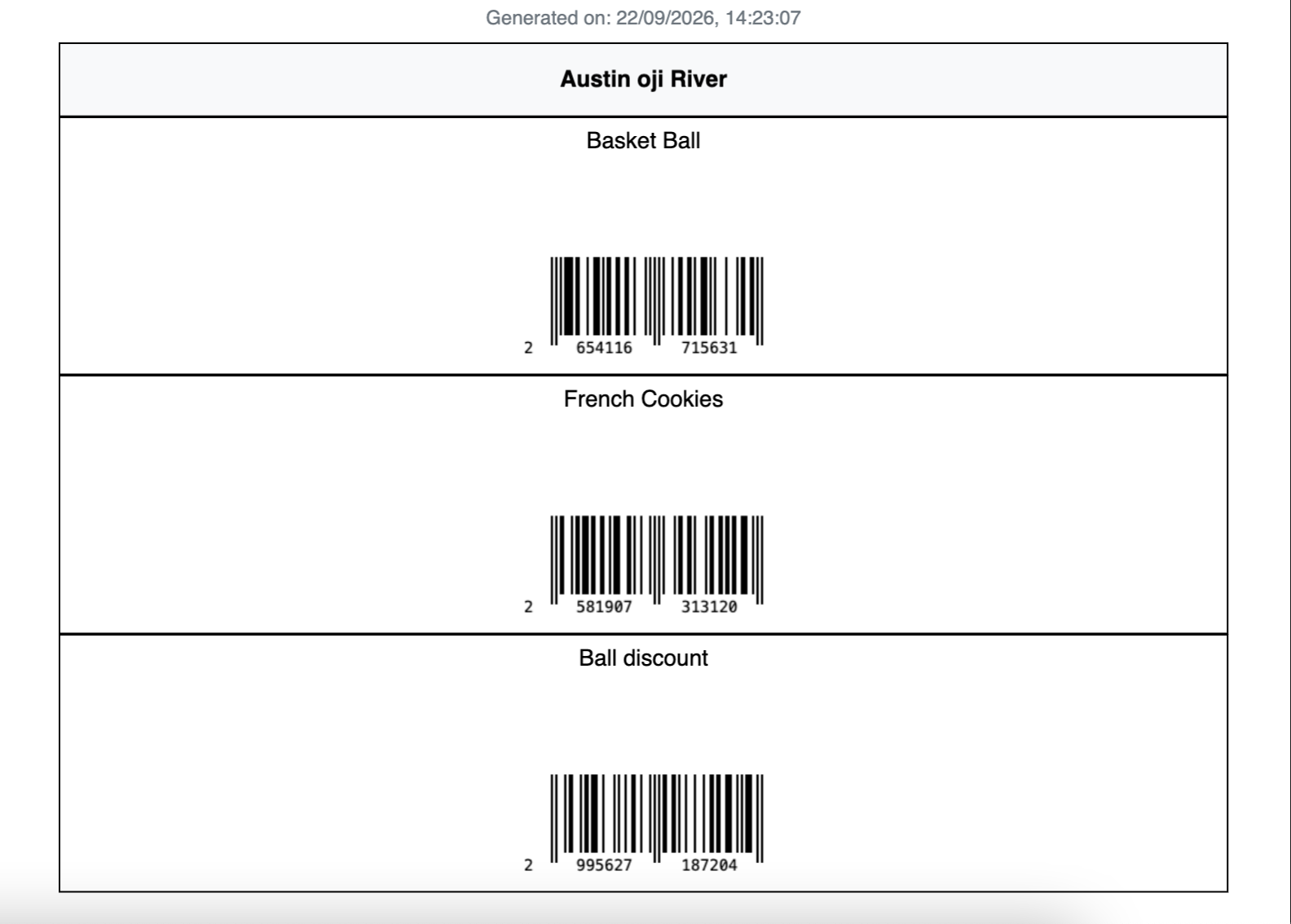
Your browser downloads a file named like product_barcodes_….pdf. Open it. The header is your business name. Each row is a product (or variant) with its barcode underneath — here Basket Ball, French Cookies, and Ball discount. Print that PDF from your computer if you want paper copies without a label printer.
Published by Posa Technologies · getposa.com
← More guides