POSA
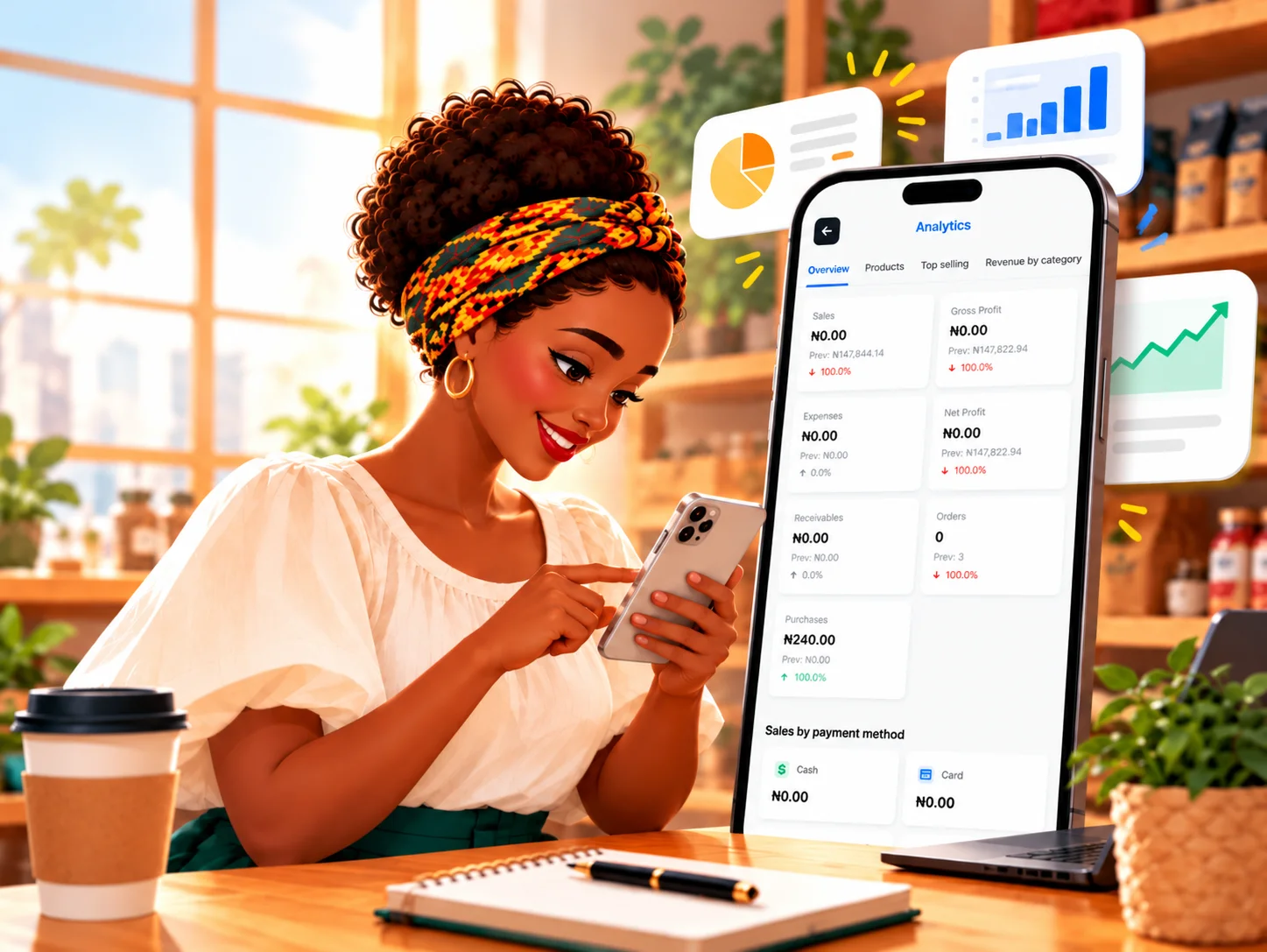
Merchant reviewing business sales, profit, orders, and other analytics in the Posa mobile app
Back to Learning centres

Mobile App

How to get your business reports on the Posa mobile app

P

Posa Technologies

··3 min read

Review sales, profit, inventory value, top-selling products, category revenue, and website activity from your phone.

Use Analytics to check how your business is performing without leaving the Posa mobile app. You need recorded products and sales before most reports can show useful figures. Top selling, Revenue by category, and some Overview figures require a higher plan; see How to upgrade to a higher plan on the Posa mobile app if Posa asks you to upgrade.

1. Open Analytics
Posa mobile app More screen with Analytics highlighted under Business Setup and Details

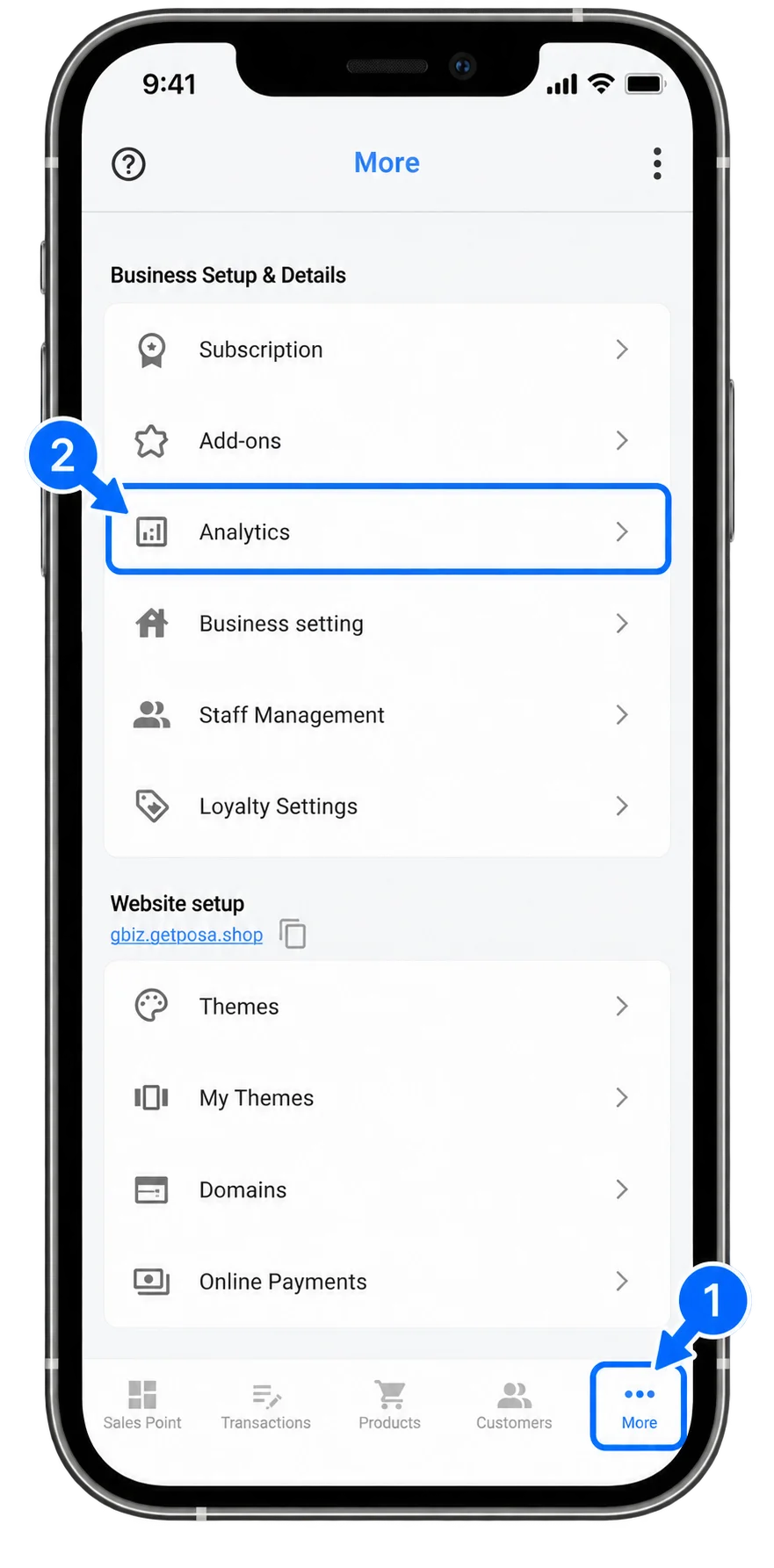
From the bottom navigation bar, tap More to open the More screen. Select Analytics under Business Setup & Details.

2. Review the Overview report
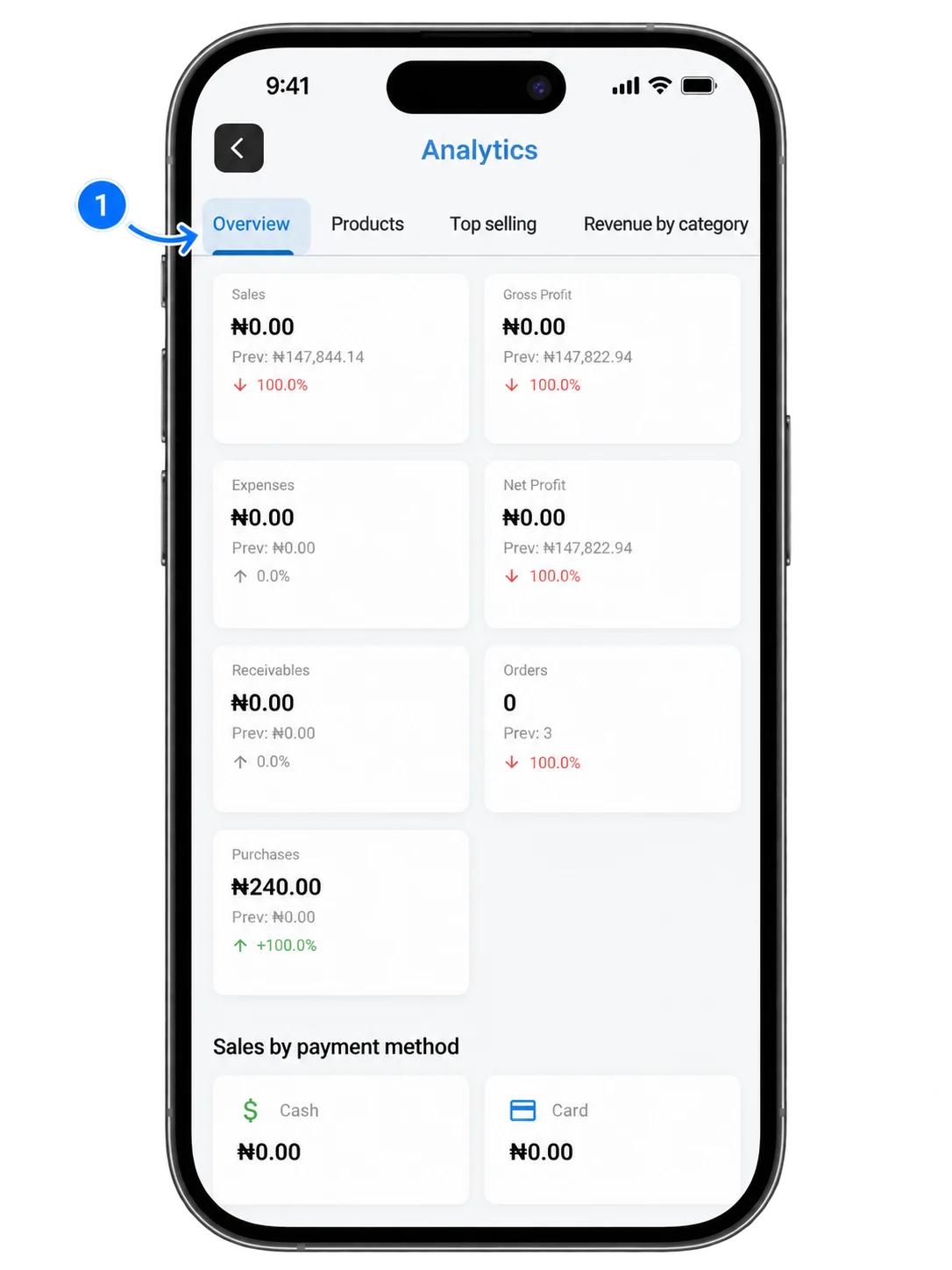
Posa mobile app Analytics Overview tab showing sales, profit, expenses, receivables, orders, purchases, and payment methods

On the Analytics screen, tap Overview to see a summary of your business performance. It includes sales, gross profit, expenses, net profit, receivables, orders, purchases, and sales by payment method.

3. Check your product value
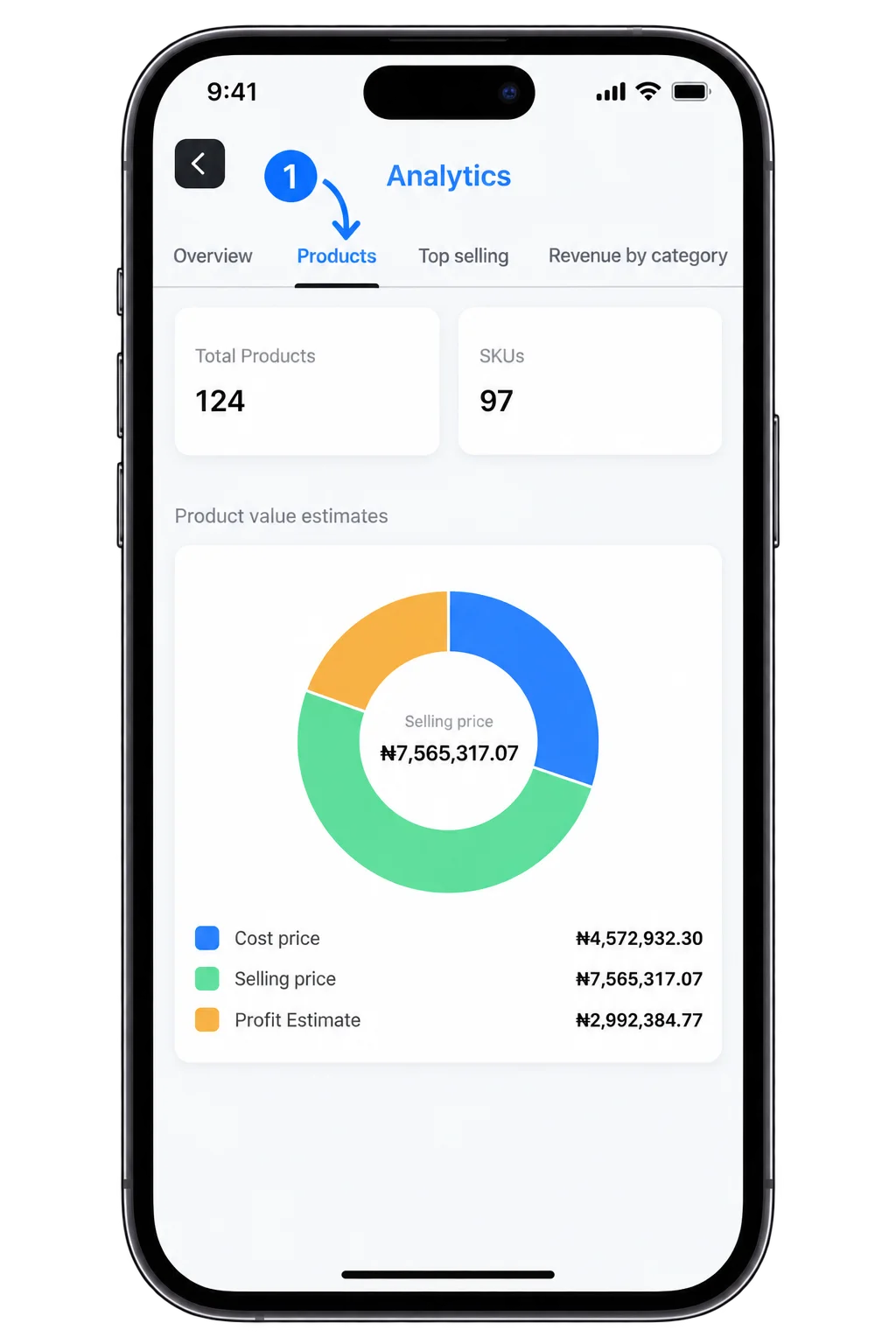
Posa mobile app Analytics Products tab showing product totals and inventory value estimates

Tap Products to view your total products and SKUs, the value of your inventory at cost price and selling price, and the estimated profit.

4. See your top-selling products
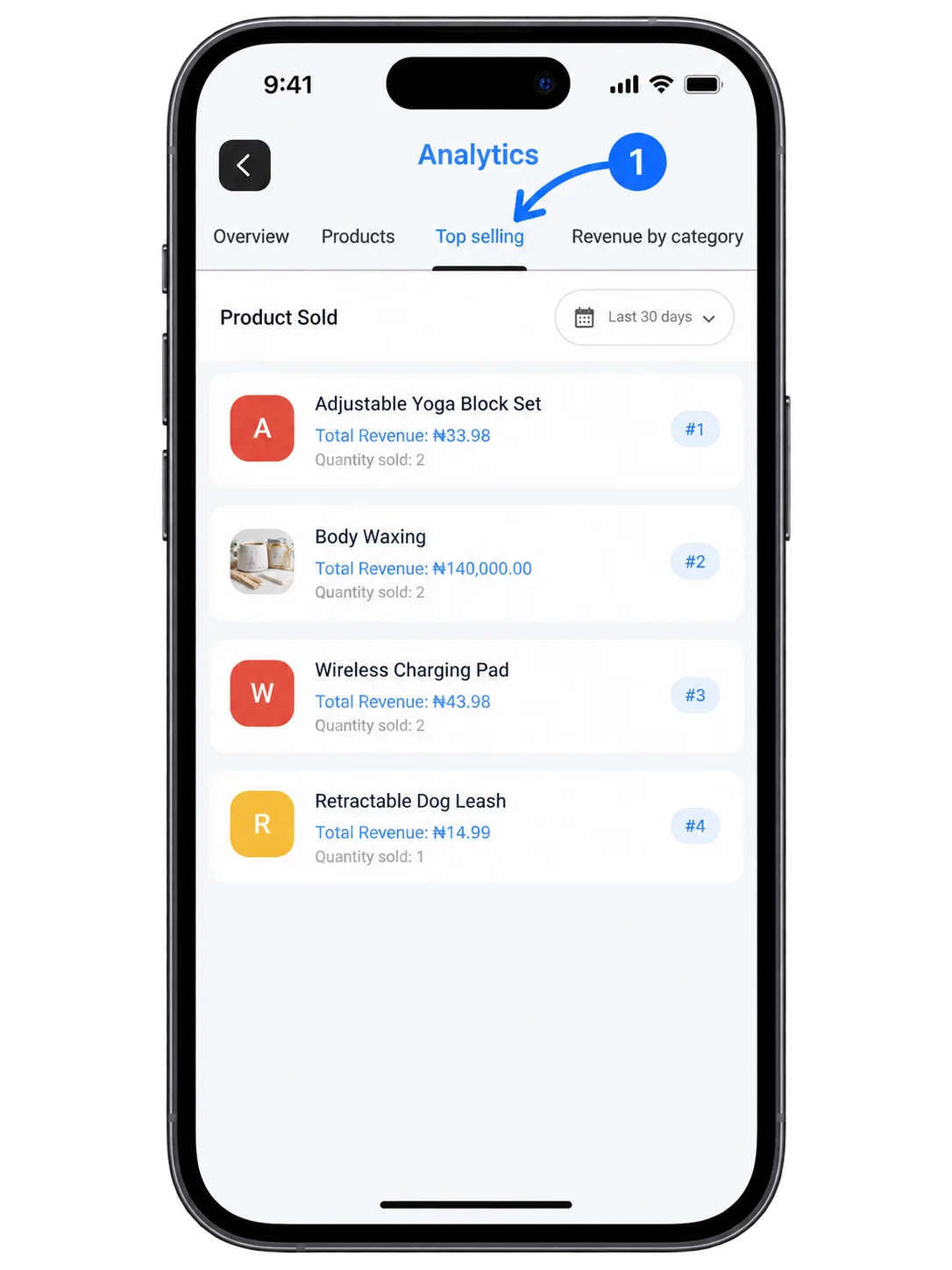
Posa mobile app Analytics Top selling tab ranking products by quantity sold and total revenue

Tap Top selling to see your best-selling products. Each entry shows its ranking, quantity sold, and total revenue for the selected period.

5. Compare revenue by category
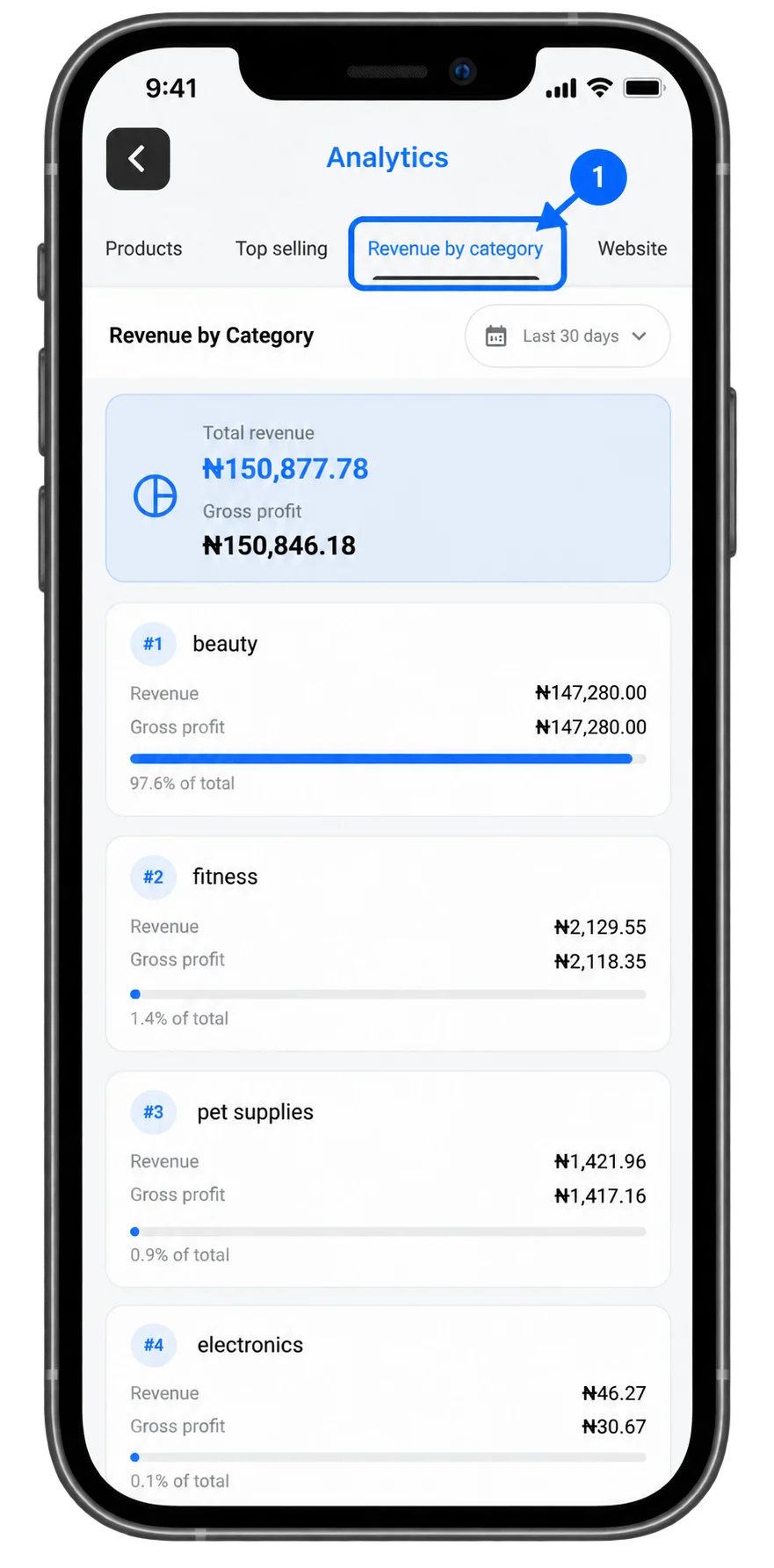
Posa mobile app Revenue by category report showing revenue, gross profit, rankings, and percentage of total revenue

Tap Revenue by category to compare the revenue and gross profit generated by each product category. The report also shows each category’s share of your total revenue.

6. Review your website activity
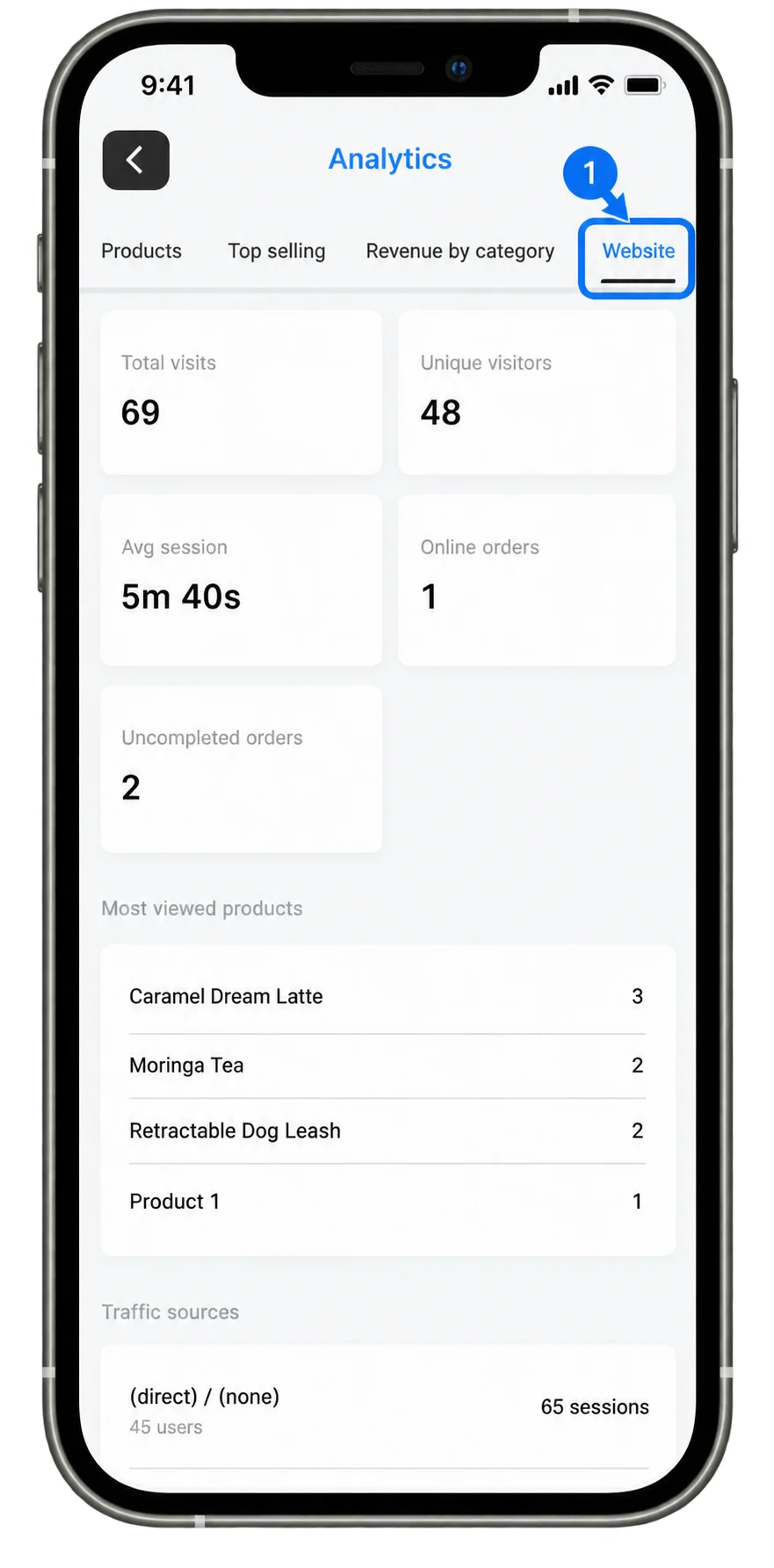
Posa mobile app Analytics Website tab showing visits, visitors, session time, orders, popular products, and traffic sources

Tap Website to review activity on your webstore. You can see total visits, unique visitors, average session time, online and uncompleted orders, most-viewed products, and traffic sources.

Ready to understand your business with Posa?

Start your free trial at getposa.com

Get Started Free

Published by Posa Technologies · getposa.com

← More guides

Complete your order

Order summary

Subtotal₦0