
POSA
Posa mobile app subscription screen for upgrading to a higher plan
Back to Learning centres

Mobile App

How to upgrade to a higher plan on the Posa mobile app

P

Posa Technologies

··2 min read

Move to a higher Posa plan from your phone — choose the plan, review the upgrade cost, and complete the payment.

Use this guide when you want to move from your current Posa subscription to a higher plan from the mobile app.

1. Open Subscription
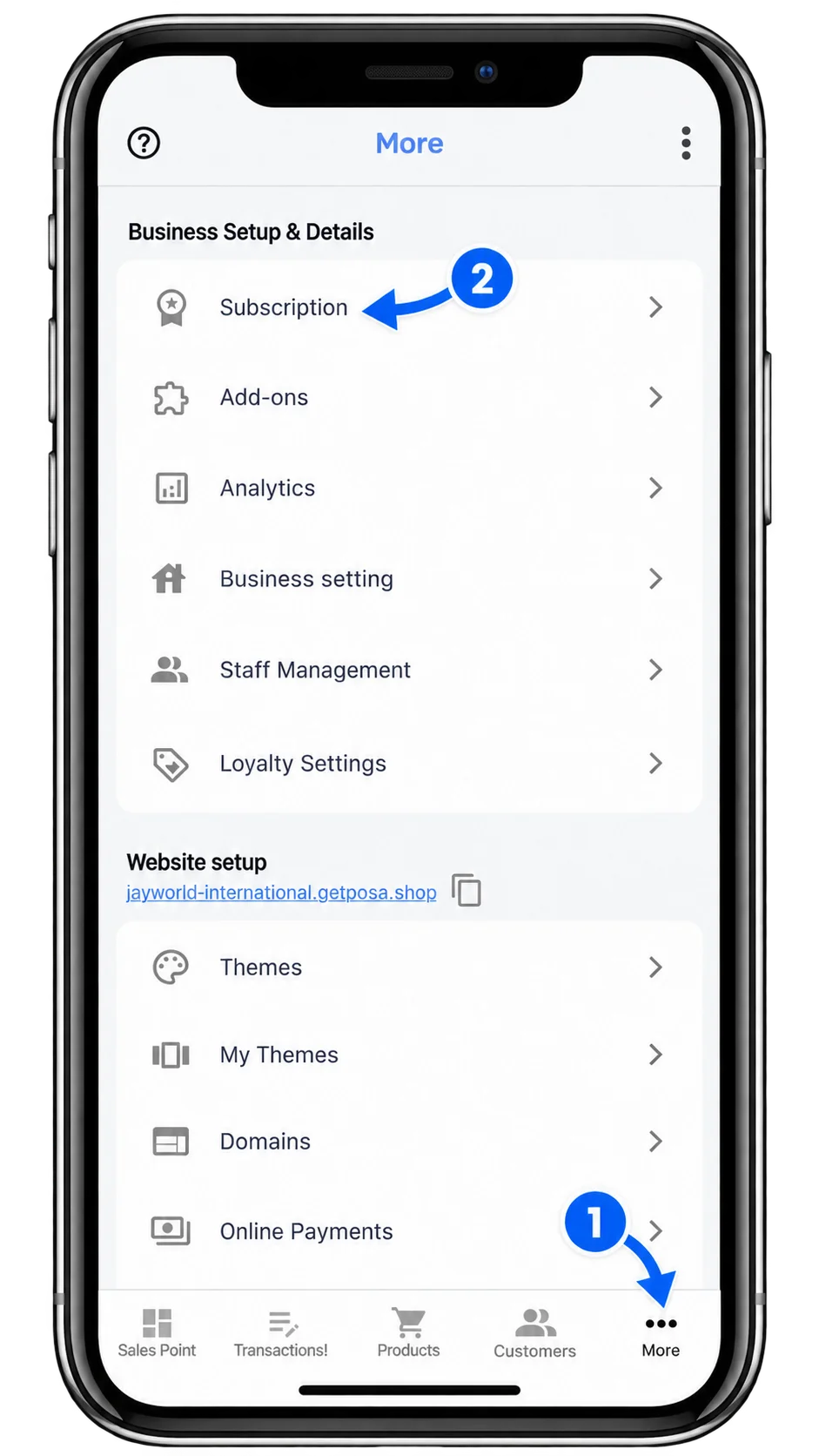
Posa mobile app More screen with Subscription under Business Setup and Details

From the bottom navigation bar, tap More to open the More screen. Select Subscription under Business Setup & Details.

2. Choose a higher plan
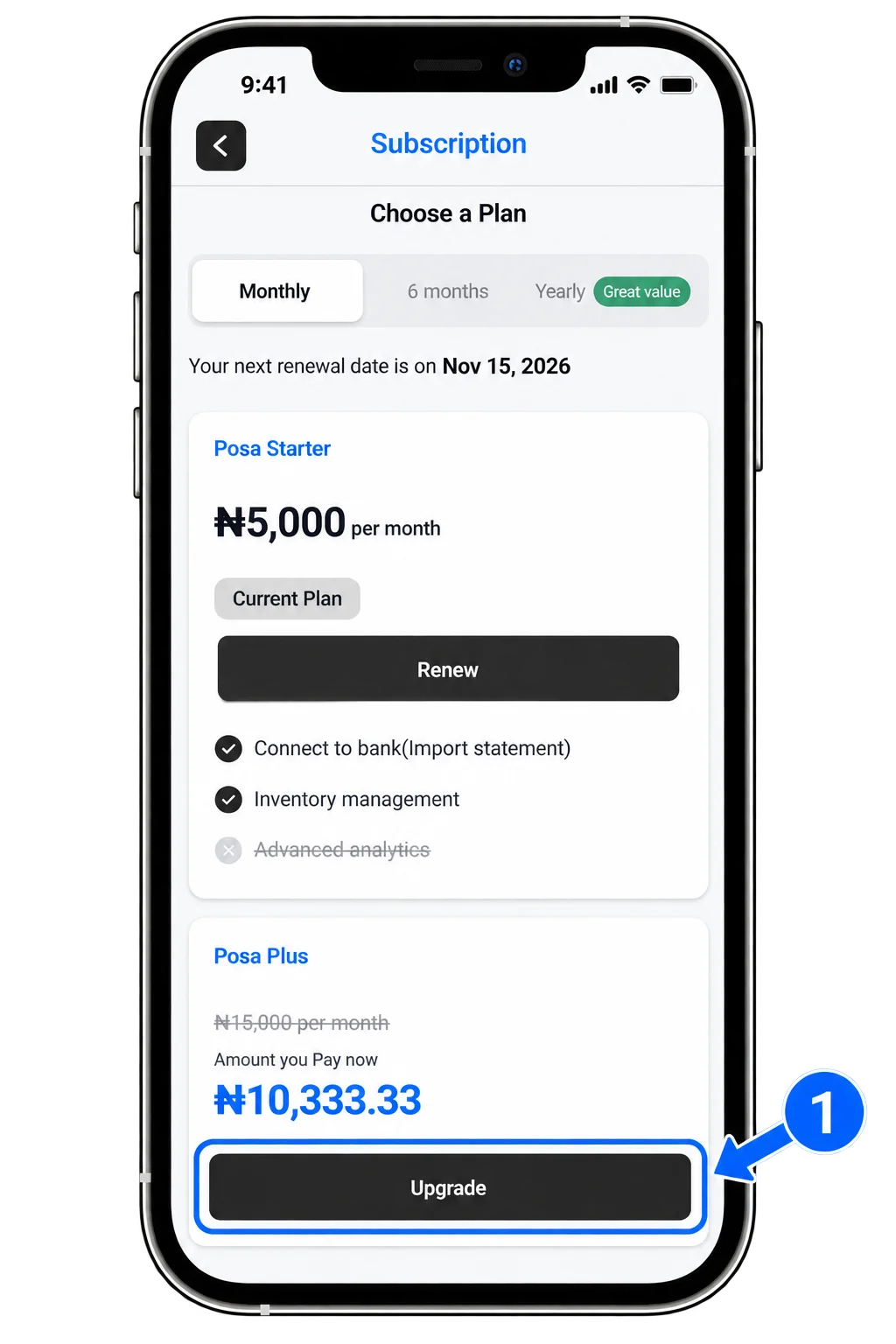
Posa mobile app Subscription screen showing the current plan and Upgrade buttons on higher plans

On the Subscription screen, you can view your current plan and the higher plans available to you. Tap Upgrade on the plan you want to switch to.

3. Review the upgrade cost
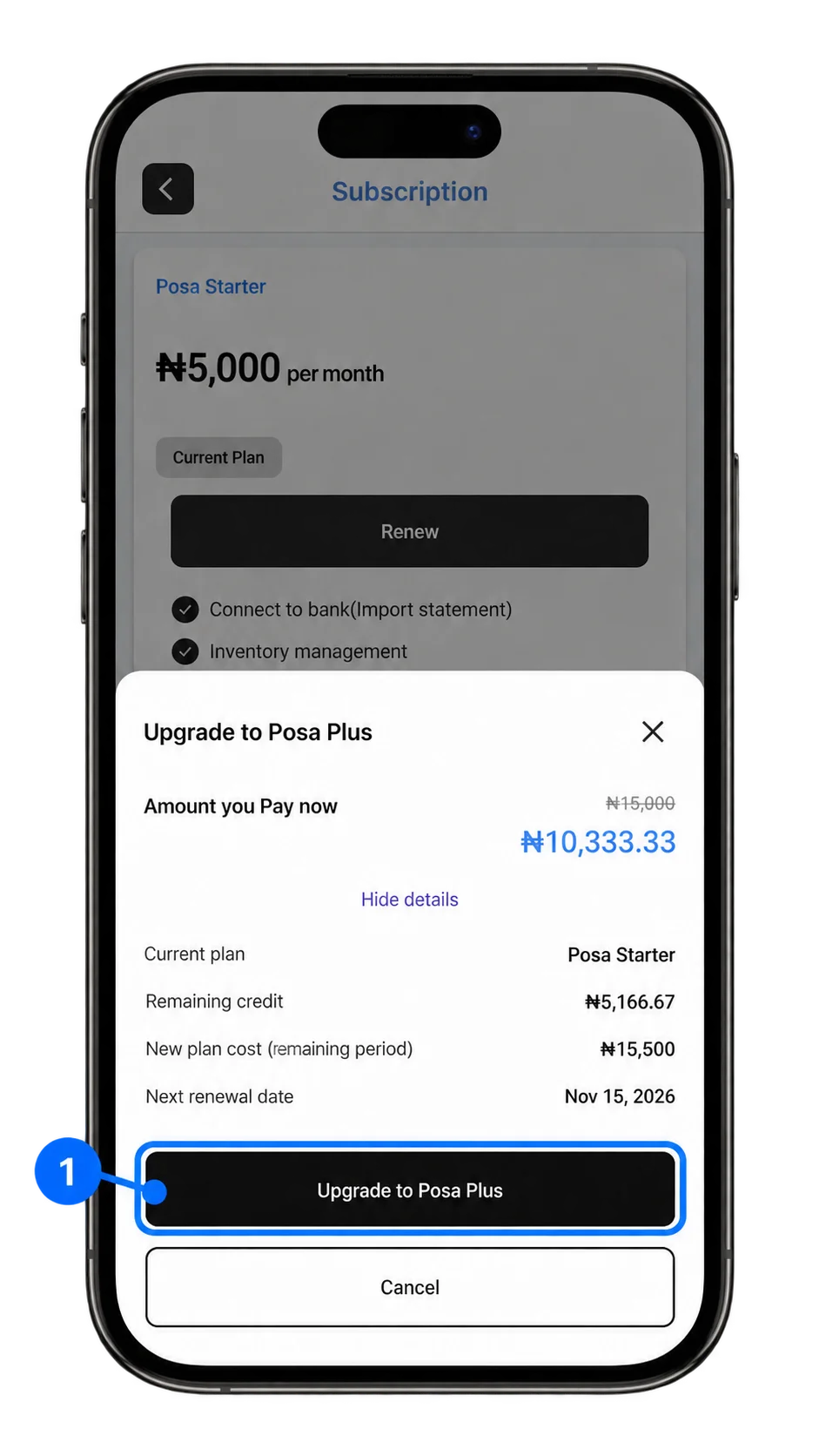
Posa mobile app upgrade price breakdown with the Upgrade button

A price breakdown shows the cost of moving from your current plan. Review the details carefully, then tap Upgrade to continue with the payment.

4. Start using your upgraded plan
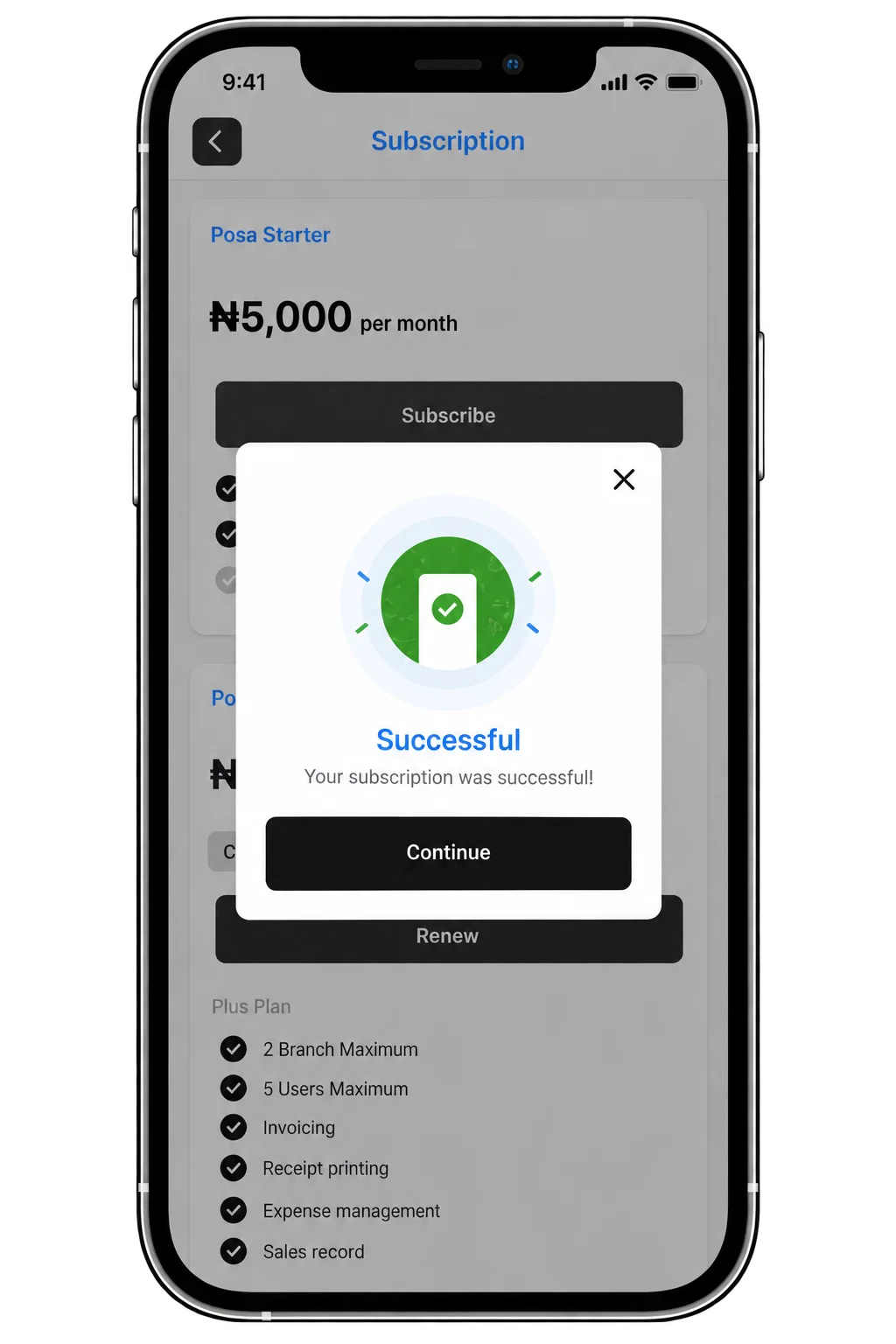
Posa mobile app confirmation that the subscription upgrade was successful

Once the payment is successful, your subscription is upgraded. You can immediately start using the additional features and benefits included in your new plan.

Ready to get more from Posa?

Start your free trial at getposa.com

Get Started Free

Published by Posa Technologies · getposa.com

← More guides

Complete your order

Order summary

Subtotal₦0