
Use this guide to change the words, images, and blocks on your Posa website from Website Builder. You need a theme that is already live. If you have not picked one yet, see How to buy a theme or use the Free one.
Website Builder is for page content. Customise your website (the menu item above it) is for store settings such as colours, opening hours, and maintenance mode — that is a different page.
1. Open Online store
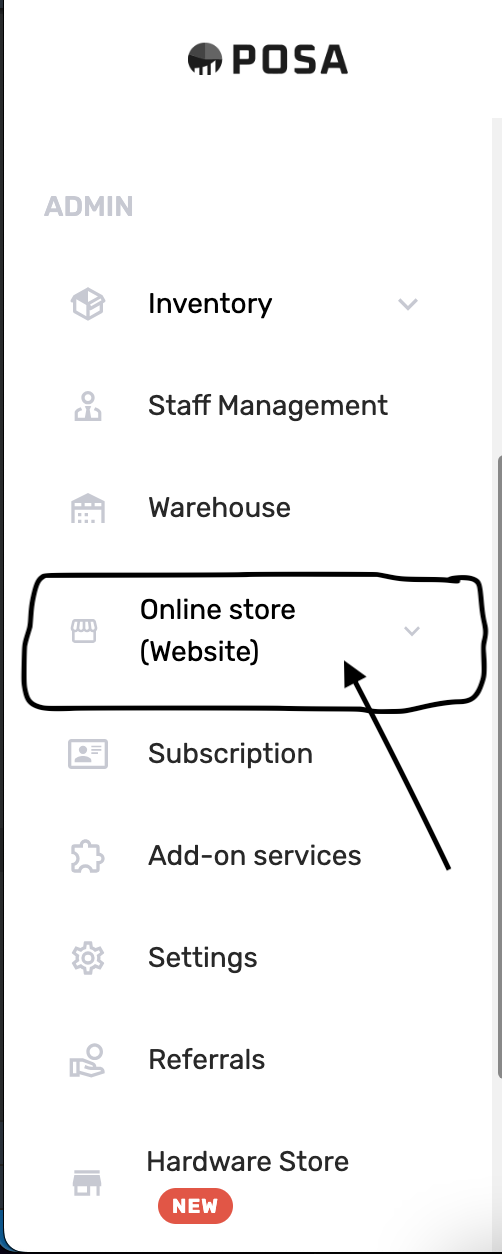
On the left sidebar, find Online store (Website) and click it. The menu expands.
2. Go to Website Builder
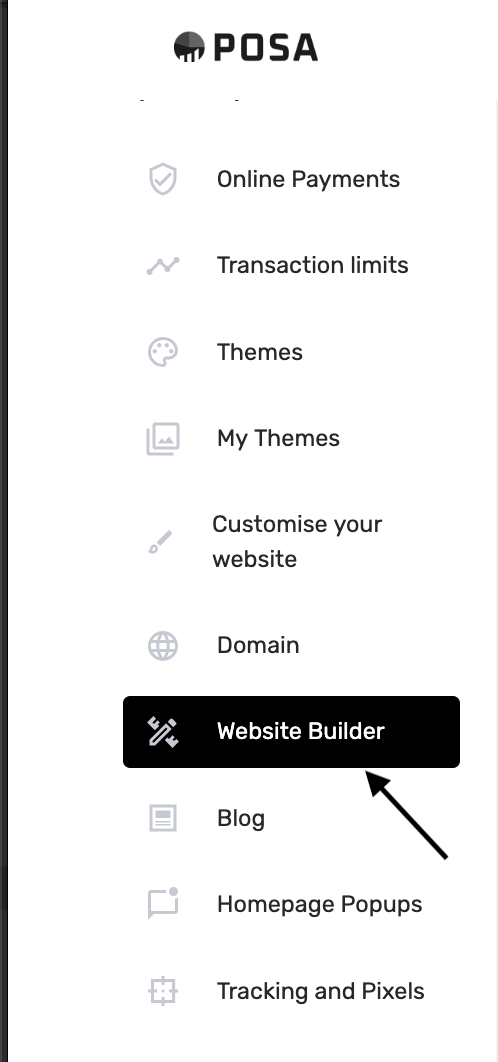
Under Online store, click Website Builder. The menu item turns black when it is selected.
3. The Website Builder page
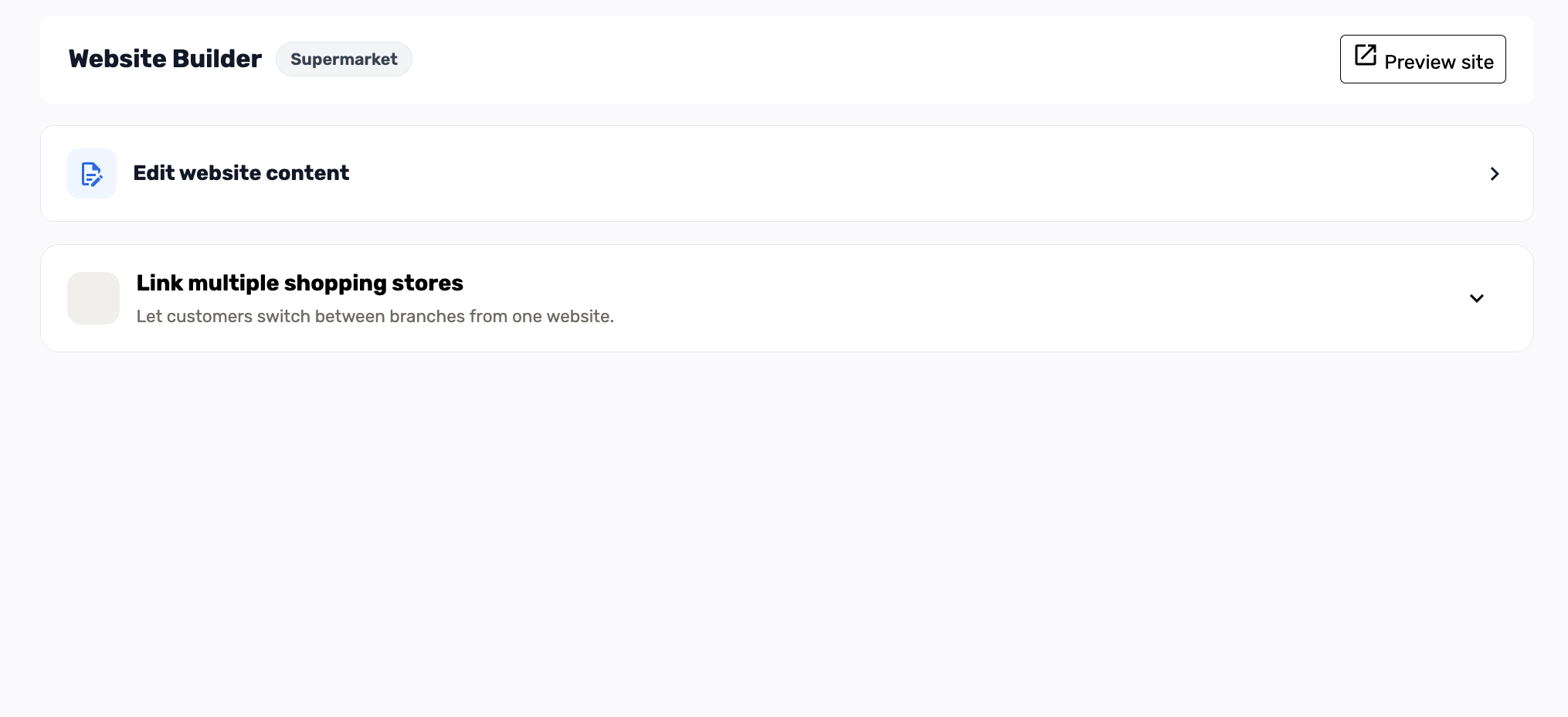
You should see Website Builder and a badge with your live theme name — here Supermarket. Preview site sits on the right. Edit website content is the row you use next. Link multiple shopping stores is only for owners who want customers to switch branches on one site. If you see No theme selected, go back and claim or buy a theme first.
4. Open Edit website content
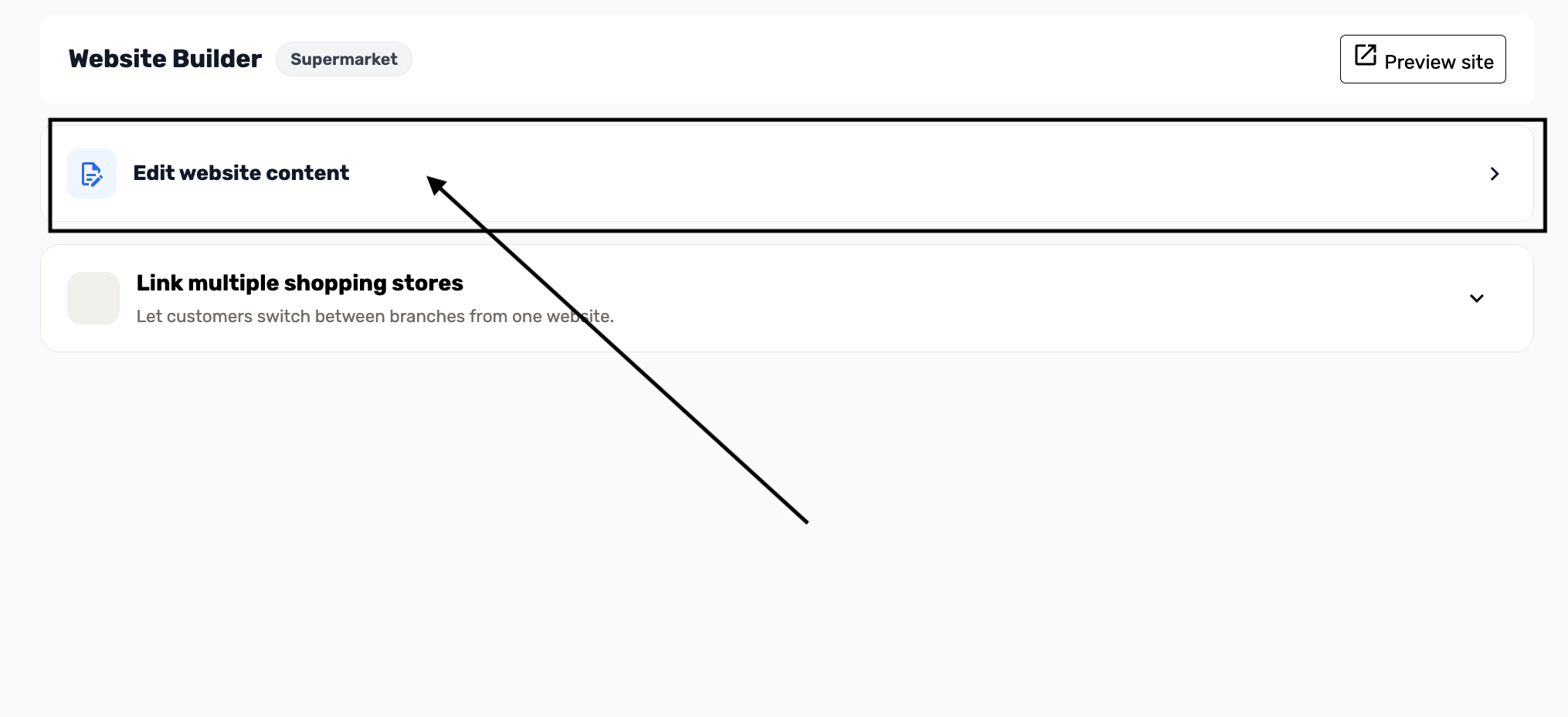
Click Edit website content. Posa opens the page editor for your theme.
5. Pick a page
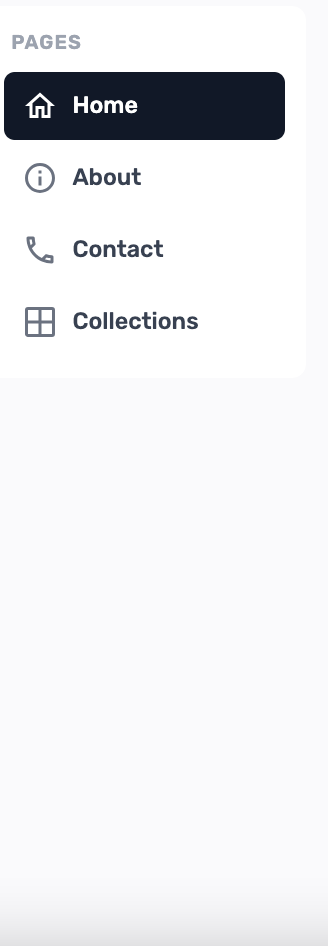
Pages on the left lists the screens this theme can edit. Home is selected first. Supermarket also has About, Contact, and Collections. Other themes may add Book a Table, Blog, or Menu. Click the page you want to change.
6. See the sections on that page
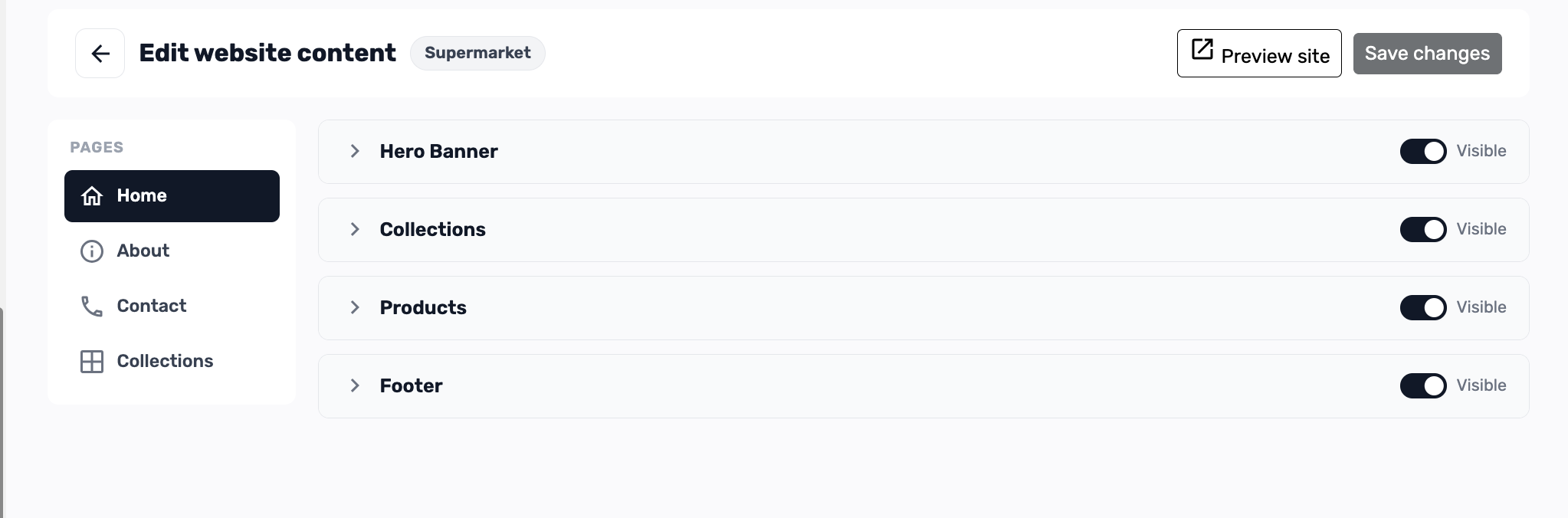
The editor lists each block on the page. On Home for Supermarket you see Hero Banner, Collections, Products, and Footer. Every row has a Visible toggle. Preview site and Save changes stay at the top.
7. Open a section
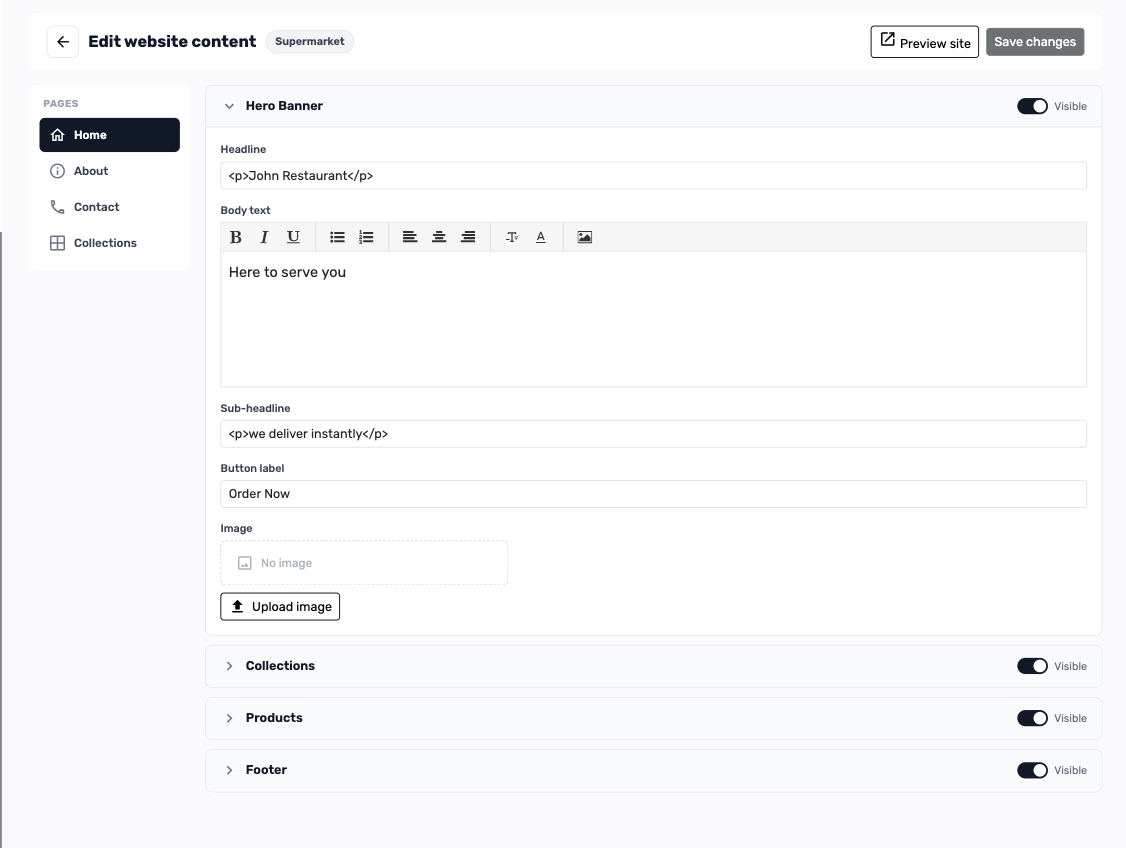
Click a section name to expand it — here Hero Banner. You can edit Headline, Body text, Sub-headline, and Button label, and use Upload image if the block has a picture. Fields differ by section (FAQ has questions, galleries have images).
8. Change the text
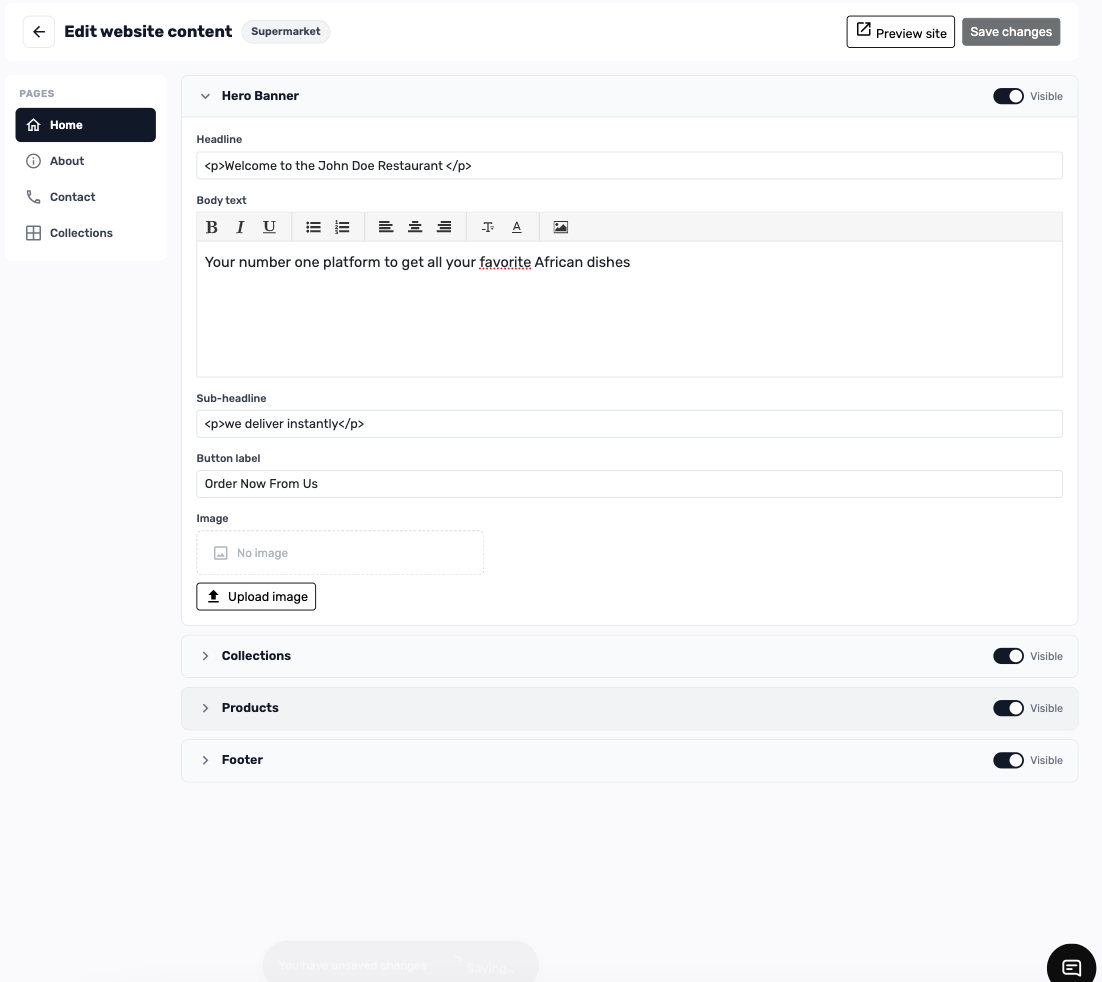
Type your own copy. In this example the button label changes from Order Now to Order Now From Us. A bar at the bottom says You have unsaved changes until you save.
9. Hide a section you do not need
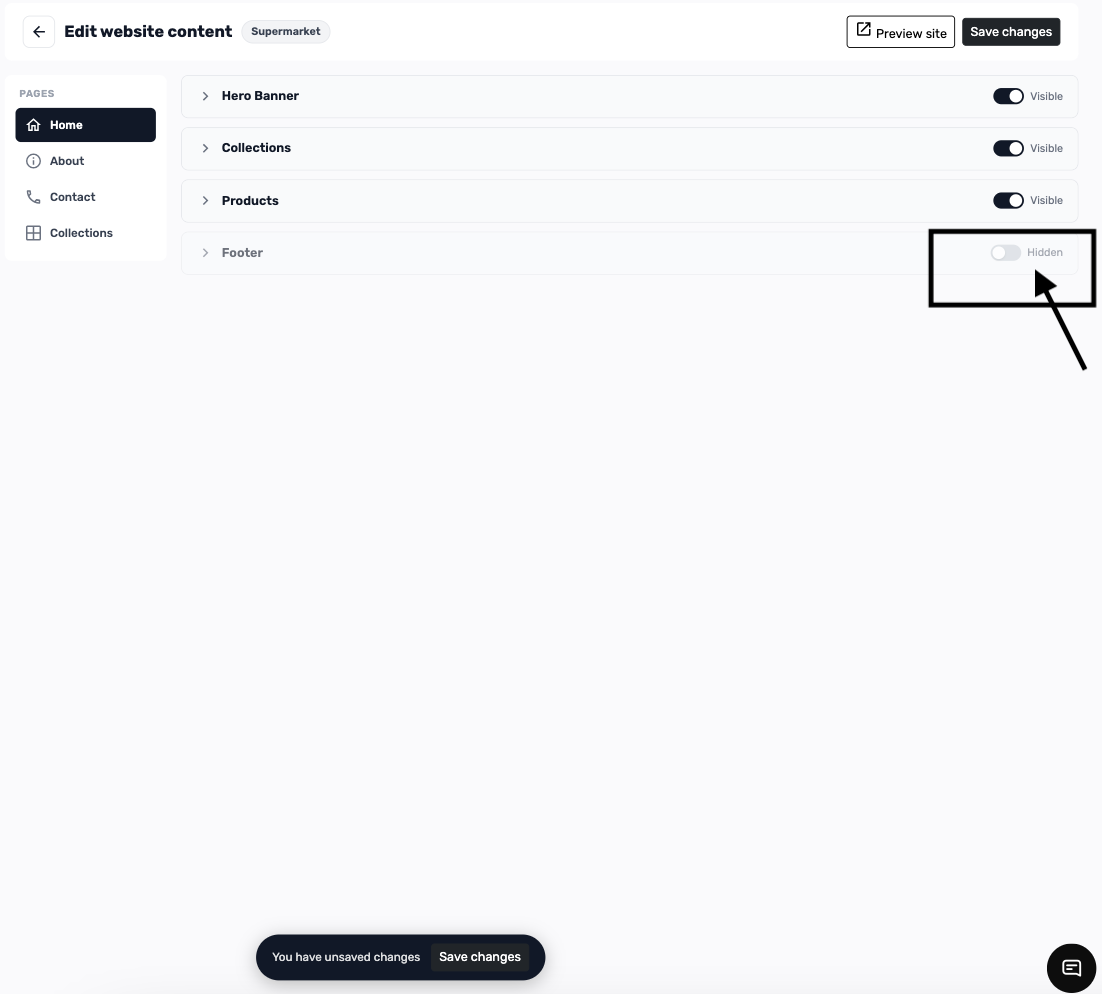
Turn the switch from Visible to Hidden to take a block off the website without deleting it — here Footer is Hidden. Turn it back to Visible when you want it again. Remember to save.
10. Edit another page
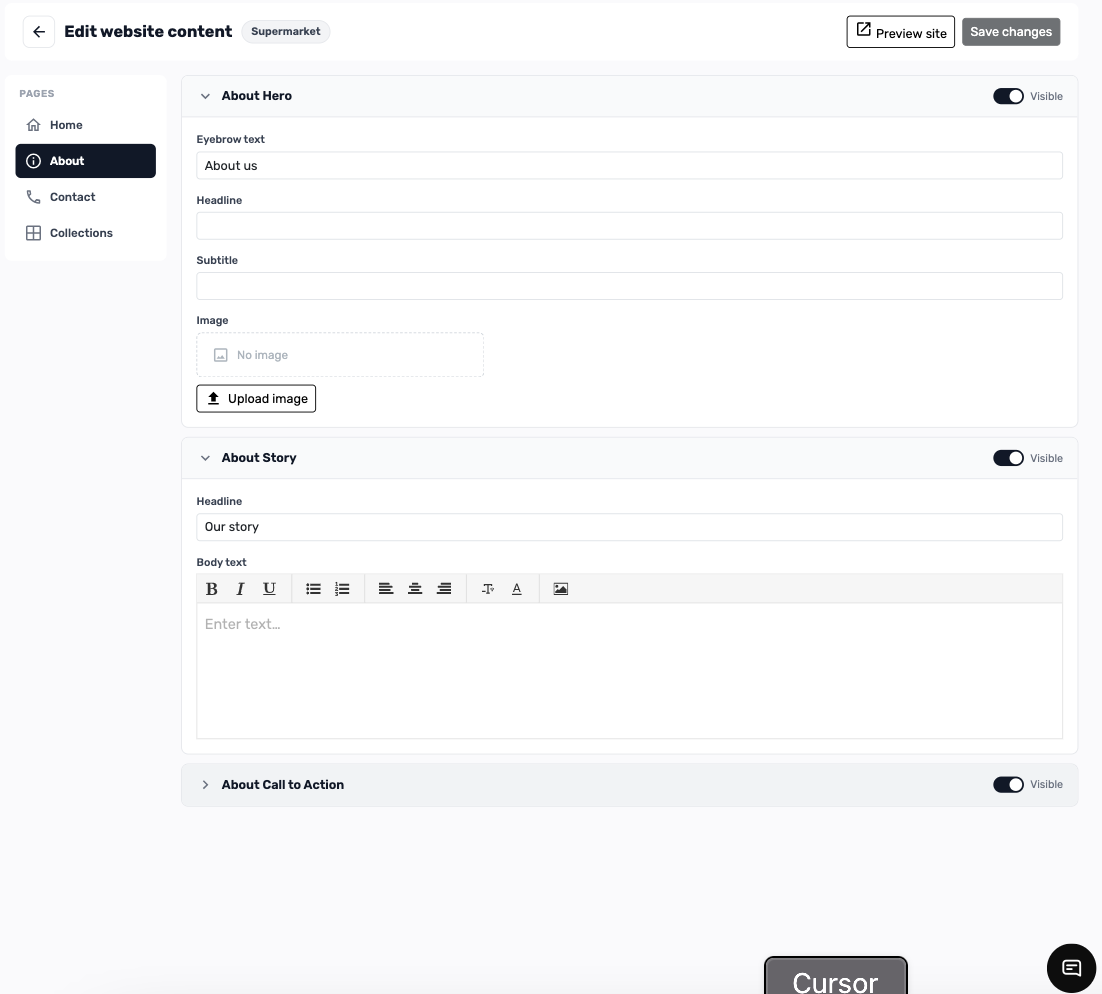
Click About (or any other page) in the sidebar. The sections change — here About Hero, About Story, and About Call to Action. If you still have unsaved edits on Home, Posa asks whether to discard them before you switch.
11. Save your changes
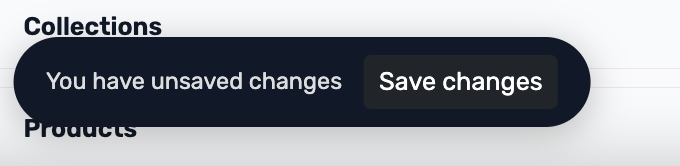
When the bar appears, click Save changes. You can also use Save changes in the header. Stay on the page until it finishes.
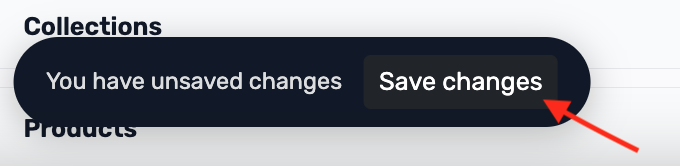
Click Save changes on the bar.
12. Confirm the save
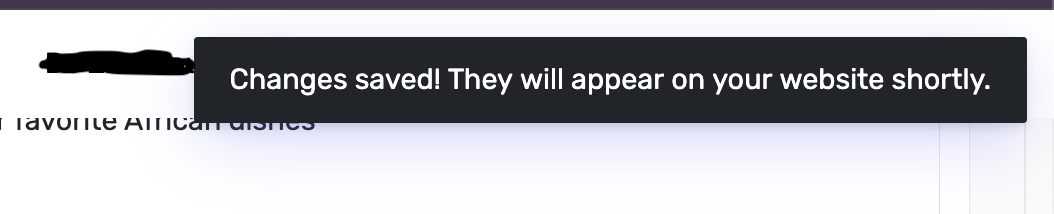
A toast says Changes saved! They will appear on your website shortly. Give the live site a moment to update.
13. Preview the site
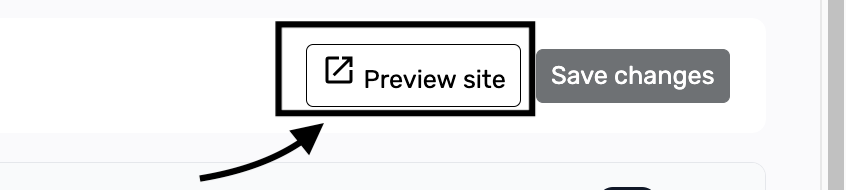
Click Preview site at the top. A new tab opens so you can check the look before customers do.
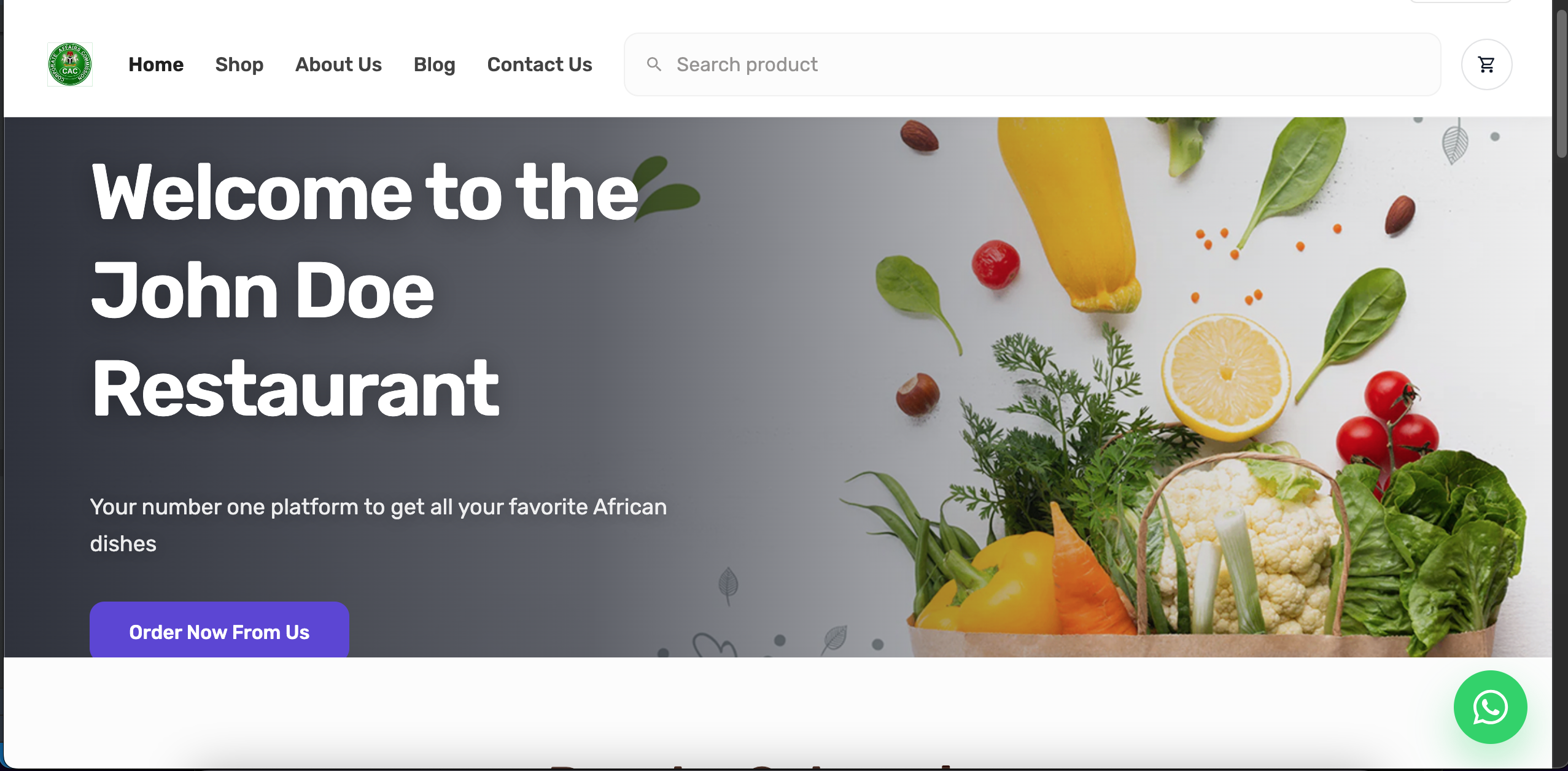
The preview should match what you typed — here Welcome to the John Doe Restaurant, the body line about African dishes, and the button Order Now From Us. Close the tab and keep editing if something still needs a change.
Published by Posa Technologies · getposa.com
← More guides