
Use this guide to pick a look for your Posa website in the web app. Free themes say Free and show Get Free. Paid themes show a price and Buy Now. On a Posa Elite plan, paid themes also show Get Free.
A free claim is applied straight away. A paid theme is added to My Themes first — you click Set live to put it on your store. Follow the shared steps, then use the tabs for only the path you need.
1. Open Online store
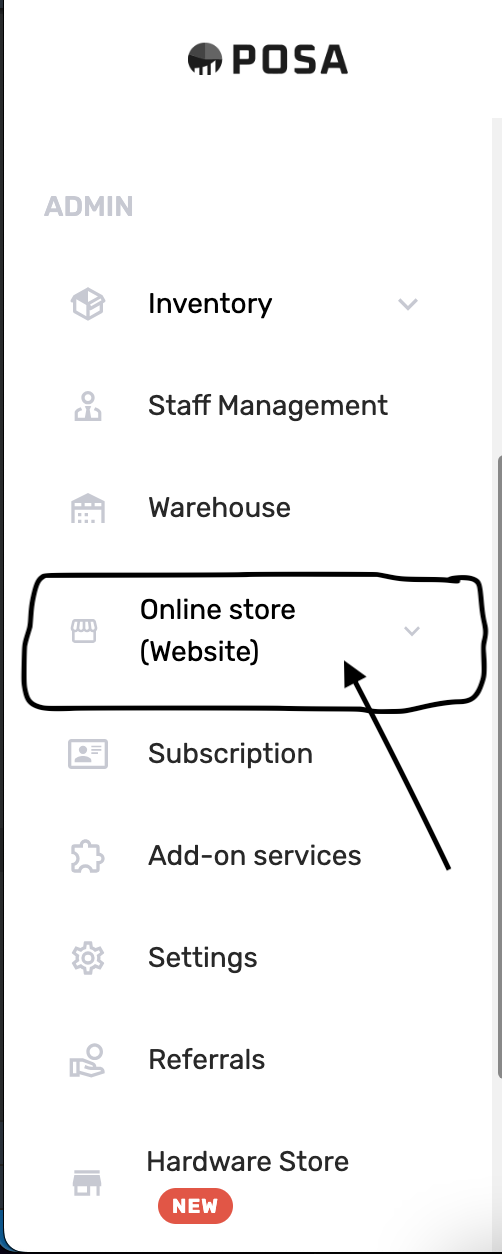
On the left sidebar, find Online store (Website) and click it. The menu expands.
2. Go to Themes
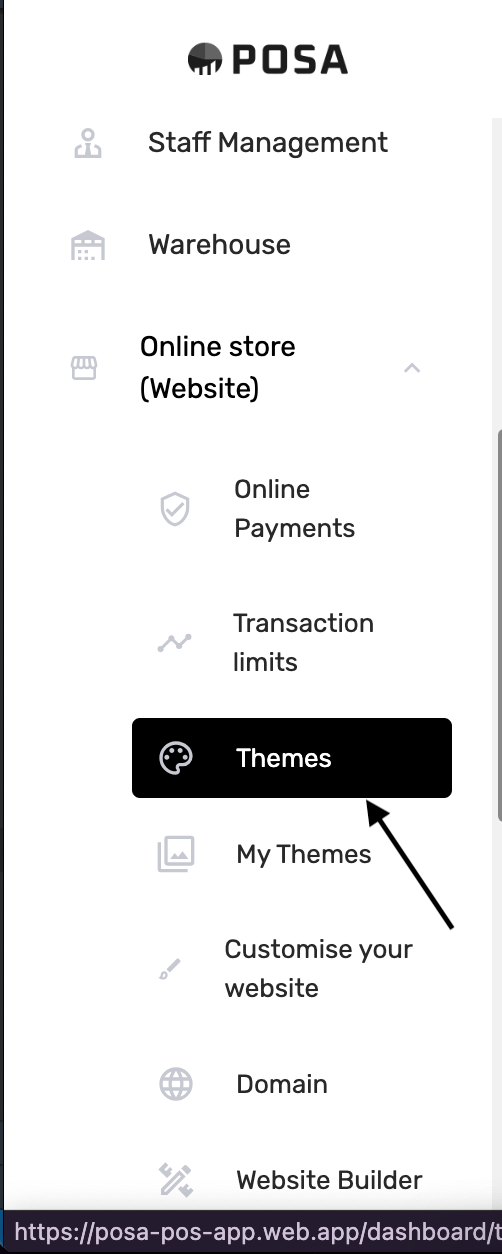
Under Online store, click Themes (the palette icon). The menu item turns black when it is selected. My Themes is where designs you already have live.
3. Browse the catalog
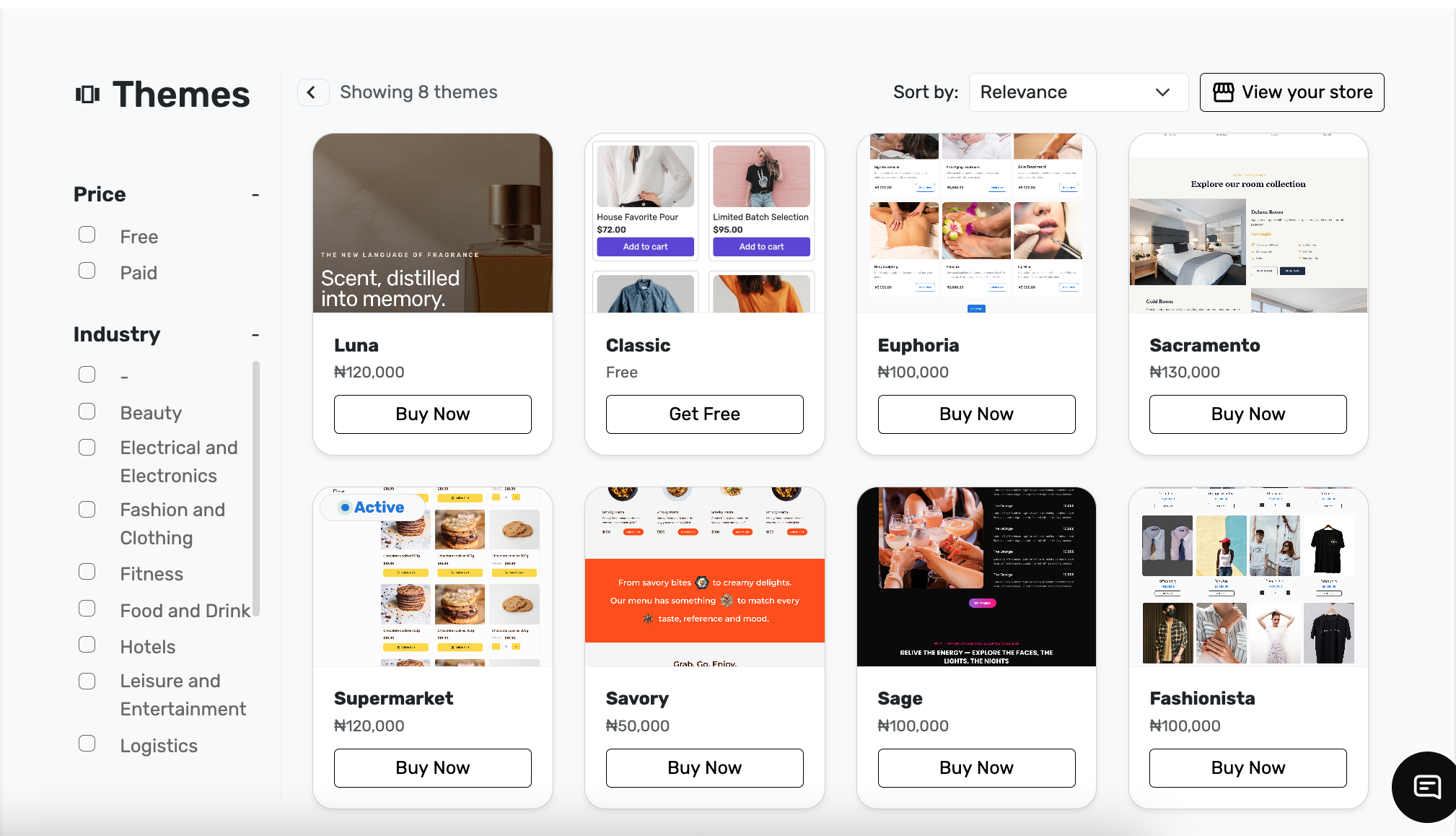
You should see Themes and a count such as Showing 8 themes. Price on the left is Free or Paid. Industry narrows the list (Beauty, Hotels, Food and Drink, and more). Each card has a name, Free or a price, and Get Free or Buy Now. Sort by and View your store sit at the top right.
4. Preview a theme (optional)
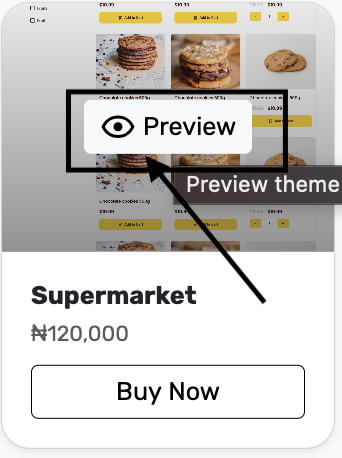
Hover a card and click Preview. A sample storefront opens in a new tab so you can see the layout before you claim or buy. Close the tab when you are done and go back to Themes.
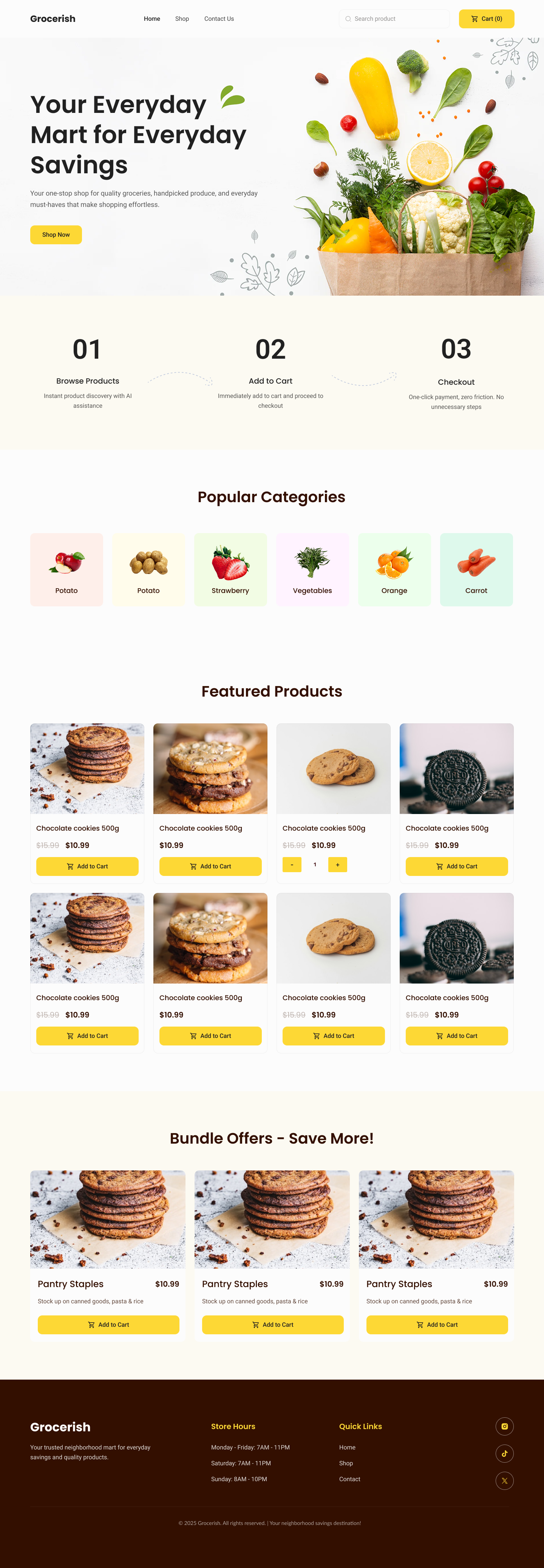
The preview is a demo shop — here a grocery layout with categories and featured products. It is not your live store yet.
Pick a tab below. Use the Free one to claim a design at no cost. Buy a theme if you want a paid layout — after payment you still Set live on My Themes.
1. Filter to Free
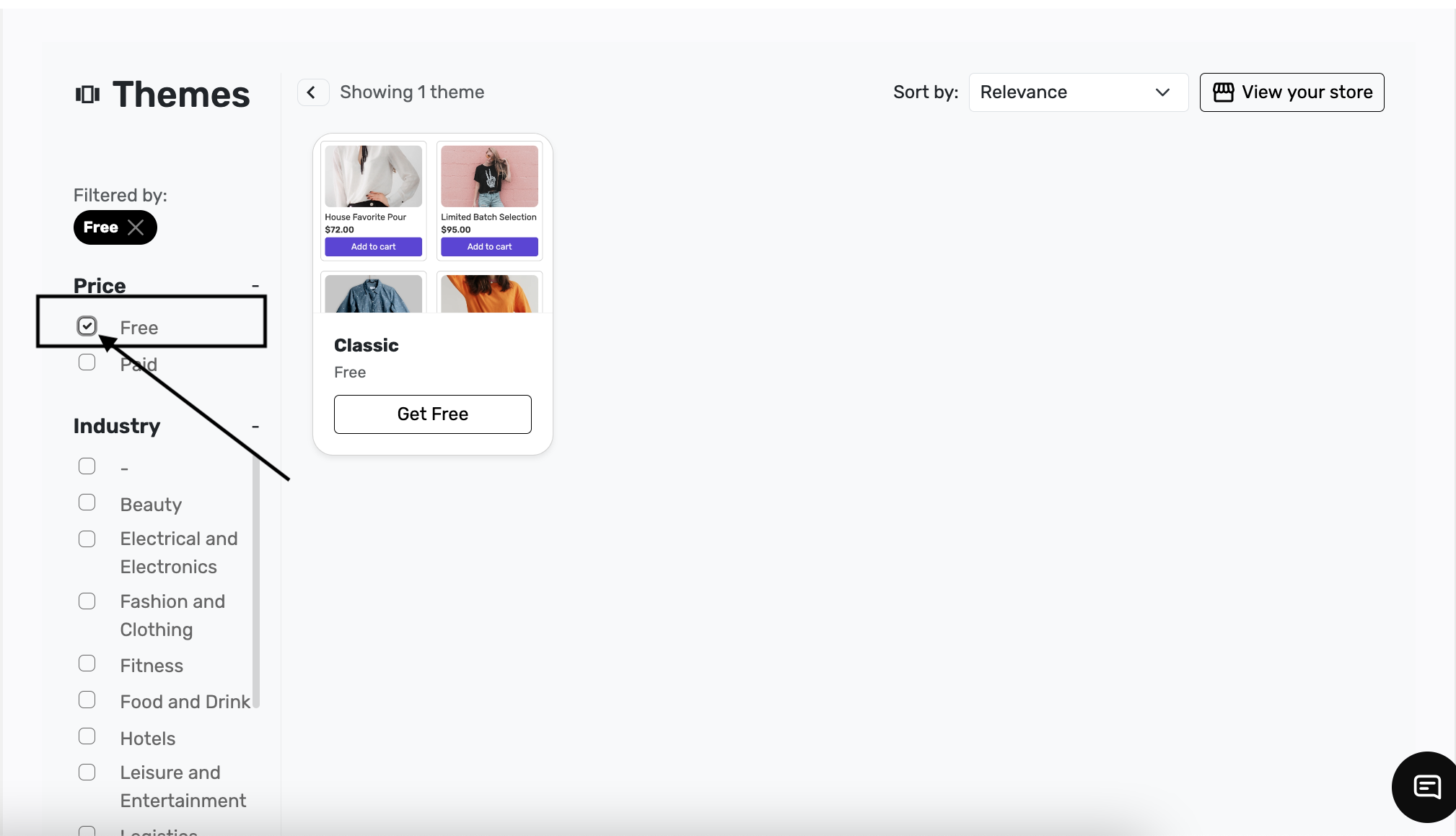
Under Price, tick Free. Filtered by: Free appears, and only free designs remain — here Classicco with Get Free.
2. Click Get Free
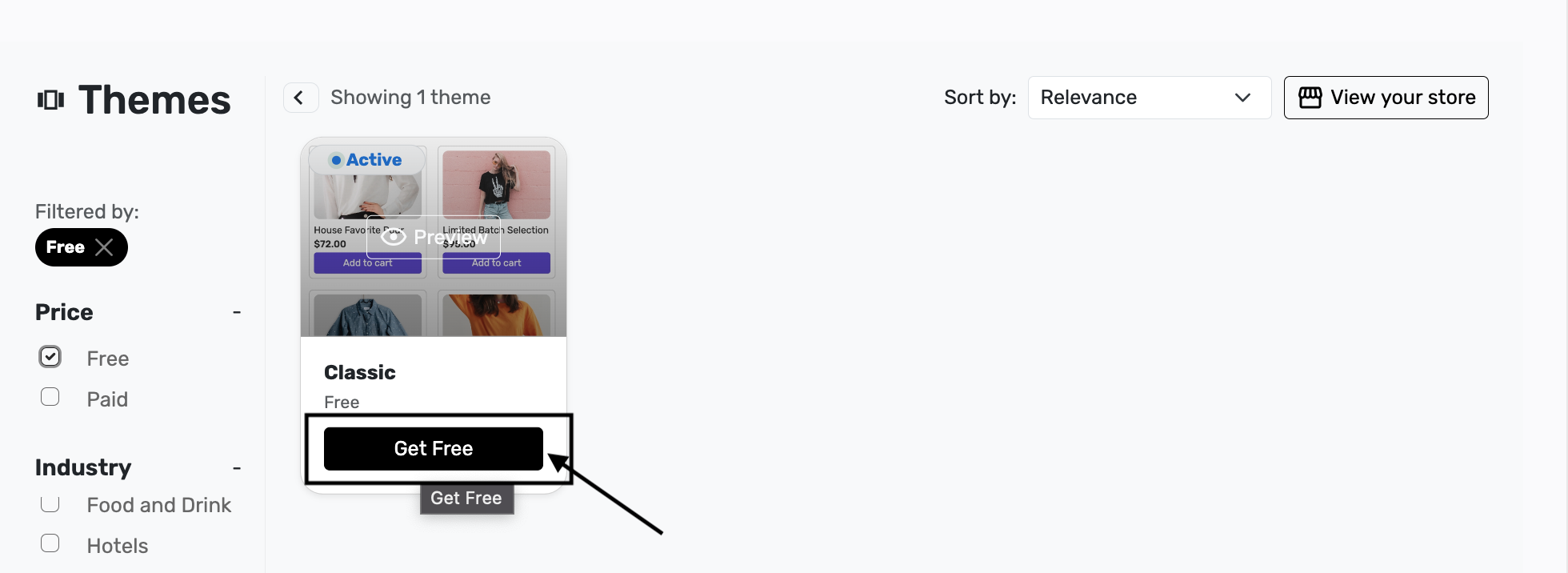
Click Get Free on the theme you want. Posa adds it to your store and applies it. You do not pay and you do not need Set live.
3. Theme claimed
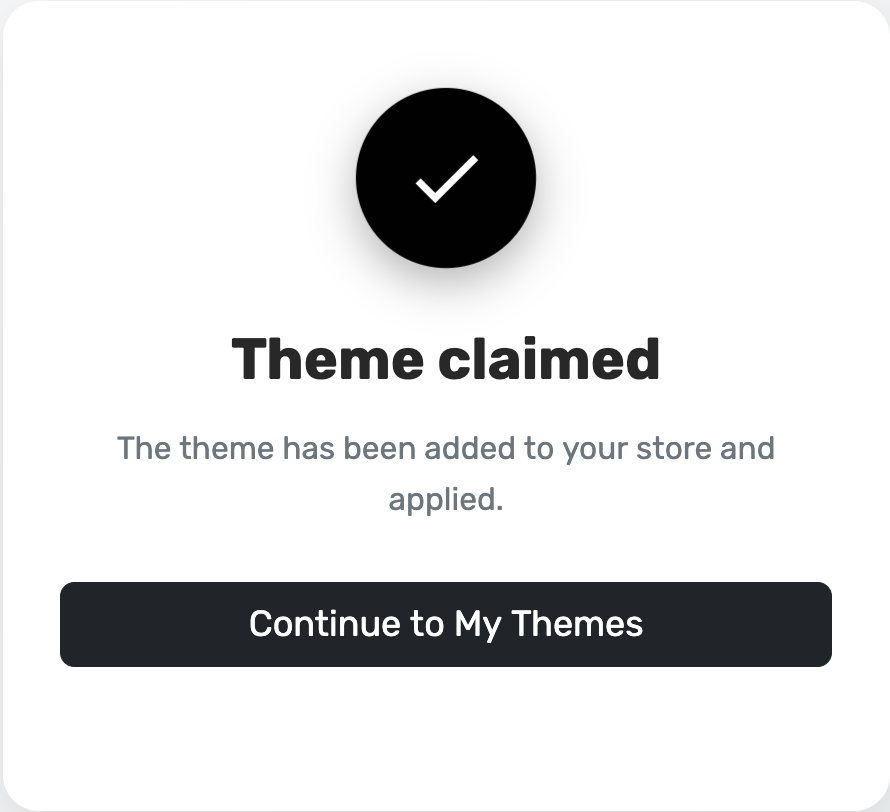
You should see Theme claimed and The theme has been added to your store and applied. Click Continue to My Themes.
4. Confirm it is Live
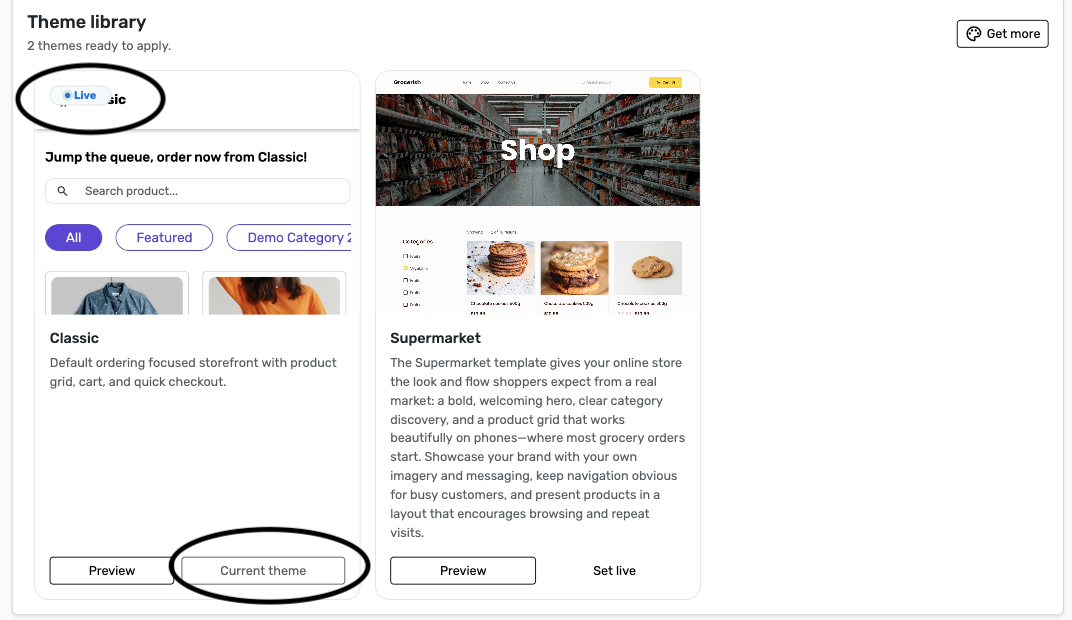
My Themes (Theme library) lists designs you own. The one you just claimed shows a Live badge and Current theme — here Classicco. Other themes you already bought, such as Supermarket, still show Set live if they are not active. Use Get more to return to the catalog.
Published by Posa Technologies · getposa.com
← More guides