
Use this guide to turn on online payments for your Posa website (webstore). You must finish KYC and activate the gateway before customers can pay with card or mobile money. Only the business owner can do this — staff see a warning and cannot submit.
Have a live theme first. See How to buy a theme or use the Free one if you still need a storefront. Follow the shared steps, then use the tab for Nigeria or Ghana.
1. Open Online store
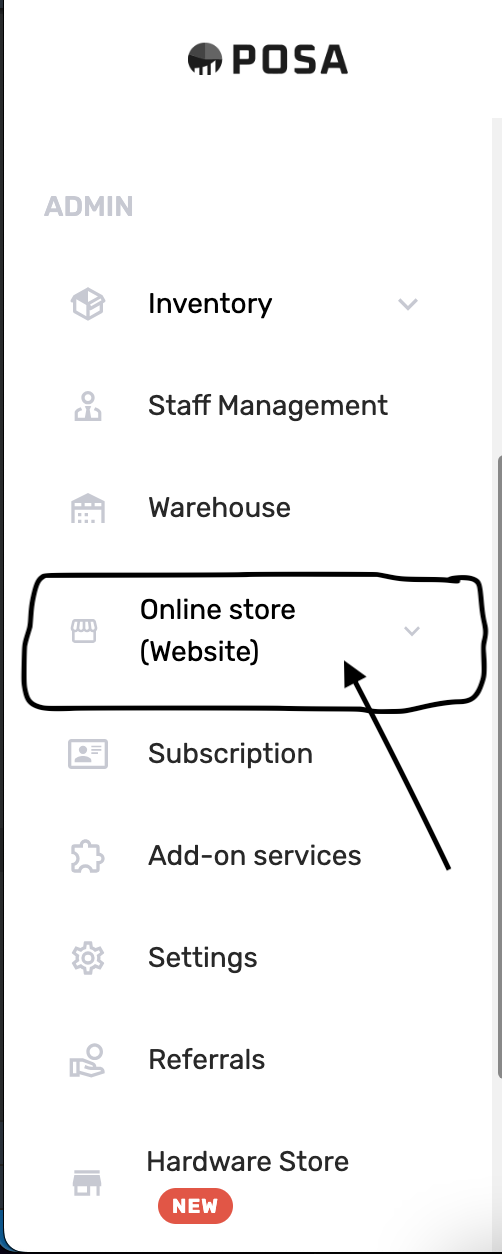
On the left sidebar, find Online store (Website) and click it. The menu expands.
2. Go to Online Payments
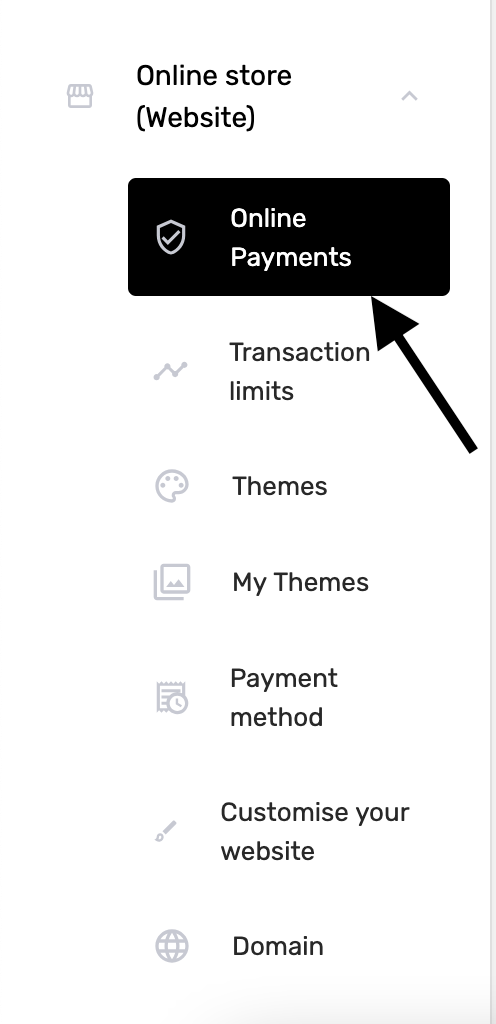
Under Online store, click Online Payments (the shield icon). The menu item turns black when it is selected. Transaction limits sits under it — you can raise limits after you are verified.
Pick the tab for your business country. Nigeria pays you into a bank account. Ghana connects your Paystack or Flutterwave live key. Only the business owner can complete this.
1. Read what you need
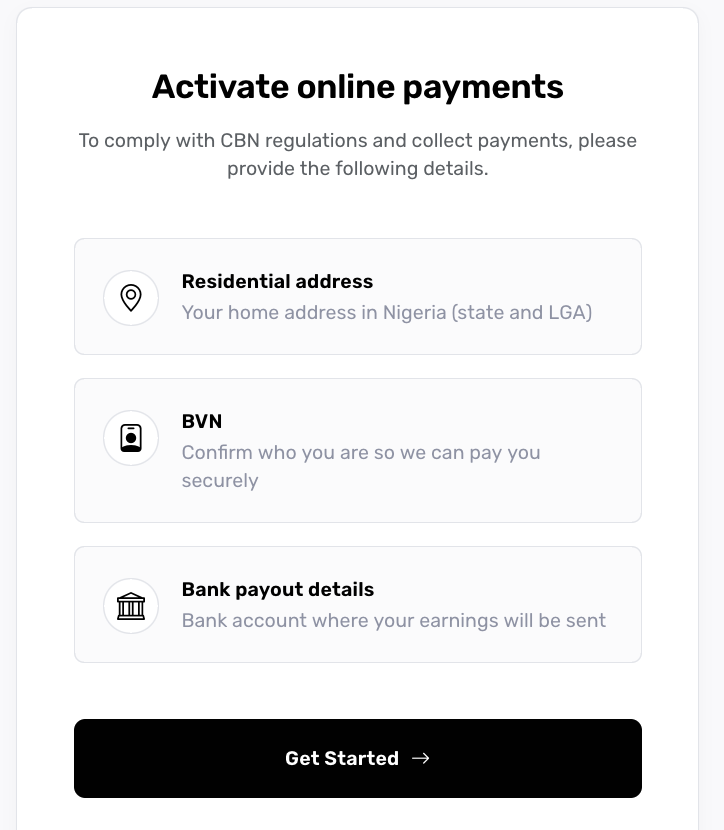
You should see Activate online payments and a note about CBN rules. The three cards are Residential address (state and LGA), BVN, and Bank payout details. Get those ready before you start.
2. Click Get Started
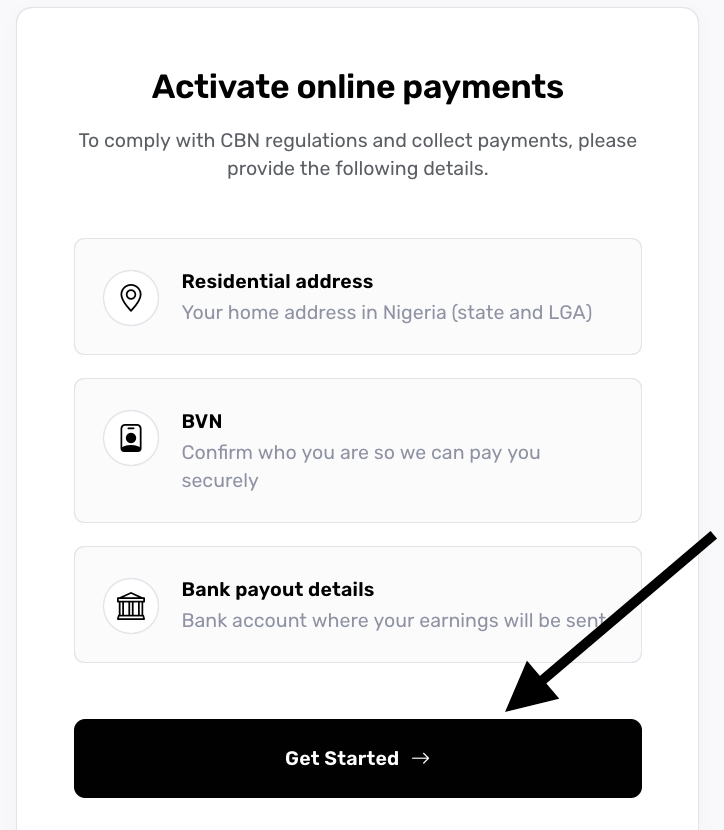
Click Get Started. The wizard opens at step 1 of 4.
3. Verify your email
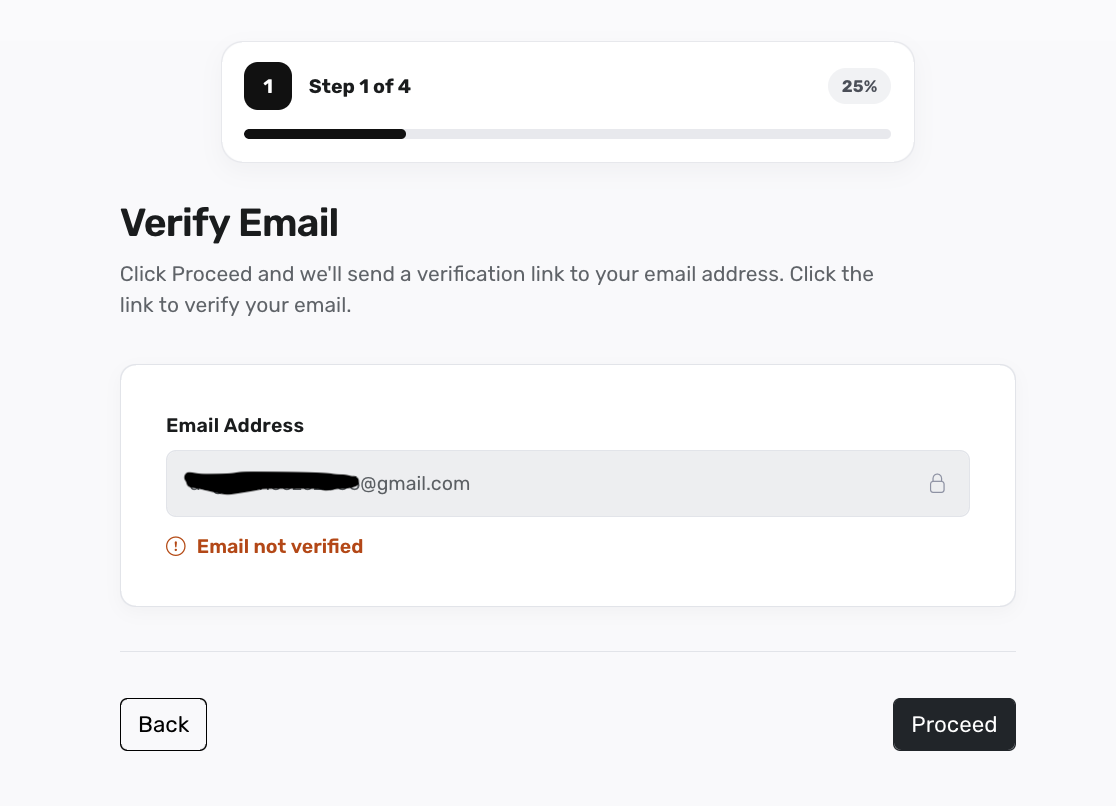
Your login email is locked on this page. If it says Email not verified, click Proceed. Posa sends a link to that inbox. Open the link, then come back to this screen.
4. Confirm Email verified
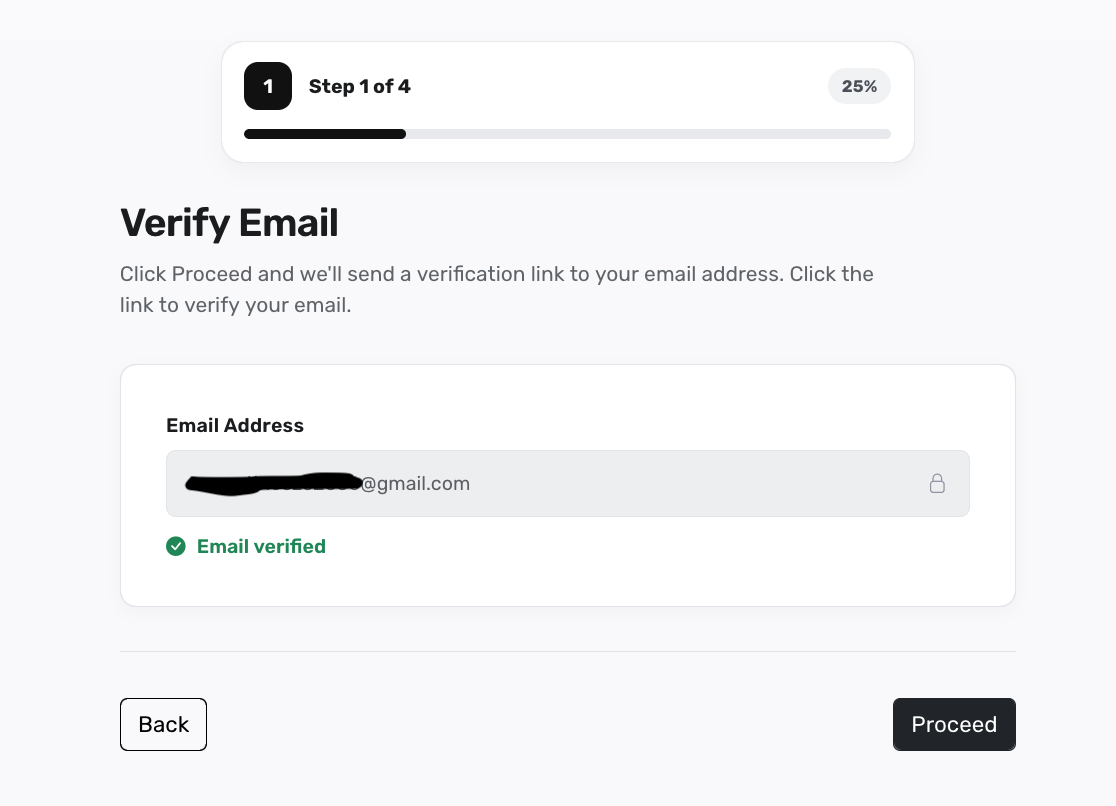
When the line turns green and says Email verified, click Proceed again to continue.
5. Enter your residential address
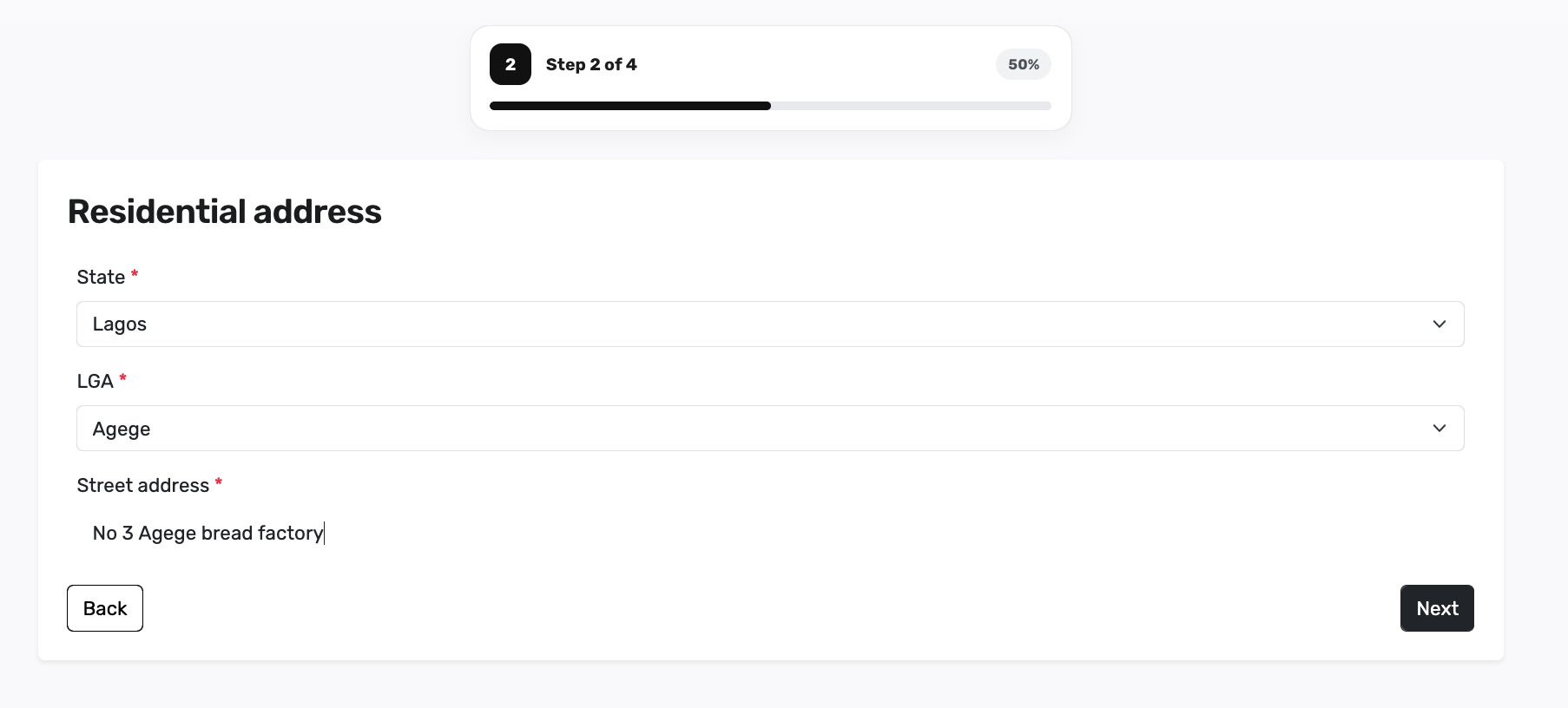
On step 2, pick State and LGA, then type your Street address — here Lagos, Agege, and a street line. Click Next.
6. Enter your identity
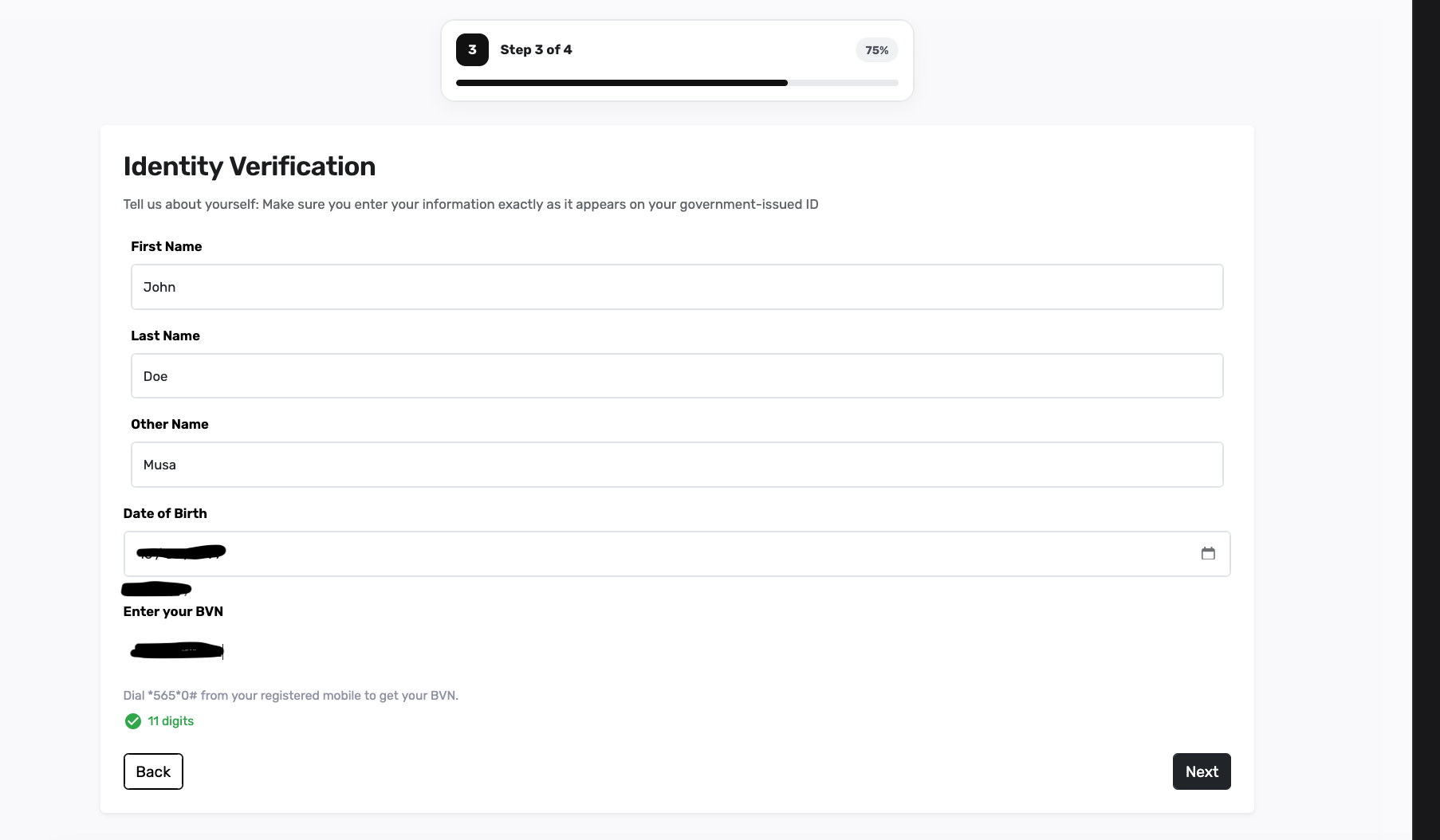
On step 3, type First name, Last name, and Other name exactly as they appear on your ID. Enter Date of birth and your 11-digit BVN. You can dial *565*0# on your registered line if you need the number. Click Next to check the BVN.
7. Confirm the BVN match
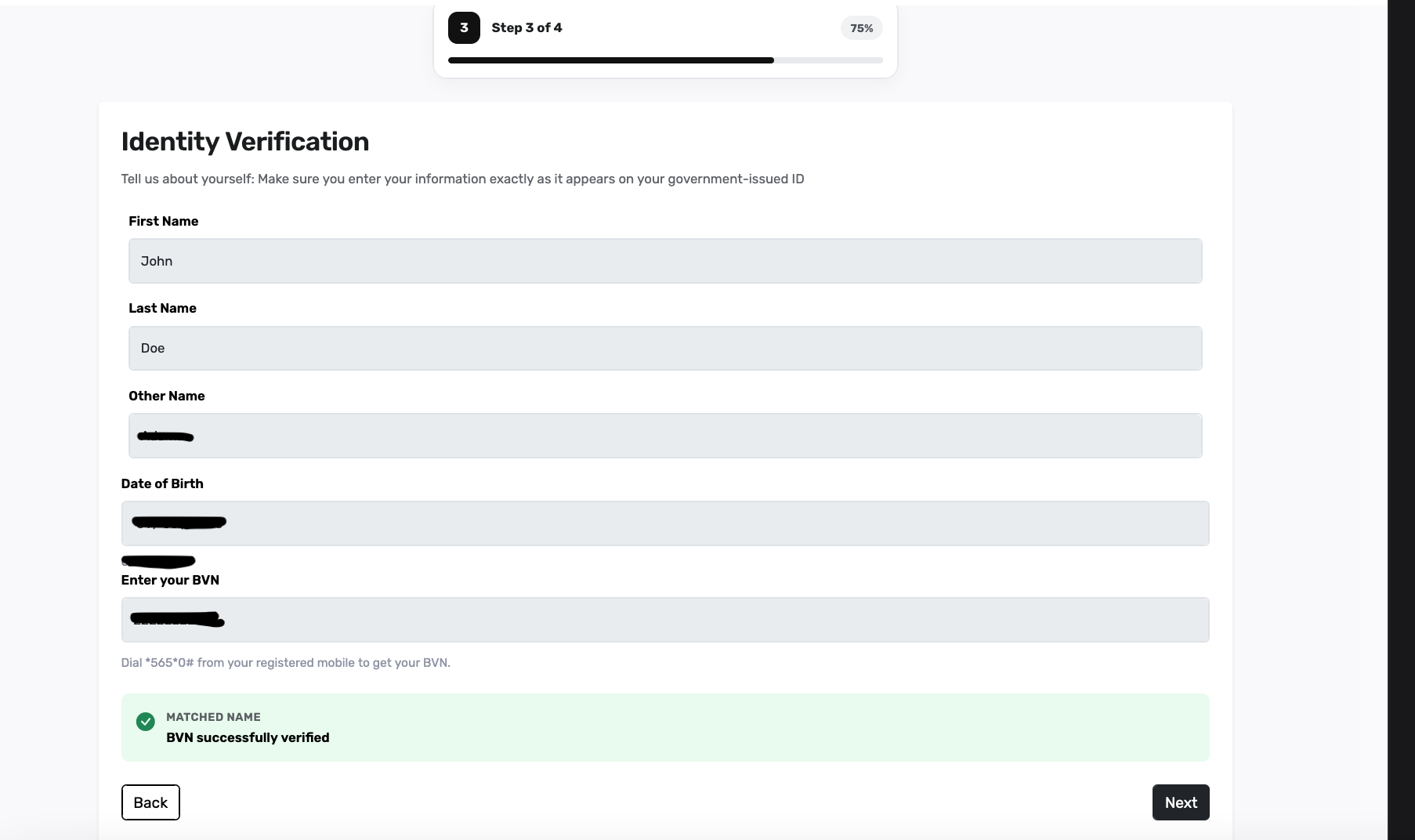
A green banner should say Matched name and BVN successfully verified. The fields lock. Click Next. If it fails, check the names and date of birth against your BVN and try again.
8. Add bank payout details
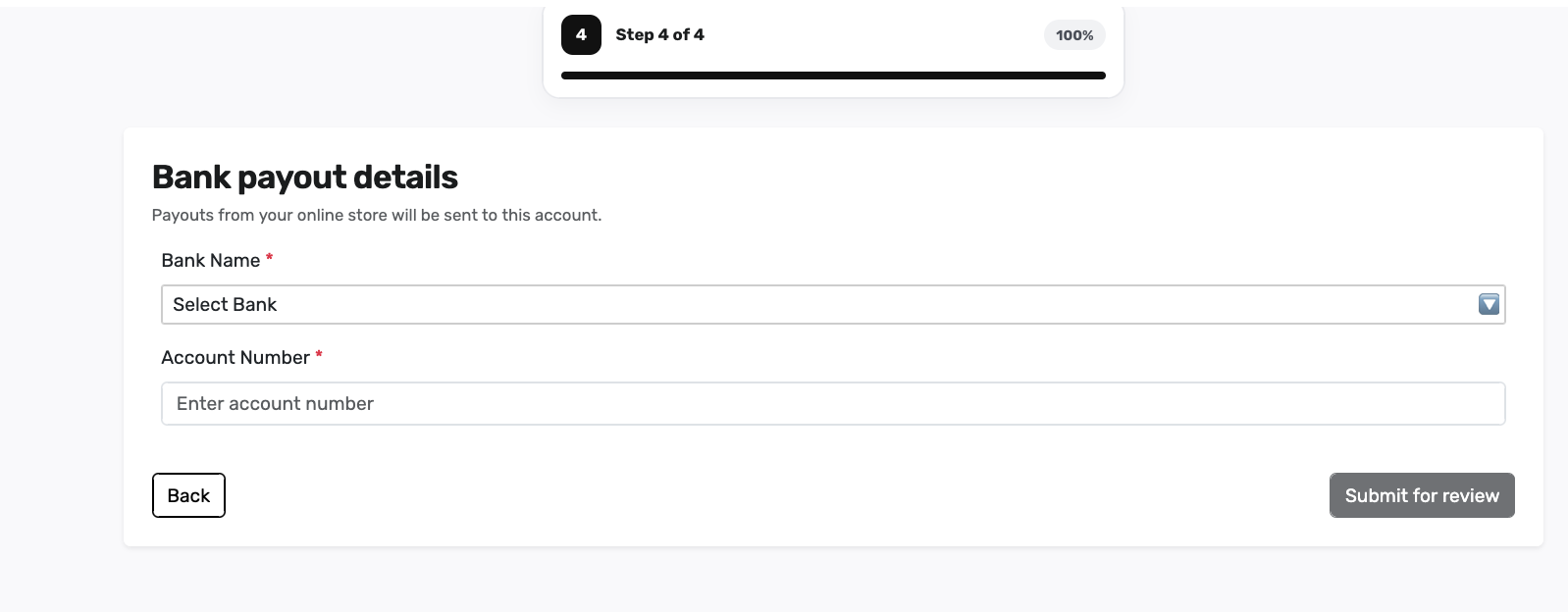
On step 4, pick Bank name and type the 10-digit Account number. Payouts from your online store go to this account. Submit for review stays grey until the account name resolves.
9. Confirm the account name
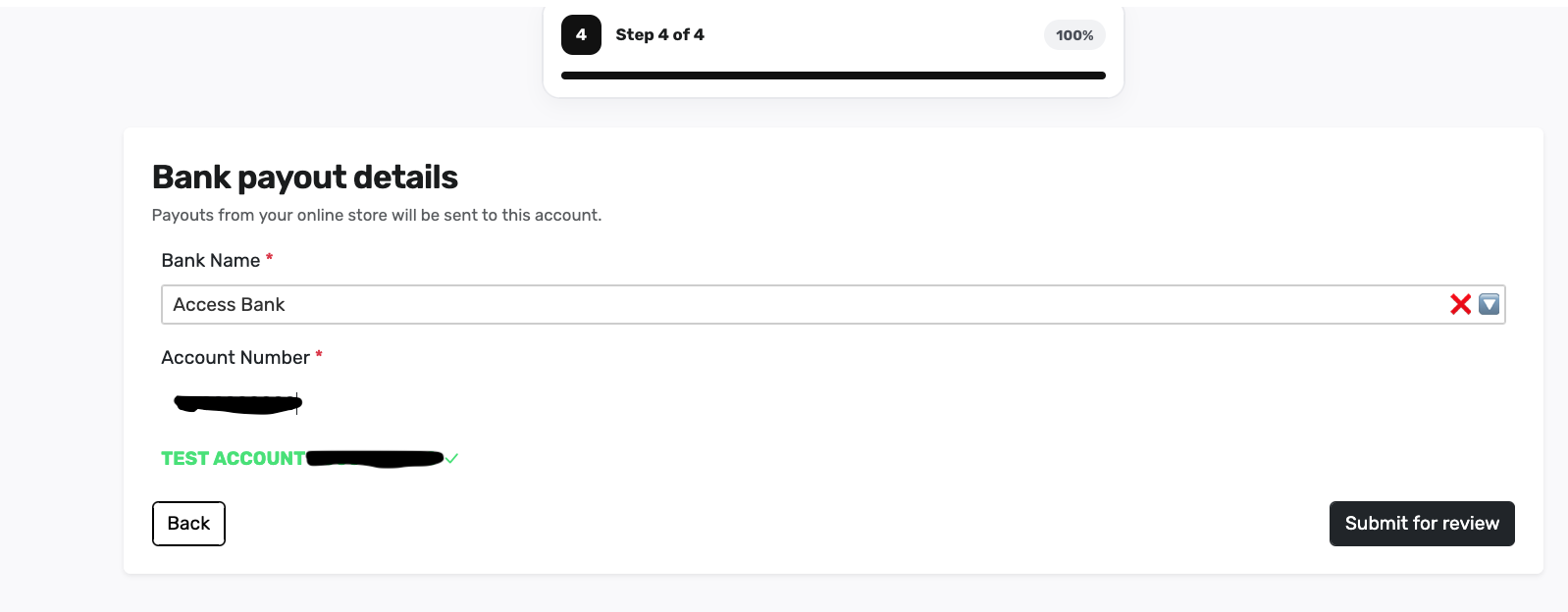
When the name under the account number turns green with a tick, the account is valid. Check that it is your account. Submit for review turns black.
10. Submit for review
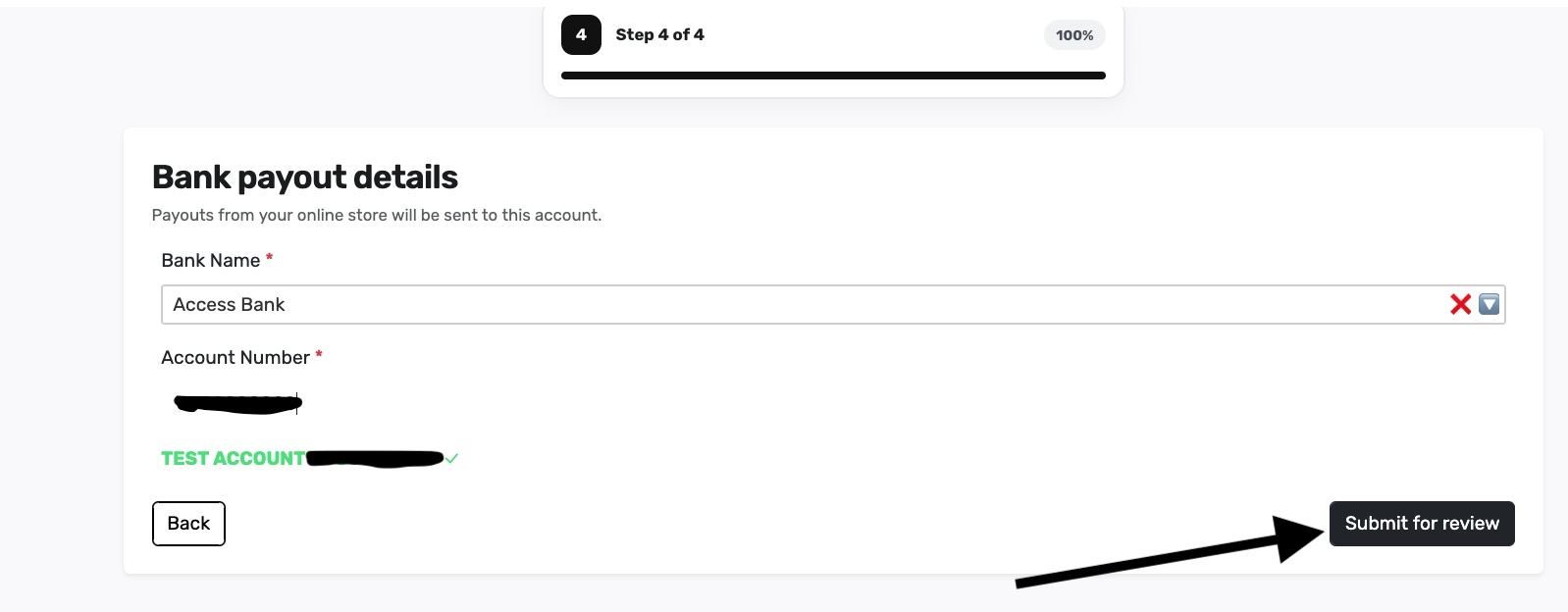
Click Submit for review.
11. KYC submitted
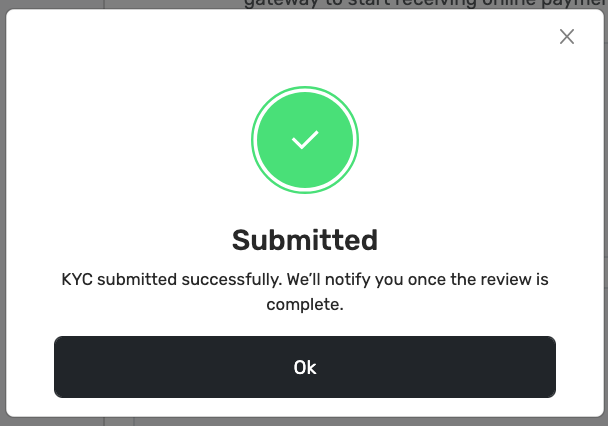
A dialog says Submitted and KYC submitted successfully. We will notify you once the review is complete. Click OK.
12. Check KYC Verification Status
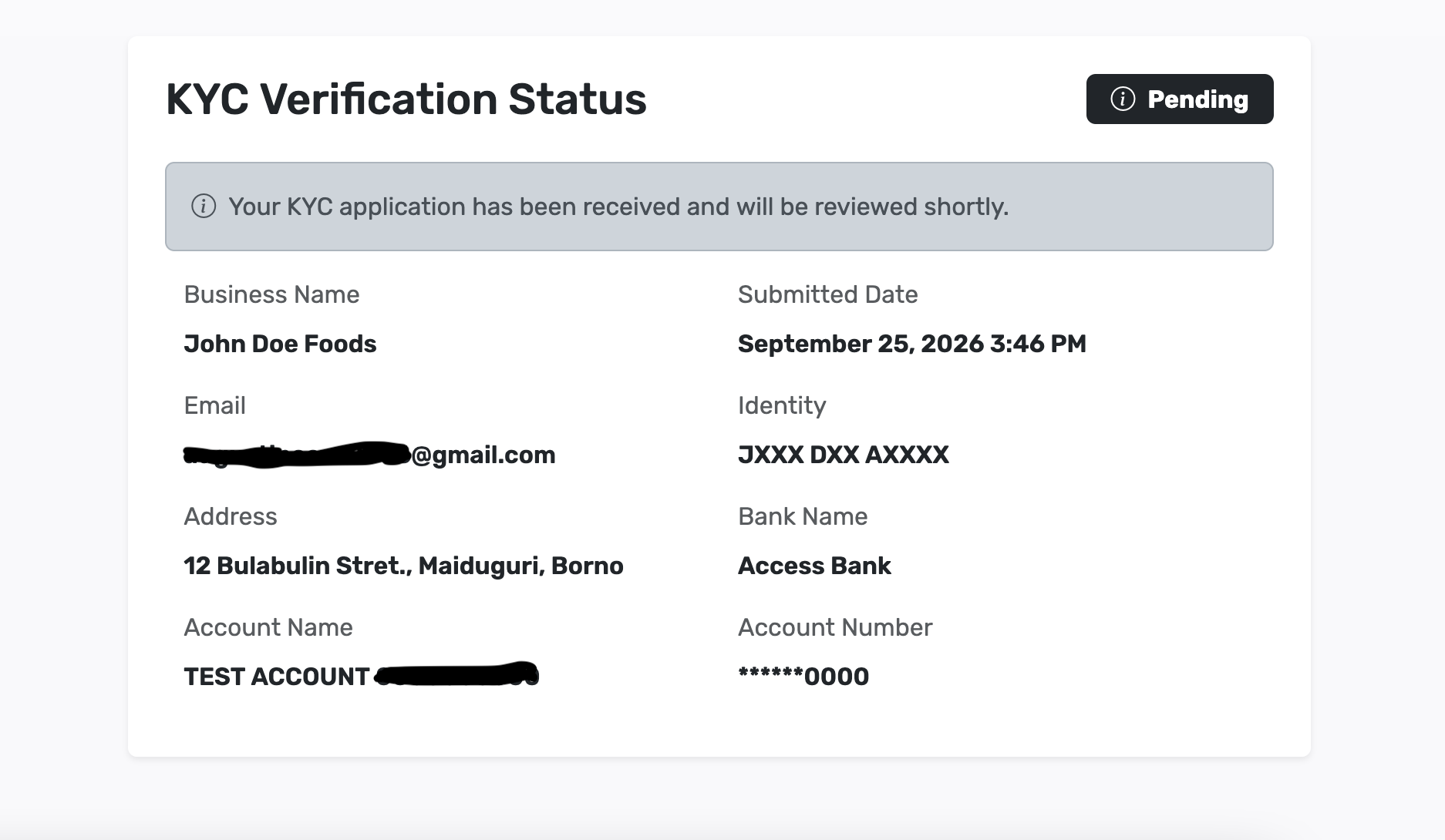
You may briefly see KYC Verification Status with Pending, plus your business name, address, and masked bank details. Stay on Online Payments. Many applications move to verified shortly after this screen.
13. Identity Verified
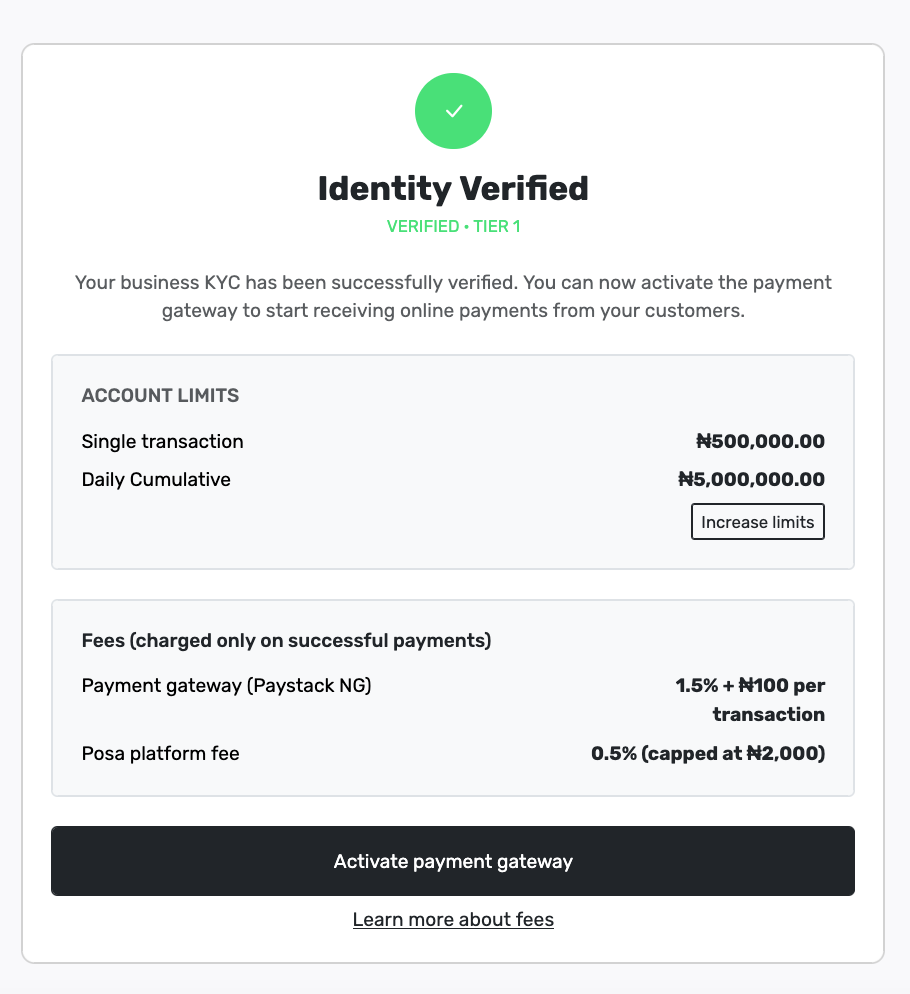
When review finishes you see Identity Verified and VERIFIED · TIER 1. Account limits show a single-transaction and daily cap (for example ₦500,000.00 and ₦5,000,000.00). Fees list Payment gateway (Paystack NG) and the Posa platform fee. Increase limits is for a later Tier 2 upgrade — you do not need it to start.
14. Activate the payment gateway
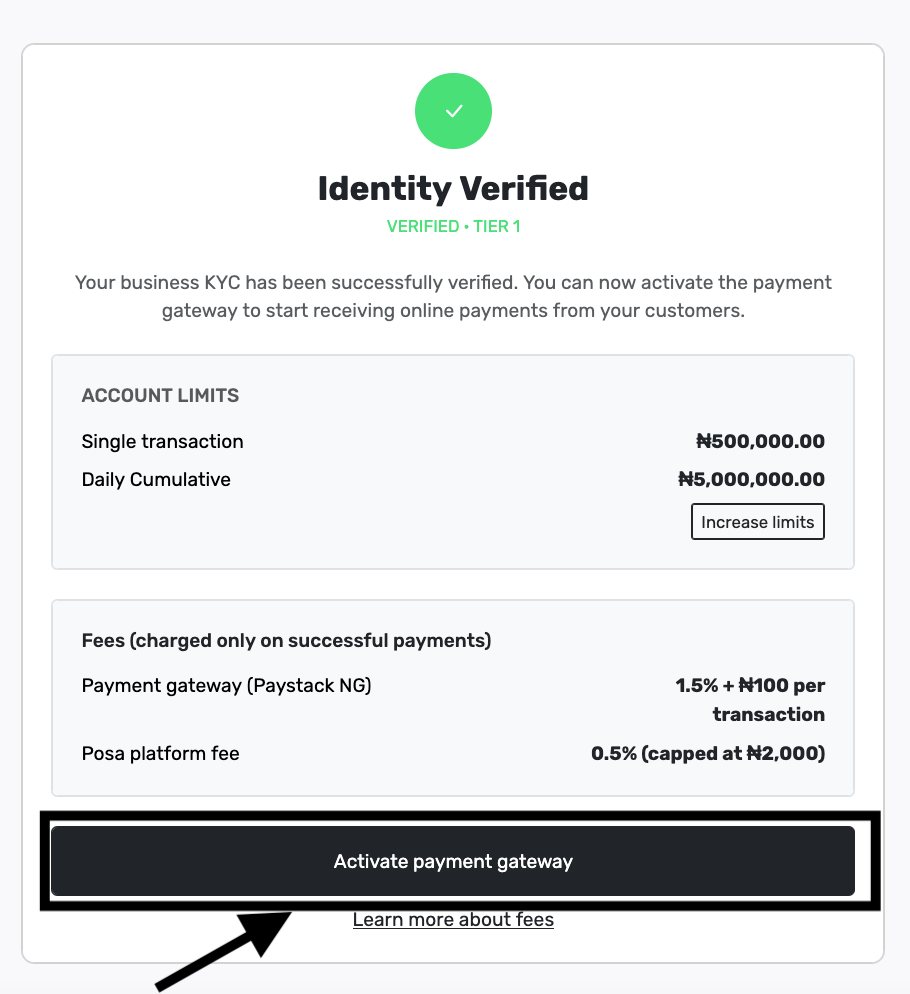
Click Activate payment gateway. Wait until the button finishes. Learn more about fees opens the public fees page if you want the breakdown.
15. You can receive payments
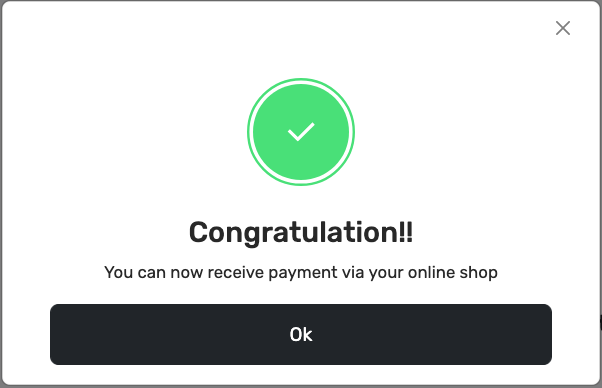
A dialog says Congratulations!! and You can now receive payment via your online shop. Click OK. Customers can pay on your webstore.
16. Open Online payments history
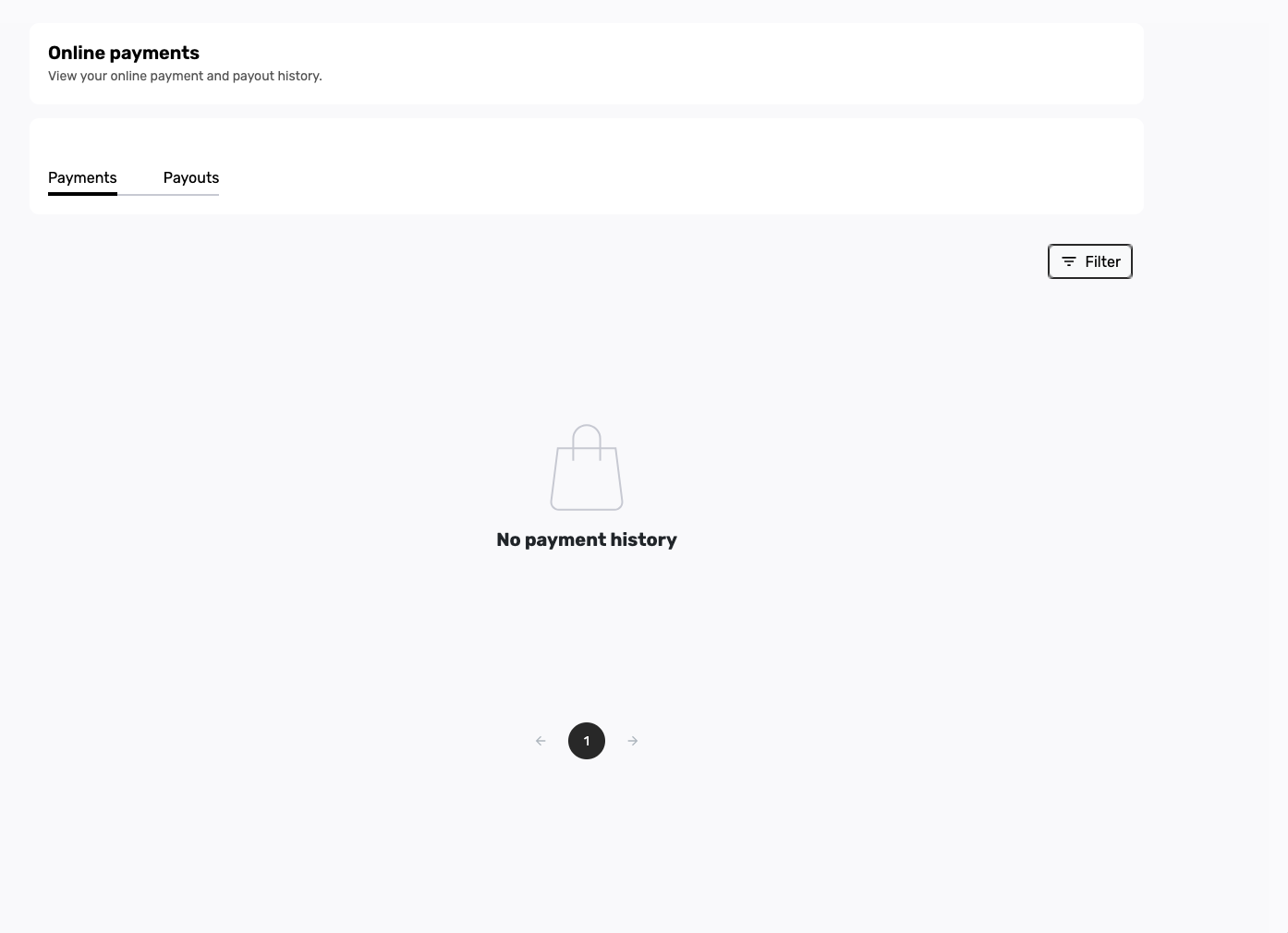
Online Payments now shows Payments and Payouts. Empty is normal until the first webstore order. Use Filter when the list grows.
Published by Posa Technologies · getposa.com
← More guides