
POSA
Posa mobile app Extra Staff add-on for adding another staff account
Back to Learning centres

Mobile App

How to add an extra staff to your account on the Posa mobile app

P

Posa Technologies

··2 min read

Buy an Extra Staff add-on from your phone — choose the number of staff slots you need, complete payment, and activate the extra capacity.

Use this guide to purchase Extra Staff capacity from the Posa mobile app. The add-on gives you another staff slot; after payment, follow How to add your staff on the Posa mobile app to create the staff account.

1. Open Add-ons
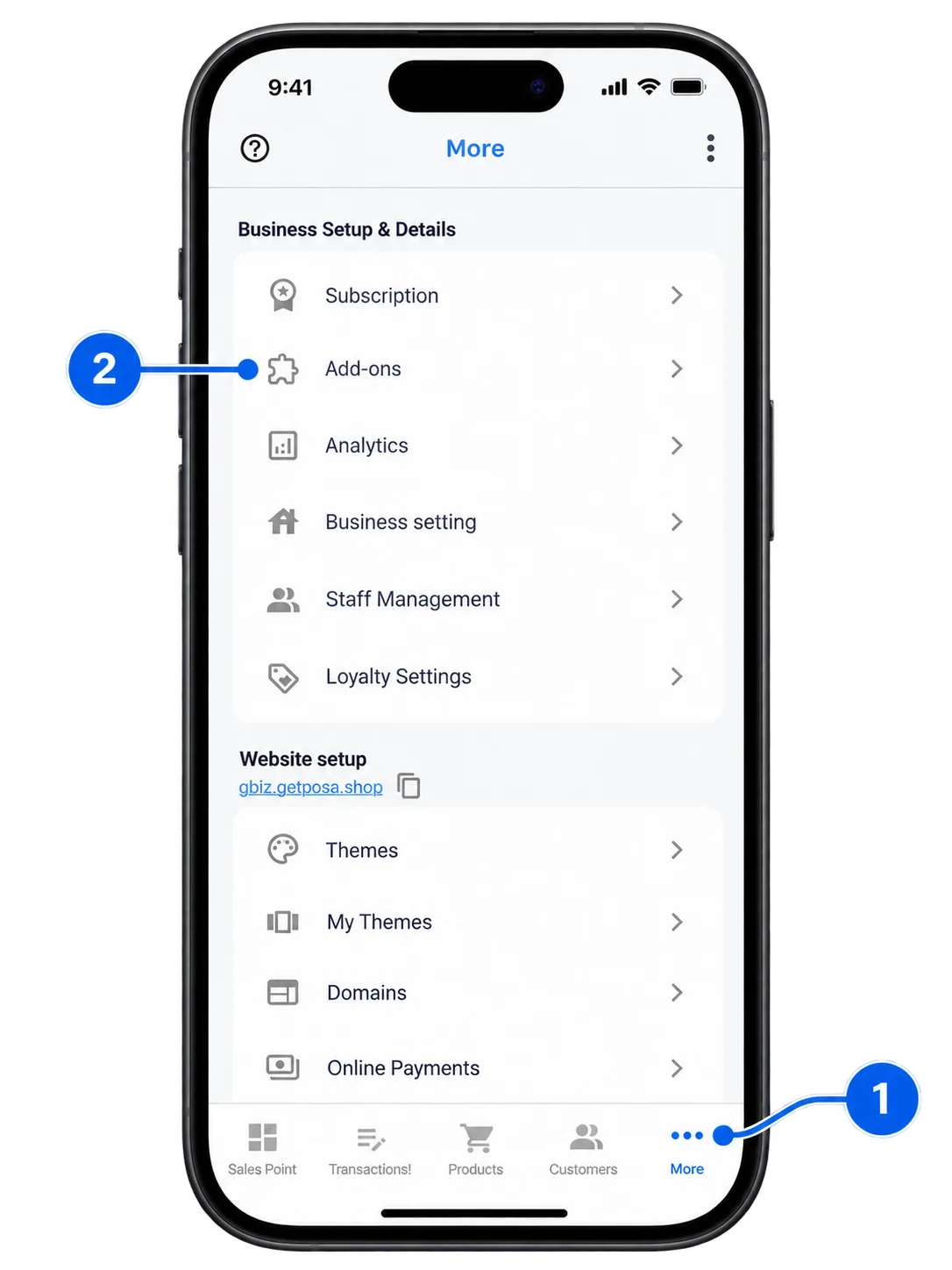
Posa mobile app More screen with Add-ons under Business Setup and Details

From the bottom navigation bar, tap More to open the More screen. Select Add-ons under Business Setup & Details.

2. Add Extra Staff to your cart
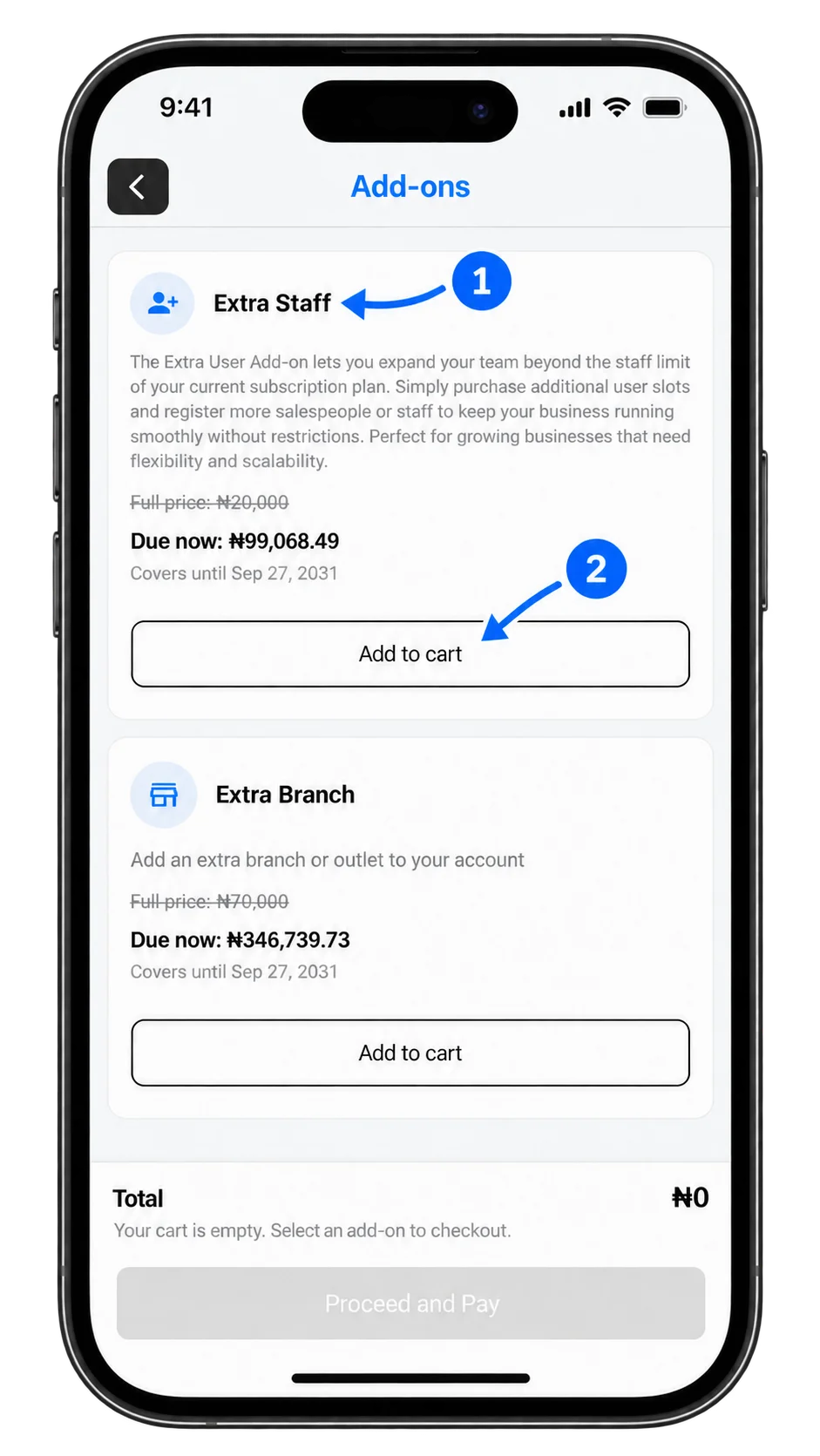
Posa mobile app Add-ons screen showing the Extra Staff add-on and Add to cart button

On the Add-ons screen, find Extra Staff and tap Add to cart.

3. Choose the number of staff slots
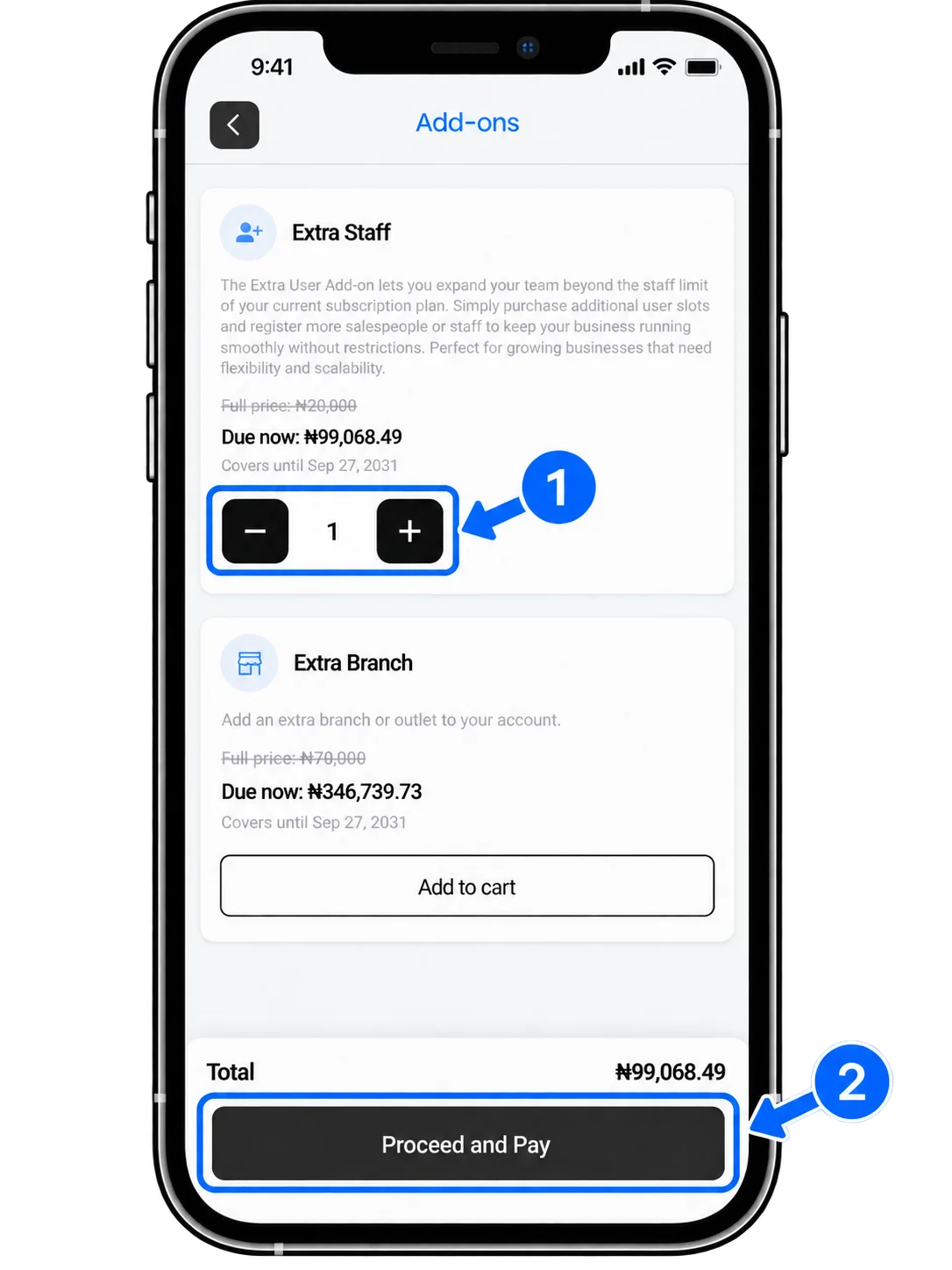
Posa mobile app Extra Staff checkout with quantity controls and Proceed and Pay

One Extra Staff slot is added to your cart by default. Use the + or − buttons to adjust the number of additional staff slots you need, then tap Proceed and Pay.

4. Continue after payment
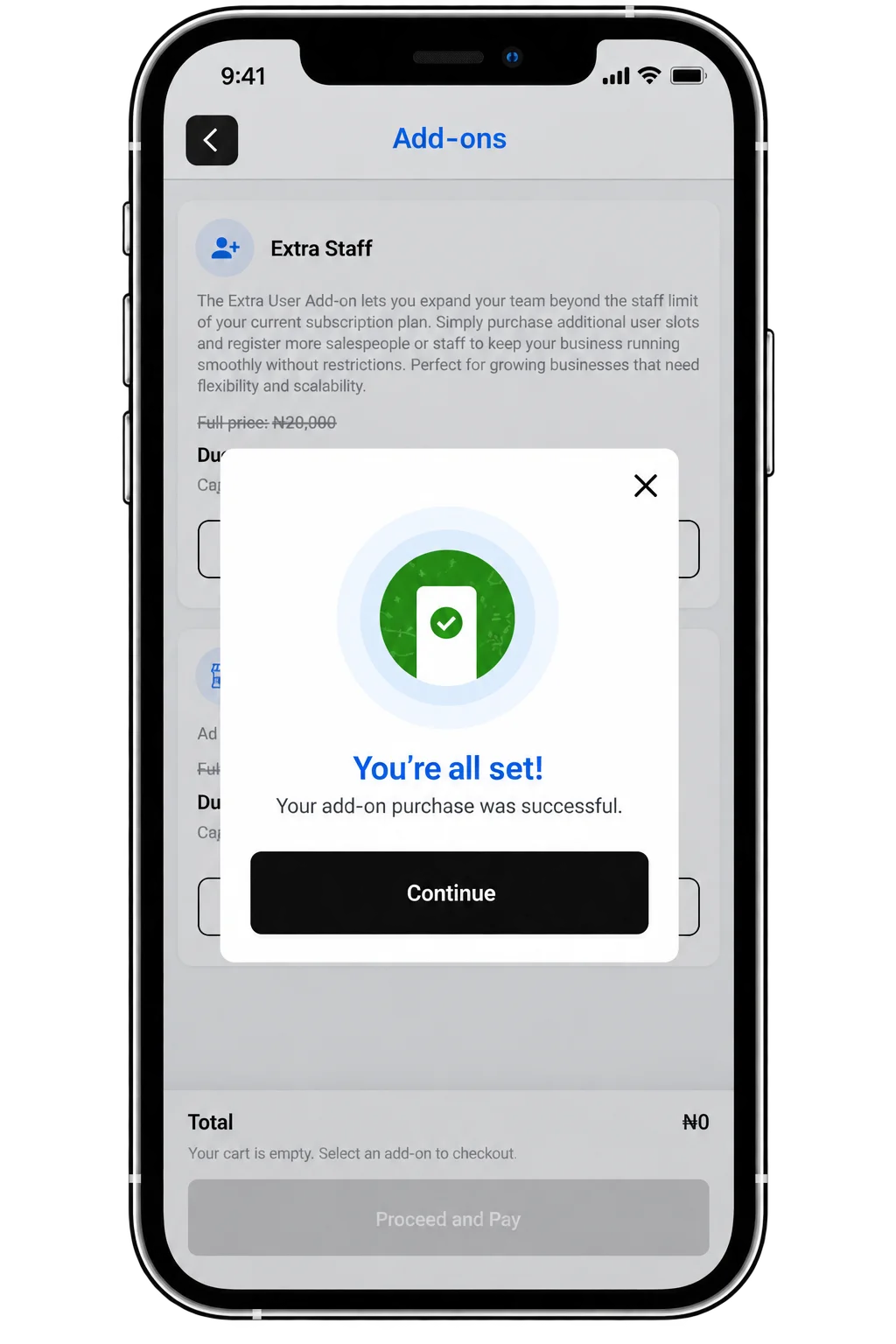
Posa mobile app payment success screen for the Extra Staff add-on with Continue button

Once payment is successful, the Extra Staff add-on is activated. Tap Continue, then create the new staff account from Staff Management.

Ready to grow your team on Posa?

Start your free trial at getposa.com

Get Started Free

Published by Posa Technologies · getposa.com

← More guides

Complete your order

Order summary

Subtotal₦0