

Use this guide to add a staff member and choose what they can access in your business.
1. Open Staff Management
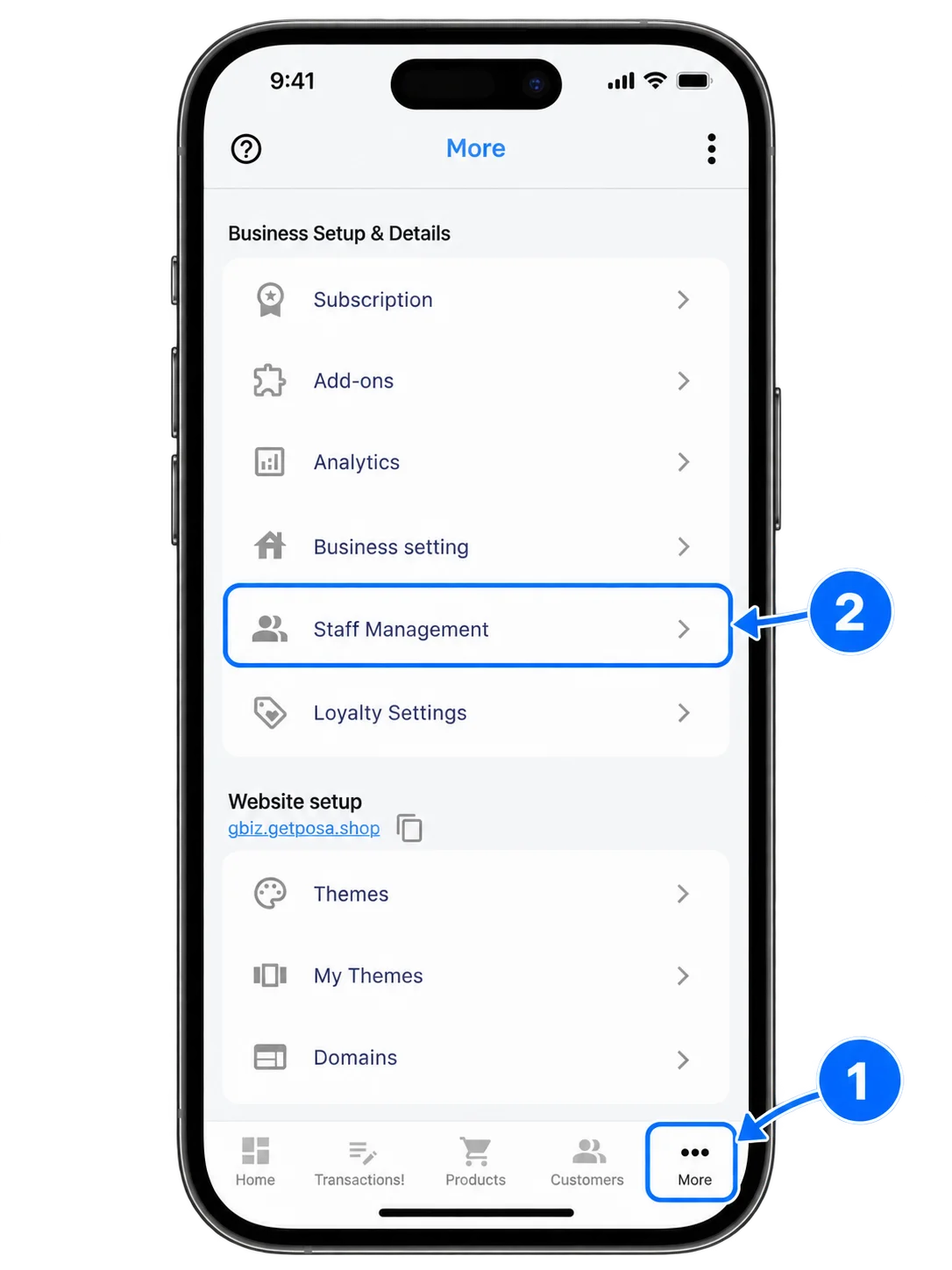
From the bottom navigation bar, tap More. On the More screen, select Staff Management to view and manage your business staff.
2. Start adding a staff member
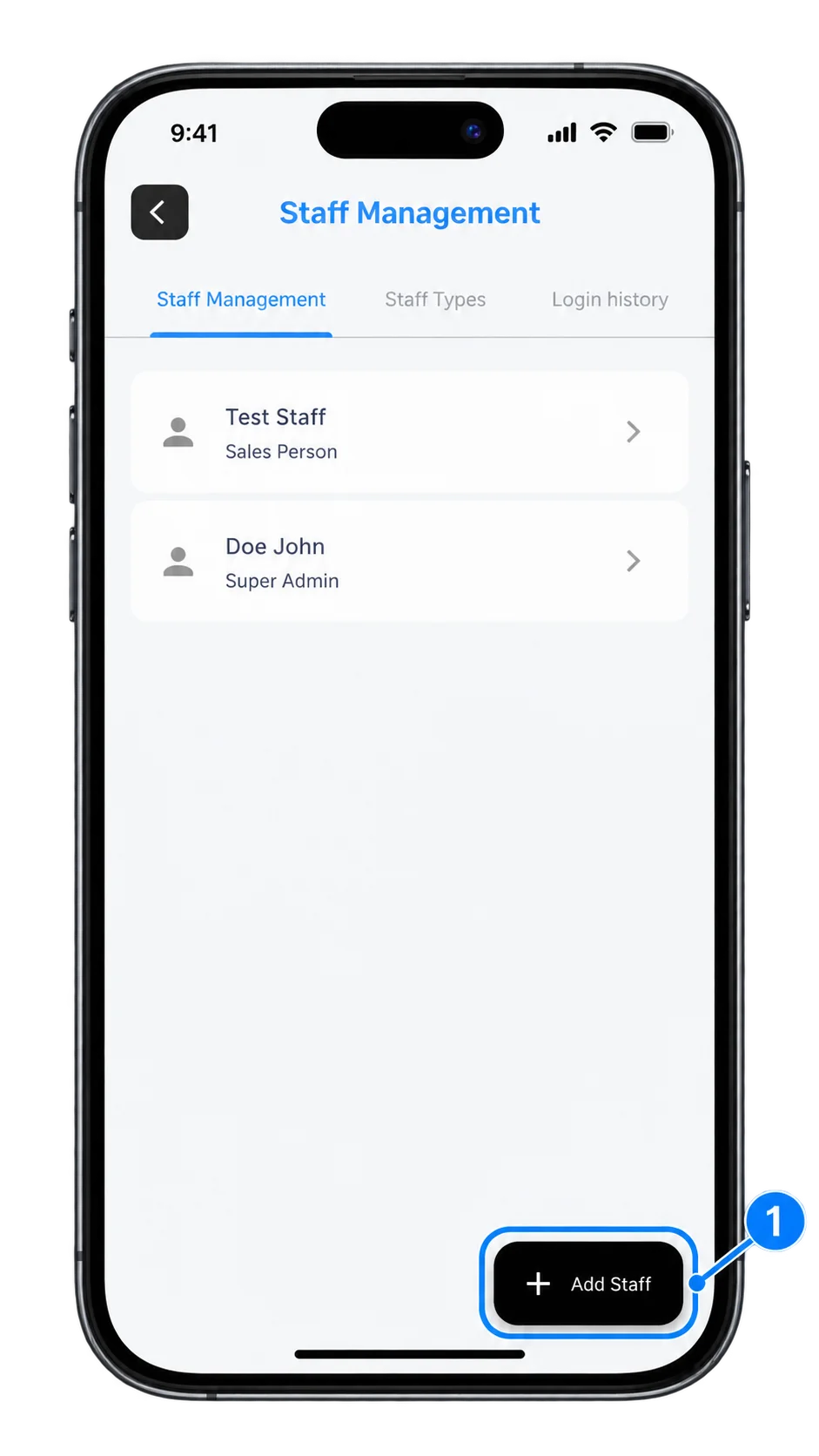
On the Staff Management screen, make sure the Staff Management tab is selected, then tap Add Staff at the bottom-right corner. This opens the Create a Staff screen, where you can add a new staff member.
3. Enter their details
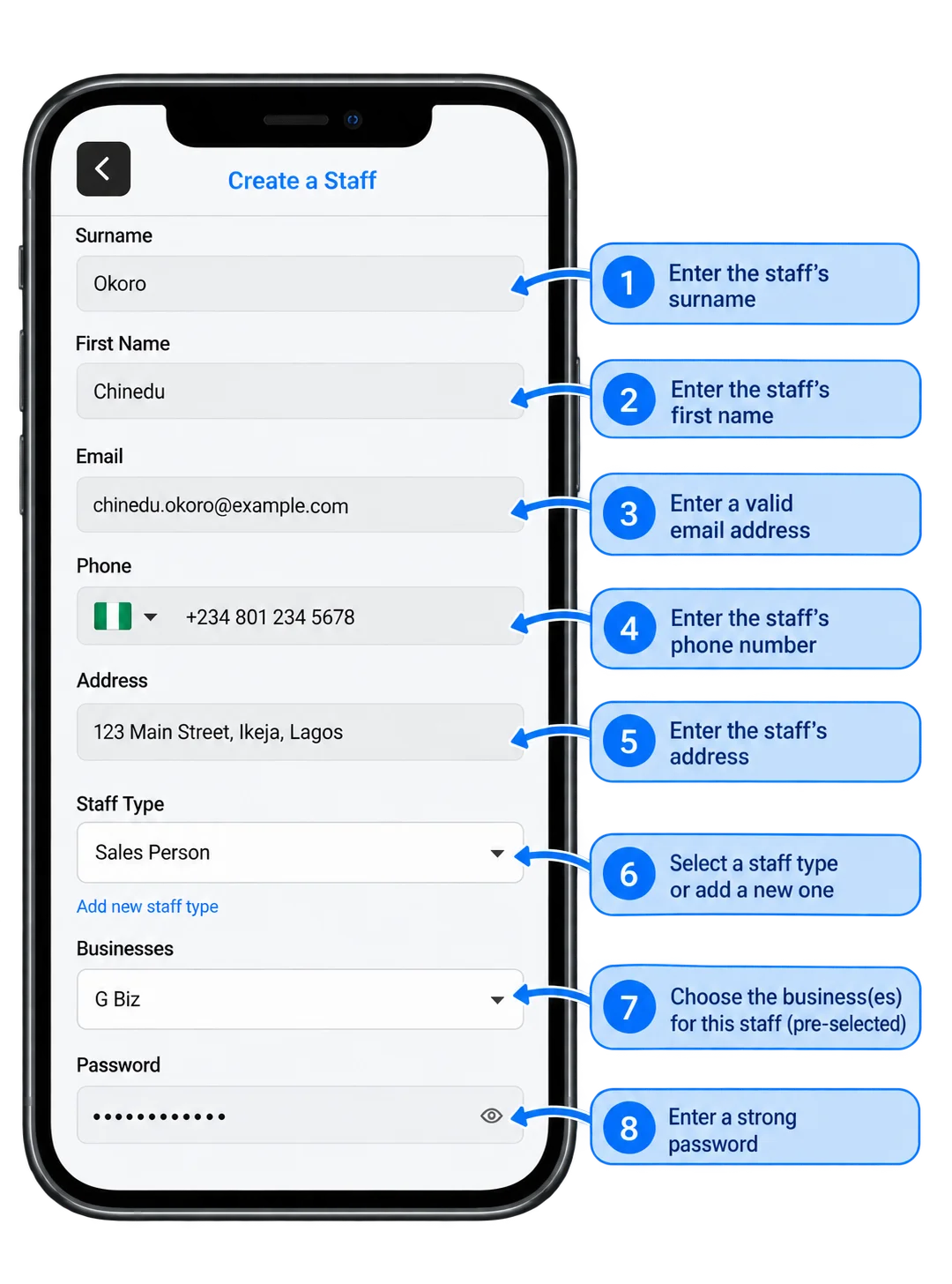
On the Create a Staff screen, enter the staff member’s Surname, First Name, Email, Phone number, and Address. Select an existing Staff Type or tap Add new staff type to create one, choose the business or businesses they should have access to, then set a strong password.
4. Set permissions and add staff
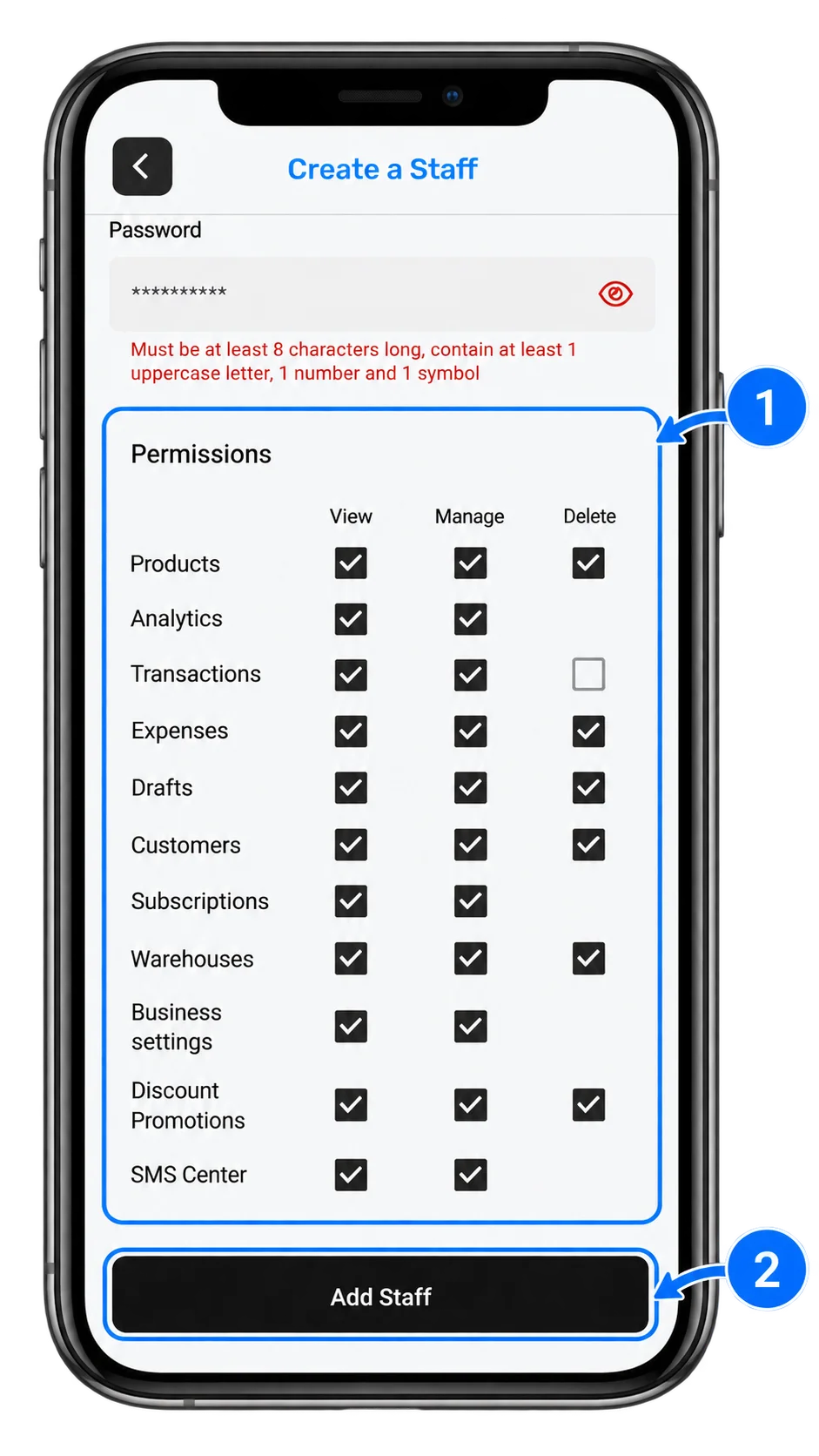
In the Permissions section, select the access level you want the staff member to have for each Posa feature or module. When you are done, tap Add Staff to complete the staff creation process.
Published by Posa Technologies · getposa.com
← More guides