
POSA
Posa mobile app Change History screen showing inventory updates
Back to Learning centres

Mobile App

How to track your inventory movement on the Posa mobile app

P

Posa Technologies

··2 min read

See price and quantity changes from your phone — open Change History to review what changed, when it changed, and who updated it.

Use Change History to review updates made to the products in your inventory.

1. Open the product options
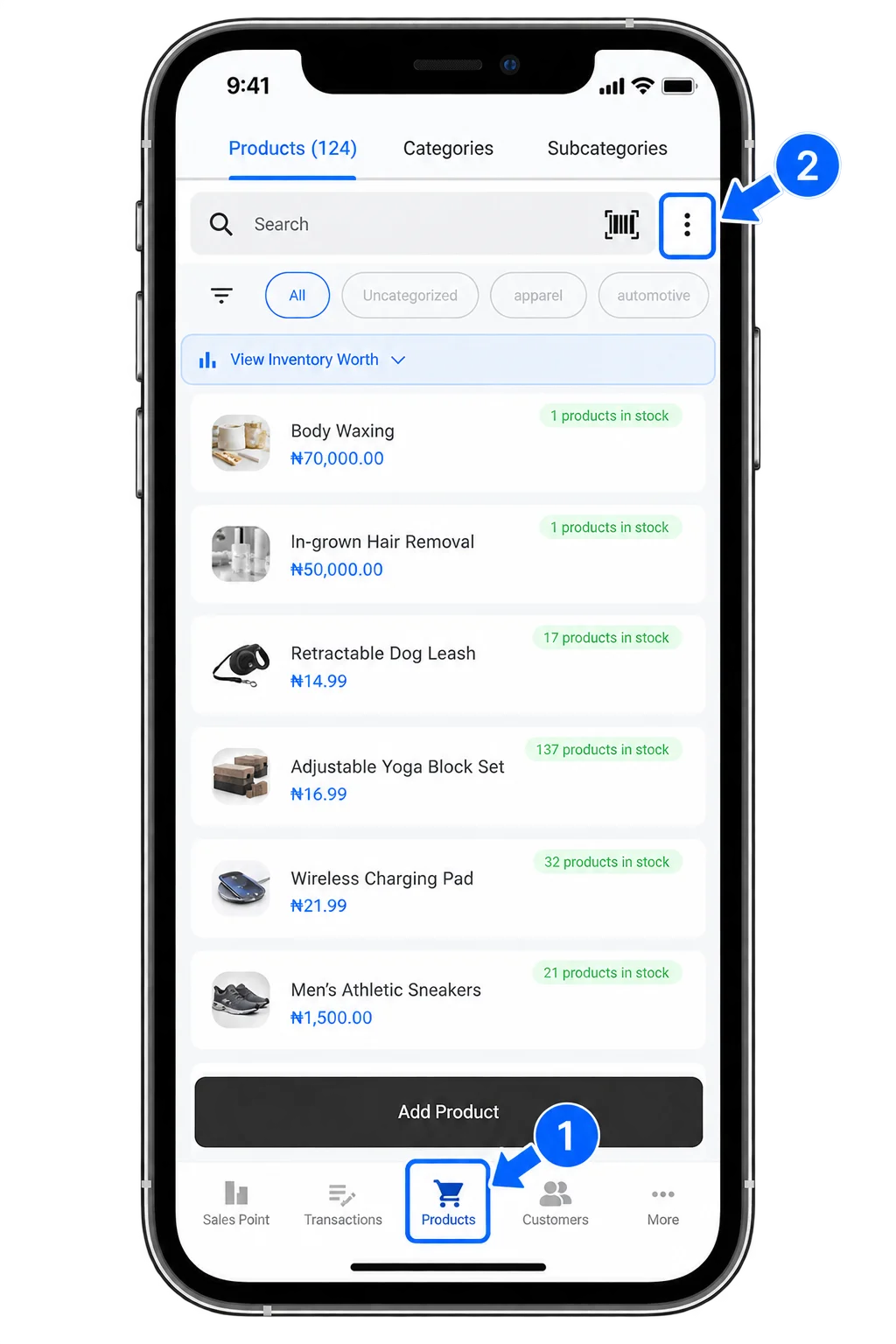
Posa mobile app Products screen with the three-dot menu beside the search bar

From the bottom navigation bar, tap Products to open the Products screen. Then tap the three-dot menu beside the search bar to view more options.

2. Open Change History
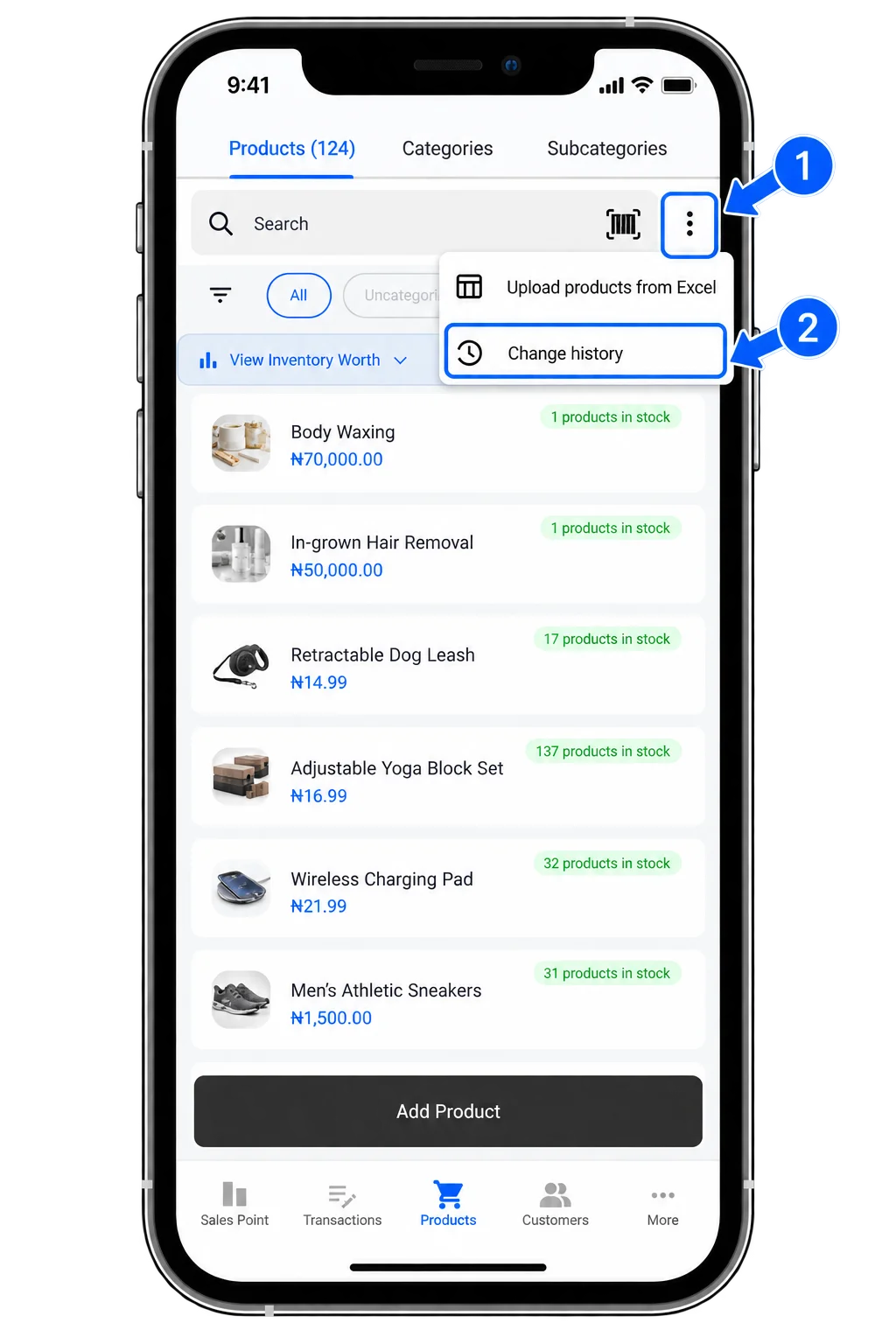
Posa mobile app product options menu with Change history

Tap Change history from the menu to open the Change History page, where you can view updates made to products in your inventory.

3. Review your inventory changes
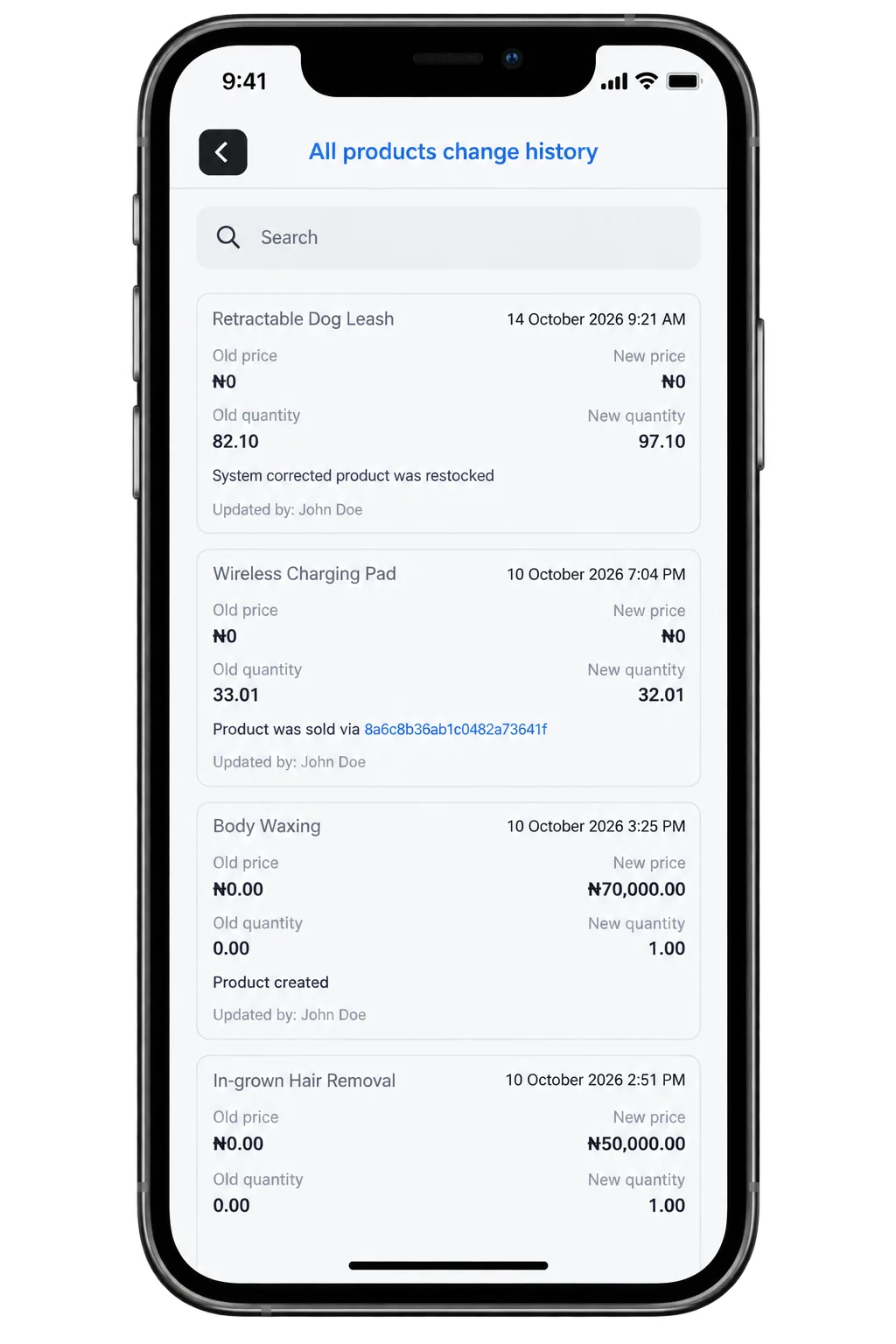
Posa mobile app Change History screen showing product price and quantity updates

On the Change History screen, you can review price and quantity updates, the reason for each change, the date and time it happened, and who made the update.

Ready to manage inventory on Posa?

Start your free trial at getposa.com

Get Started Free

Published by Posa Technologies · getposa.com

← More guides

Complete your order

Order summary

Subtotal₦0