
Use this guide to see who changed a product’s price or stock quantity, when it happened, and why — sales, restocks, edits, and more. Posa calls this Change history (or Update History on one product). You need a Premium or Posa Elite plan. If Posa asks you to upgrade, see How to upgrade to a higher subscription plan on Posa.
There are two ways to look. All products opens Change history for every product from the Products More menu. One product opens View Update History from that product’s page. Use the tabs below to follow only the path you need.
Pick a tab below. Use All products for Change history across every item. Use One product if you only want View Update History for a single product.
1. Open Inventory
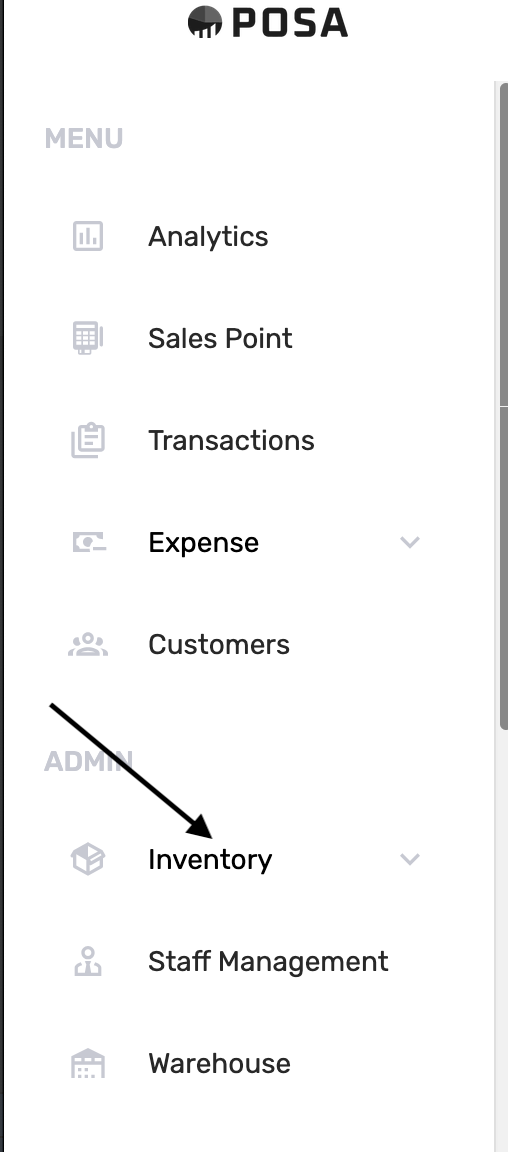
On the left sidebar, find ADMIN and click Inventory. This opens the inventory menu.
2. Go to Products
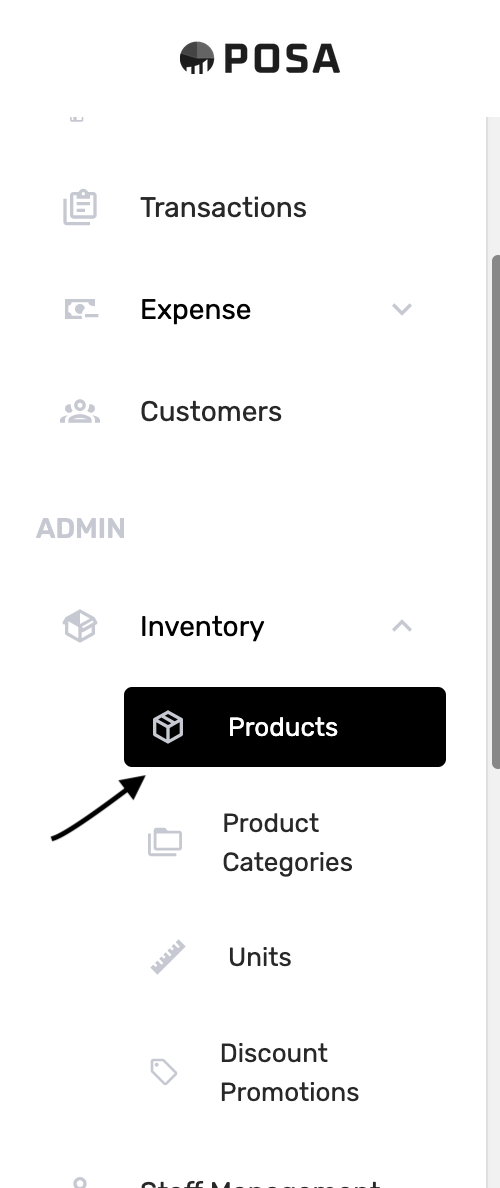
Under Inventory, click Products. The menu item turns black when you are on the Products page.
3. Click More

On the Products page, look to the right of the list. Click More — it sits next to Add product. A short menu opens.
4. Click Change history
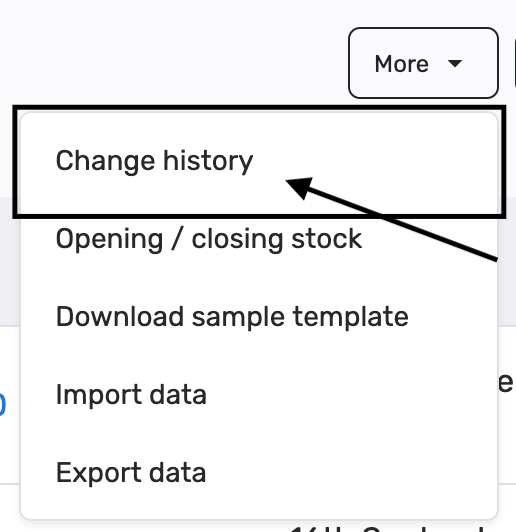
In the More menu, click Change history. That opens the all-products list.
5. Upgrade if your plan blocks it
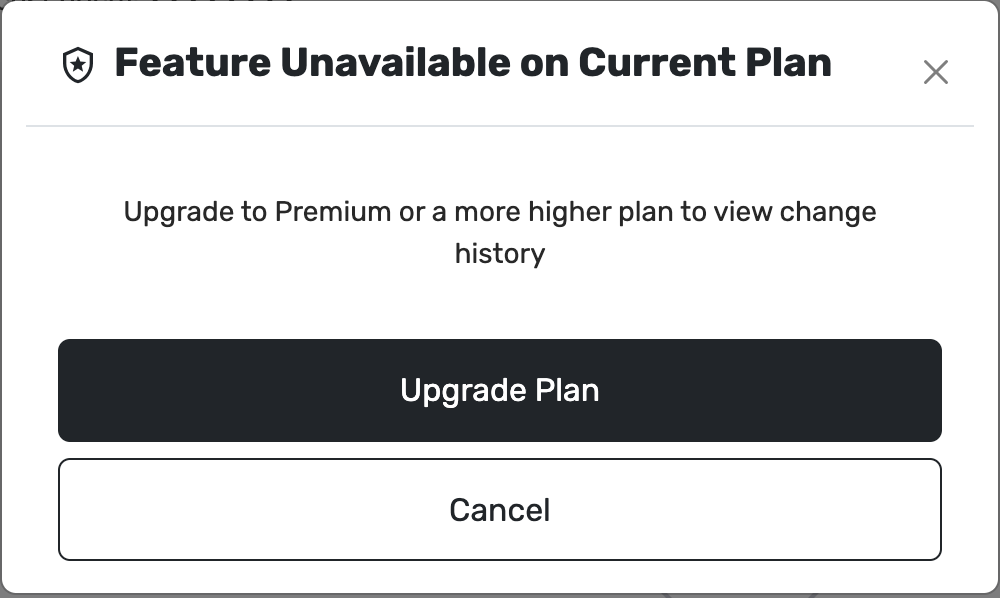
If you are not on Premium or higher, Posa shows Feature Unavailable on Current Plan, with the message Upgrade to Premium or a more higher plan to view change history. Click Upgrade Plan to go to Plans and Pricing, or Cancel to stay. Change history will not open until you upgrade.
6. The All products change history page
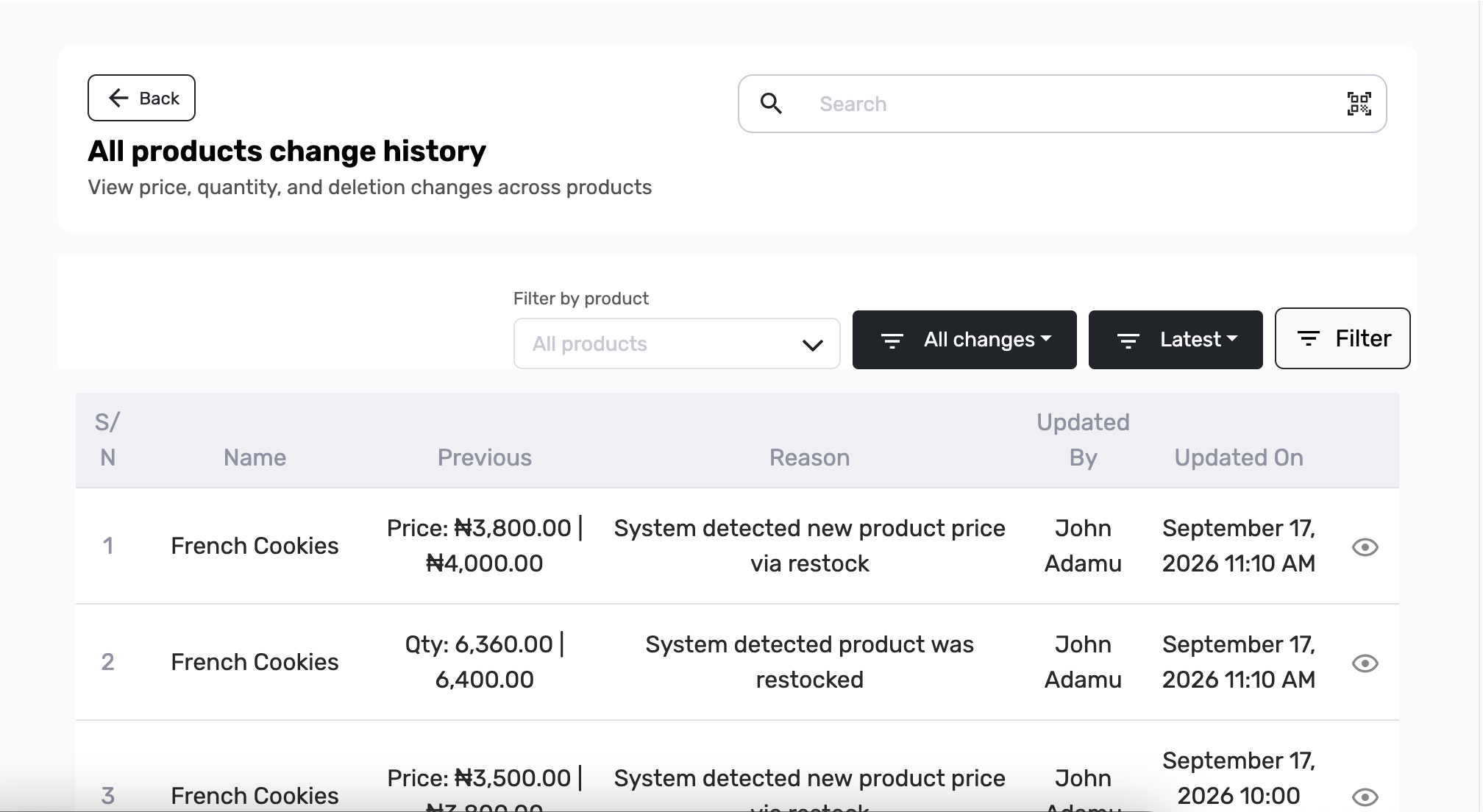
You should see All products change history, and View price, quantity, and deletion changes across products. Search sits on the top right. Below that: Filter by product, All changes, Latest (or another period), and Filter. The table lists each change — name, previous and updated qty or price, reason, who updated it, and when.
7. Search the list

Type in Search at the top right to narrow the rows (for example a product name). The list refreshes as you type. The scanner icon is there for barcode search when you use a scanner.
8. Filter by product
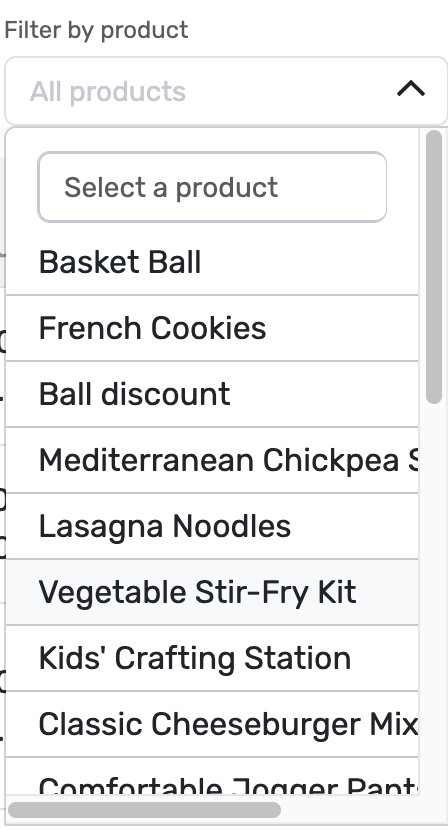
Under Filter by product, open the control (it may say All products). Type in Select a product, then pick one item from the list — for example French Cookies. The table then shows only that product’s changes.
9. Filter by variant (when the product has variants)
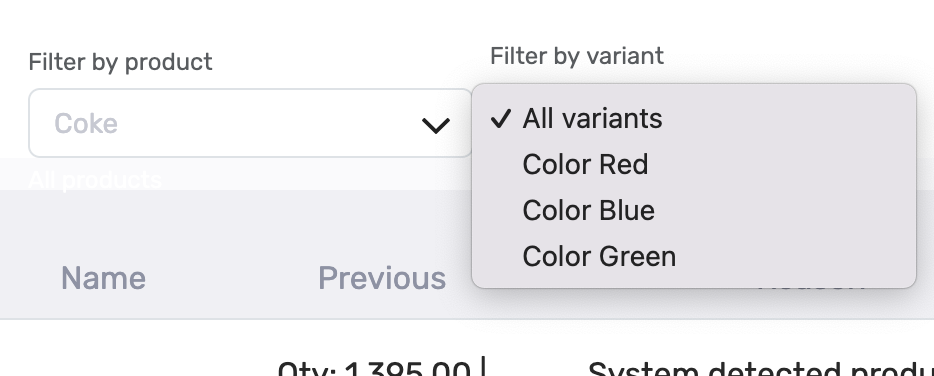
If the product has variants (sizes, colours, and so on), Filter by variant appears next to Filter by product. In this example Coke is selected, and the menu shows All variants, Color Red, Color Blue, and Color Green. Pick one variant to see only that combination, or leave All variants.
10. Clear the product filter
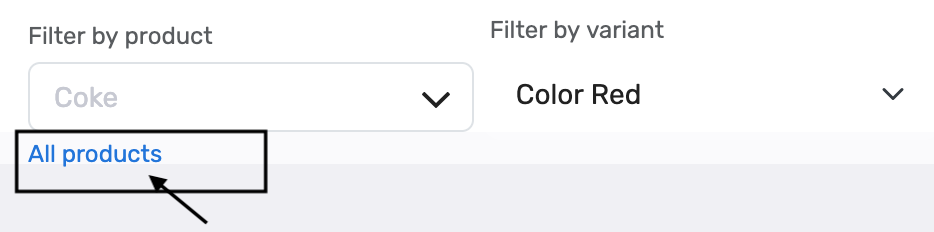
When a product is selected, a blue All products link appears under Filter by product. Click it to clear the product (and variant) and see every product again.
11. Filter by change type
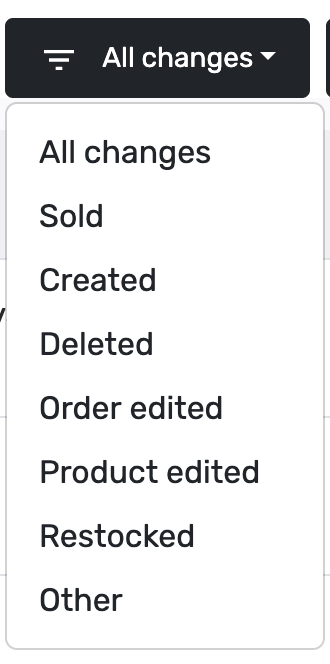
Click the dark All changes button. Choose what kind of movement you want:
- All changes — every type
- Sold — stock went down because of a sale
- Created — the product was first added
- Deleted — the product was removed
- Order edited — an order change affected stock
- Product edited — someone edited the product
- Restocked — stock was added
- Other — anything else
12. Pick a time period
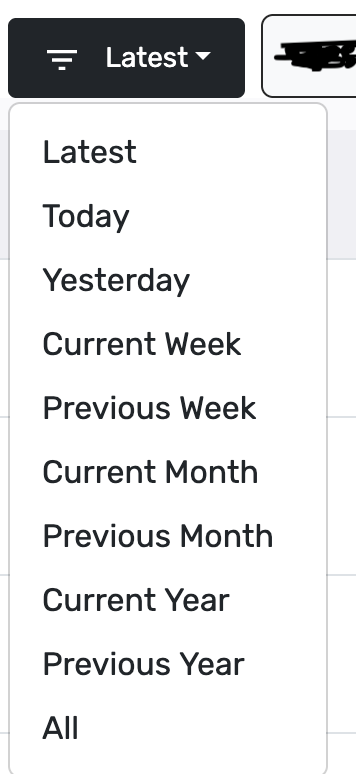
Click the period button (default is Latest). Latest shows recent changes with no fixed date range. Or pick Today, Yesterday, Current Week, Previous Week, Current Month, Previous Month, Current Year, Previous Year, or All.
13. Use the Filter panel for dates and staff
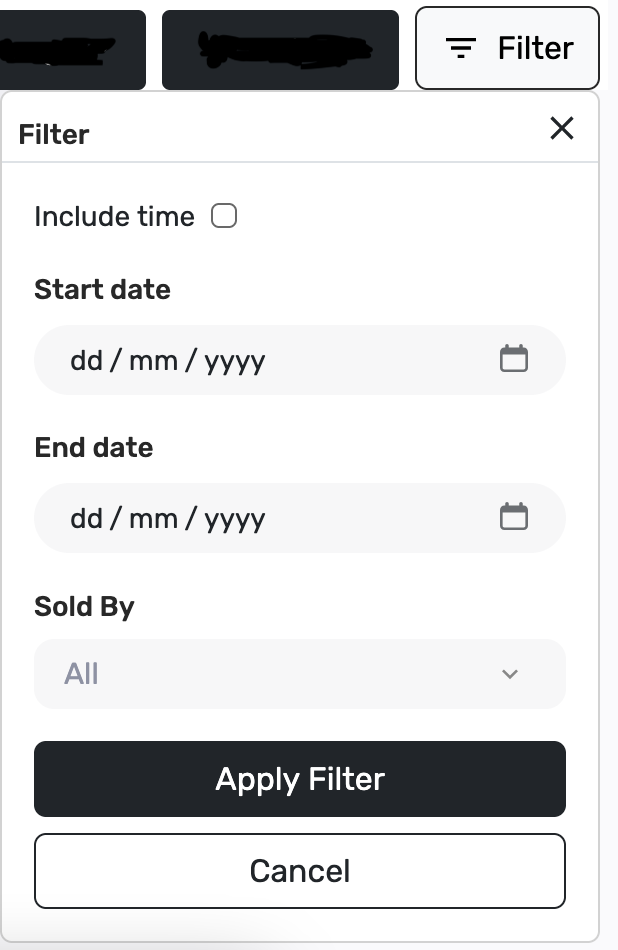
Click Filter on the right. Tick Include time if you need hours as well as dates. Set Start date and End date. Under Sold By, leave All or pick a staff member. Click Apply Filter. Cancel closes without applying (or clears, depending on what you choose).
14. Read the table
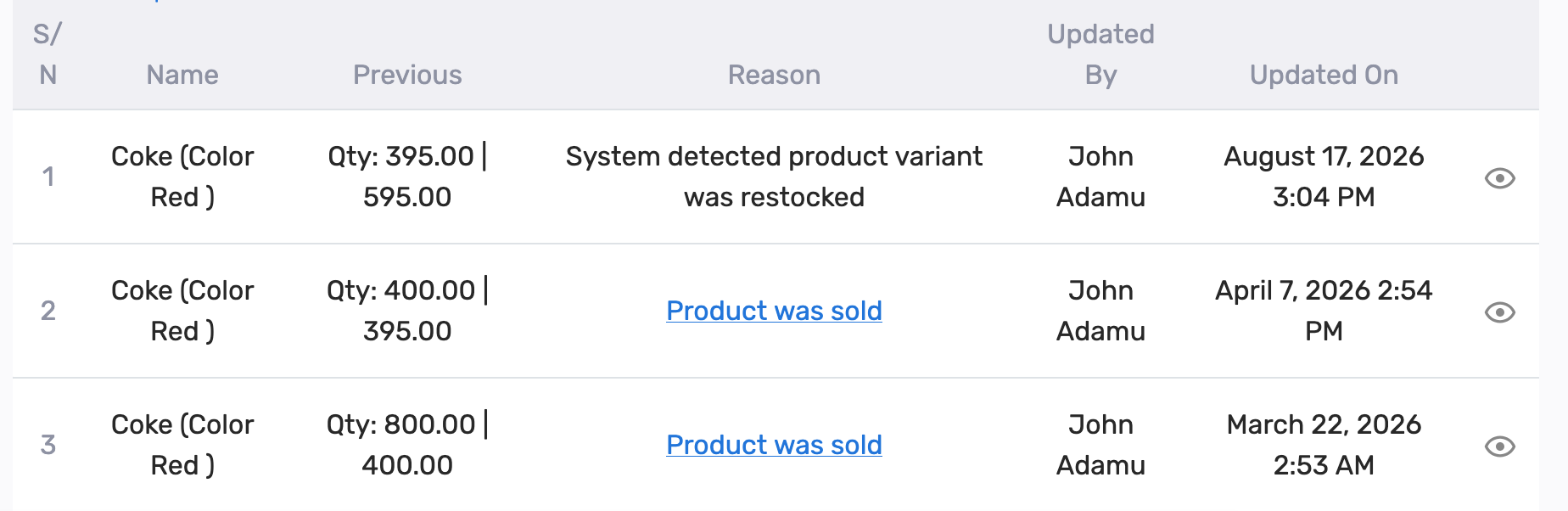
On all-products history, Previous | Updated Qty / Price shows quantity as Qty: old | new, and price the same way when the price changed. Name can include the variant, for example Coke (Color Red). Reason explains the change. Updated By and Updated On show who and when. The eye icon opens full details.
15. Open a sale from Product was sold
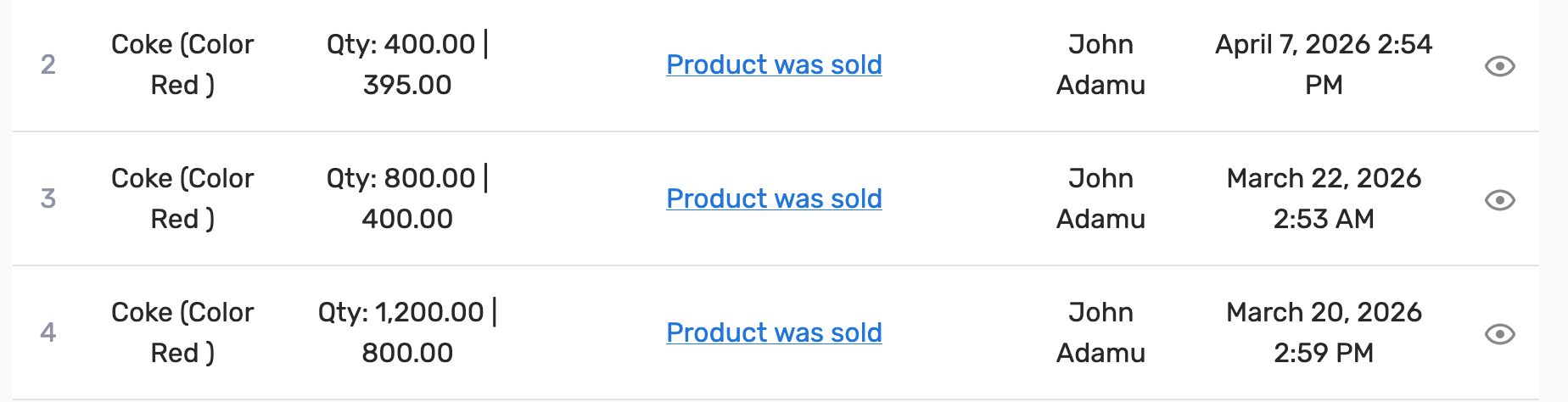
When stock fell because of a sale, Reason shows Product was sold as a blue link. Click it to open the related order. Other reasons stay as plain text (for example a restock message).
16. View one change in full
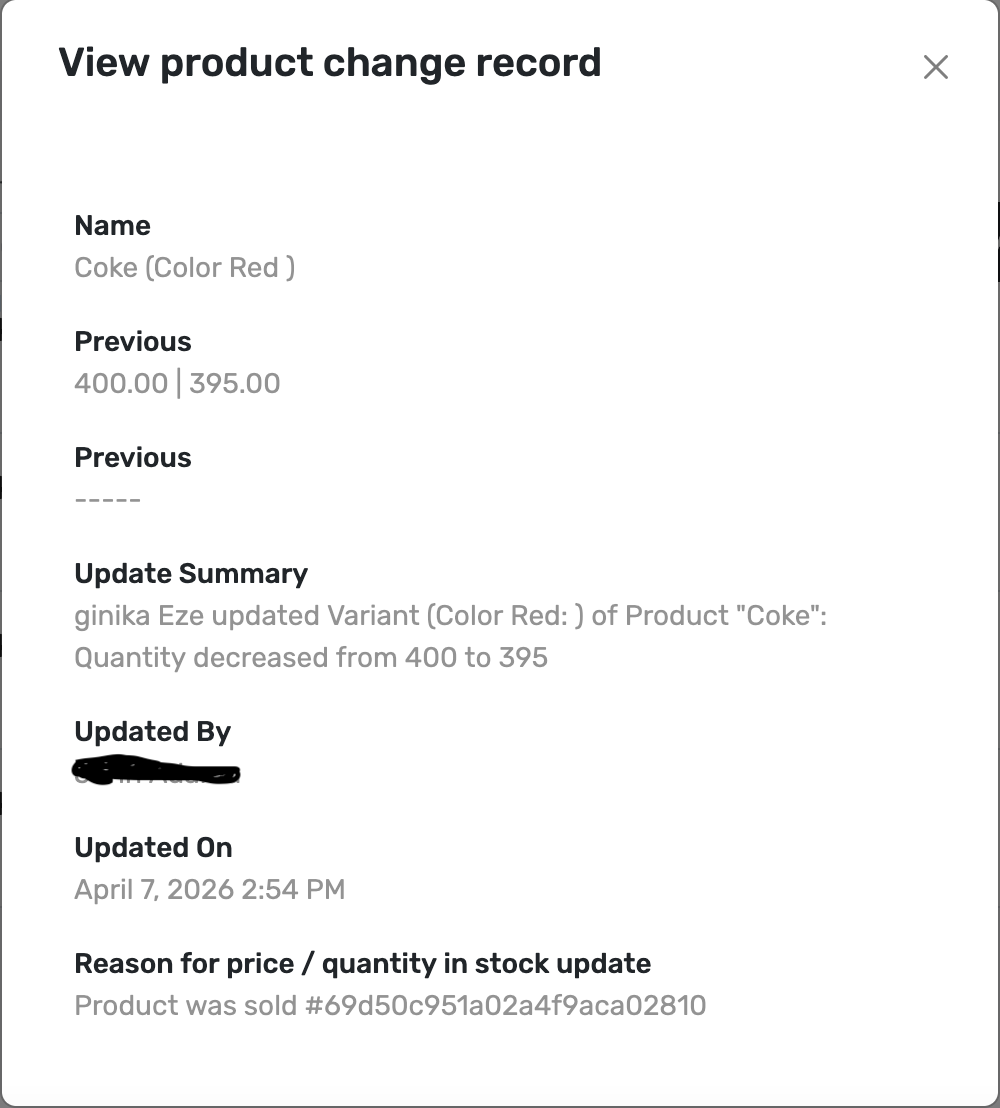
Click the eye on a row. View product change record shows the name, previous and updated quantity, previous and updated price (or ----- if none), Update Summary, Updated By, Updated On, and the full reason. Close with the X when you are done.
Published by Posa Technologies · getposa.com
← More guides