
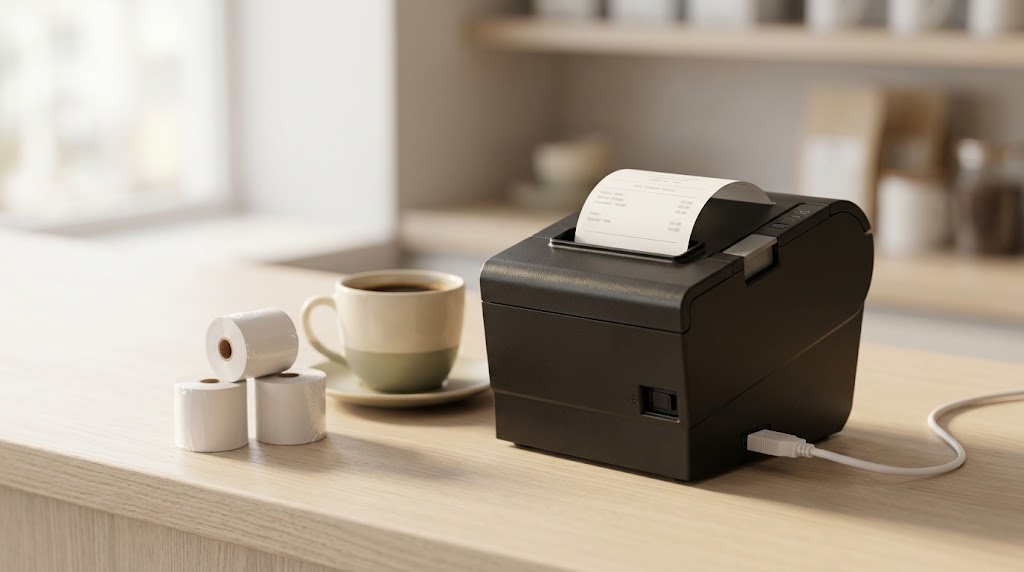
Use this guide on a Windows PC to connect an 80mm USB thermal receipt printer to Posa. Do not use this page for Bluetooth, network (IP), or 58mm printers.
MHT (P80A and similar 80mm receipt models): download the Windows receipt driver from MHT Service Support — choose the latest Windows receipt driver. If you need the file list, open the MHT driver folder.
Xprinter (XP-80T and other 80mm models): download the official 80-series Windows driver from Xprinter 80 series driver. Alternate official page: Xprinter driver file. If those pages are blocked, use the Windows driver links on the Ozone Lanka XP-80T product page.
Plug in USB and power first. Download the driver for your brand, then use that tab. After install, both tabs show the same Windows paper-size and Posa steps.
1. Allow the installer
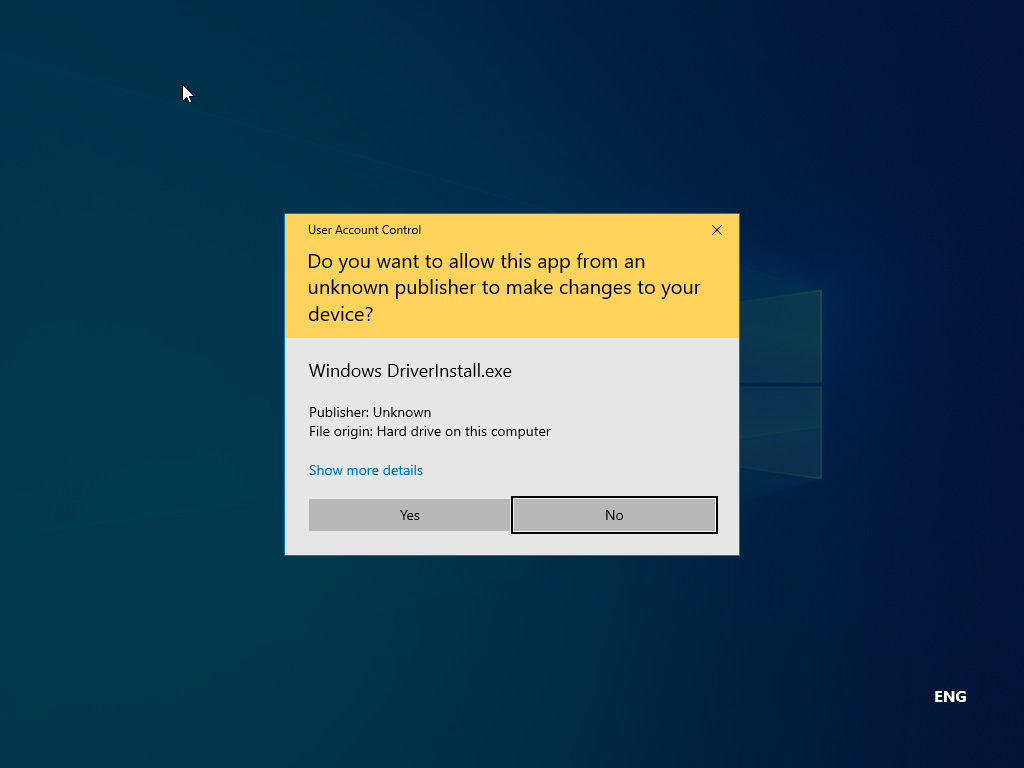
Unzip the MHT driver. Open the Windows Driver folder and run Windows DriverInstall. When User Account Control appears, click Yes if you downloaded the file from MHT’s site. Windows may say the publisher is unknown.
2. Start the MHT installer
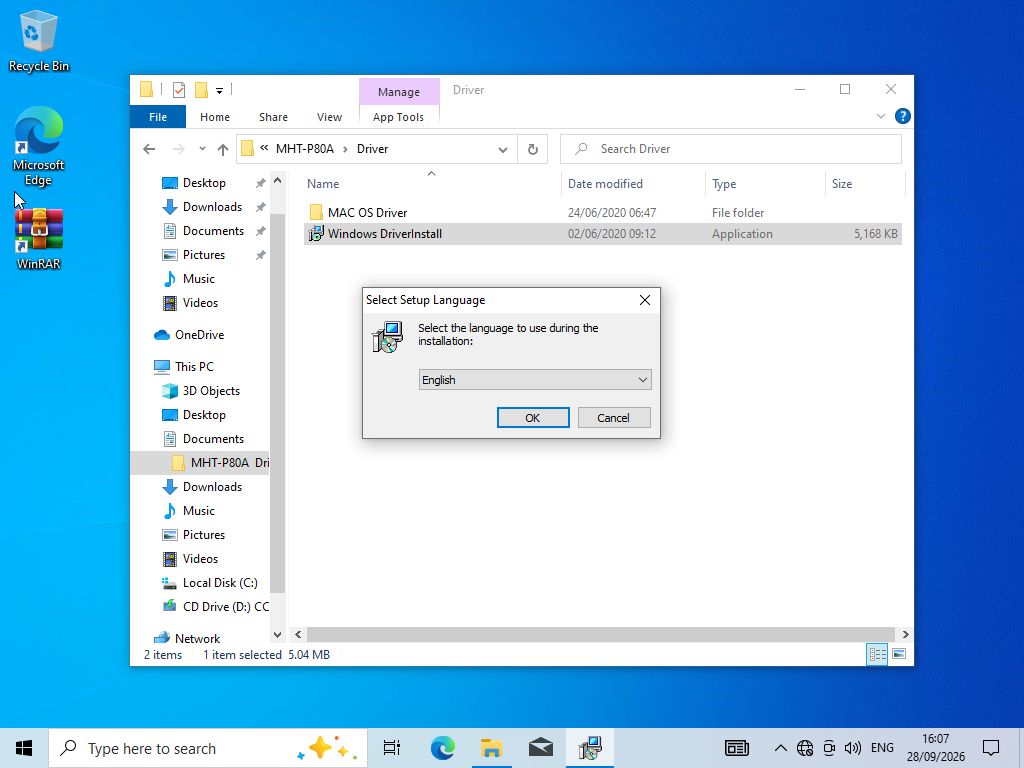
Select English on Select Setup Language, then click OK.
3. Click Install on Ready to Install
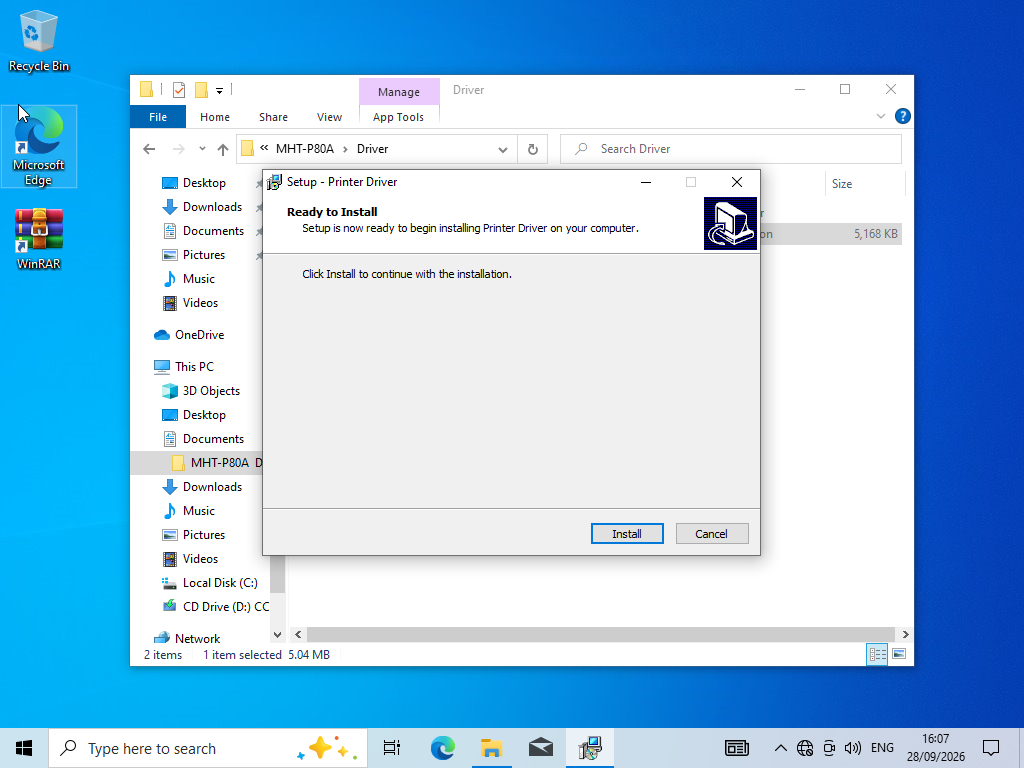
When Ready to Install appears, click Install and wait for the driver wizard to continue.
4. Choose 80mm and USB
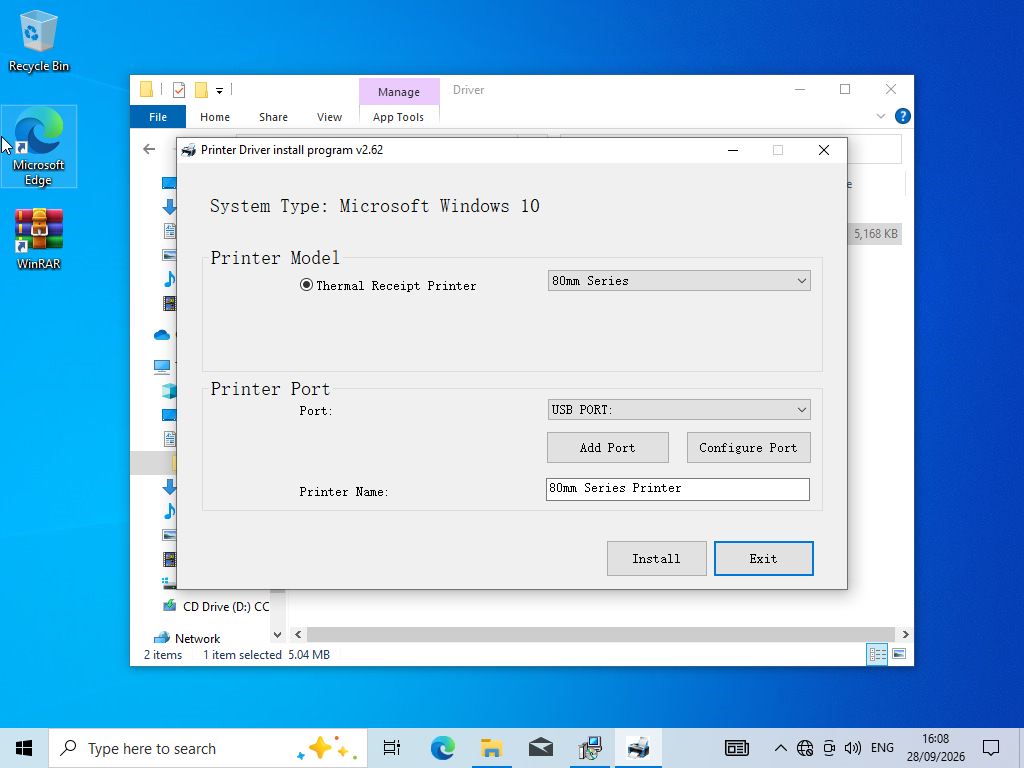
Leave Thermal Receipt Printer selected, set the series to 80mm Series, set Port to USB PORT, and keep the printer name (usually 80mm Series Printer). Click Install.
5. Confirm USB PORT
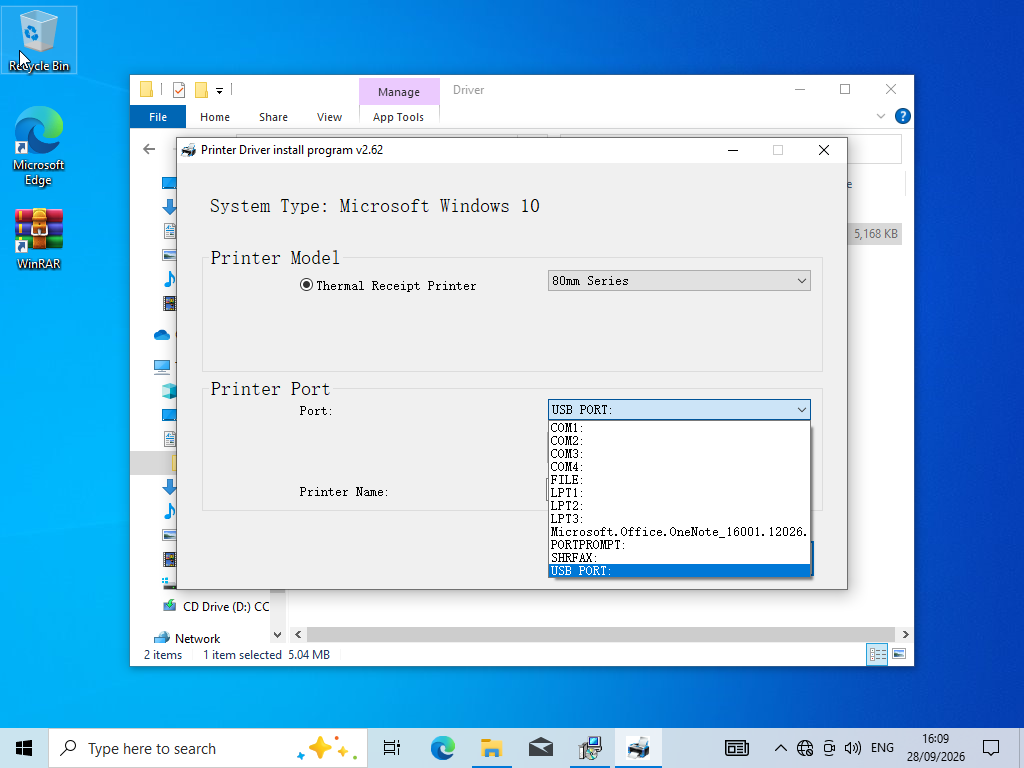
If the port list is open, pick USB PORT — not a COM or FILE port — unless your cable is serial instead of USB.
6. Confirm Printer installed
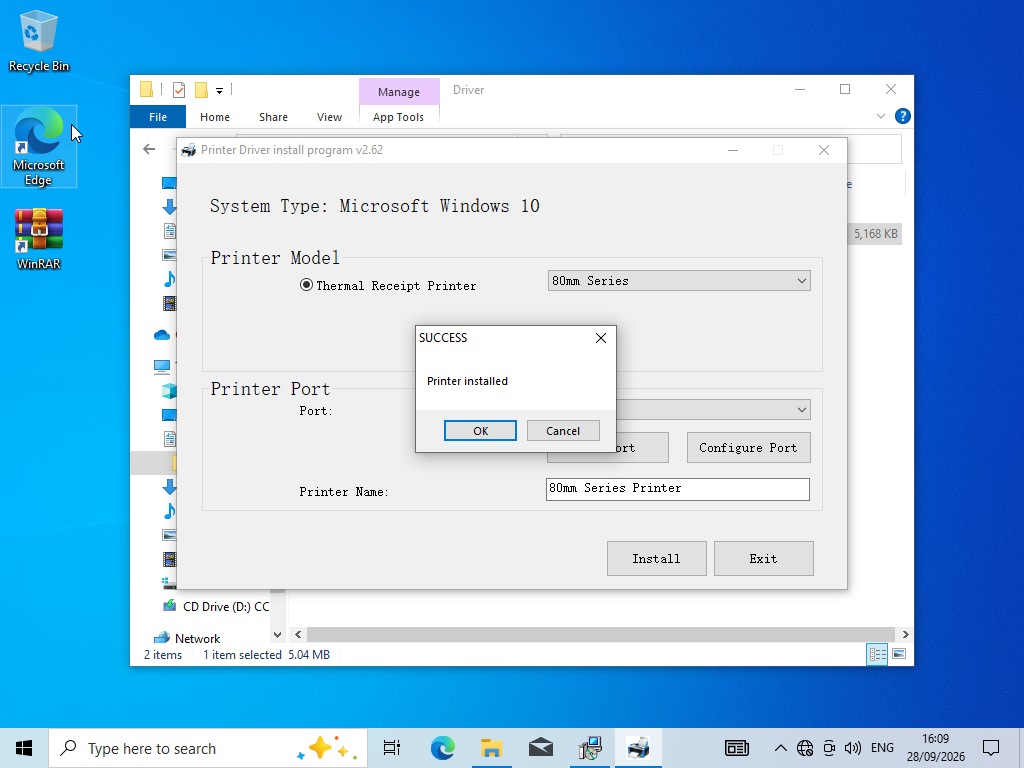
When SUCCESS / Printer installed appears, click OK.
7. Finish the wizard
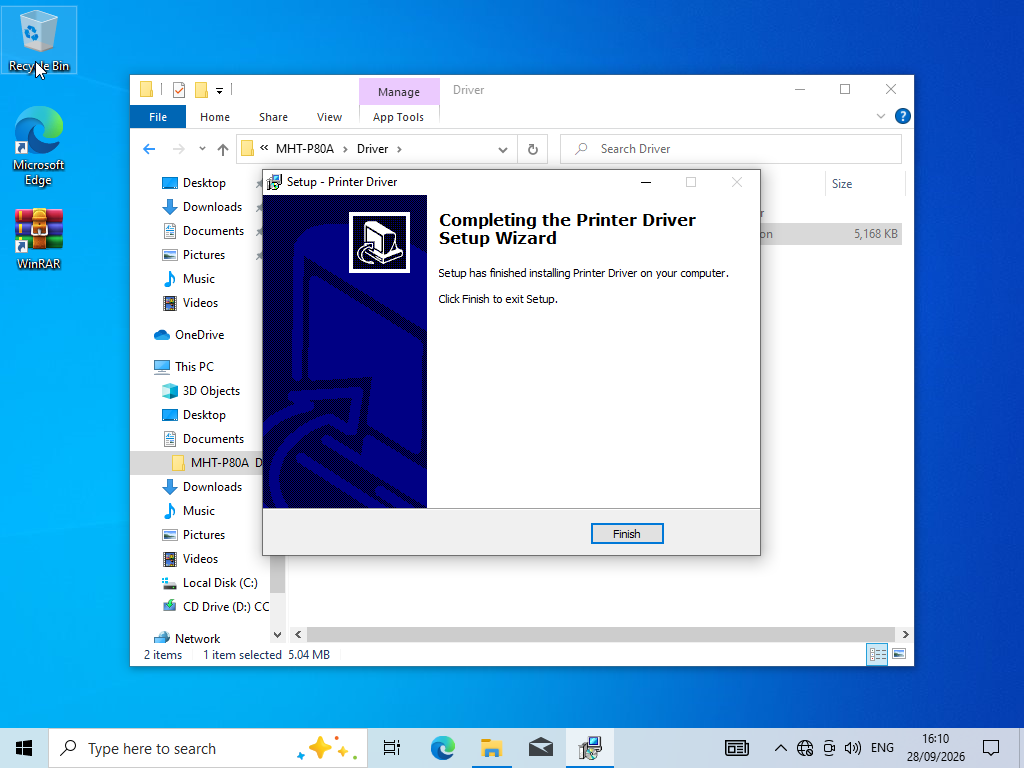
Click Finish. Then set paper size in Windows and connect Posa using the steps below.
8. Open Windows Settings
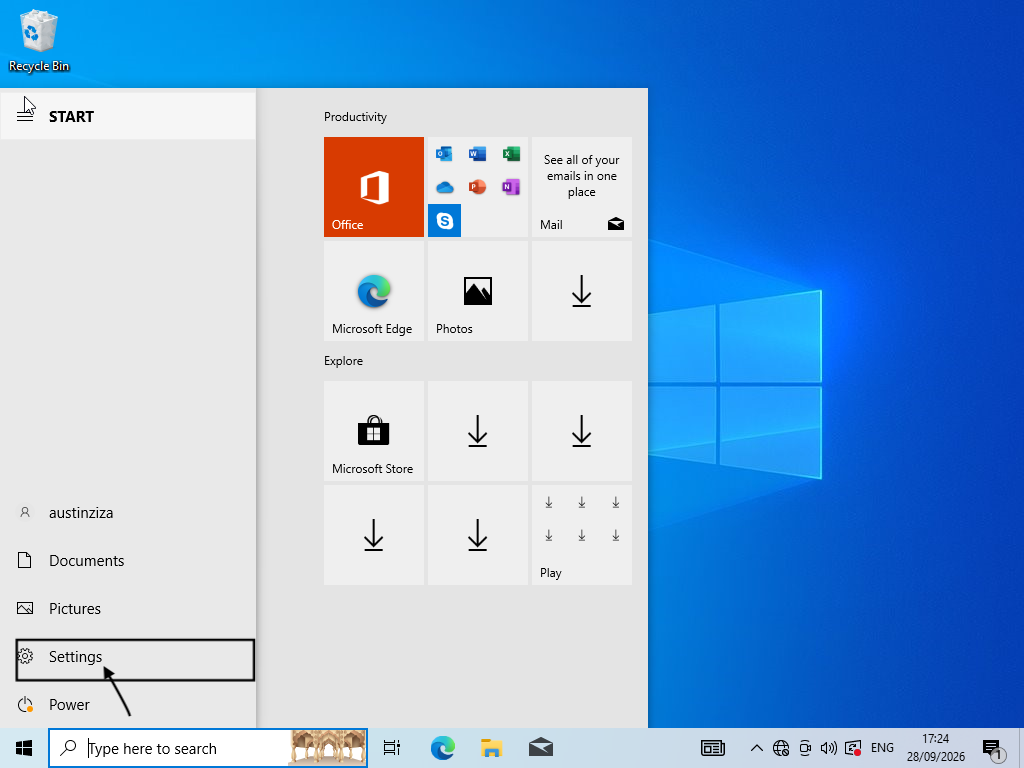
After the driver finishes, open the Windows Start menu and click Settings. You will set the 80mm paper size so receipts are not stretched onto A4.
9. Open Devices
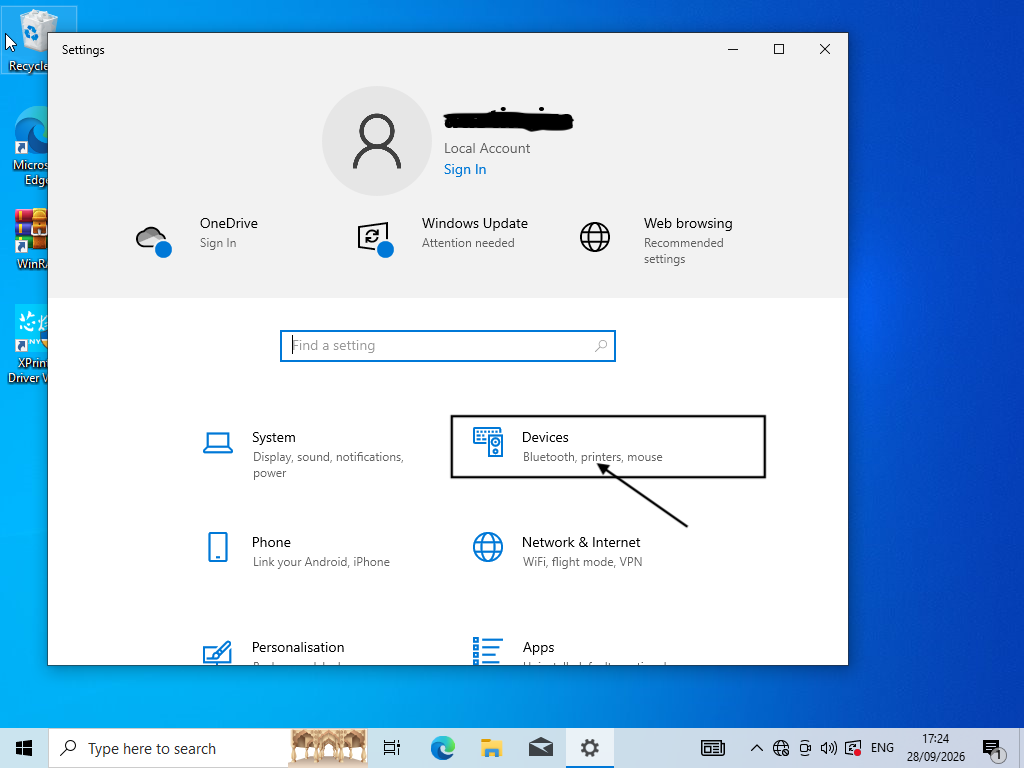
Click Devices (Bluetooth, printers, mouse).
10. Open Printers & scanners
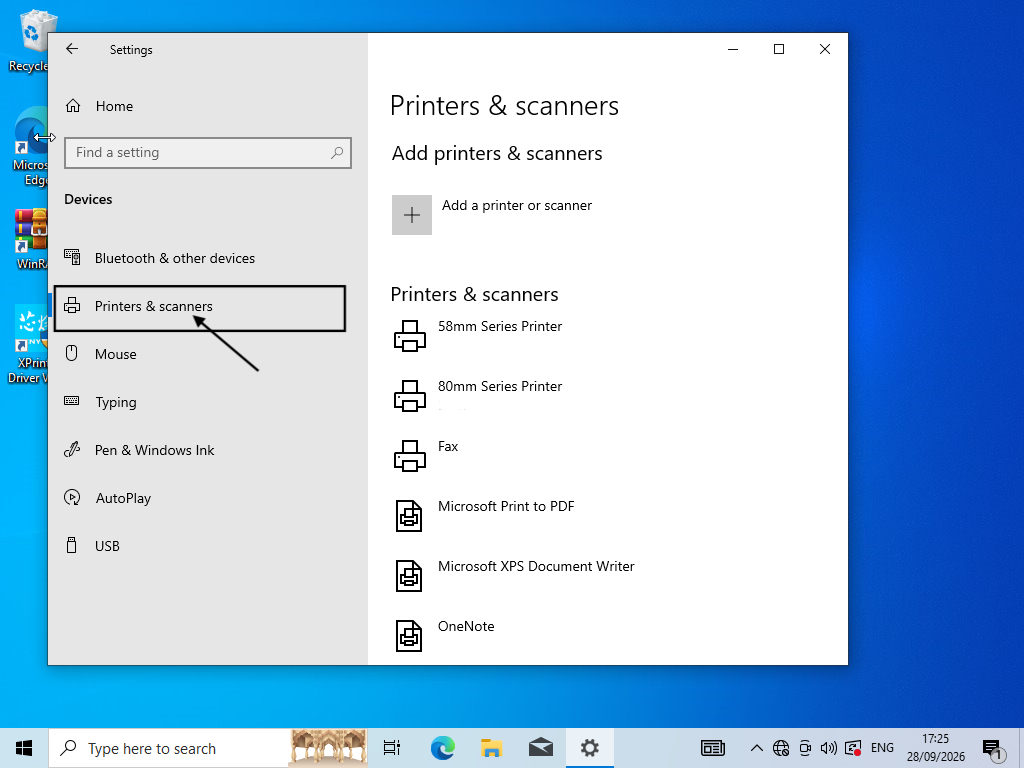
In the left list, click Printers & scanners. You should see 80mm Series Printer (or a similar 80mm name). Click that printer.
11. Manage the 80mm printer
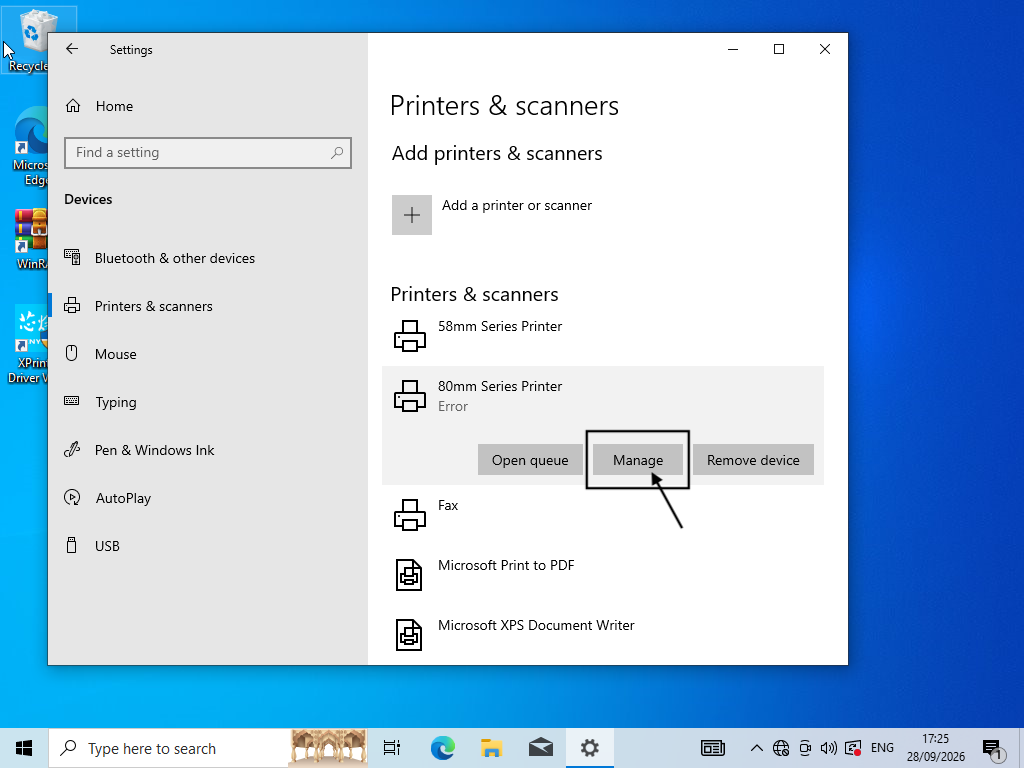
Click Manage. If status shows Error, continue anyway — paper size often fixes the queue after you print a test page.
12. Open Printing preferences
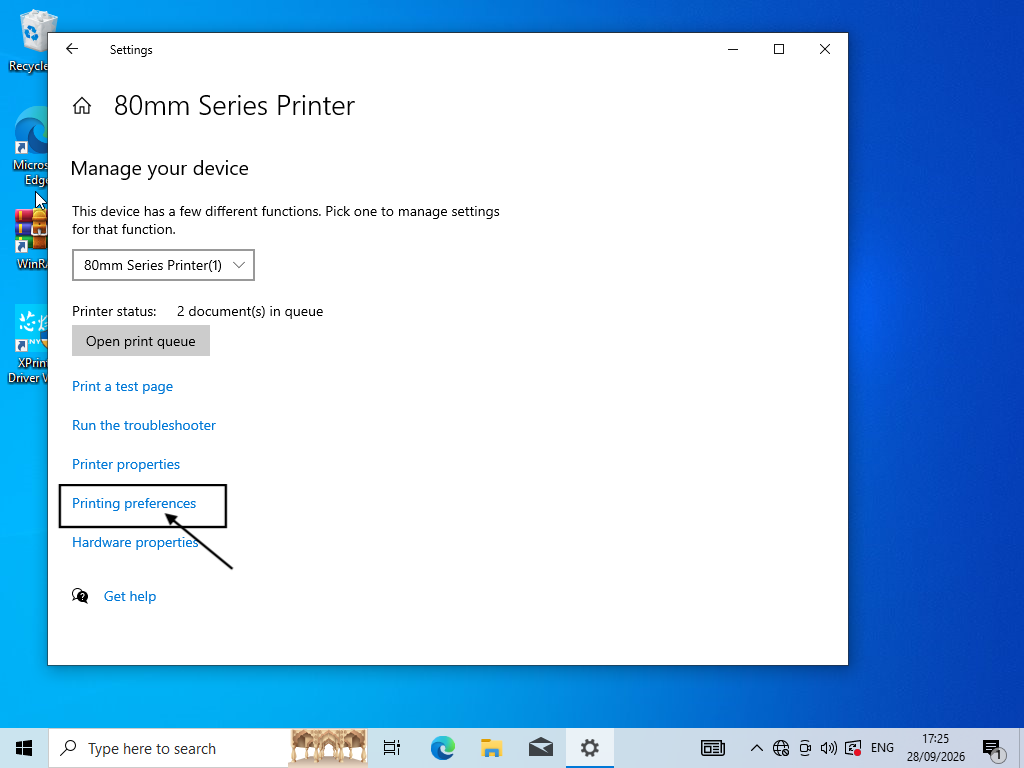
Click Printing preferences.
13. Open Advanced
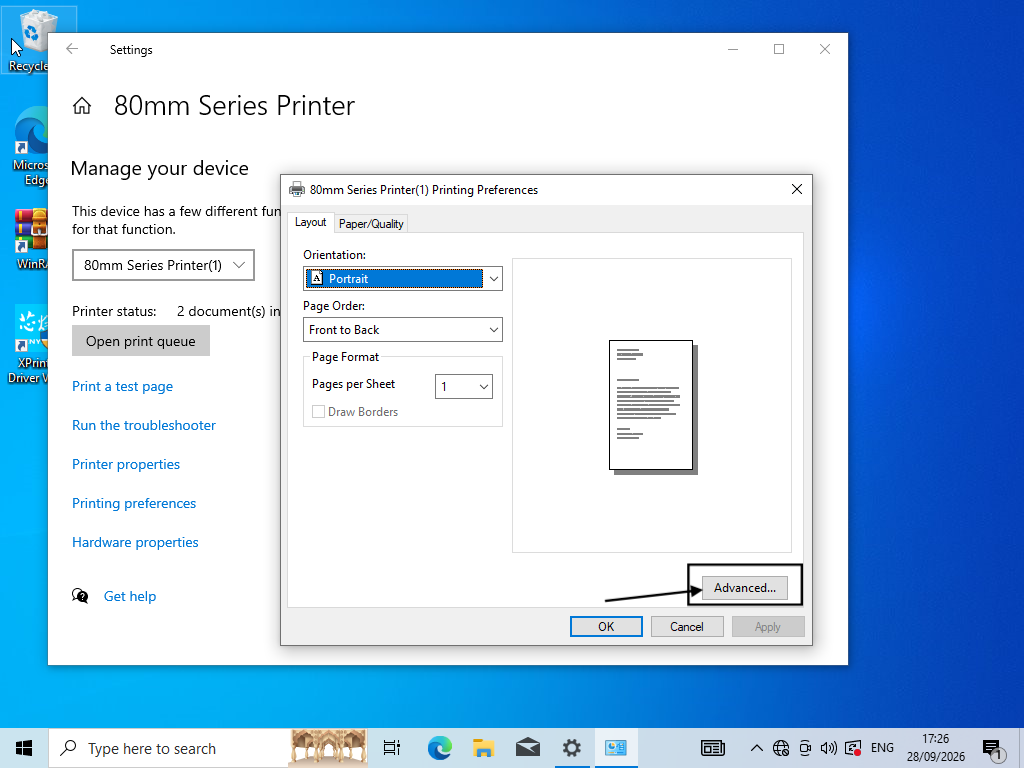
Keep Orientation as Portrait, then click Advanced.
14. Set 80mm paper size
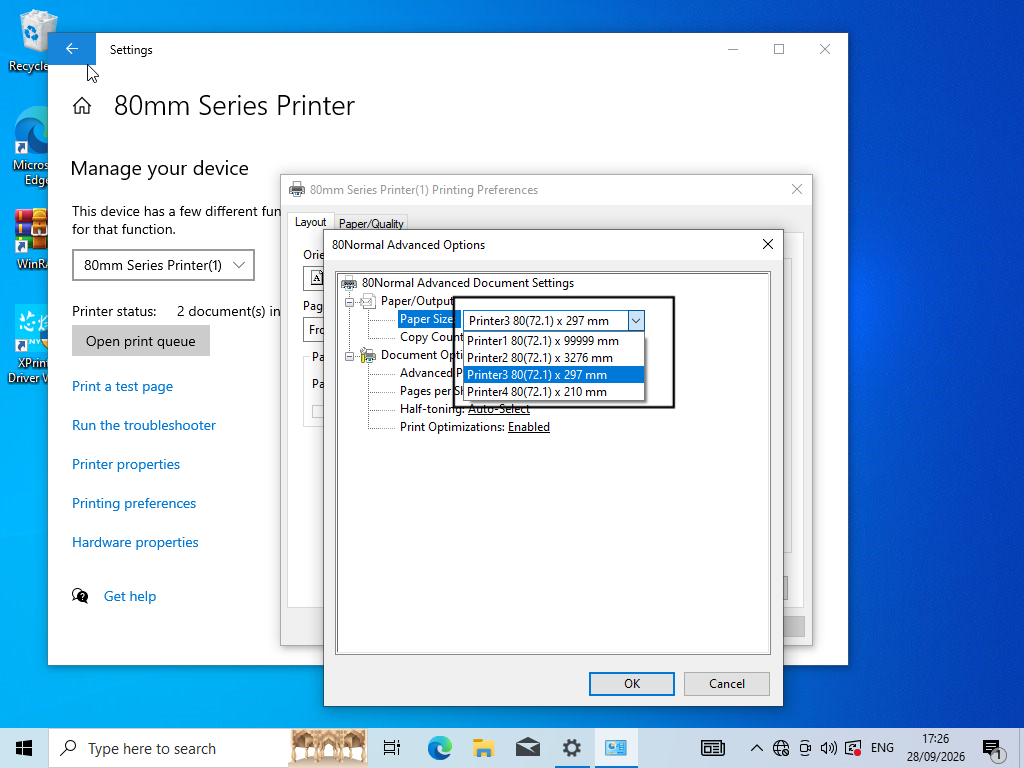
Under Paper Size, choose an 80mm option such as Printer3 80(72.1) × 297 mm. Click OK, then Apply and OK. This is the size Posa receipts expect.
15. Open Posa Settings
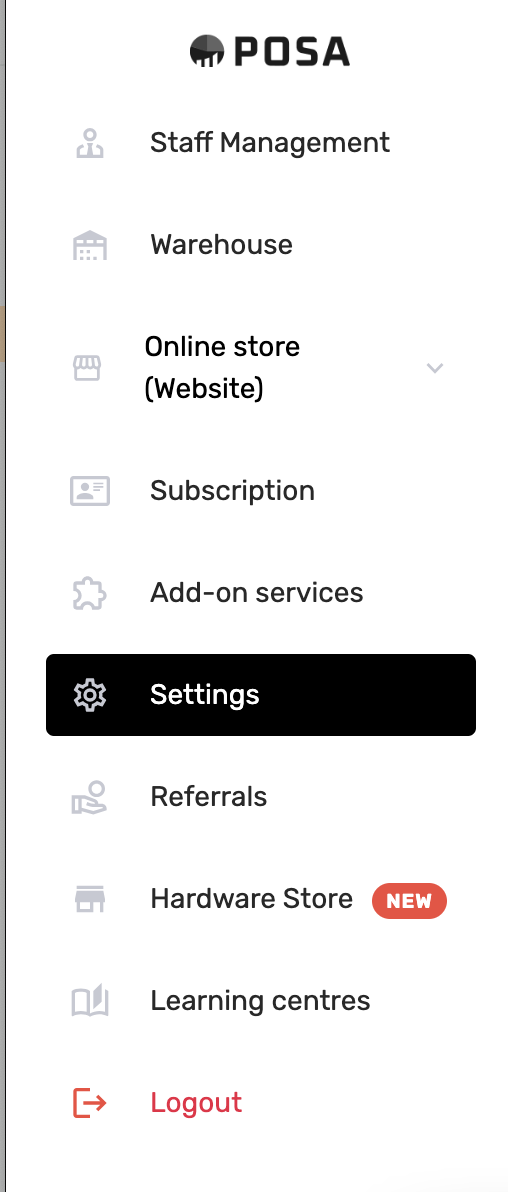
In the Posa web app, click Settings on the left sidebar. Open the Printer Settings tab.
16. Choose how Posa prints
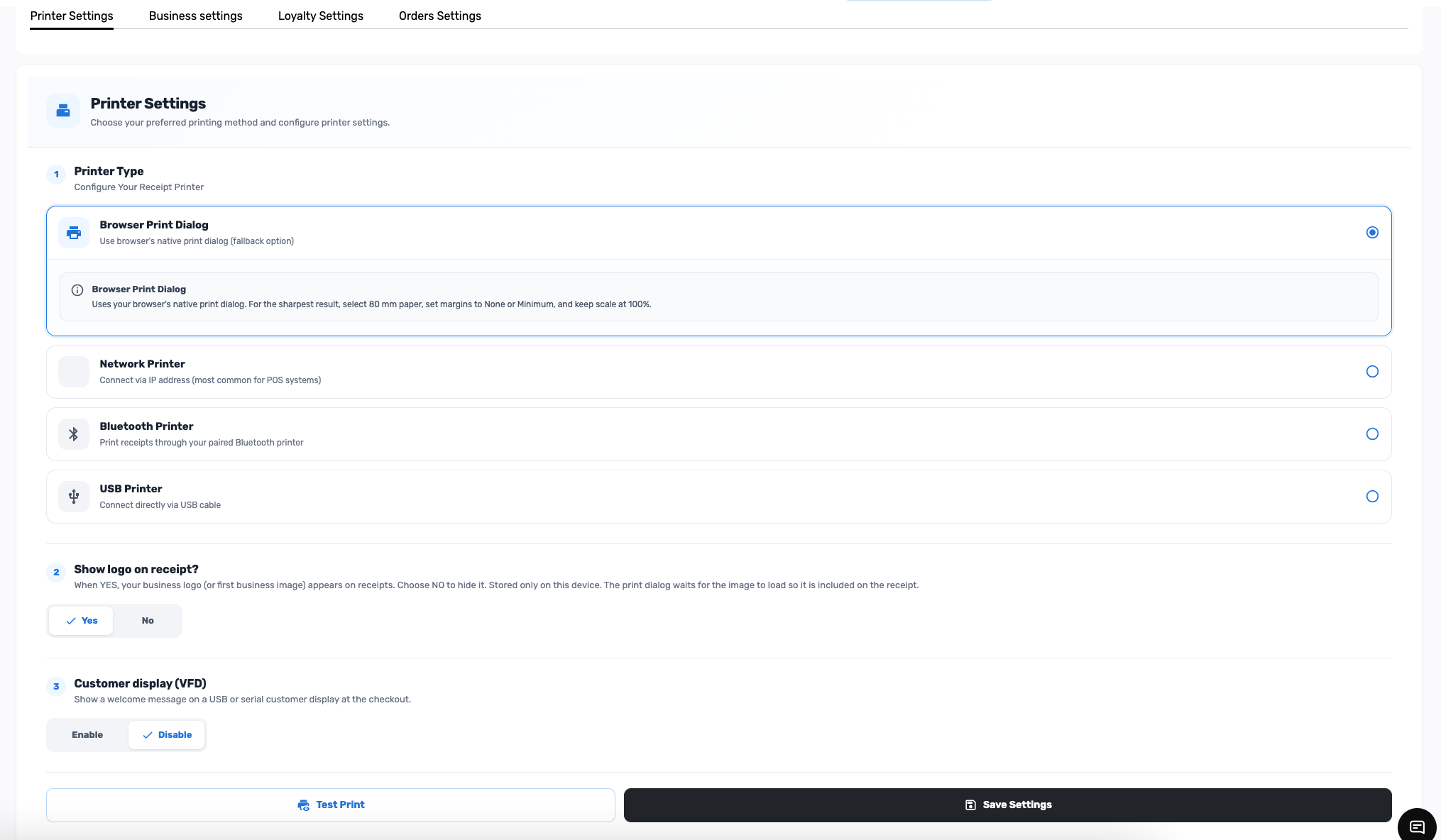
On Windows, after the driver is installed, Browser Print Dialog is the usual choice. Posa opens the browser print window; you pick the 80mm printer. Keep Show logo on receipt as you prefer, then click Save Settings.
17. Optional: USB Printer in Posa
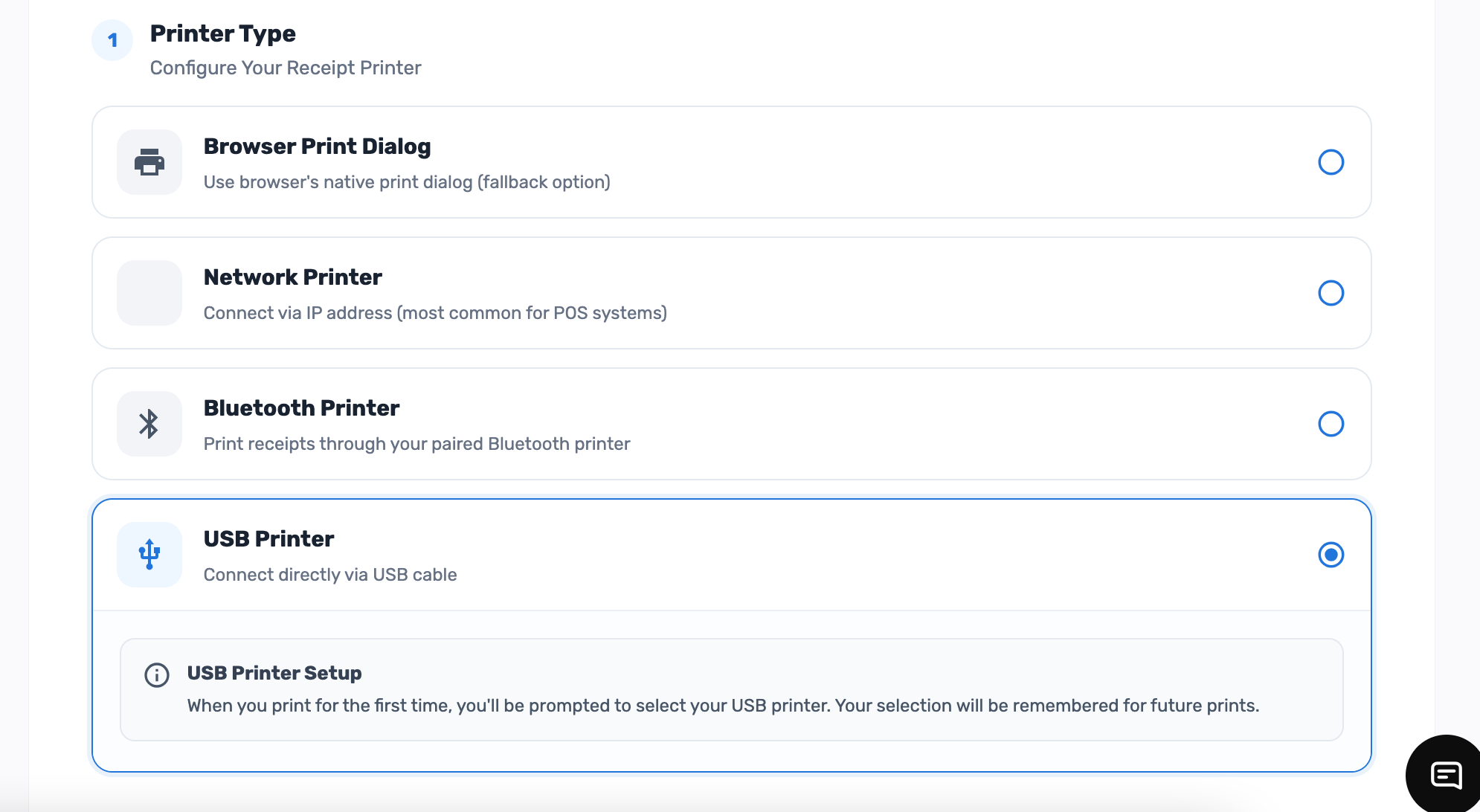
If you prefer Posa to send the receipt straight to USB (no browser print window), select USB Printer instead. The first time you print, Chrome asks you to pick the USB printer and remembers it on this computer. Save Settings.
18. Print a test receipt
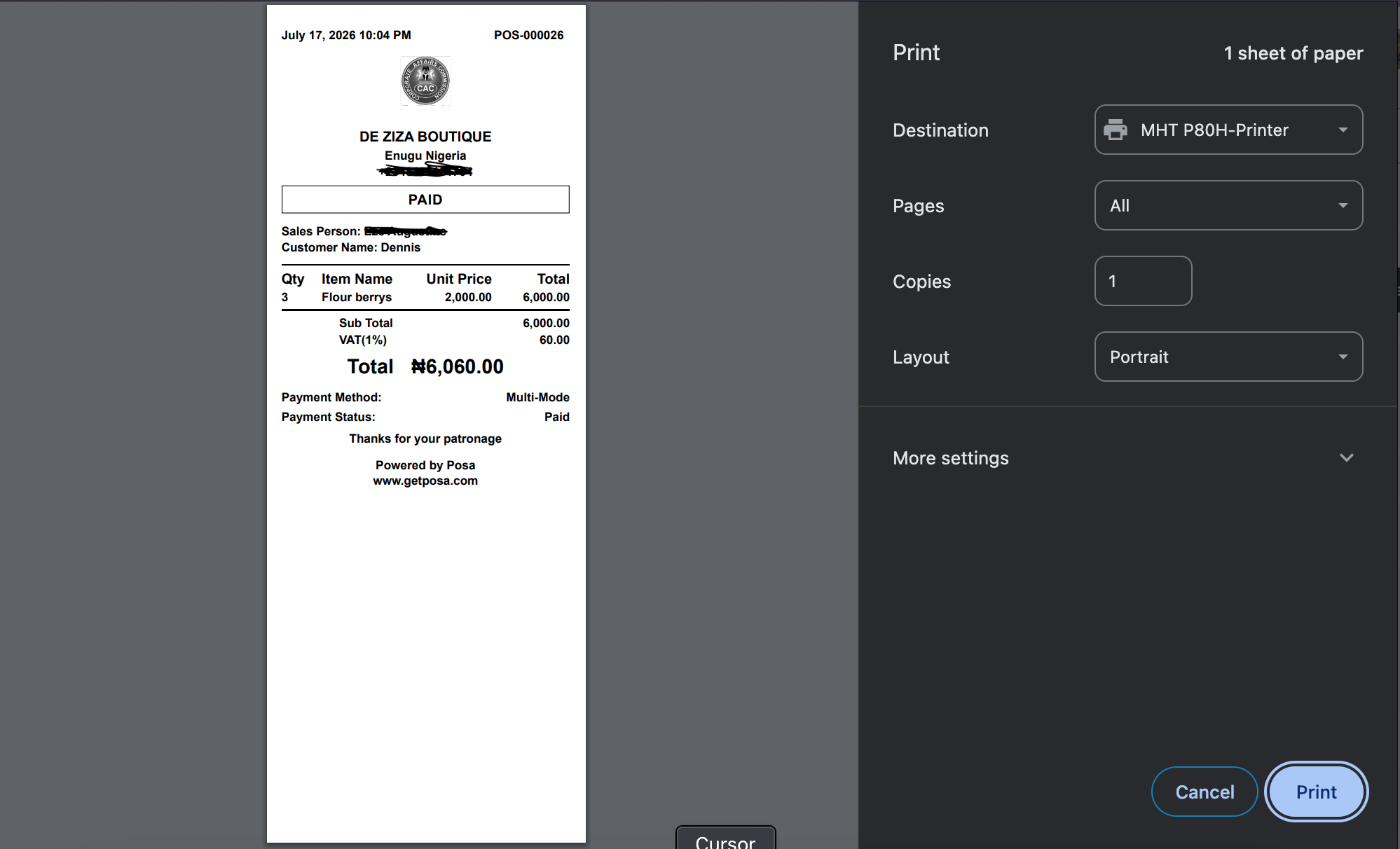
Click Test Print, or complete a sale and print the receipt. If you used Browser Print Dialog, set Destination to your 80mm printer (for example MHT P80H-Printer or 80mm Series Printer), Layout Portrait, then Print. In More settings, use 80 mm paper if listed, margins None or Minimum, and scale 100%.
19. Check the paper slip
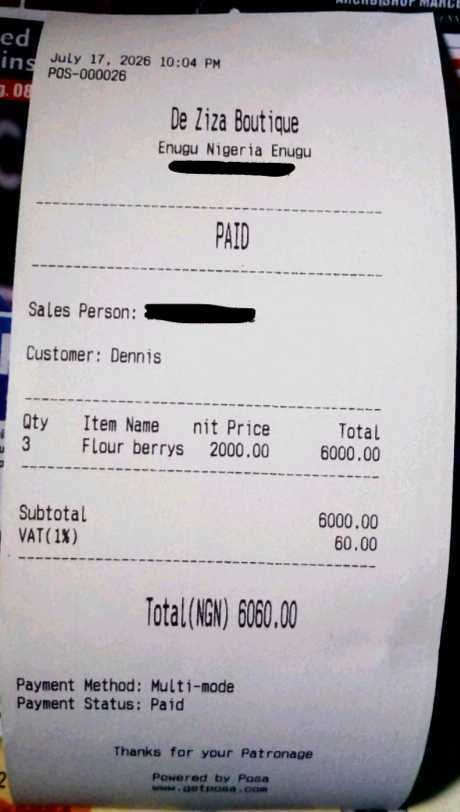
The printer should cut or feed a slip with your shop name, items, totals, and payment status. If the layout is too wide or tiny, go back to Windows paper size and the browser 80 mm settings.
Published by Posa Technologies · getposa.com
← More guides