

Use this guide to record a stock purchase from a vendor and add each purchased item from the Posa mobile app.
1. Open Warehouse
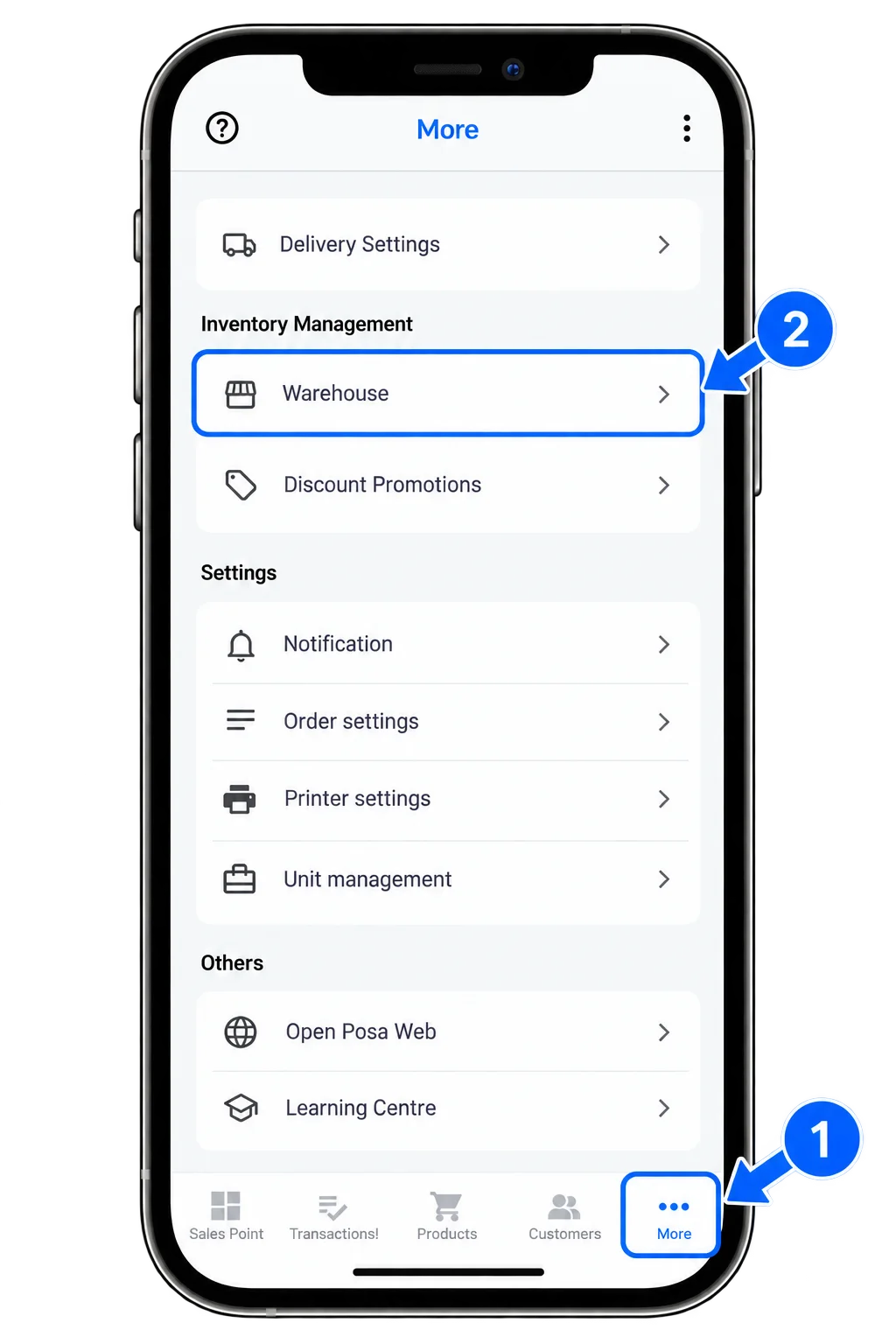
From the bottom navigation bar, tap More to open the More screen. Select Warehouse under Inventory Management.
2. Open Purchases
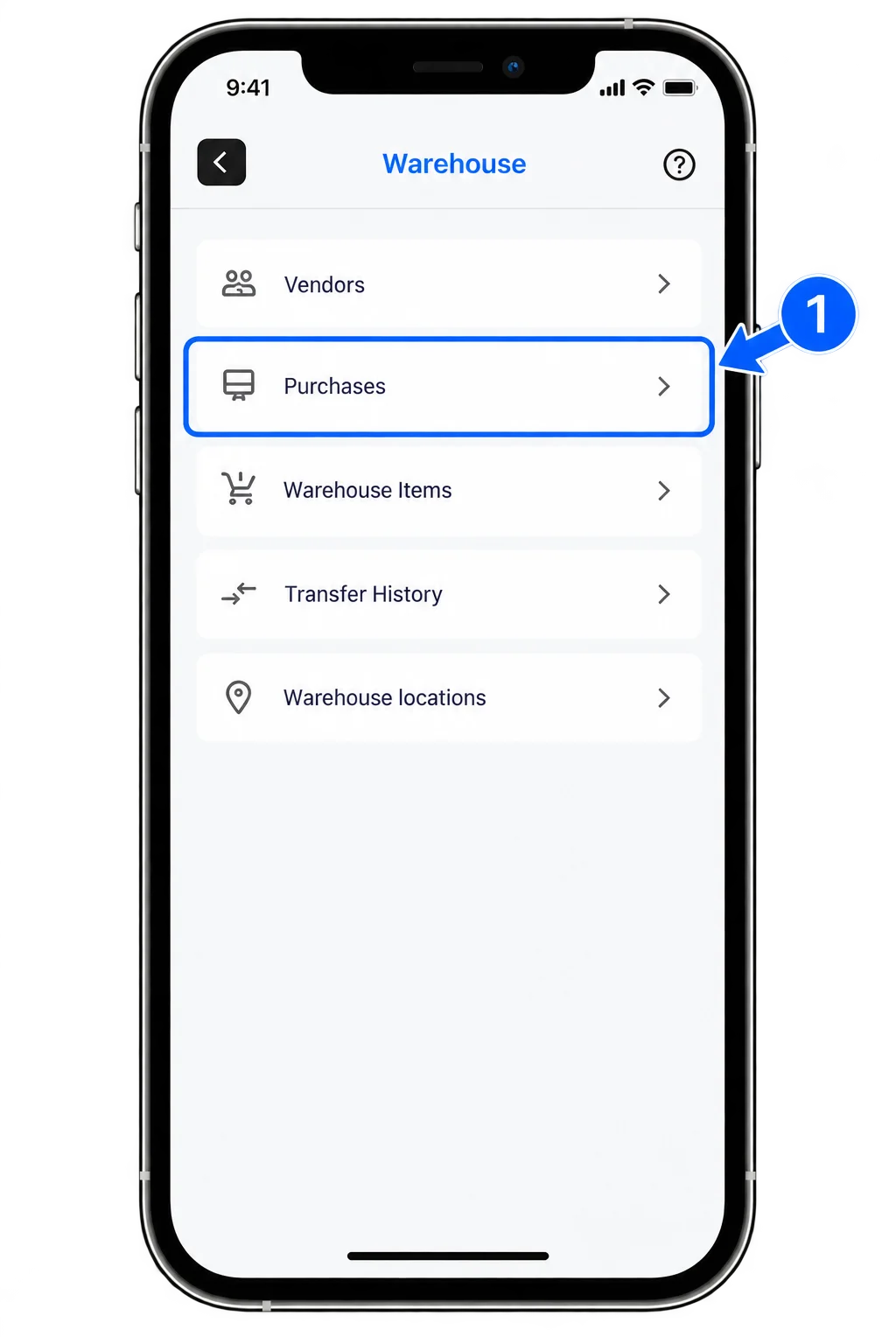
On the Warehouse screen, select Purchases.
3. Start a new purchase
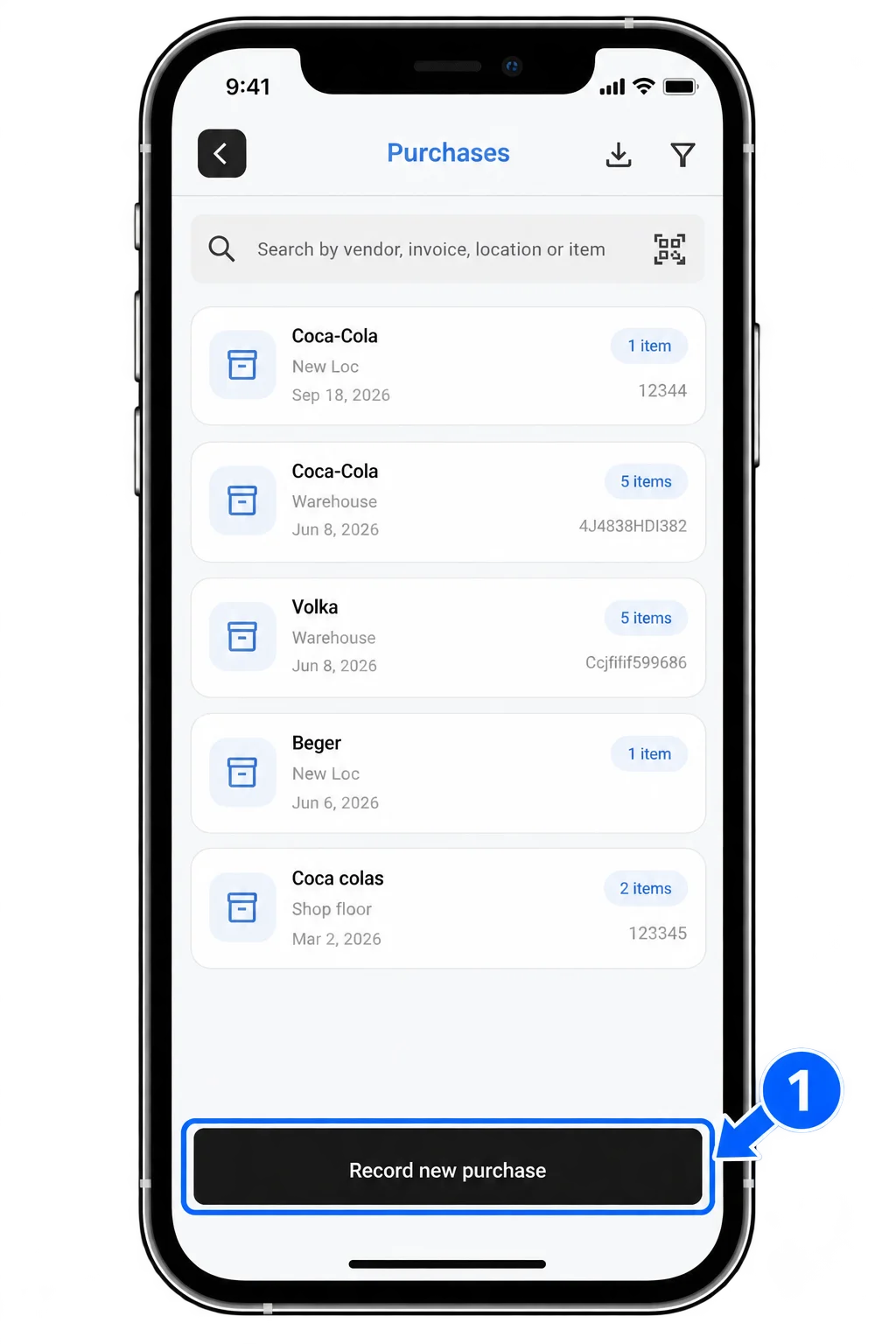
On the Purchases screen, tap Record new purchase to begin recording a new stock purchase.
4. Enter the purchase details
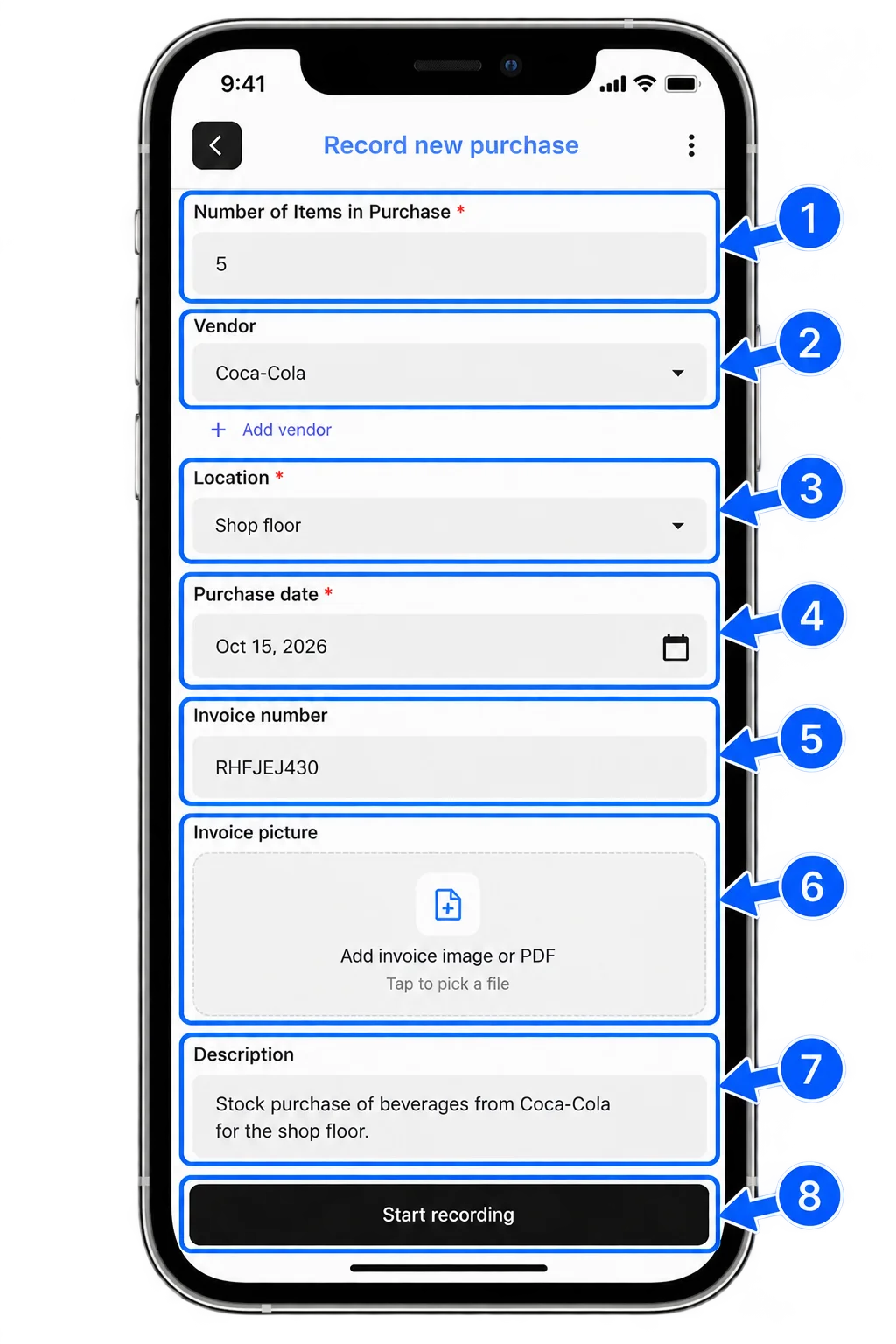
On the Record New Purchase screen, enter the number of items in the purchase, select or add a vendor, choose where the items will be stored, and set the purchase date. You can also add an invoice number, upload an invoice image or PDF, and include a description. Tap Start recording when you are ready to add the purchased items.
5. Add each purchased item
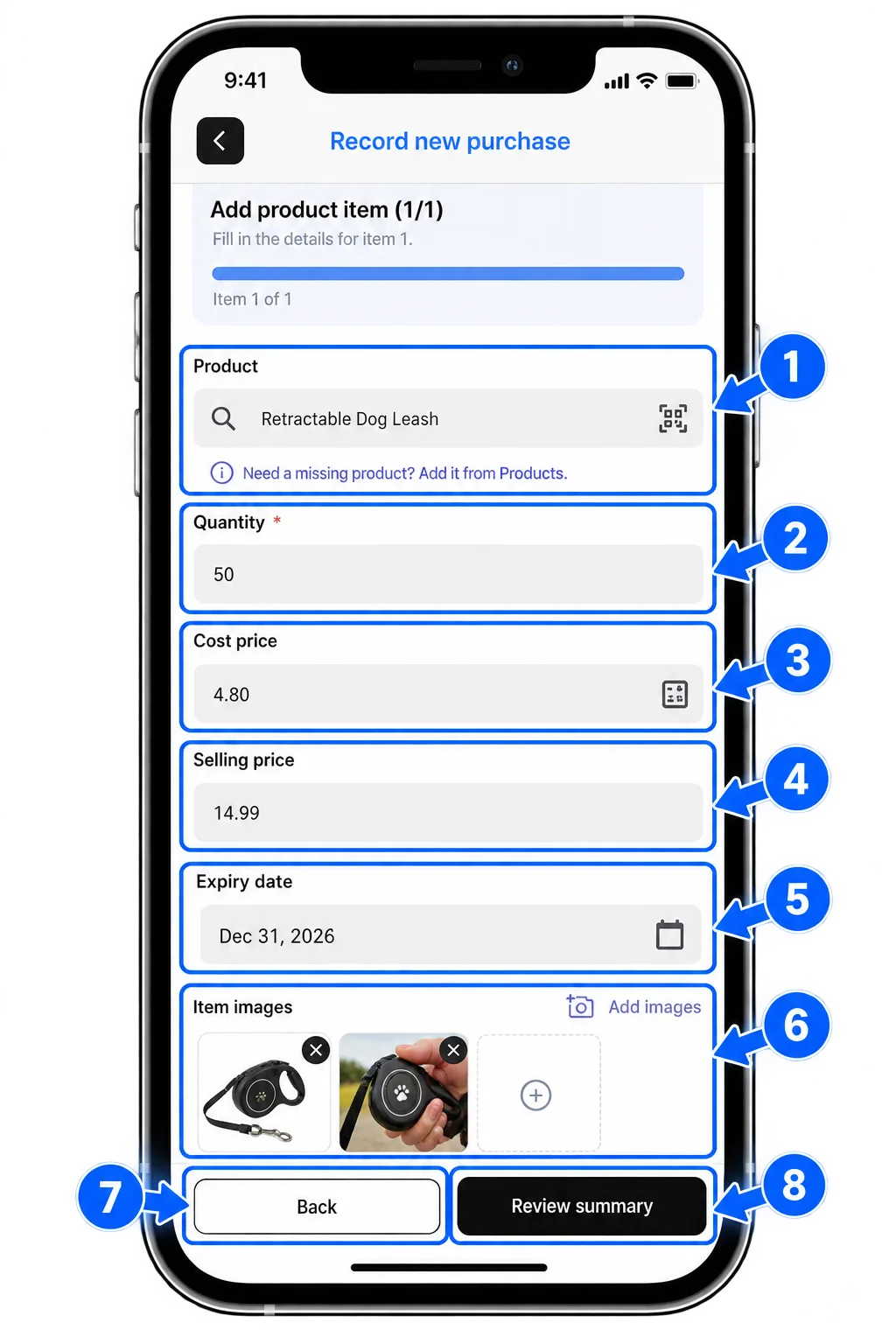
On the Add Product Item screen, record each item based on the number you entered earlier. Select an existing product or use Add it from Products to create one. Enter the quantity, cost price, selling price, expiry date, and item images where applicable. Once every item is complete, tap Review summary.
6. Review and submit the purchase
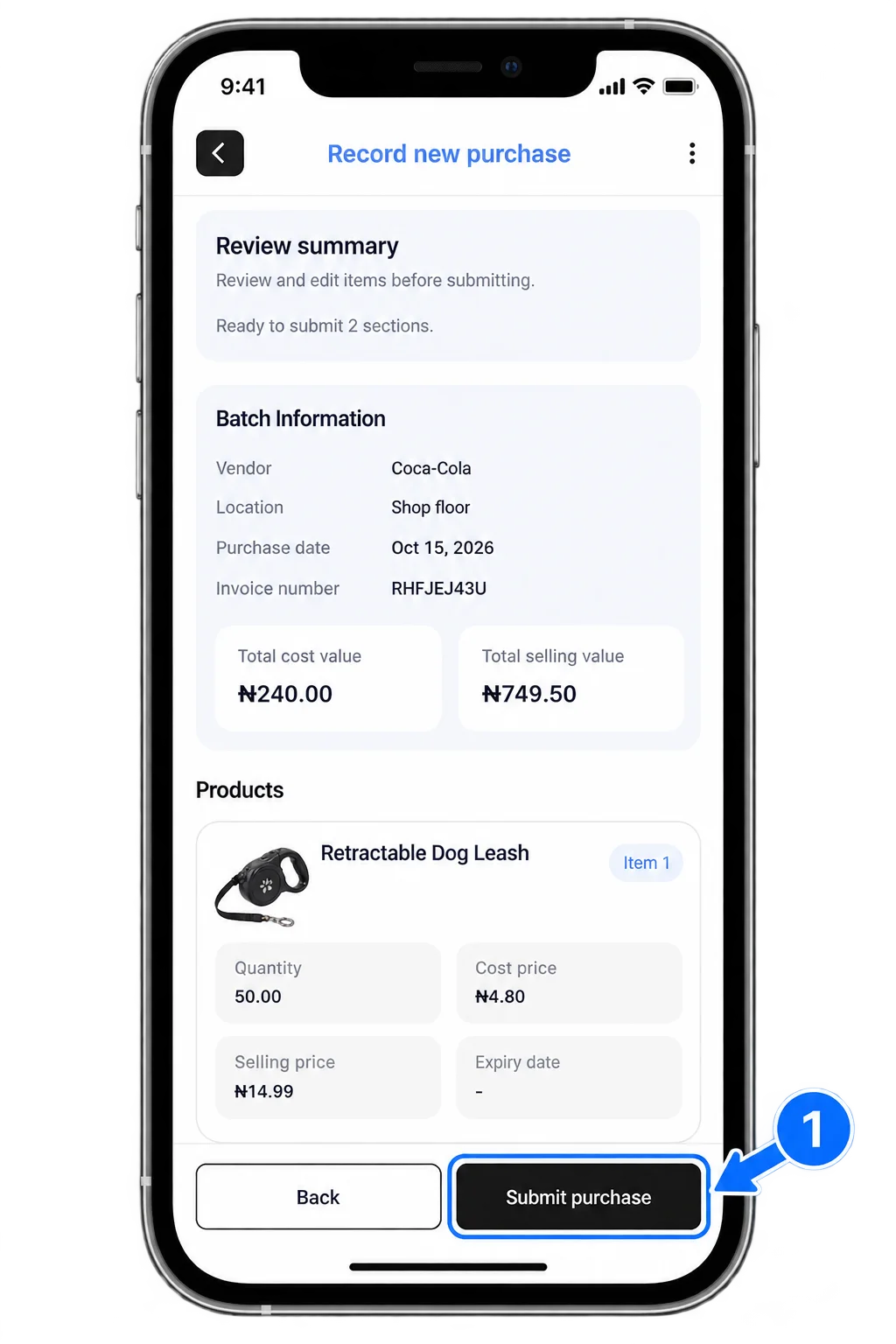
On the Review Summary screen, check all the information recorded for the new purchase. When the details are correct, tap Submit purchase to save it.
Published by Posa Technologies · getposa.com
← More guides