

Use this guide to add several products at once from an Excel file in the Posa mobile app.
1. Open Products
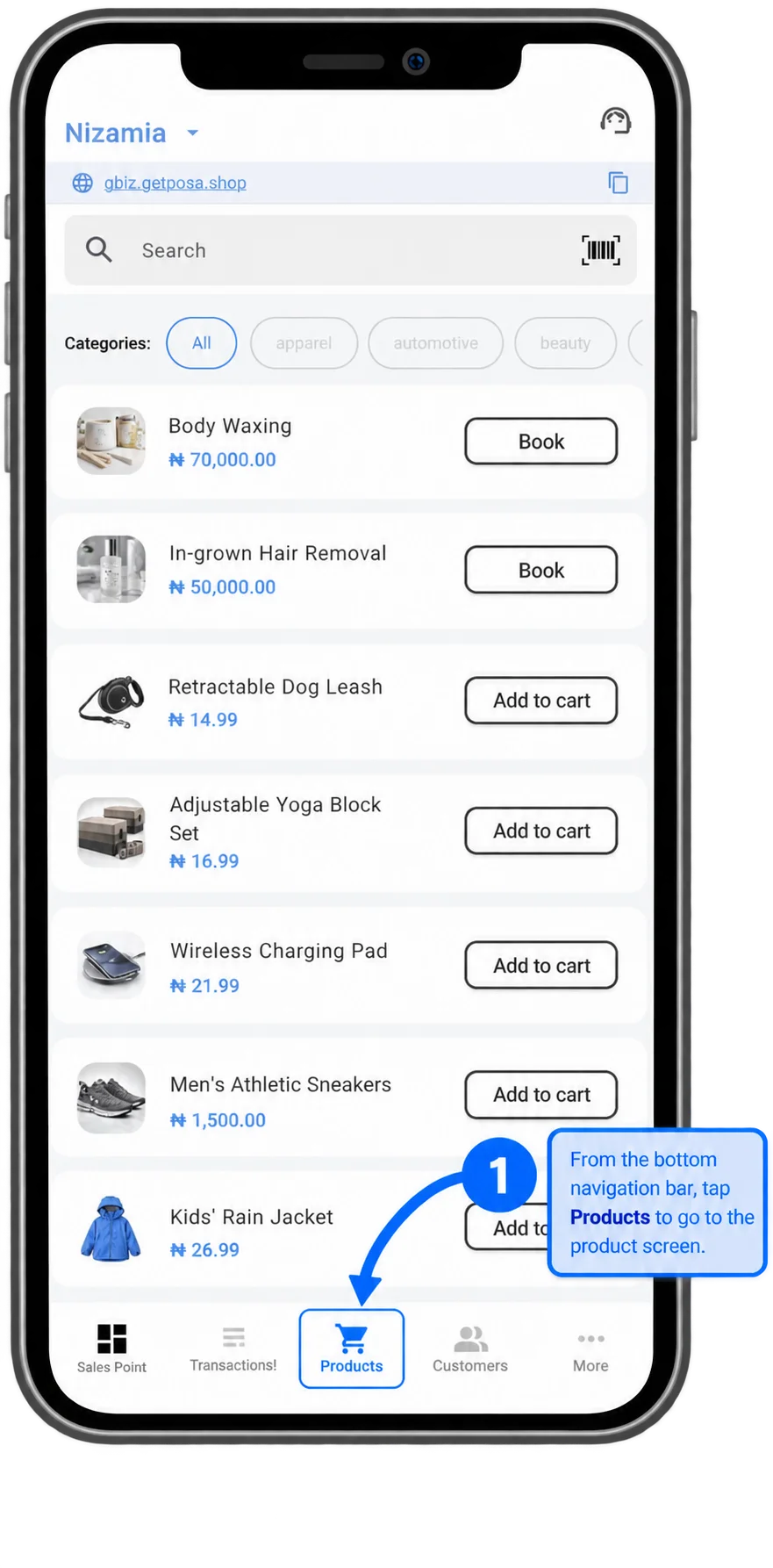
From the bottom navigation bar, tap Products to open the Products screen and manage the items in your business.
2. Open the product options
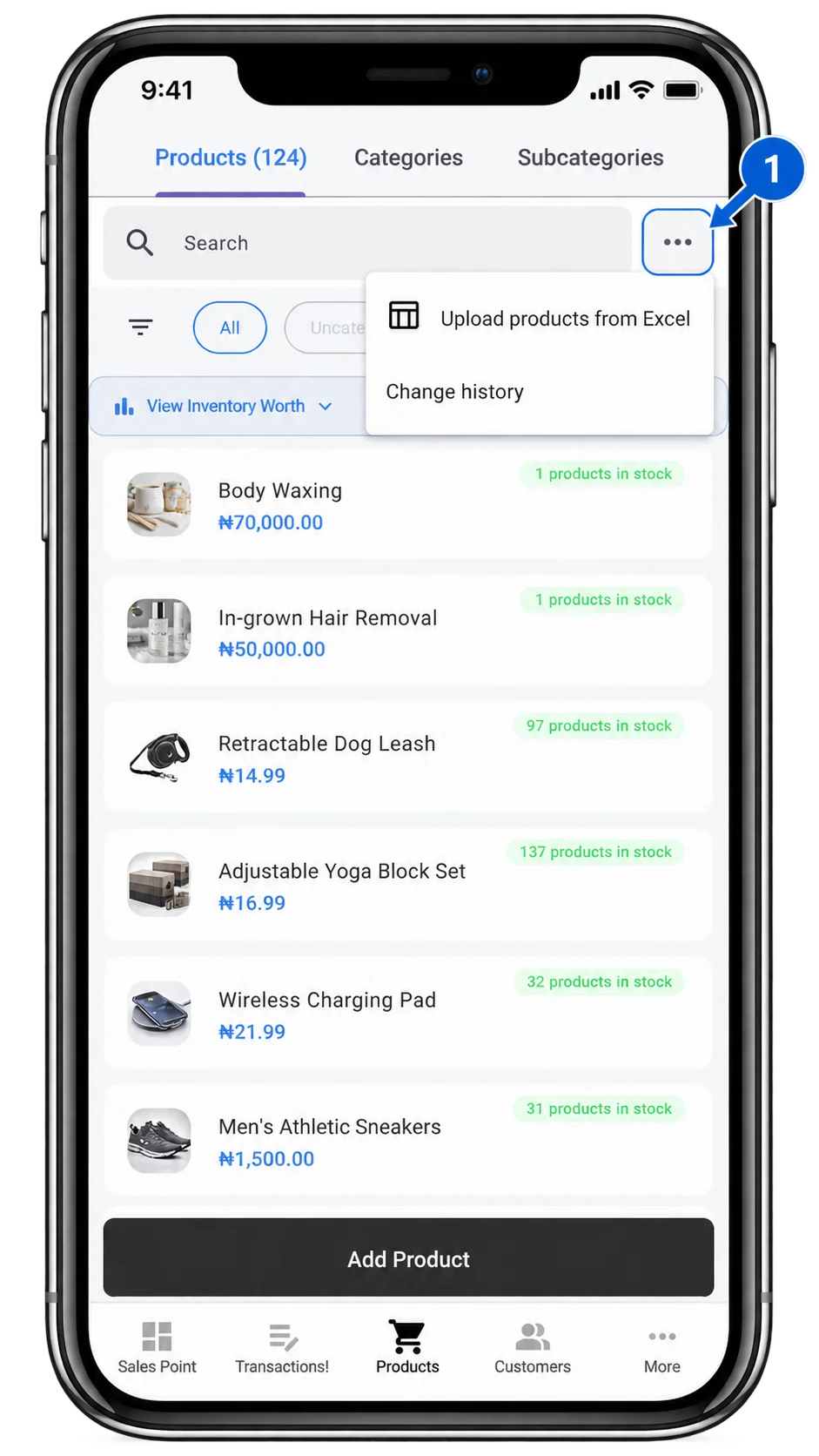
Tap the ellipsis icon beside the search bar to open the options menu. It gives you quick access to more product actions and settings.
3. Choose Upload products from Excel
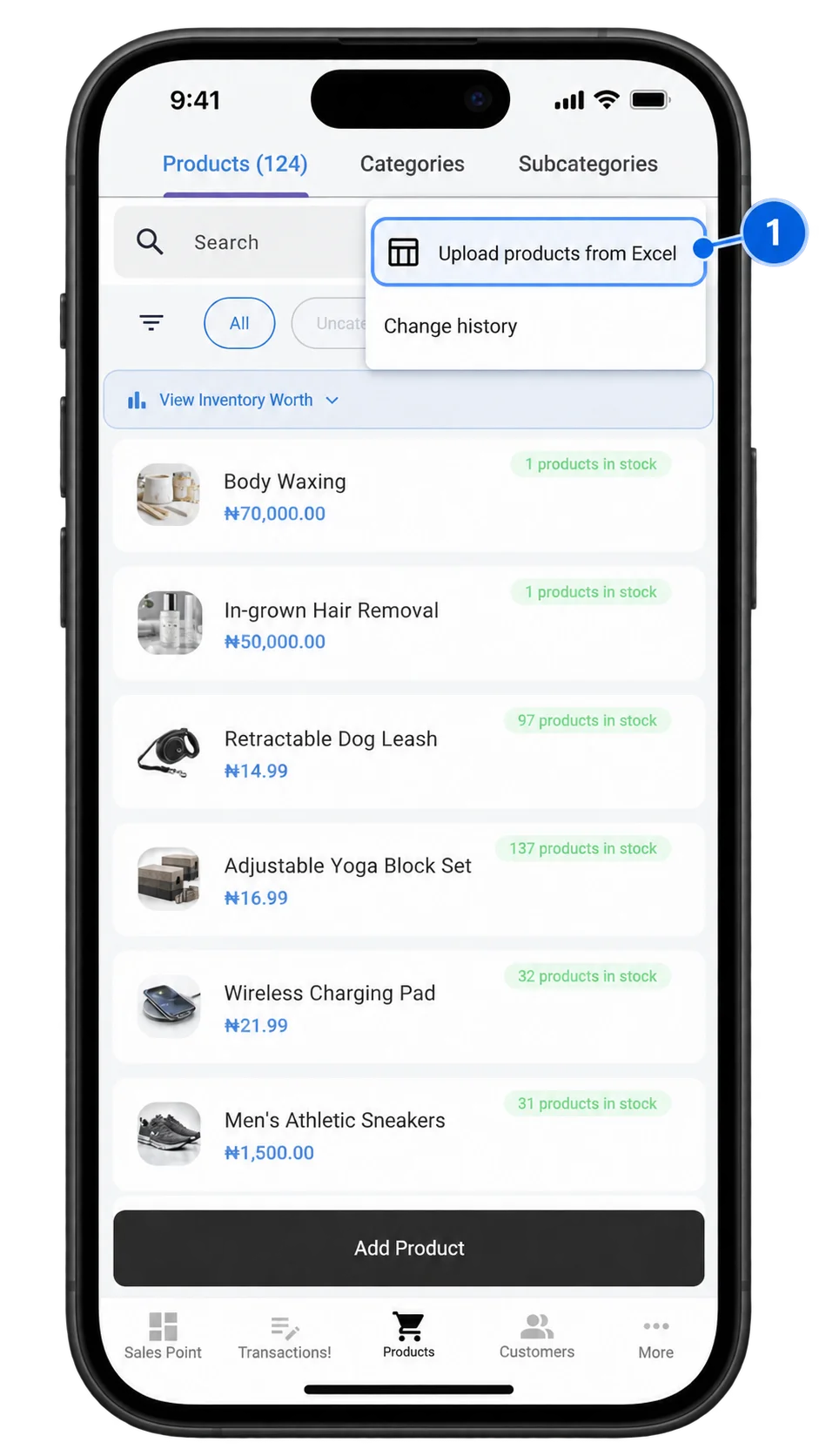
Tap Upload products from Excel from the menu to open the import page, where you can upload an Excel file and add products in bulk.
4. Download and upload the template
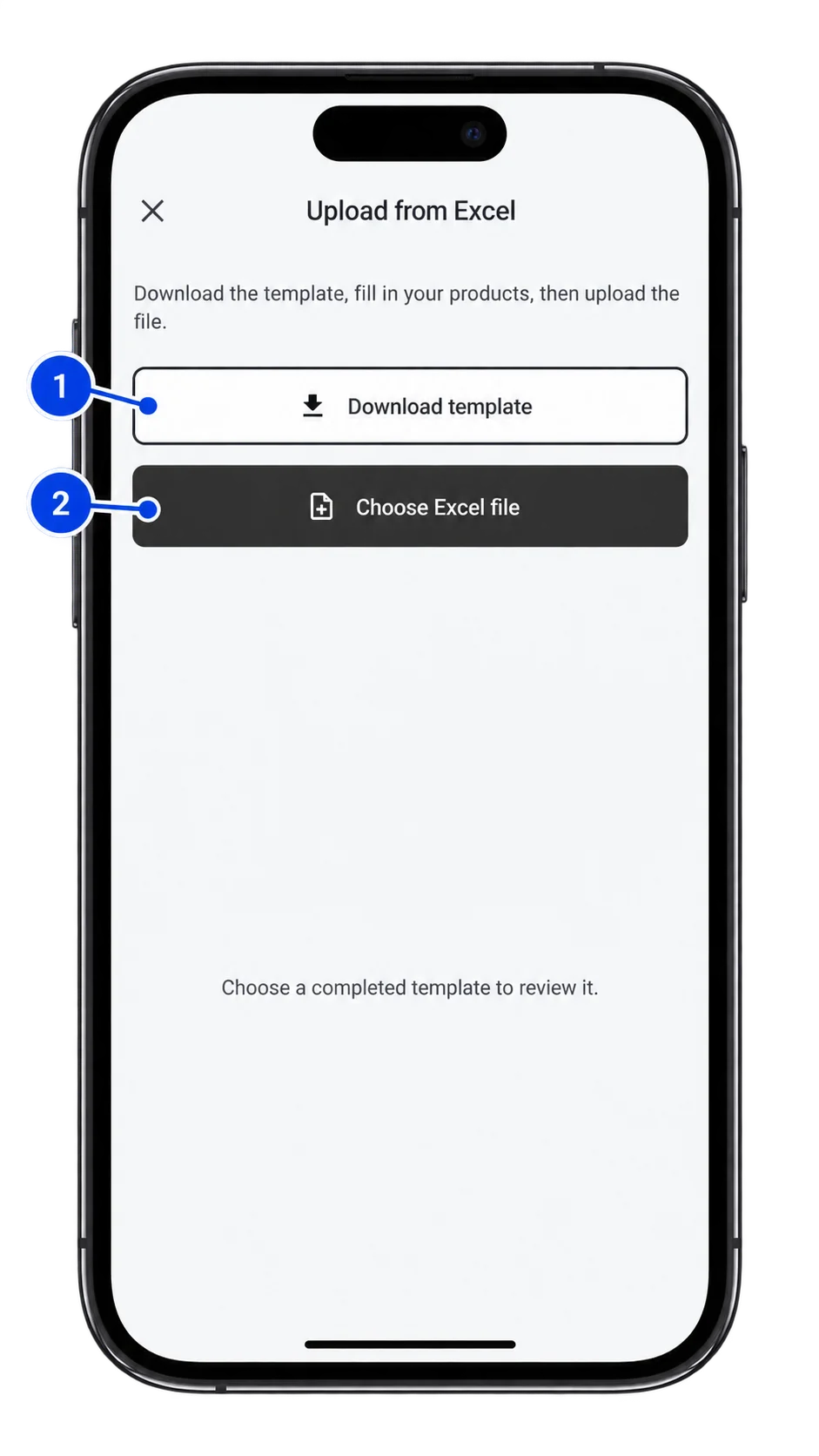
Tap Download template to get the Excel file. Add or update your product list in the template, save it on your device, then tap Choose Excel file and select the completed file.
5. Review and import your products
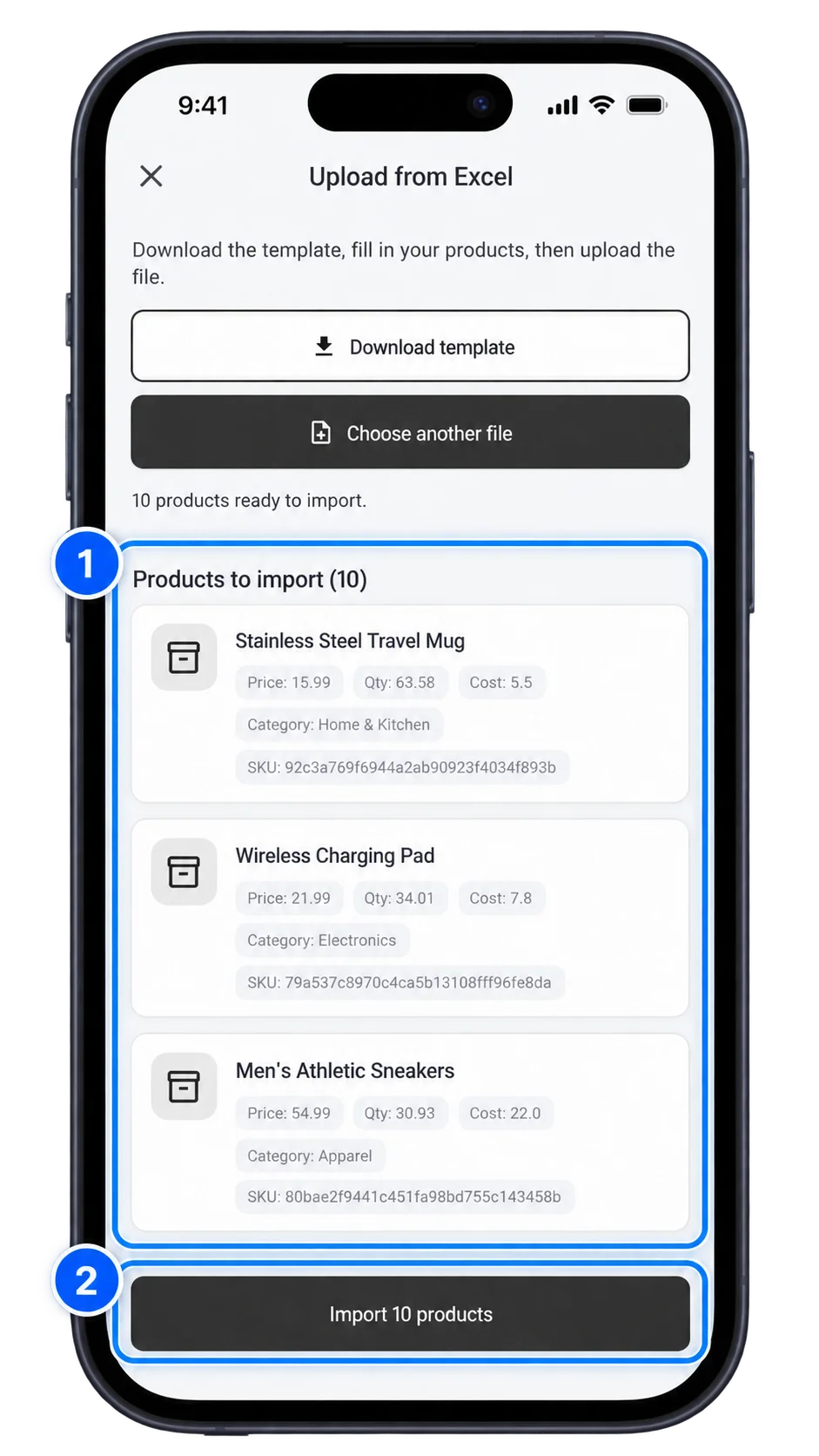
After uploading your completed Excel file, review the product preview to make sure the item details are correct. If everything looks good, tap Import products to add them to your Posa product list.
Published by Posa Technologies · getposa.com
← More guides