
Use this guide to earn from the Posa Referral Program in the web app. When another business signs up with your code and pays for a plan, you earn 10% of their subscription fee for two years. They get an extra month on their first subscription period.
1. Open Referrals
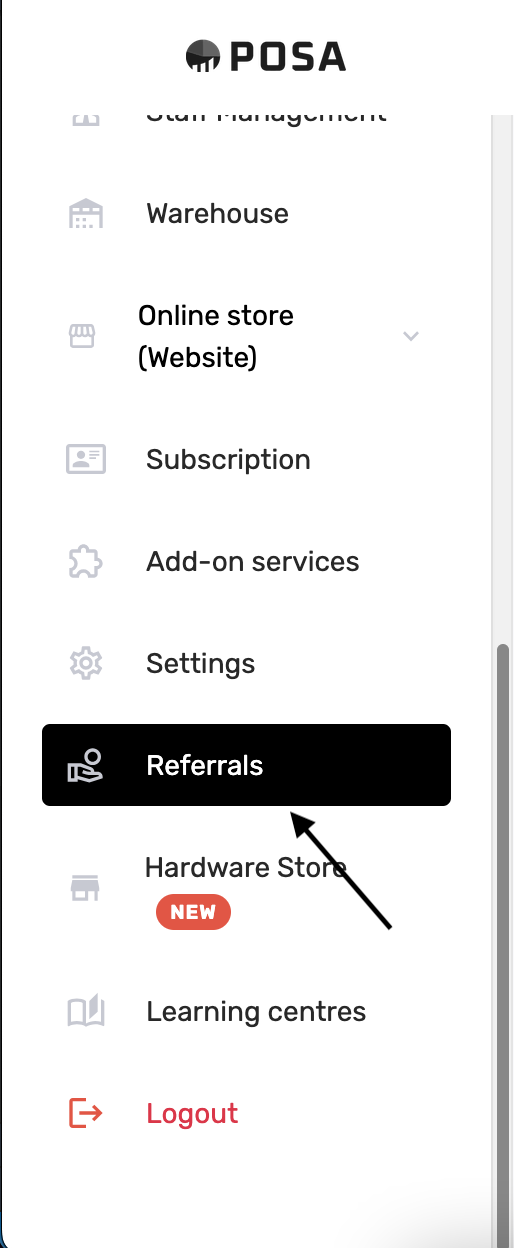
On the left sidebar, scroll to Referrals (the hand-and-coin icon) and click it. The menu item turns black when it is selected.
2. The Referral Program page
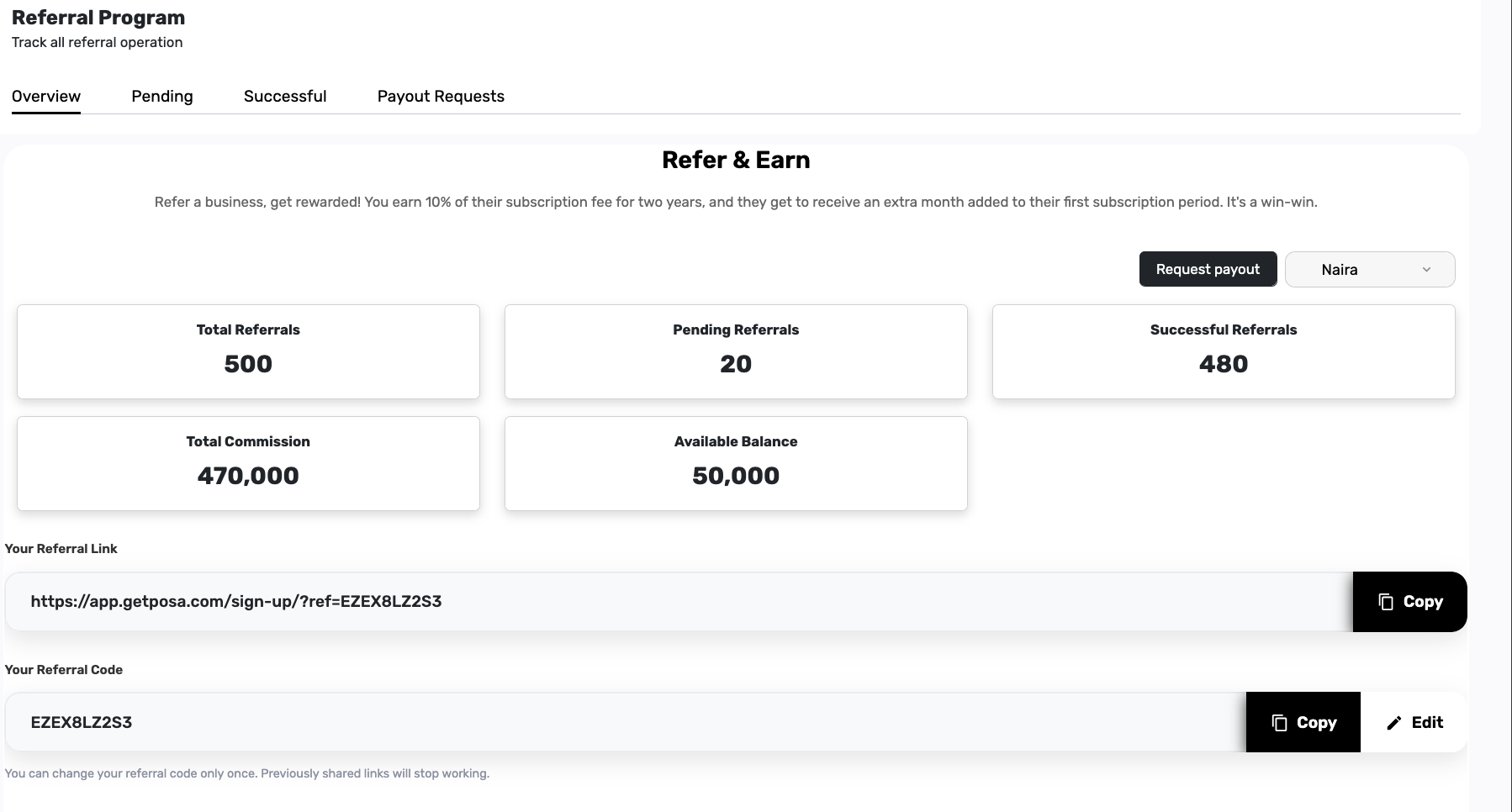
You should see Referral Program and Track all referral operation. Tabs across the top are Overview, Pending, Successful, and Payout Requests. Overview opens first — that is where you share your link and see your totals.
3. Read how Refer & Earn works

Under Overview, Refer & Earn explains the deal: you earn 10% of their subscription fee for two years, and they get an extra month on their first subscription. Keep that in mind when you invite other businesses.
4. Check your referral stats
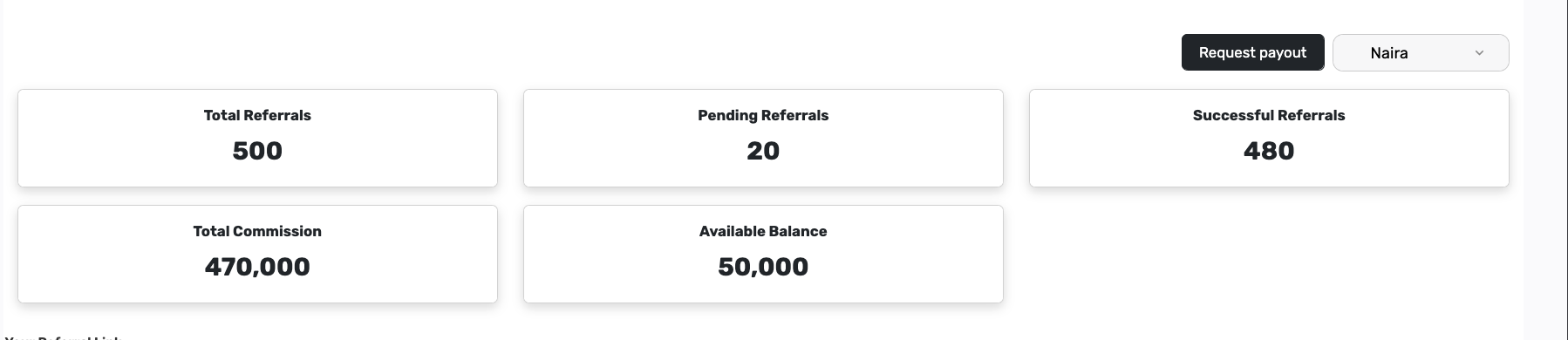
The cards summarise your Referral Program. Use the currency dropdown (for example Naira) if you earn in more than one currency. Request payout sits above the cards — you will use it later when your balance is high enough.
Total Referrals — Every business that signed up with your link or code (pending + successful).
Pending Referrals — Businesses that signed up with you but have not paid for a plan yet, so they do not earn you commission yet.
Successful Referrals — Businesses that paid for a subscription through your referral; these are the ones that generate your 10% commission.
Total Commission — Lifetime earnings from successful referrals in the selected currency (before subtracting payouts).
Available Balance — Commission you can still withdraw — total earned minus anything already requested or paid out.
5. Copy your referral link

Under Your Referral Link, click Copy. The link looks like https://app.getposa.com/sign-up/?ref=YOURCODE. Send that link to businesses you invite — when they sign up through it, they are tied to you.
6. Copy your referral code

Your Referral Code is the short code in the link (for example EZEX8LZ2S3). Click Copy if someone prefers to type the code at sign-up instead of opening the link. You can change the code only once — previously shared links stop working after you change it.
7. Edit your code (optional, once only)

Want a custom code instead of the one Posa gave you? Click Edit, type 4–16 letters or numbers, then Save. Cancel keeps the current code. You can change it only once — after you save, Edit disappears and the code is locked. Links you already shared stop working once you change it.
8. Share with friends

Under Share with friends, tap a network (Facebook, Twitter/X, LinkedIn, WhatsApp, Telegram, or email). Posa opens that app or page with your referral message and link ready to send.
9. What the other business sees at sign-up
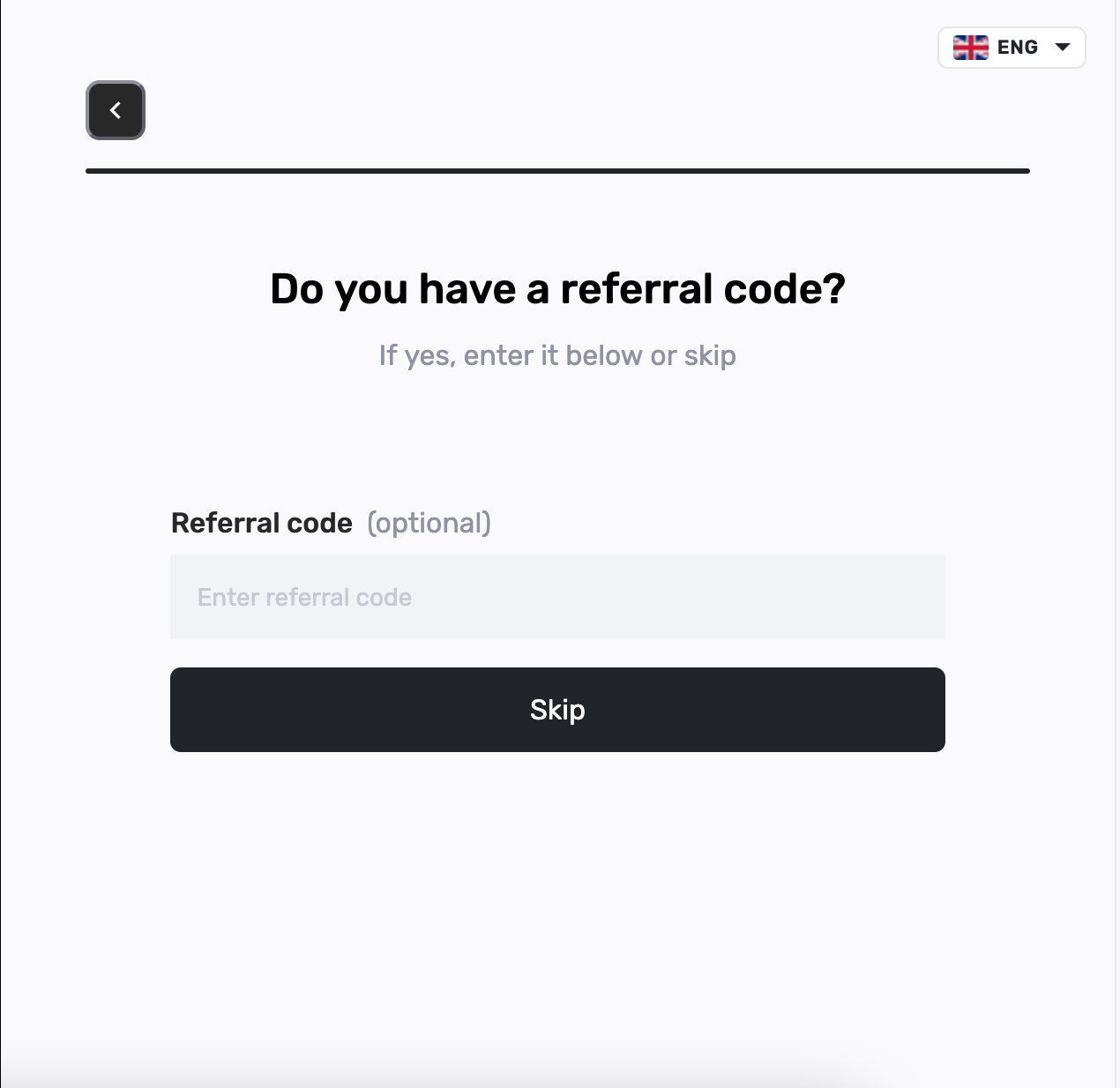
When they open your link (or sign up and reach this step), they see Do you have a referral code? They can enter your code. For you to earn, they should enter your code or use your link so the referral is attached.
10. Referral verified for them
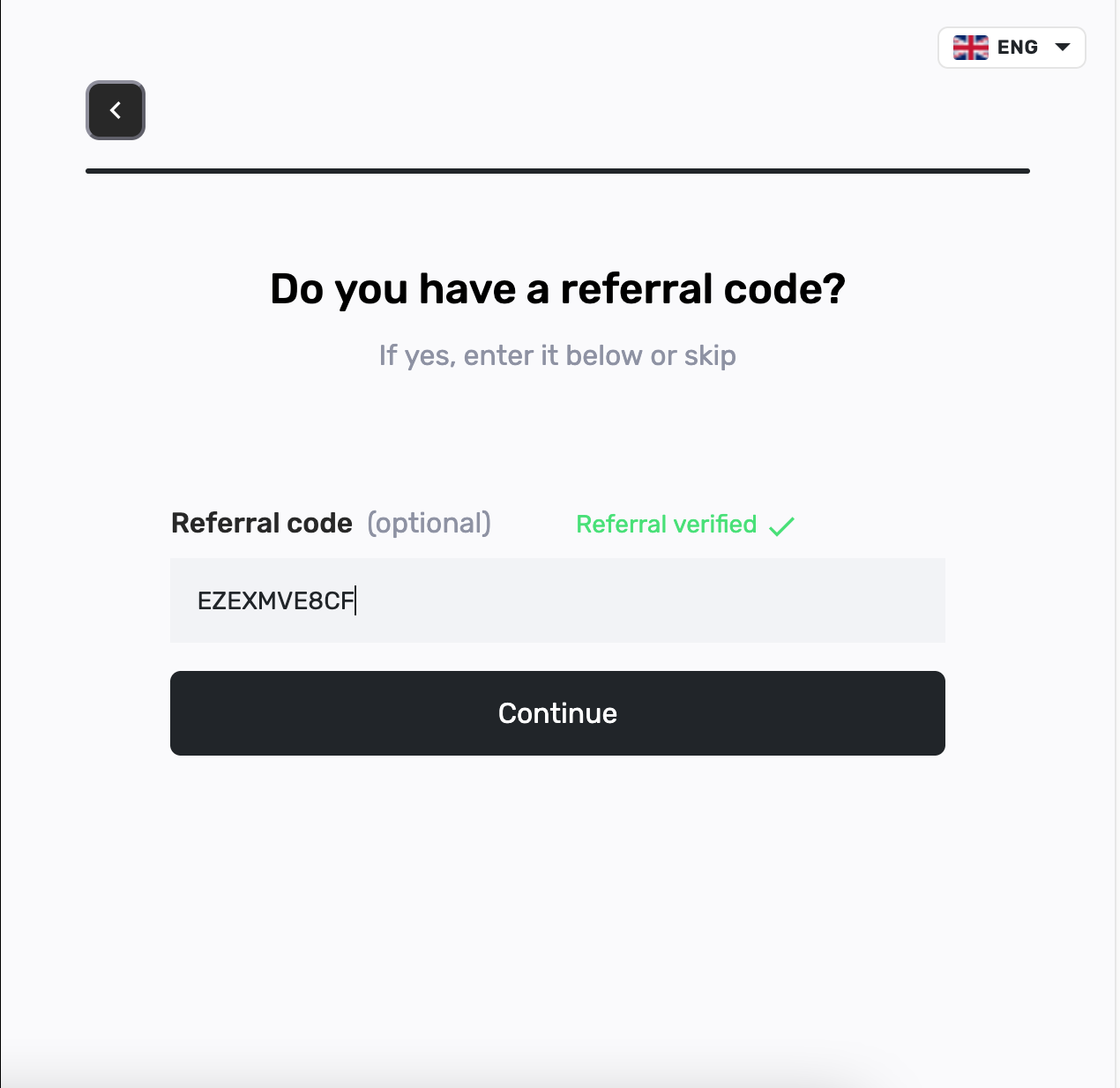
If the code is valid, they see Referral verified in green, then Continue. They still need to finish sign-up and later subscribe to a paid plan before you earn commission — signing up alone keeps them in Pending.
11. Open the Pending tab

Back in Referral Program, click Pending. These are businesses that signed up with your code but have not subscribed to a paid plan yet.
12. Read the pending list
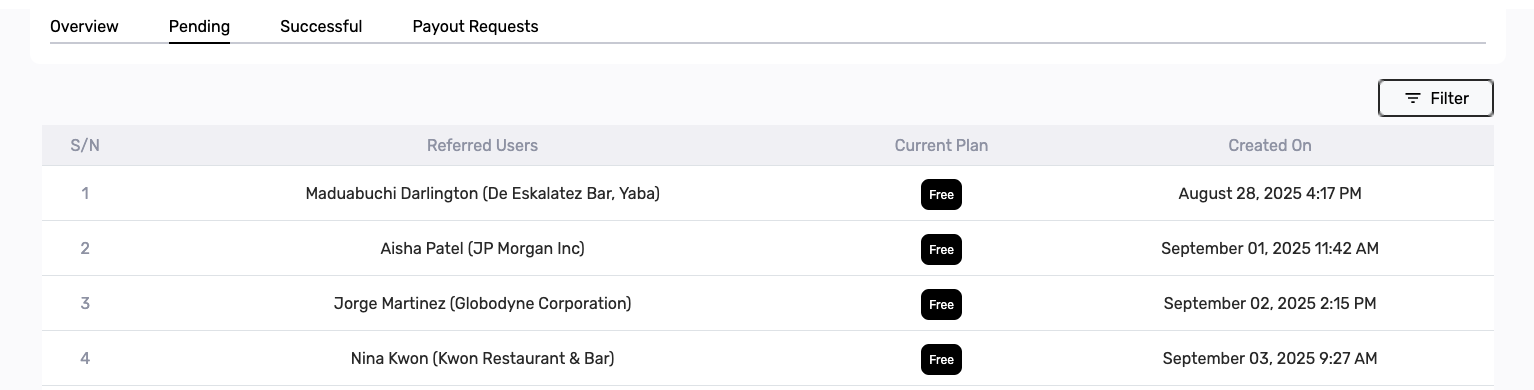
Each row shows the referred person and business name, Current Plan (often Free), and Created On. Use Filter on the right if you want a date range. No commission yet until they pay for a plan.
13. Open the Successful tab

Click Successful when a referred business has subscribed. That is where your commission-ready referrals live.
14. Read the successful list
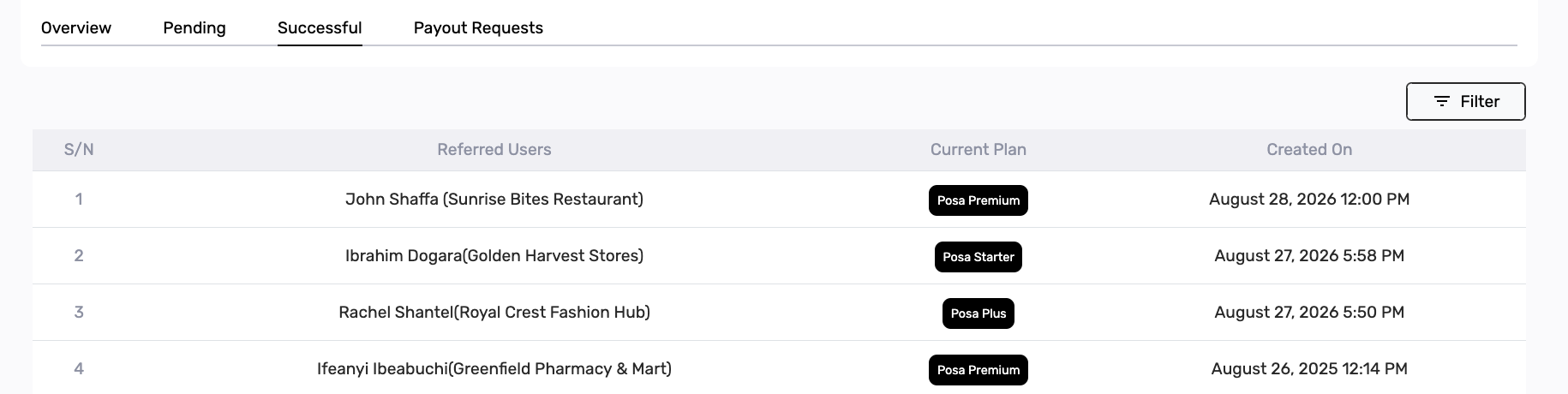
Rows show the referred user and business, their Current Plan (for example Posa Premium or Posa Starter), and Created On. Click a row to open that business’s commission history.
15. View Bonus Commission Timeline
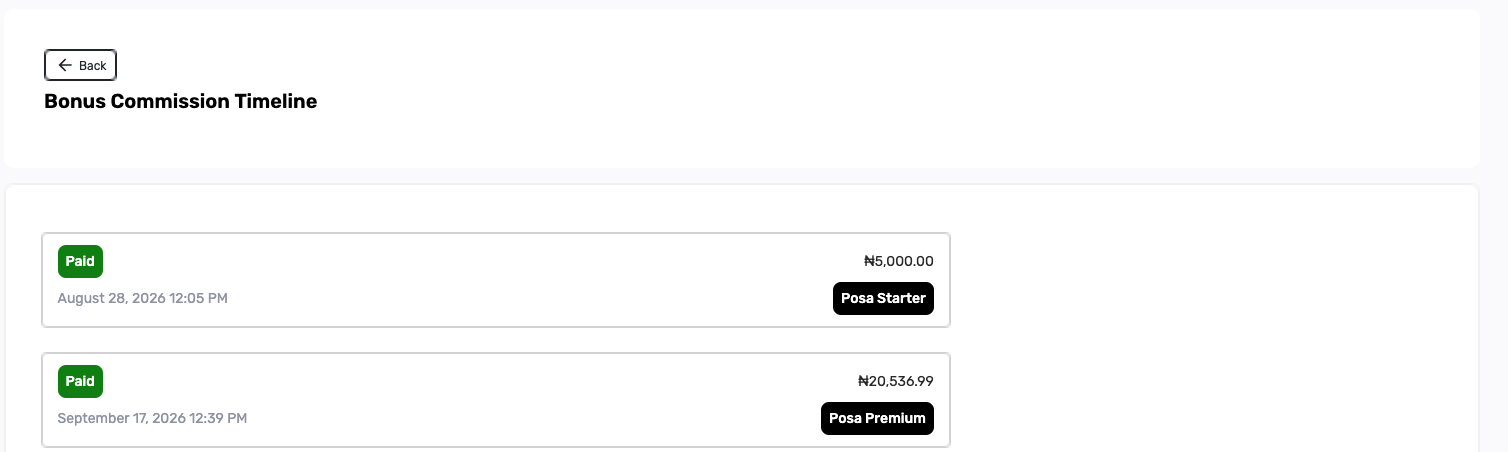
Bonus Commission Timeline lists each commission for that referred business — status (for example Paid), amount, date, and plan name. Use Back to return to Referral Program.
16. Click Request payout

On Overview, click Request payout when your Available Balance is ready. You must meet the minimum: ₦20,000 (Nigeria), GH₵500 (Ghana), or $20 (US / other). The note in the payout window reminds you of those amounts.
17. Enter bank details and submit
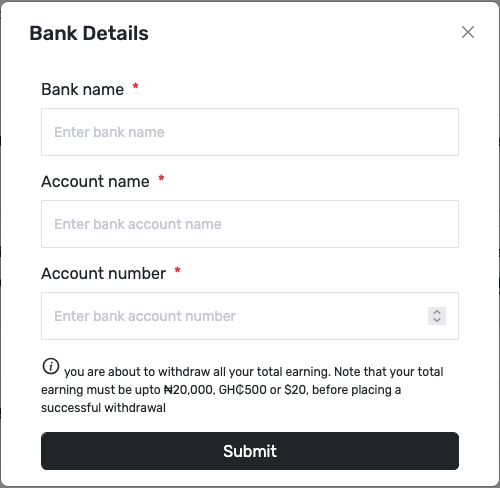
Fill Bank name, Account name, and Account number (in Ghana you may see mobile money fields instead). Read the note about withdrawing your total earning and the minimum amounts, then click Submit. This withdraws your available referral earnings when the threshold is met.
18. Track Payout Requests
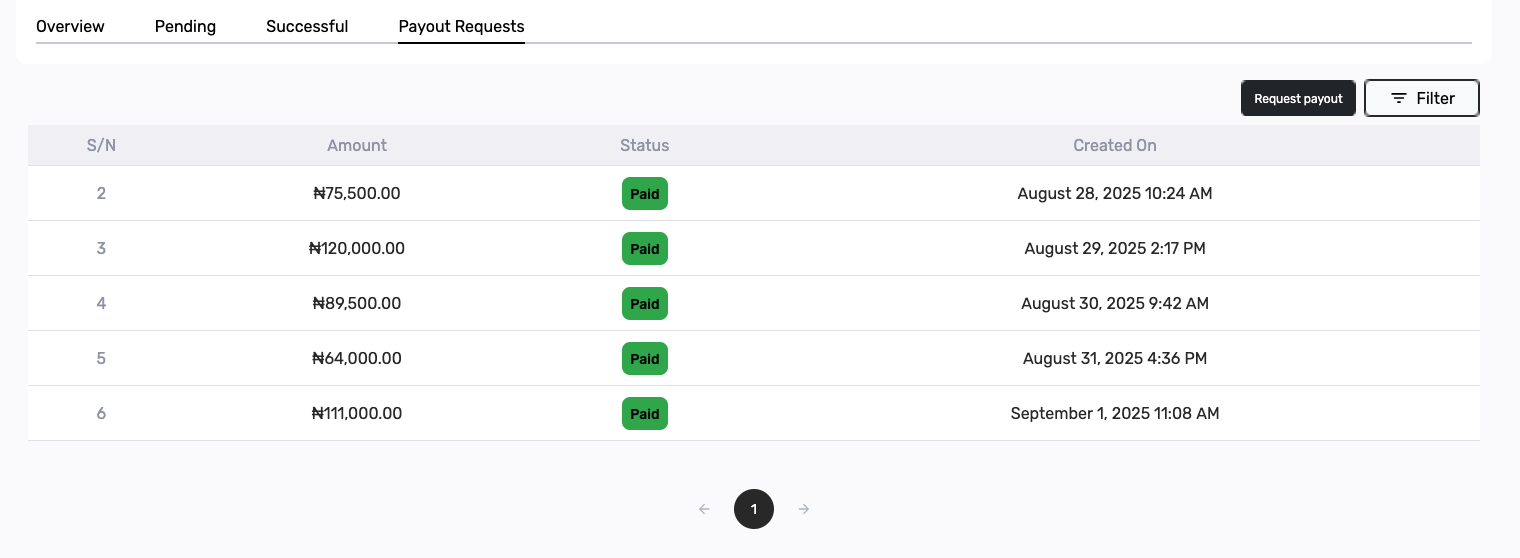
Open the Payout Requests tab to see each request — Amount, Status (for example Paid), and Created On. You can Request payout from this tab too, and use Filter if the list is long.
More program details are also on the public page: Business Partner Referral Program.
Published by Posa Technologies · getposa.com
← More guides