

Use this guide to put your Posa website on a custom address such as www.yourbusiness.com instead of the default getposa.shop URL. You can buy a name through Posa, or connect a domain you already own.
Owners, business admins, and super admins can open Domain. Payment for a new name happens on a secure checkout page — we do not show that third-party screen here. After a domain is connected, Email DNS is optional and is not covered in this guide.
1. Open Online store
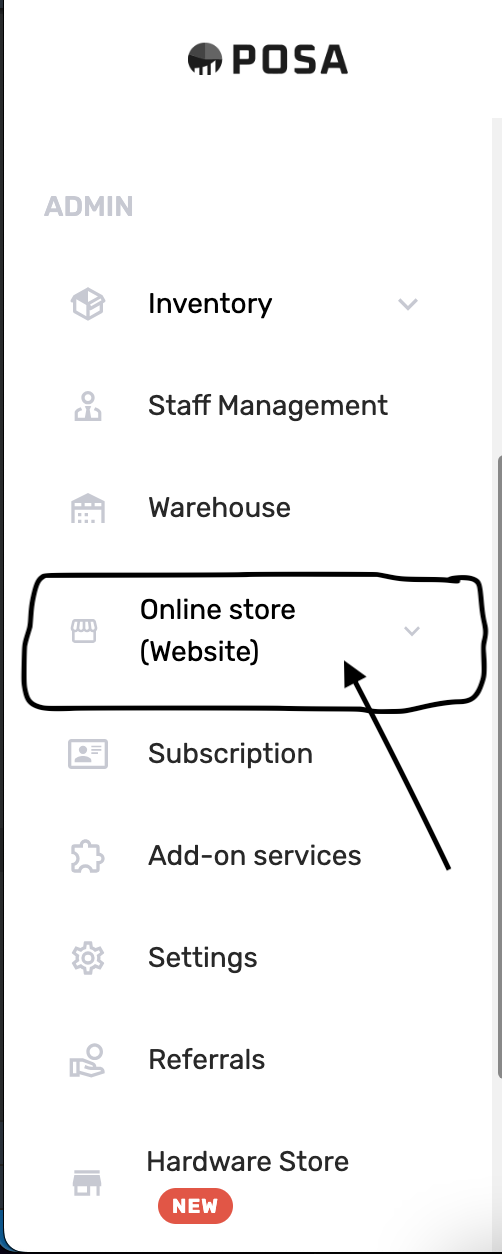
On the left sidebar, find Online store (Website) and click it. The menu expands.
2. Go to Domain
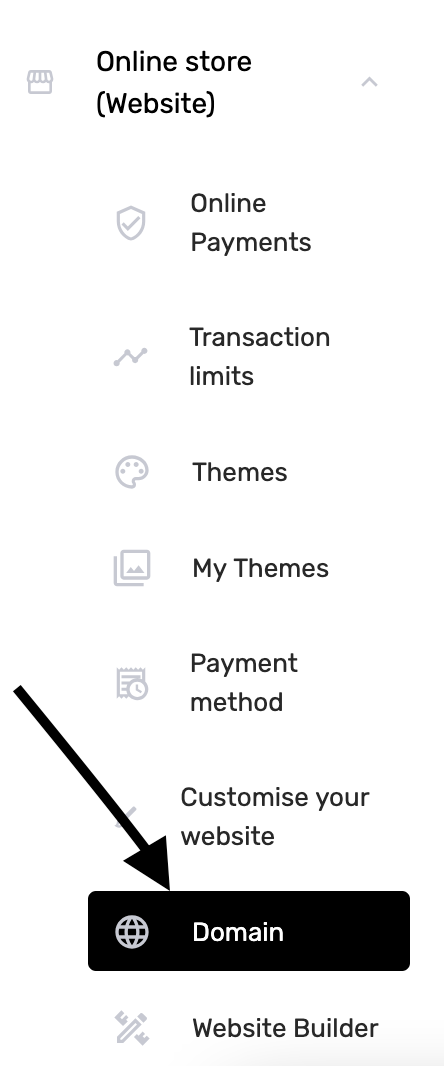
Under Online store, click Domain (the globe icon). The menu item turns black when it is selected. You land on the Domains page.
3. Read About Domains
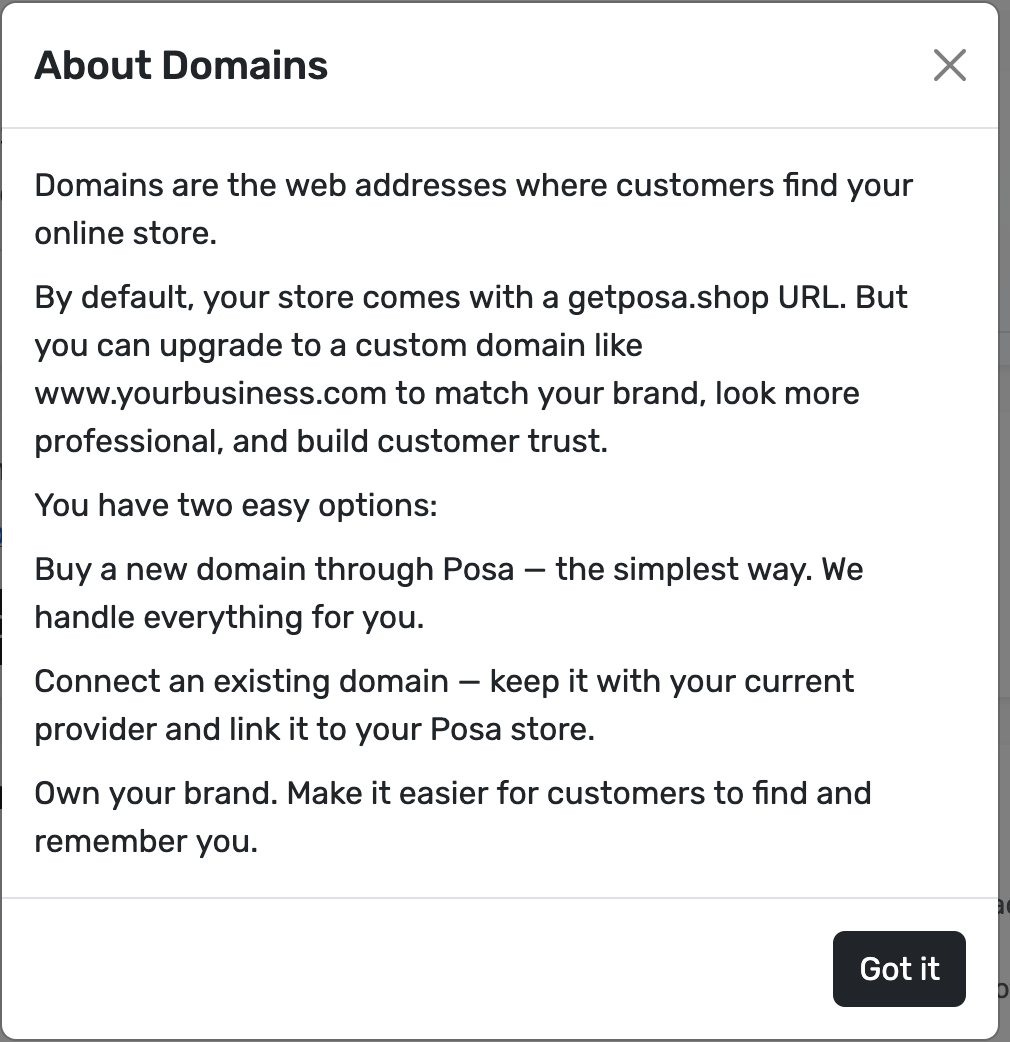
The first time you open Domain, About Domains explains the two options: buy a new name through Posa, or connect a domain that stays with your current provider. Click Got it to close the dialog. You will not see it again on later visits.
4. Check your current address
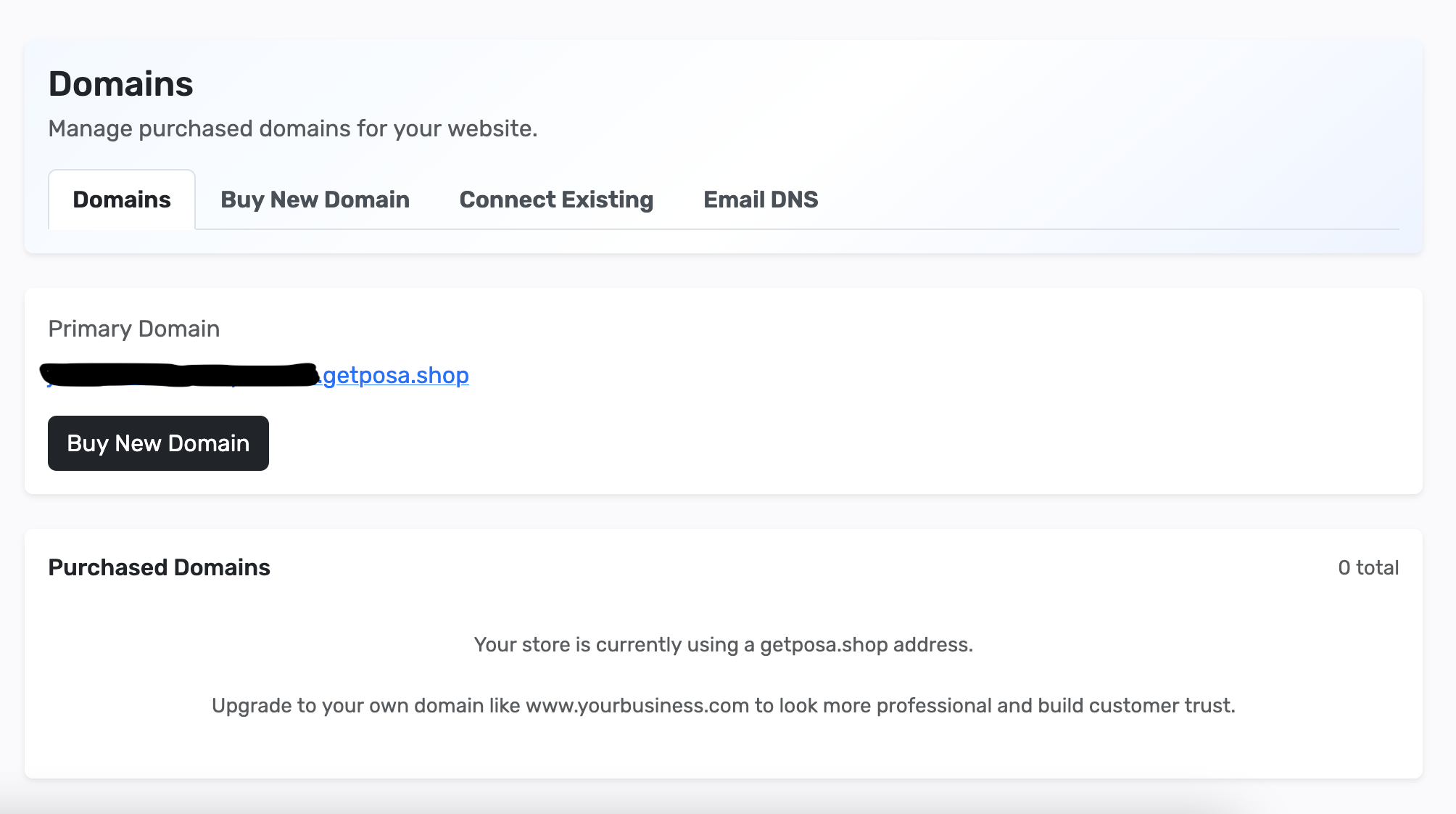
Domains lists your Primary Domain (usually something.getposa.shop until you connect a custom name) and Purchased Domains. Tabs across the top are Domains, Buy New Domain, Connect Existing, and Email DNS. Use Buy New Domain on this card, or the matching tab, if you are purchasing. Use Connect Existing if you already own a name.
Follow the shared steps, then pick a tab. Buy a new domain if you do not have one yet. Connect existing if the name already lives at another registrar.
1. Open Buy New Domain
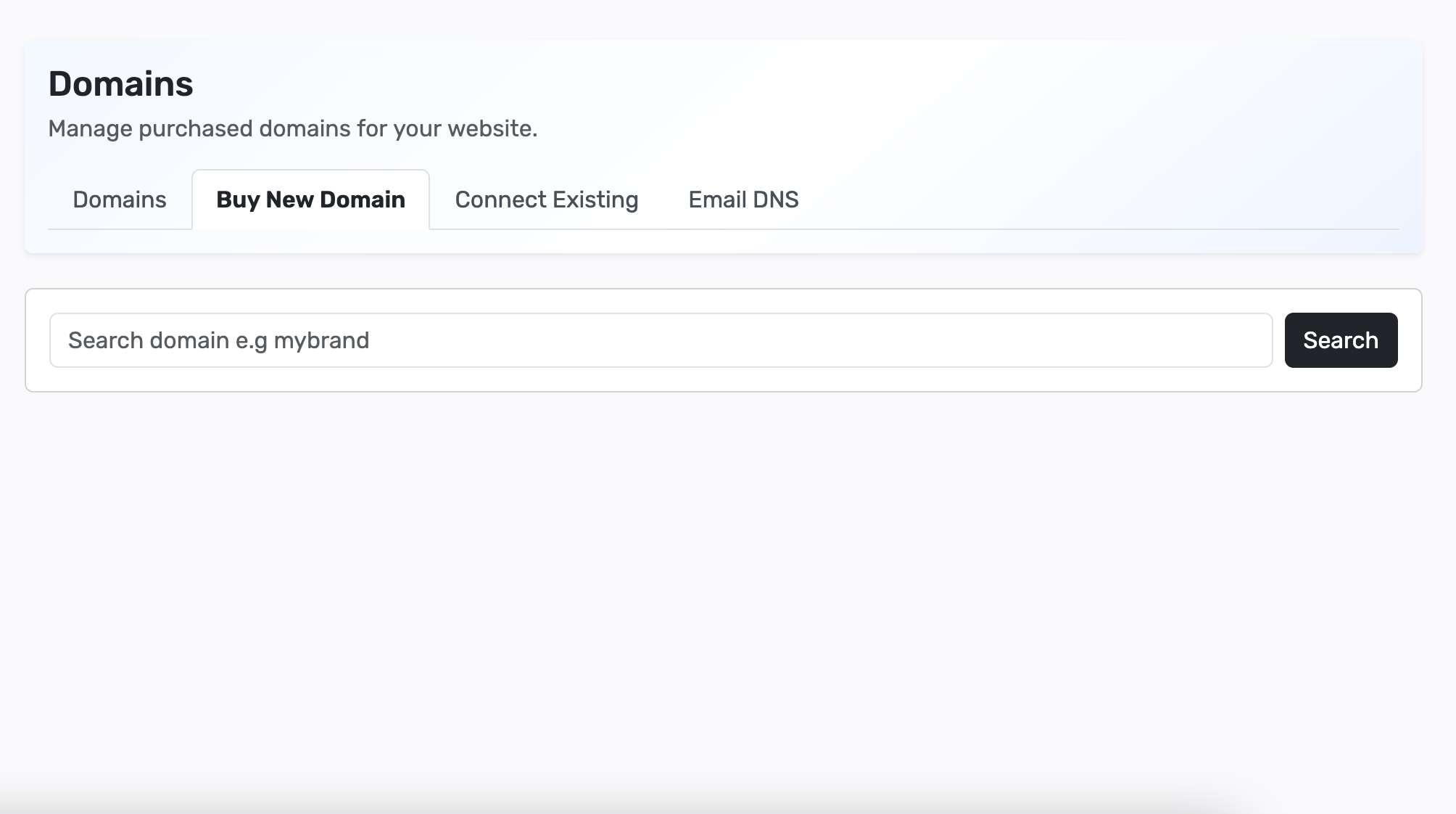
Open the Buy New Domain tab. Type the brand or shop name you want in Search domain e.g mybrand — you do not need to type .com yet — then click Search.
2. Choose an available name
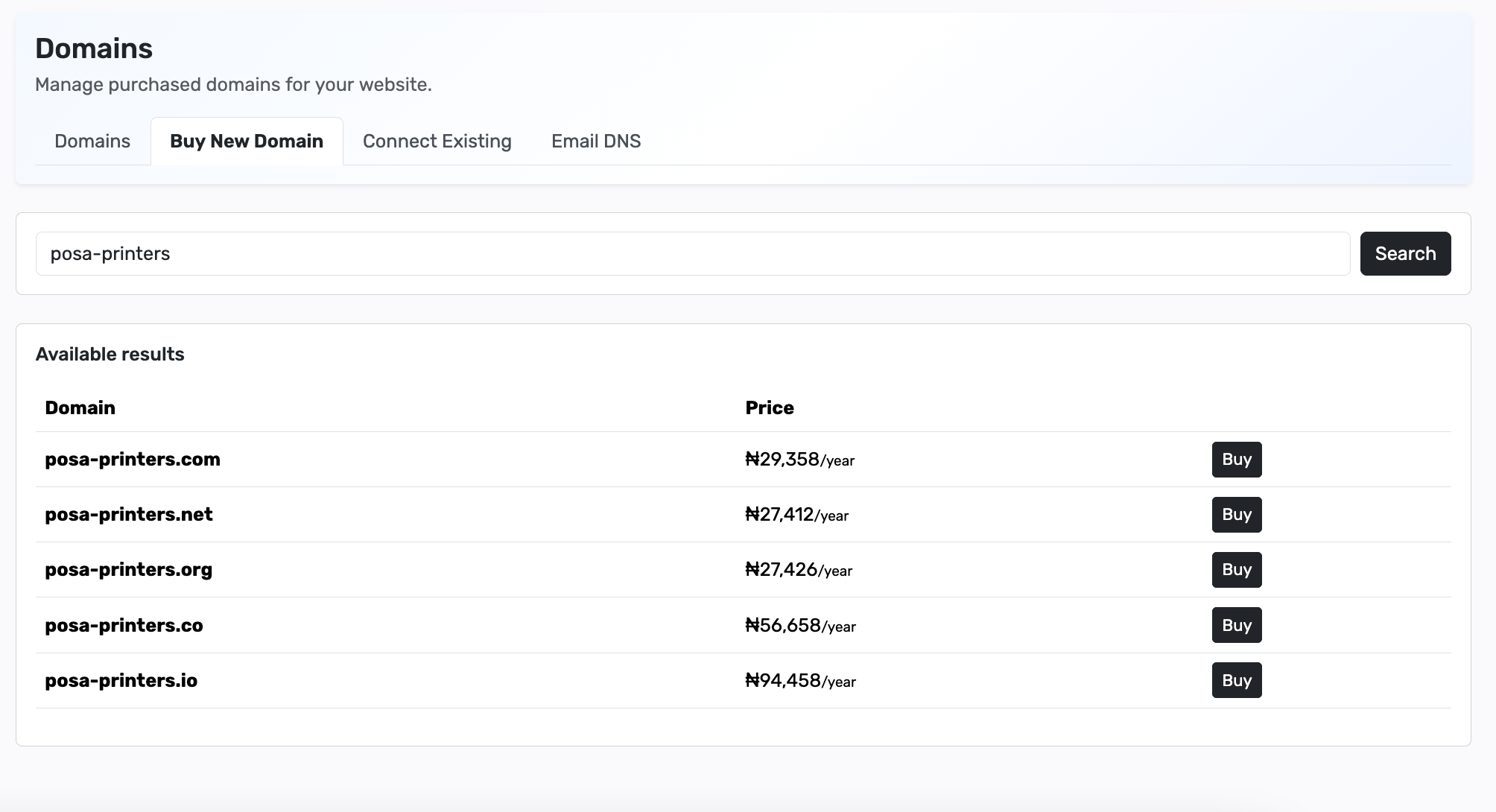
Available results lists matching names, the price per year, and Buy. Grey Unavailable rows are already taken. If your business is on Posa Elite and you still have the one-time free domain, you may see Claim free on a qualifying name instead of Buy — that skips checkout.
Click Buy on the name you want. Posa sends you to a secure payment page (Paystack, Flutterwave, Stripe, or mobile money, depending on your country). Complete payment there, then wait to be returned to Posa.
3. Wait while Posa connects the domain

After a successful payment (or a free claim), you return to Domains with a banner: Your Domain is being connected. This will take 24 to 48hrs to complete. You do not change nameservers for a domain bought through Posa — setup continues on its own.
4. Check Purchased Domains

Purchased Domains shows the name, amount, expiry, and status. Status moves from payment or registration through linking. When the internet has picked up the name, it becomes Connected. Refresh later if it still says it may take up to 24–48 hours. When it is due for renewal, Renew appears in Actions.
Ready to put your Posa store on your own domain?
Start your free trial at getposa.com
Get Started FreePublished by Posa Technologies · getposa.com
← More guides