

A website on Posa comes together in four parts: set up a domain, choose a theme, customise the design, and connect a payment gateway. Start with your domain below.
Set up your domain, choose a theme, customise your website, then connect online payments.
1. Open Domains
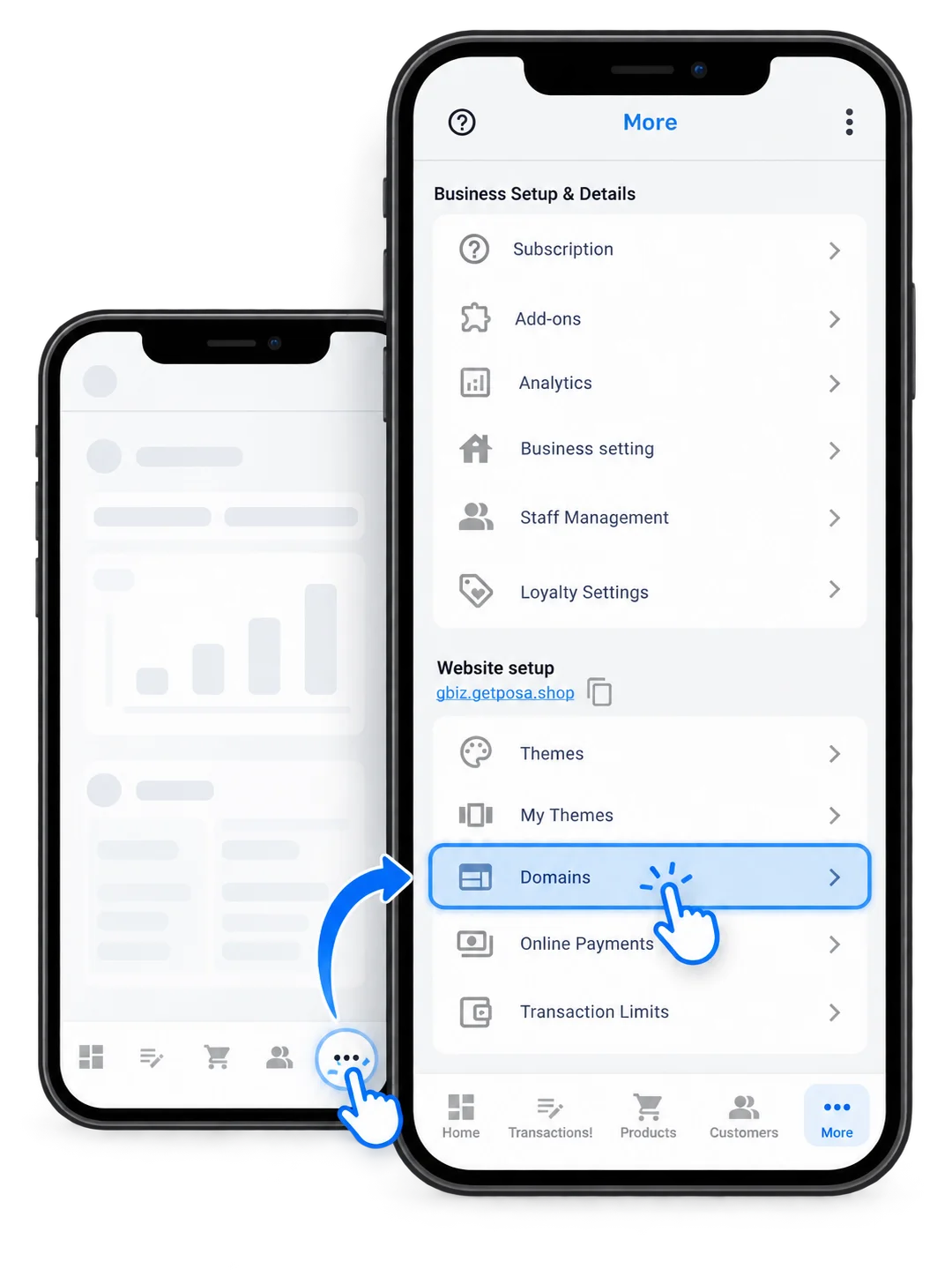
From the bottom navigation bar, tap More. On the More screen, select Domains under Website setup to manage your business domain settings.
Purchasing a domain
2. Start buying a domain
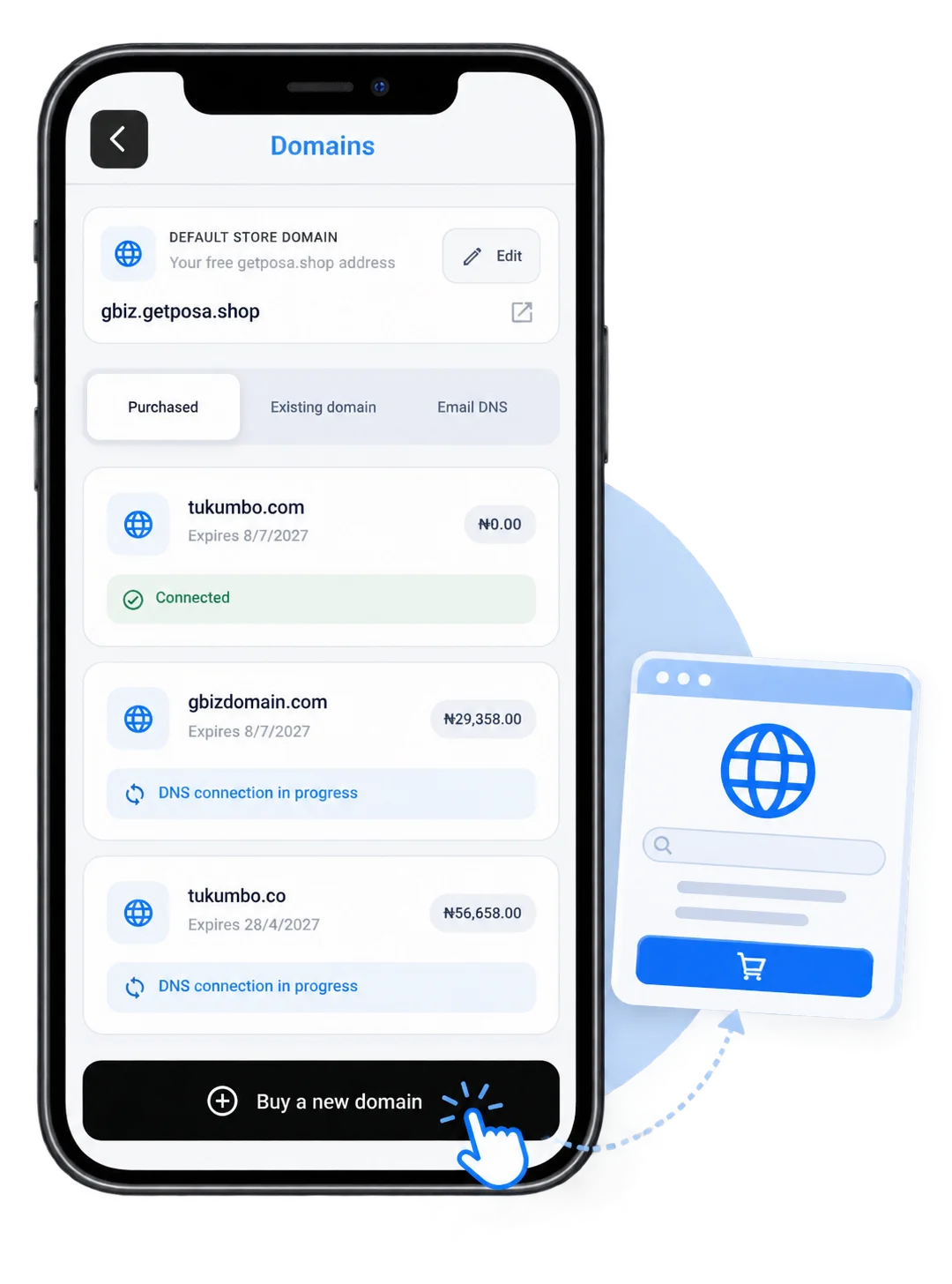
On the Domains screen, you can either purchase a new domain or connect one you already own. To set up a new domain for your business, tap Buy a new domain at the bottom of the screen to continue to the Buy new domain page.
3. Search for a domain
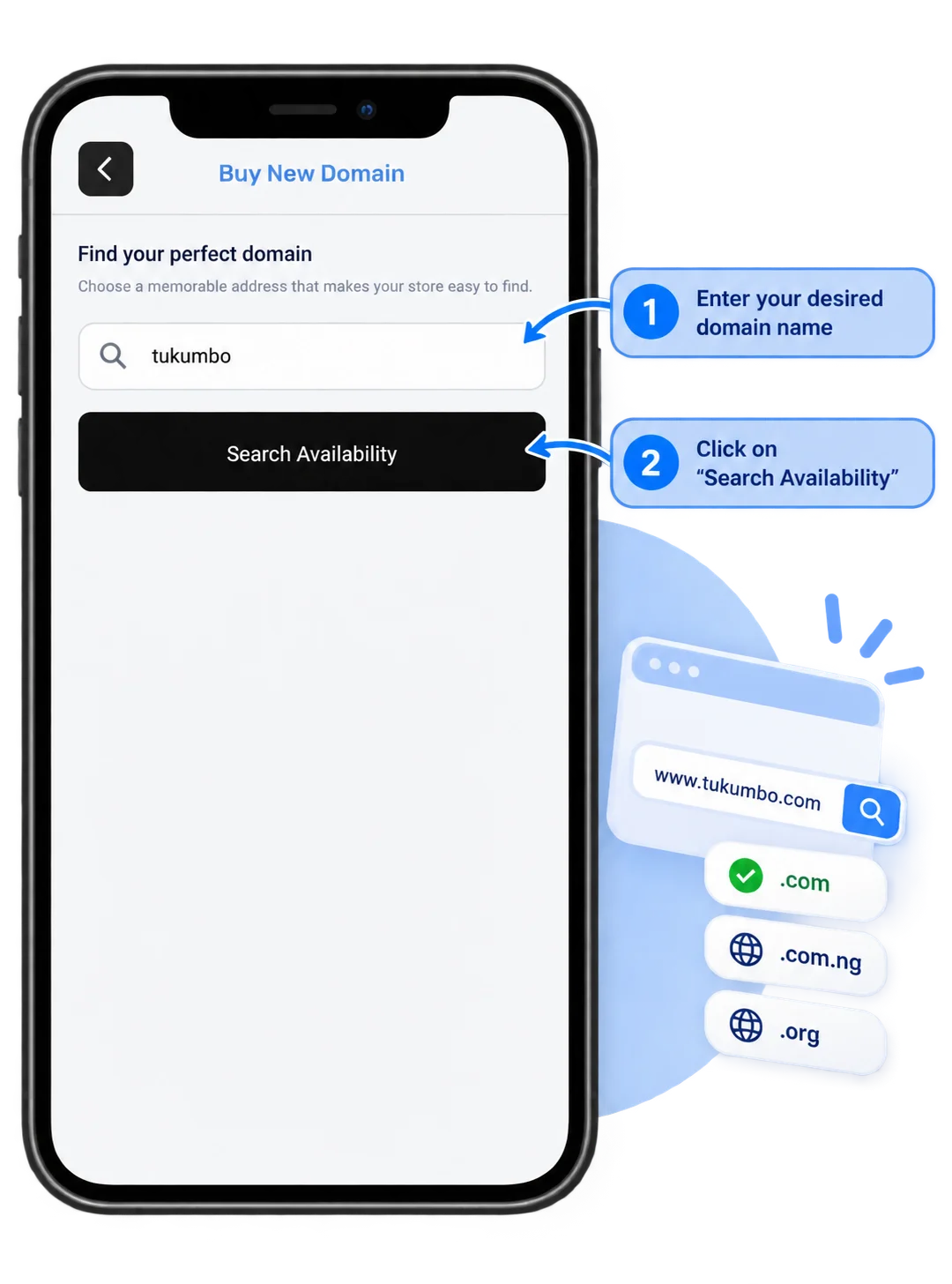
Enter the domain name you would like to purchase, then tap Search Availability. Posa checks whether the domain is available and shows the available options.
4. Choose an available domain
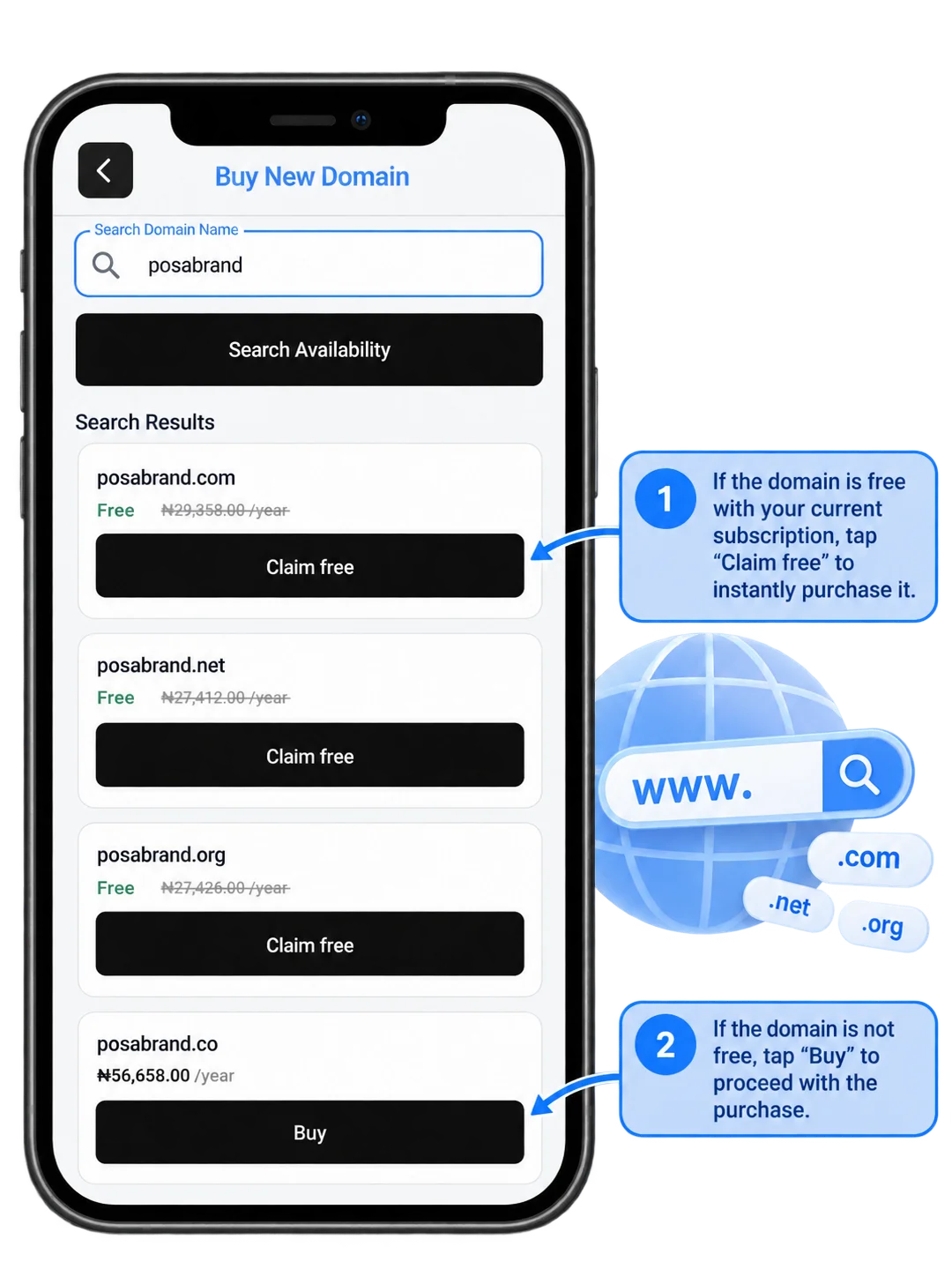
Review the available domain options in the search results. If your subscription includes a free domain, tap Claim free on your preferred option; otherwise, tap Buy to continue with the purchase process.
5. Claim a free domain
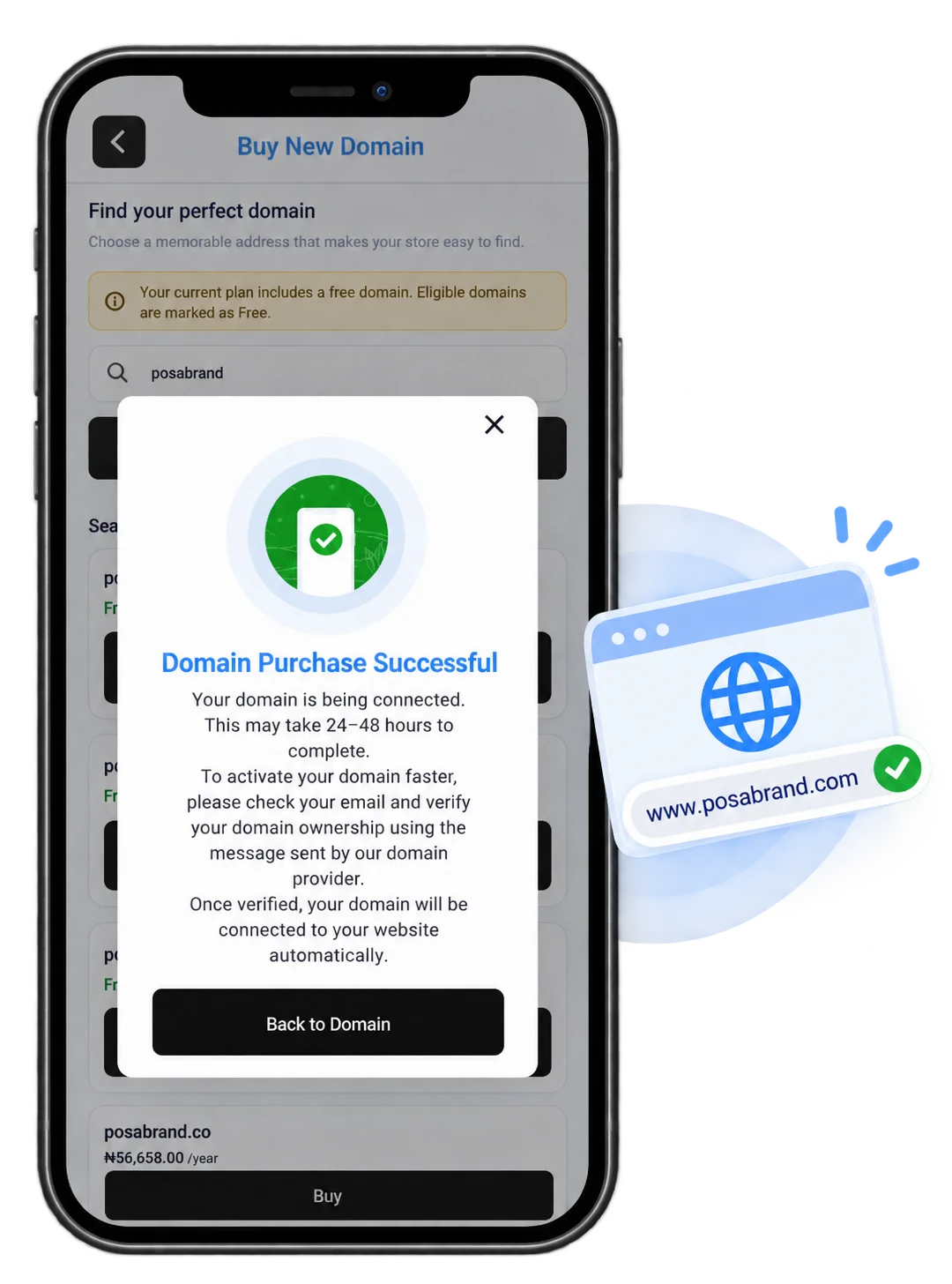
Tapping Claim free automatically purchases the selected domain and starts the domain setup process. Posa begins connecting the domain to your website; follow any verification instructions shown to complete the setup.
6. Buy a paid domain
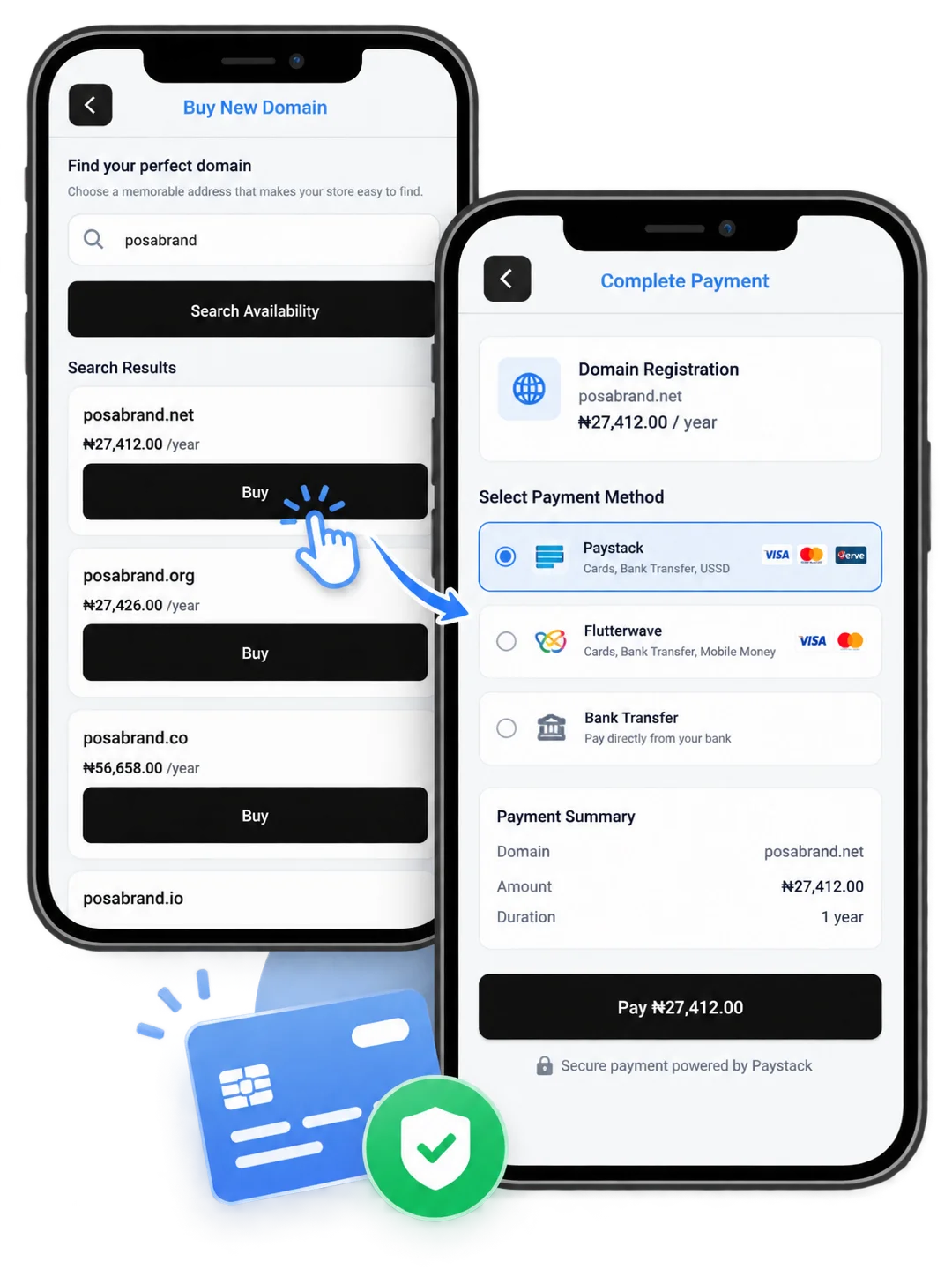
Tap Buy on your preferred domain to open the payment gateway and complete the purchase. Once payment is successful, Posa begins the domain setup and connection process.
7. Choose a payment method
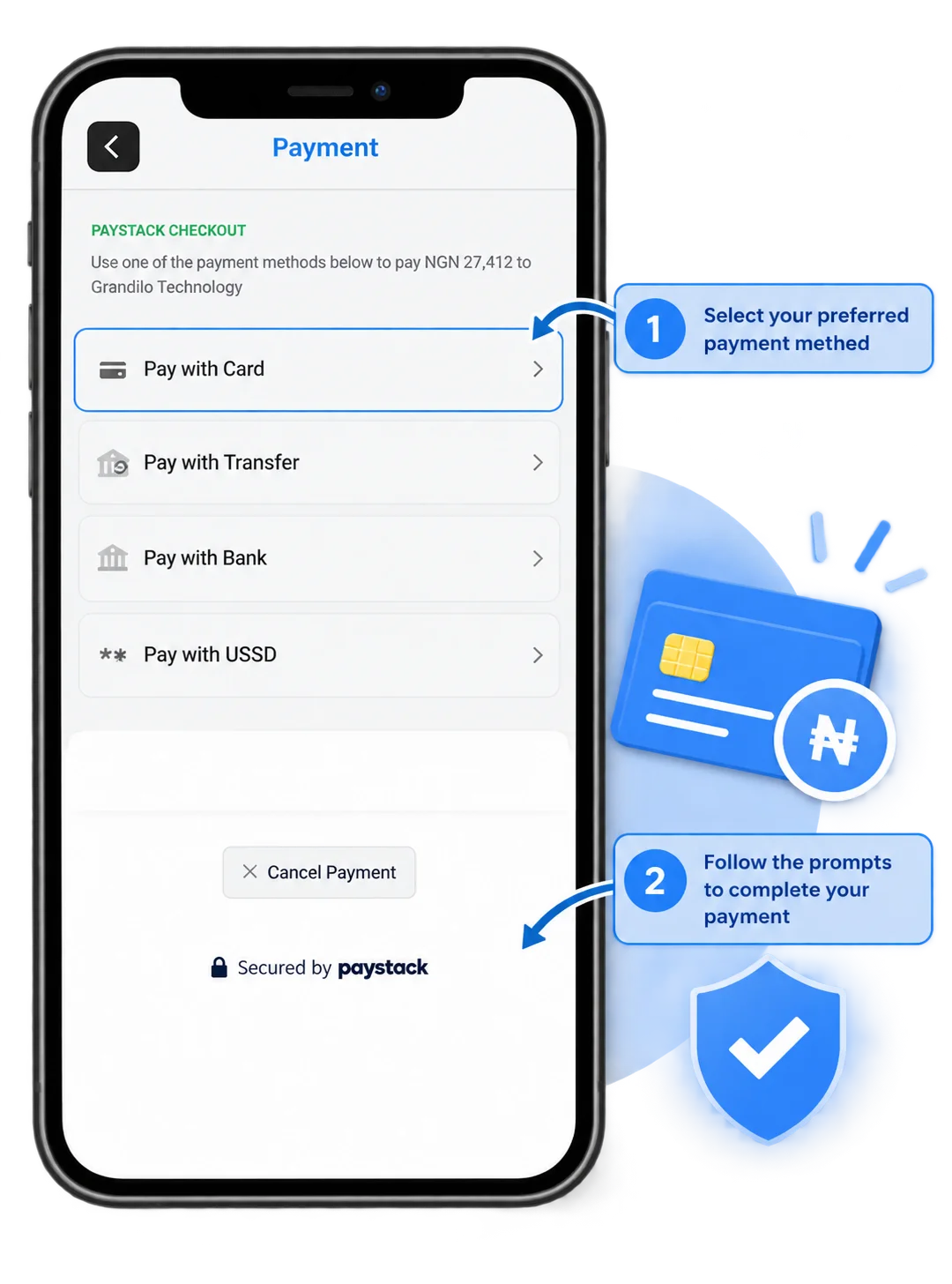
Select your preferred payment method from the available options. The methods shown may vary depending on your country, so choose one and follow the on-screen prompts to complete the payment.
8. Let Posa set up the domain
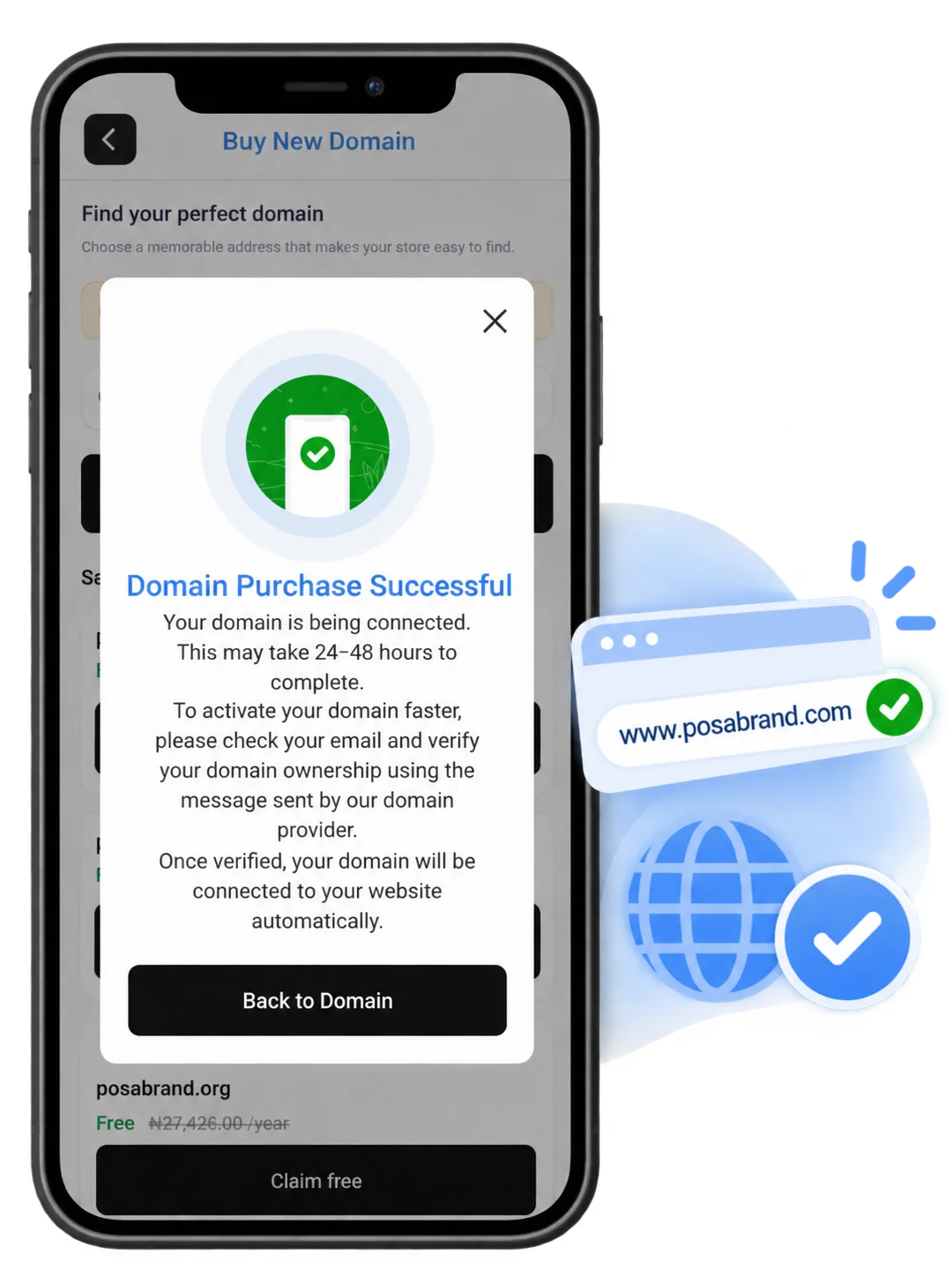
Once your payment is successful, Posa automatically begins setting up and connecting your domain to your website. Follow any verification instructions shown to complete the activation process.
9. Track a purchased domain
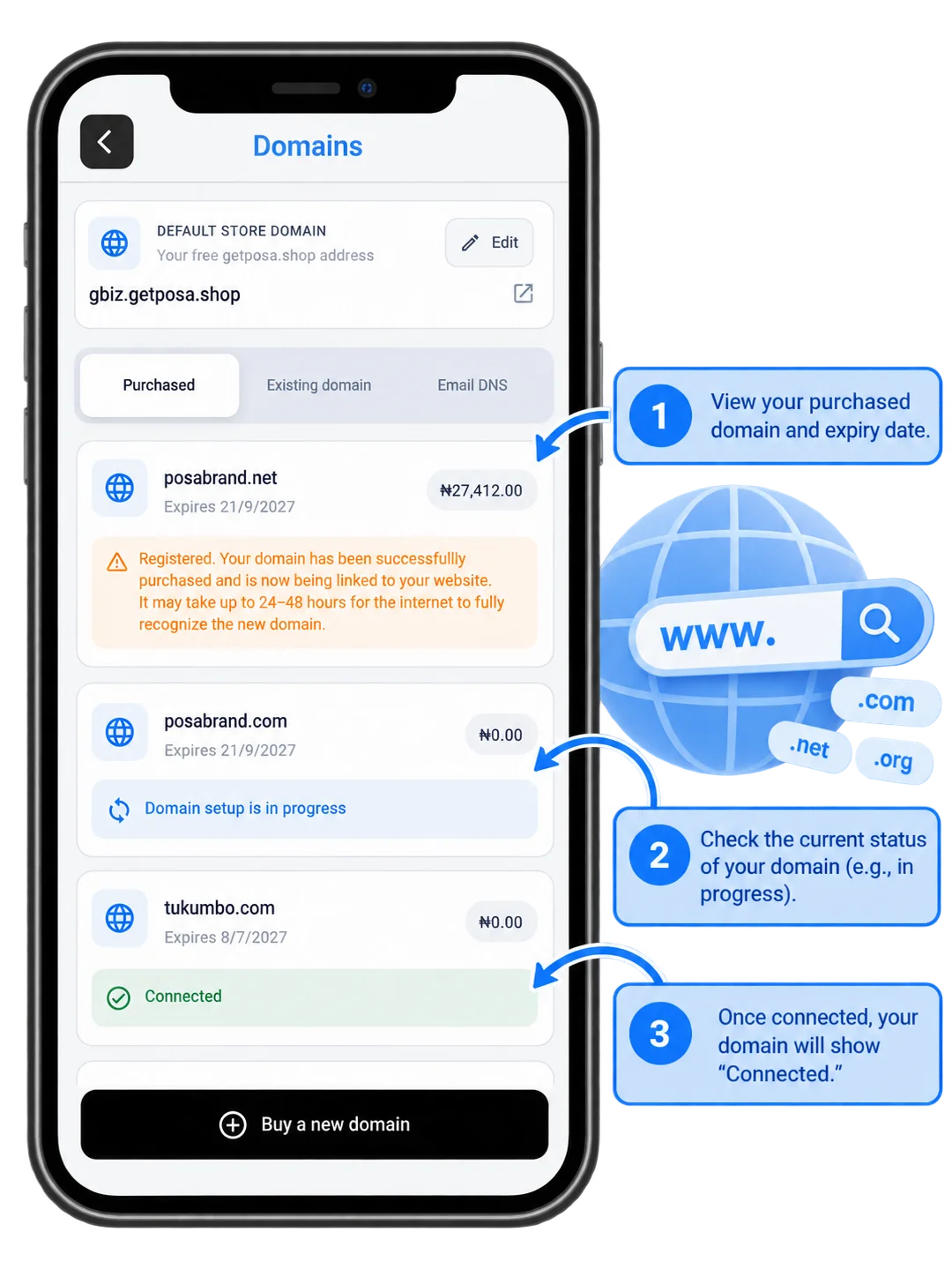
You can monitor the status of your purchased domains from the Purchased tab on the Domains screen. Each domain shows its current connection status, such as Registered, Setup in progress, or Connected.
Connecting an existing domain
10. Add an existing domain
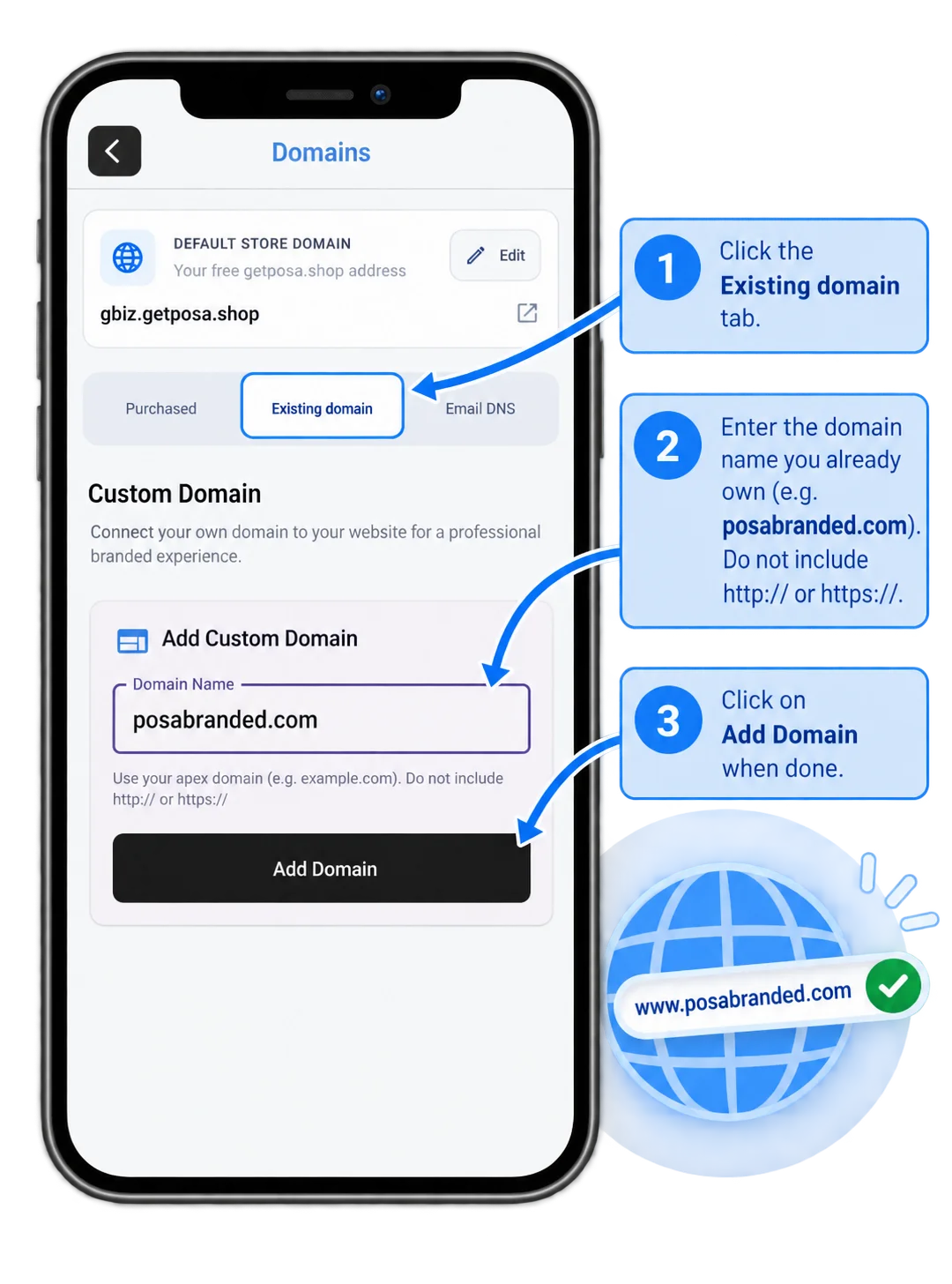
On the Domains screen, open the Existing domain tab. Enter the domain name you already own without http:// or https://, then tap Add Domain to begin connecting it to your Posa website.
11. Update your nameservers
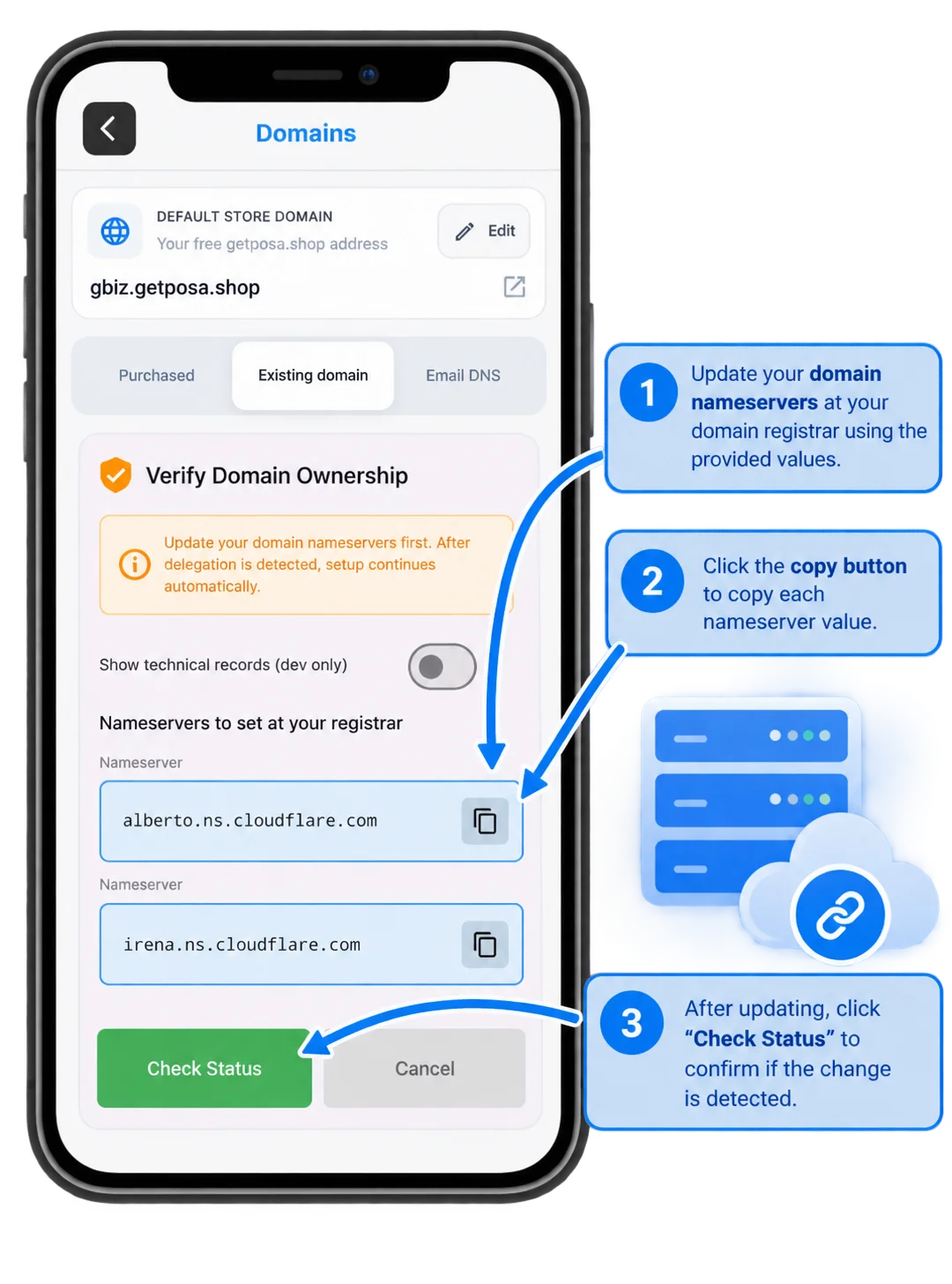
Copy the two nameserver values shown in Posa and update them at the registrar where your domain is managed. Once the nameserver changes are saved, return to Posa and tap Check Status to confirm that the update has been detected.
12. Check the setup status
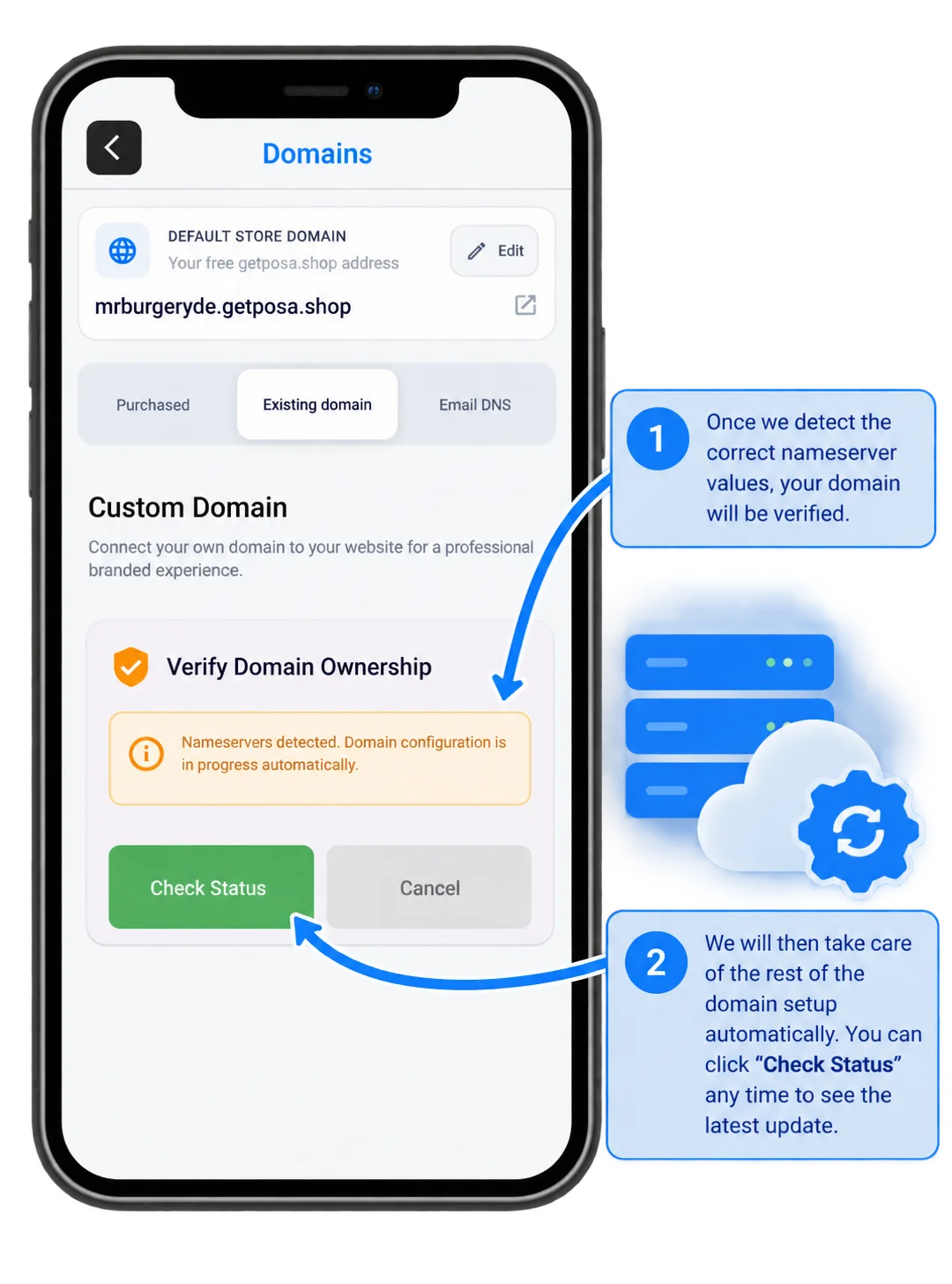
Once Posa detects the correct nameserver values, the remaining domain configuration continues automatically. You can return to this screen and tap Check Status at any time to monitor setup progress.
13. Confirm the domain is connected
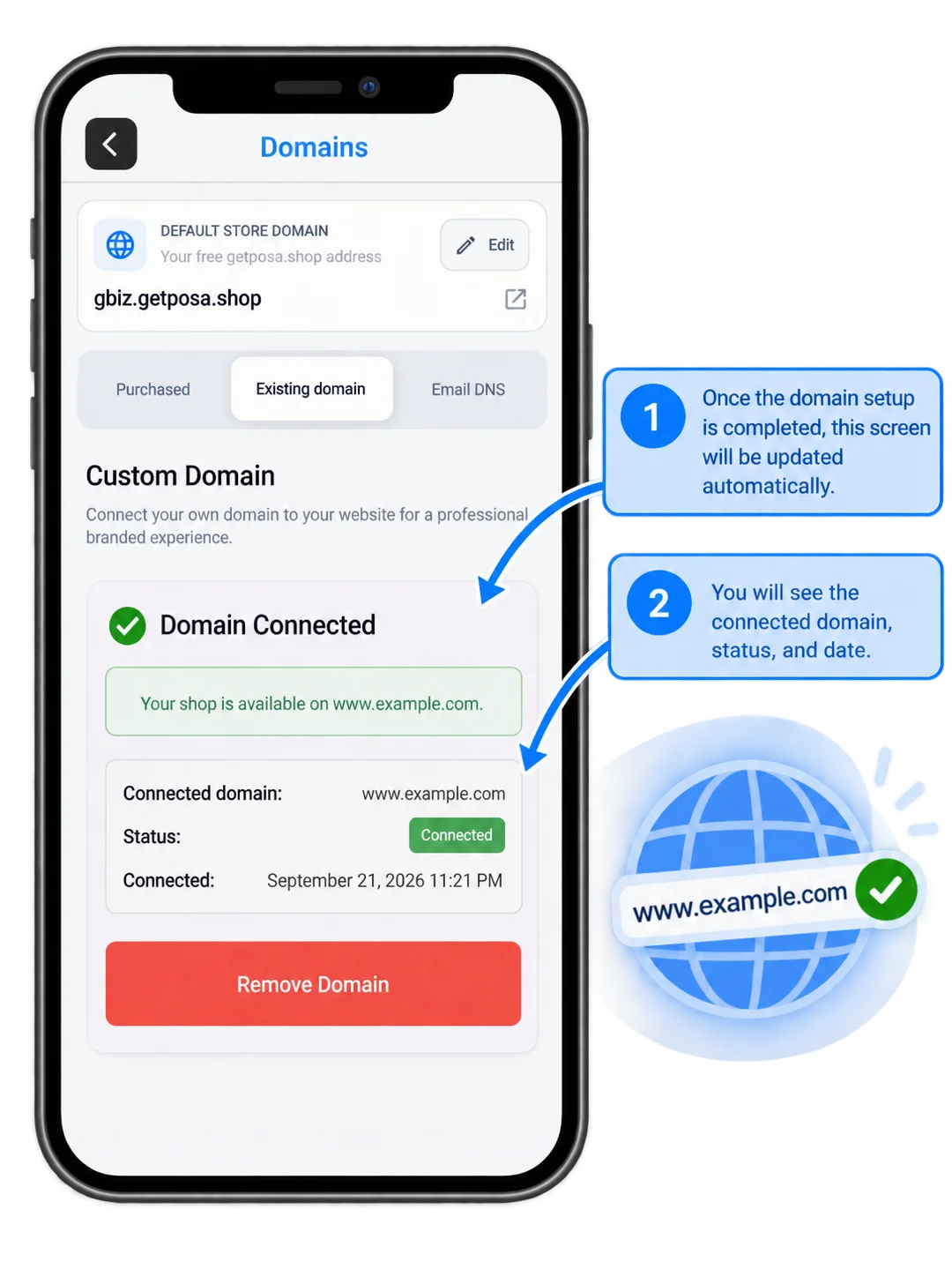
Once the domain setup is complete, Posa automatically updates the Existing domain view to show that your domain is Connected. You will also see the connected domain and connection details on the screen.
Published by Posa Technologies · getposa.com
← More guides