

Use this guide when you already have one business branch on Posa and you want another. In the app, click Add new business. That adds a new branch. You switch between branches from the top bar.
Each paid plan has a maximum number of business branches. You can go above that number if you buy an Extra Business add-on. These limits are as of 17 September 2026, when this article was written.
- Posa Starter — 1 business branch
- Posa Plus — 2 business branches
- Posa Premium — 4 business branches
- Posa Elite — 10 business branches
On Starter you already have your one branch, so you cannot add a second until you upgrade or buy an extra business add-on — see How to upgrade to a higher subscription plan on Posa. Follow the steps below if you still have not maxed out the maximum number of branches alloted to your plan or you purchased an extra business add-on slot. If Posa says you have used up your branches, go to step 9.
1. Click Add new business

In the top bar, click the current branch name — here John Doe Foods. Click + Add new business.
2. Tick what matters for this branch
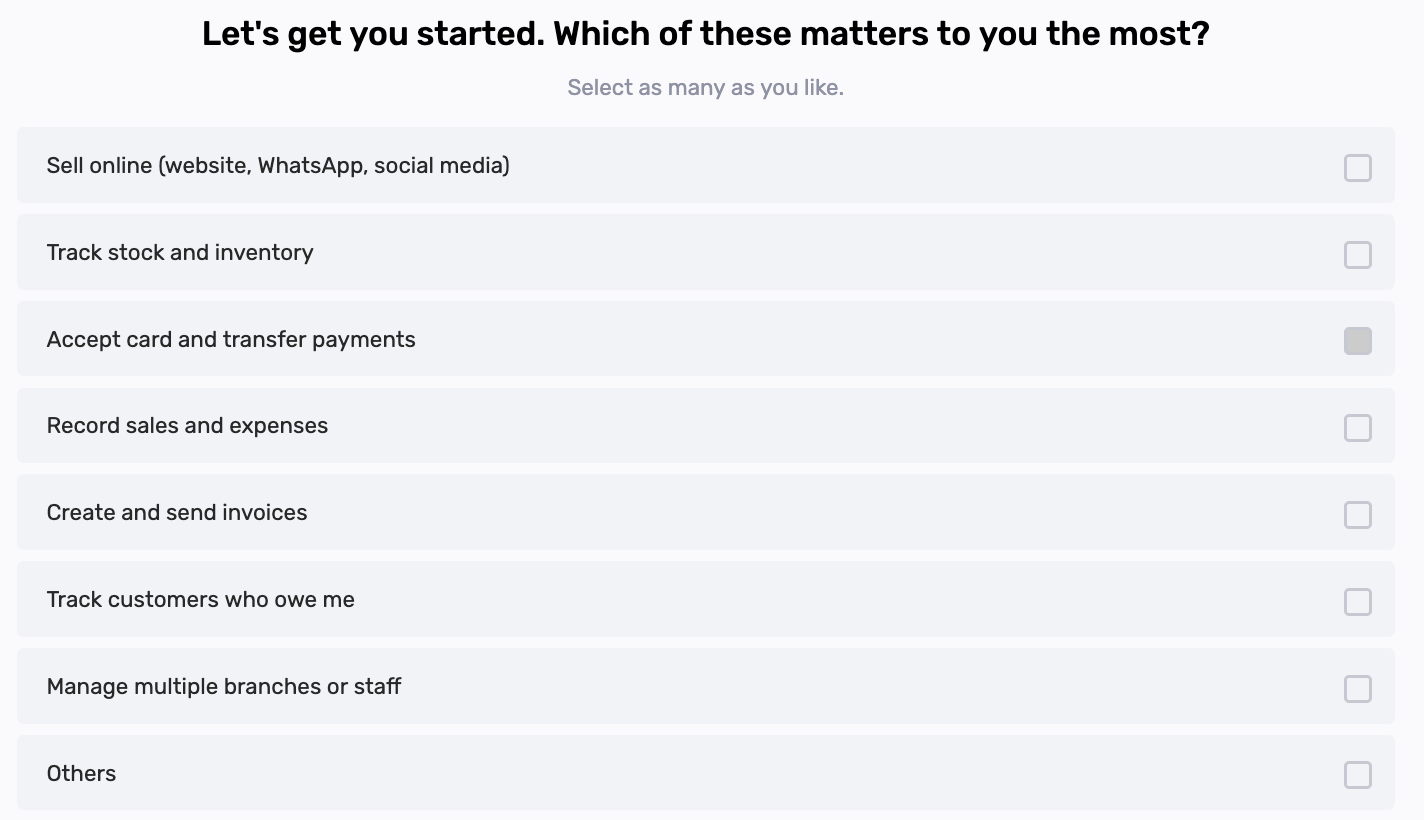
The first screen asks Let’s get you started. Which of these matters to you the most? Tick at least one.
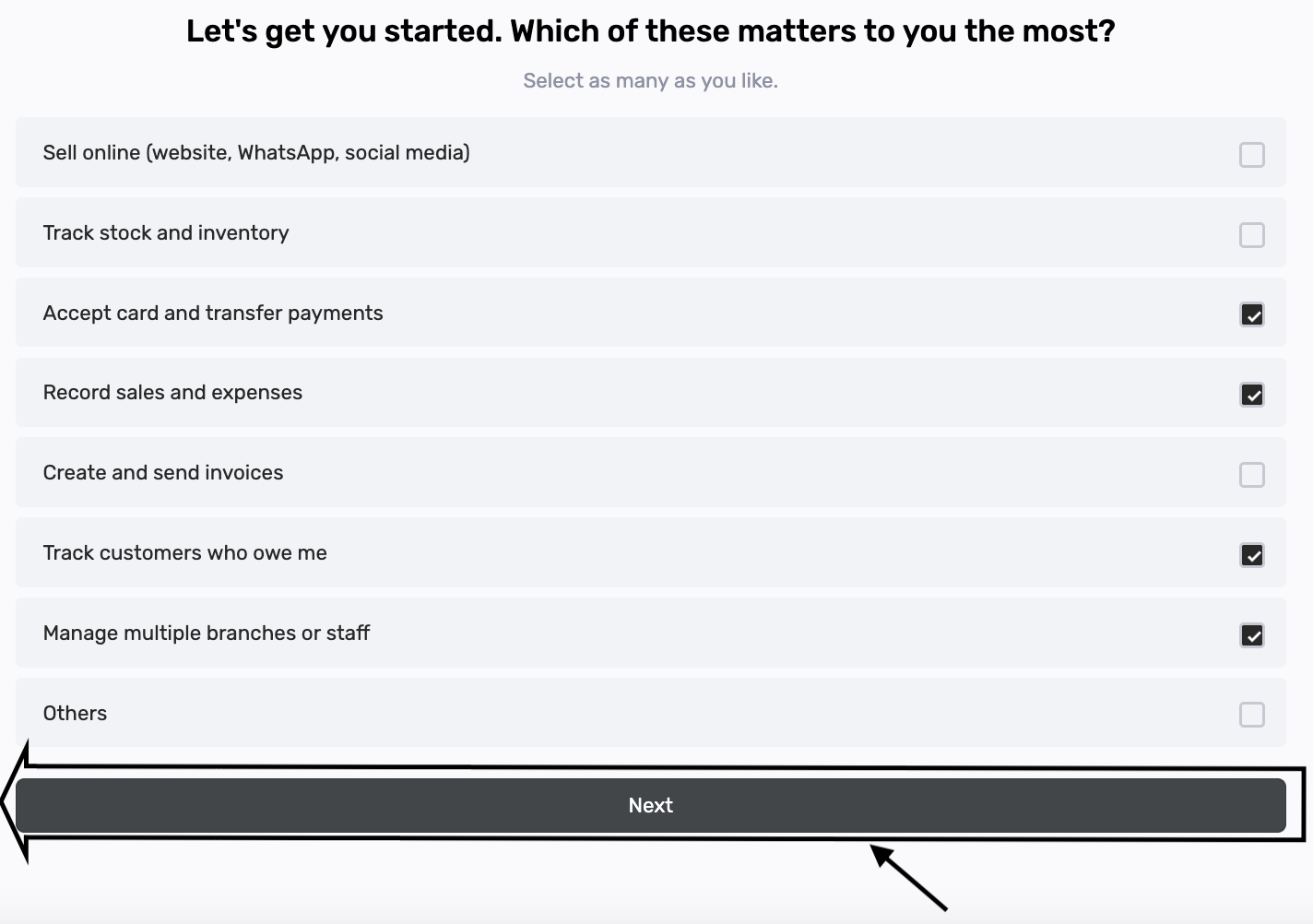
This example ticks Accept card and transfer payments, Record sales and expenses, Track customers who owe me, and Manage multiple branches or staff. Click Next.
3. Choose the industry

Select your industry — here Food and Drink. Click Next.
4. Enter where this branch is
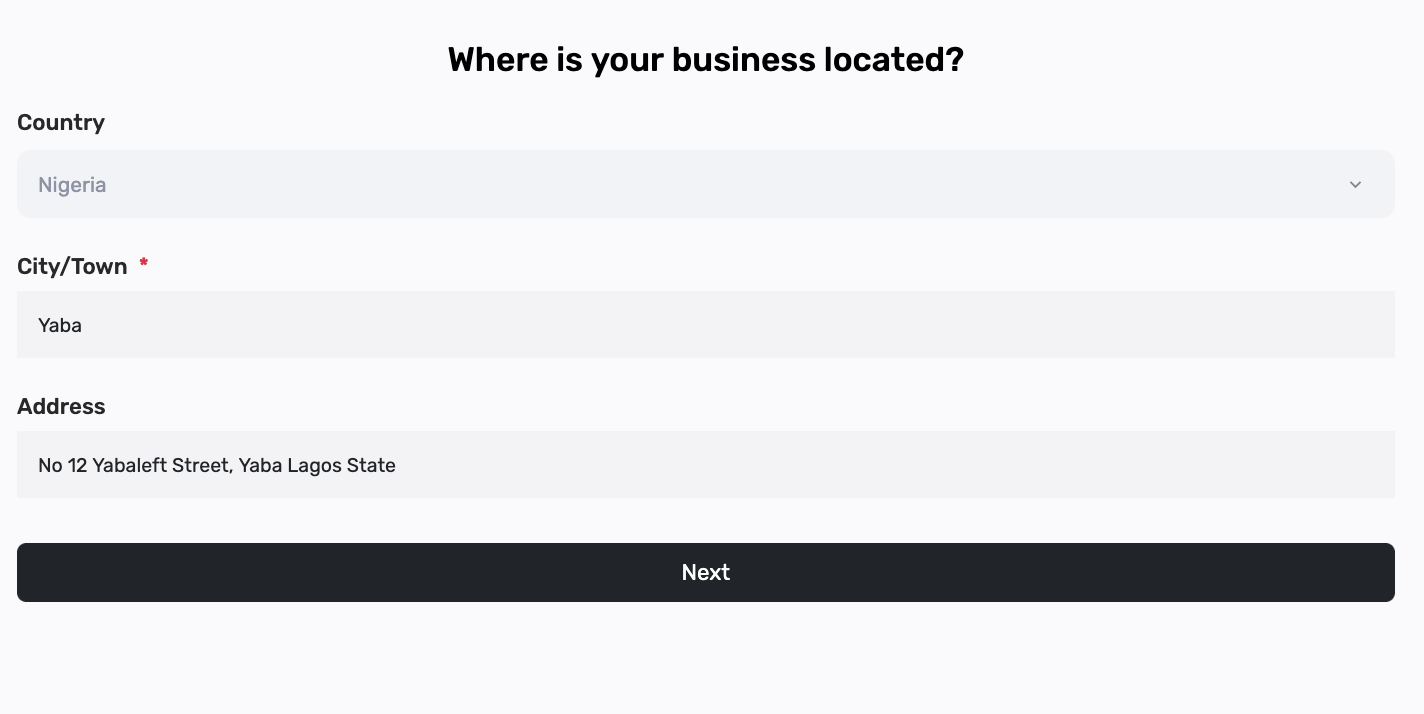
Fill Country and City/Town — here Nigeria and Yaba. Address is optional. This example uses No 12 Yabaleft Street, Yaba Lagos State. Click Next.
5. Name the new branch
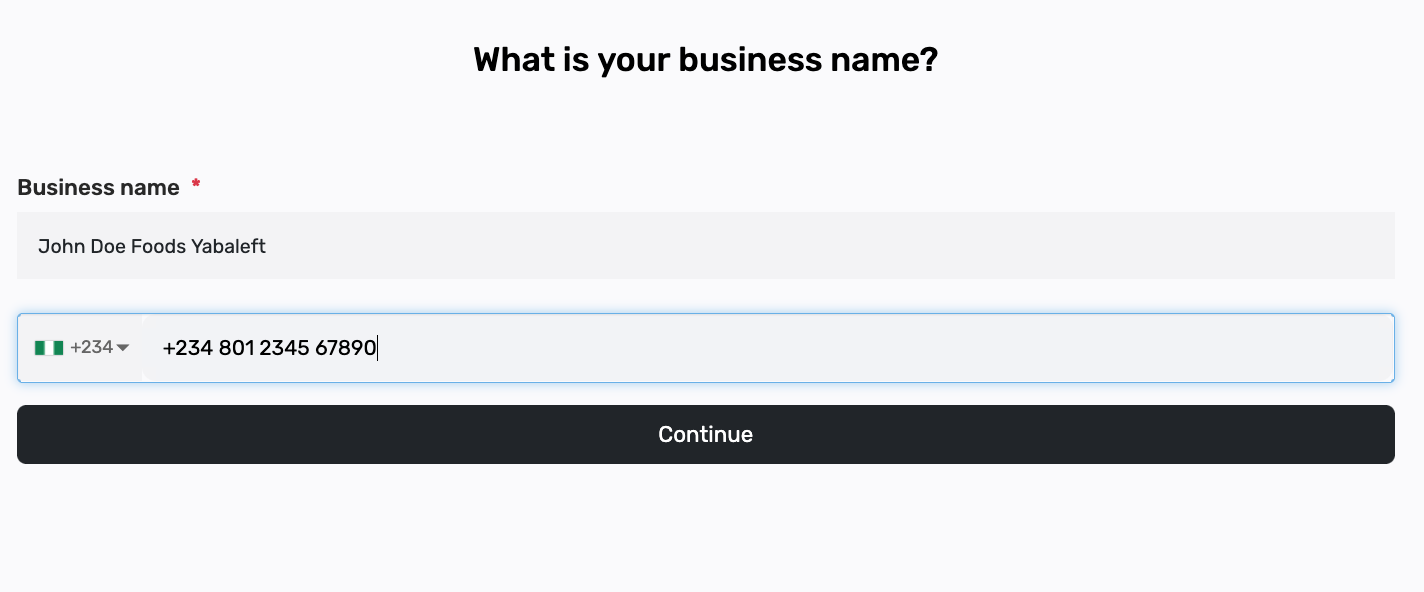
Type a name that is different from your first branch, so you can tell them apart — here John Doe Foods Yabaleft. Add the phone number. The button is now Continue.
6. Click Continue
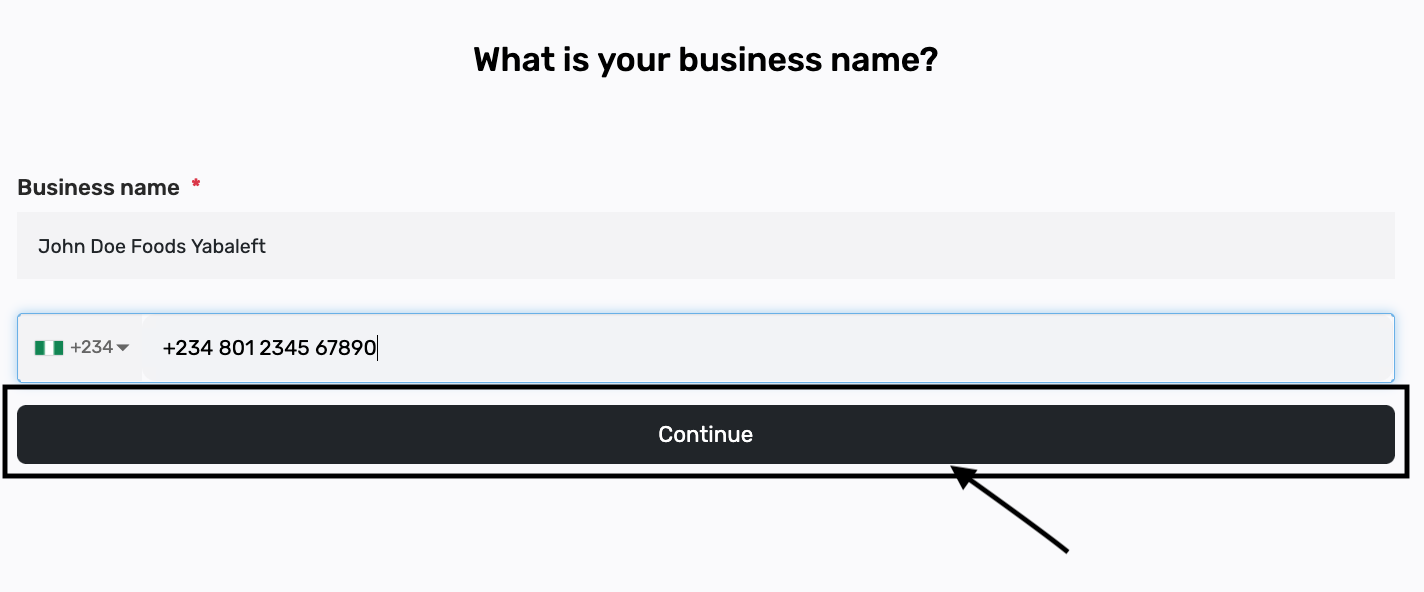
Click Continue. Posa creates the new branch.
7. Confirm it was added

You should see Business onboarded successfully. The top bar shows the new branch — John Doe Foods Yabaleft.
8. Switch between branches

Click the branch name again. You will see both: John Doe Foods and John Doe Foods Yabaleft. Click a name to work in that branch. Sales, stock, and staff belong to the branch you picked.
9. If you have used every branch on your plan

If there is no free branch left, a red bar appears: You have exhausted the number of business than can be added on this plan. Upgrade to a higher plan to add more business. Upgrade Plan opens Subscription.
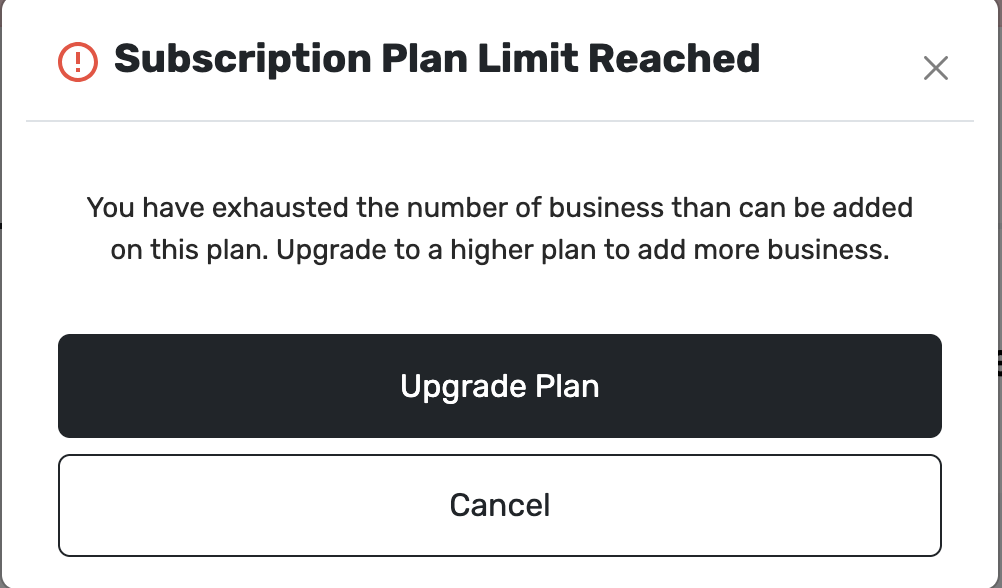
You may also see Subscription Plan Limit Reached, with Upgrade Plan and Cancel. Upgrade Plan opens Plans and Pricing — see How to upgrade to a higher subscription plan on Posa.
You can upgrade to get more branches (Plus has 2, Premium has 4). Or stay on your plan and buy Extra Business add-ons for more branches — see How to purchase Extra Business on Posa.
Published by Posa Technologies · getposa.com
← More guides